 Overview
This guide demonstrates how to extract a specific object from an array using a code step in Keragon. Whether you’re filtering tasks, calendars, or any list of structured items, this solution shows you how to reliably match an item based on a unique ID or name and return it, or null if it’s not found.
 Business Problem Solved
When working with arrays of objects in Keragon (e.g., task lists, users, appointments), you often need to locate a specific object by a known ID or name. We can always use a data mapper but we need to create and maintain the array ourselves. In this solution we just feed the structured list into the code, provide the key we are looking for and the code takes care of the rest.
Requirements
Integrations needed: None required unless you’re pulling dynamic arrays from other tools like ClickUp, Healthie, etc.
Estimated setup time: 10 minutes
Technical skill level: Intermediate
 Setup Instructions
1. Setting Up the Code Step 1:22
- Select the data helpers and choose the code step.
- Copy and paste the provided code into the code step.
.item_id as $targetId
| .array as $items
| if ($items // null) == null or ($items | type) != "array" then
    null
  else
    ($items | map(select(.id == $targetId)) | if length > 0 then .[0] else null end)
end
2. Passing Parameters 1:34
- You need to pass the following parameters:
- Item ID: The ID of the object you want to find in the array.
- Array: The list of items you will search through.
3. Configuring the Array 2:21
- Change the parameter type from string to array.
- Use a custom expression to pass the entire array instead of creating it manually.
4. Selecting the Object to Search 3:00
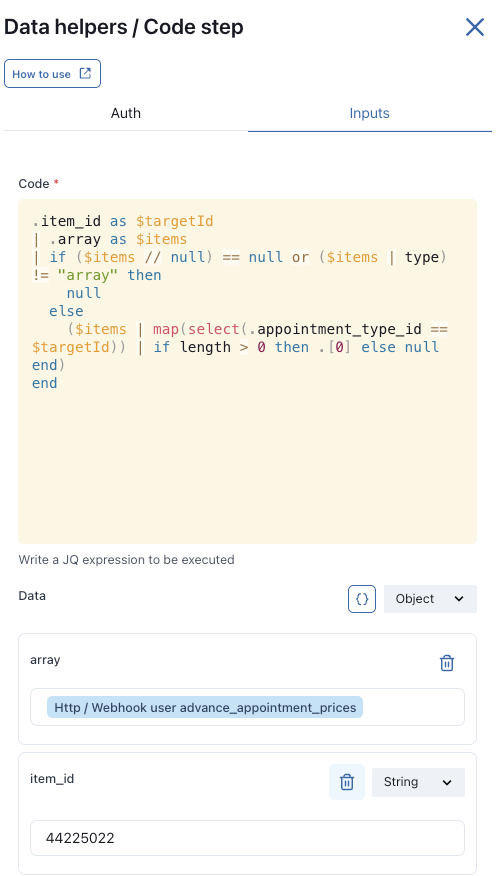
- Choose the specific object you are interested in (e.g., advanced appointment prices for a user).
- The code will filter the object based on the provided ID.
5. Testing the Code 3:35
- Create a new item ID parameter (e.g., 392022).
- Save and test the code to see if it returns the correct object.
6. Understanding the Output 4:10
- The code checks each ID in the array one by one.
- If a match is found, it returns the corresponding object.
7. Modifying the Search Criteria 4:44
- You can change the search criteria by modifying the code (e.g., searching by appointment type ID).
- Update the ID value accordingly and test the code again.
8. Handling Non-Existent IDs 5:49
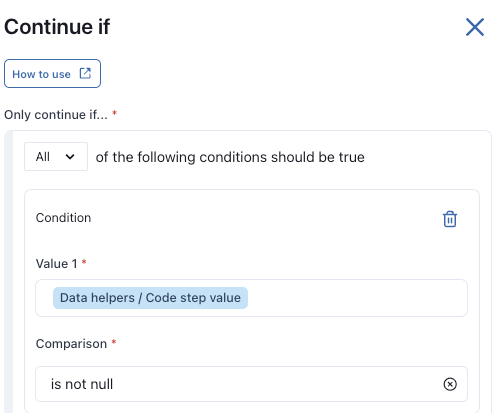
- If an item ID does not exist, the code will return null.
- You can add a condition to proceed only if the output is not null.
 Results & Benefits
Lets you safely and efficiently retrieve exactly the data you need from a list.
Easily adaptable for different use cases: tasks, form entries, API responses, etc.