Logo
Help Center
  1. Keragon
  2. Building workflows
  3. Data formating

Capitalize All Text Using Text Helper

Updated October 08, 2025 12:49

Go to app.keragon.com

1. Add new step
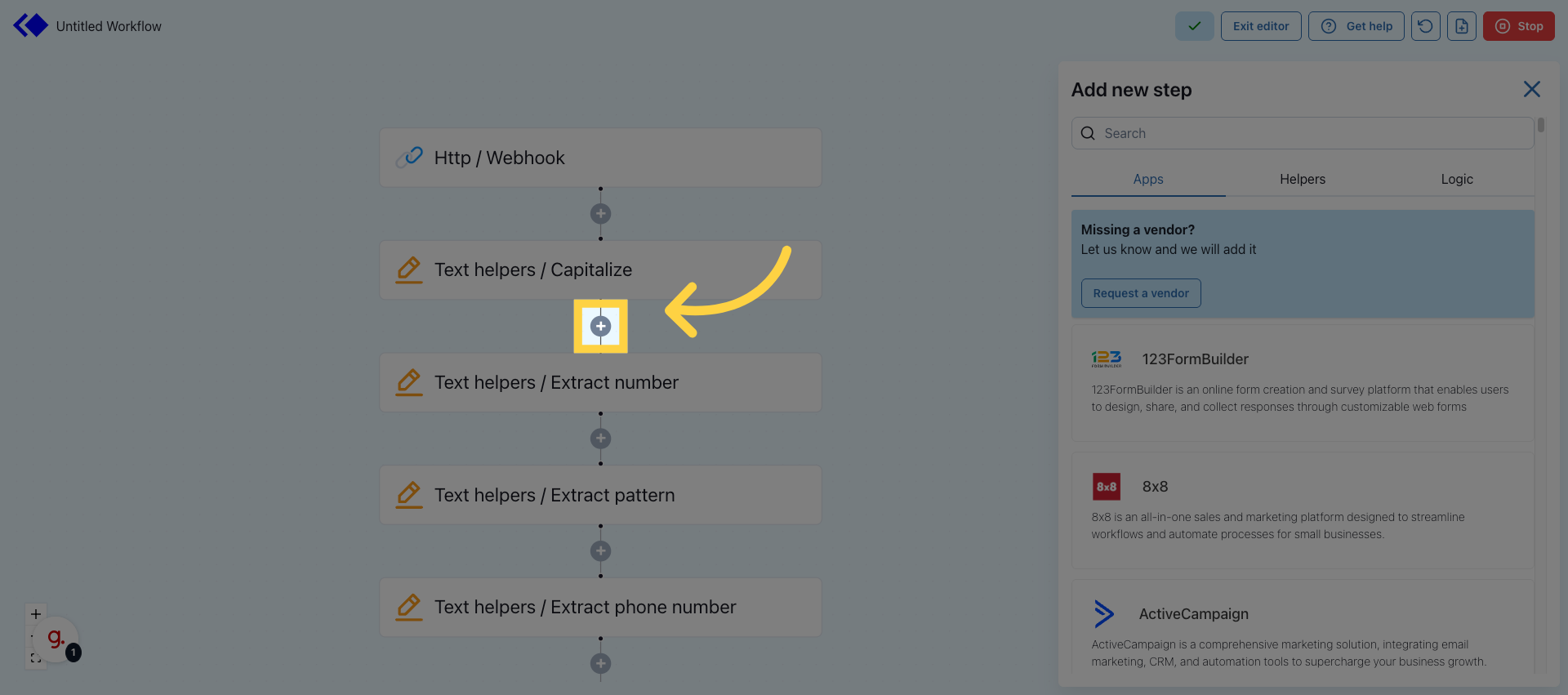
Add new step 

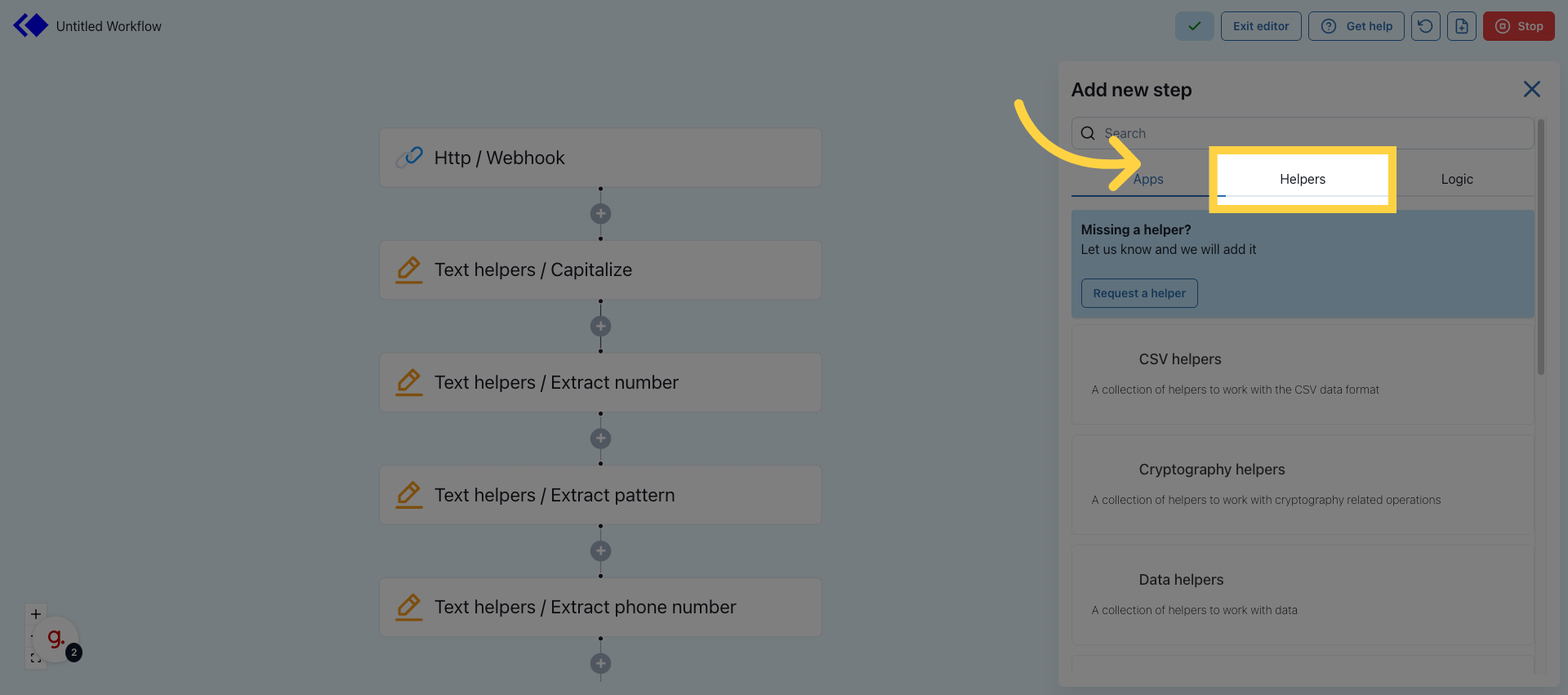
2. Go to Helpers tab

Go to Helpers tab 

3. Choose Text Helpers
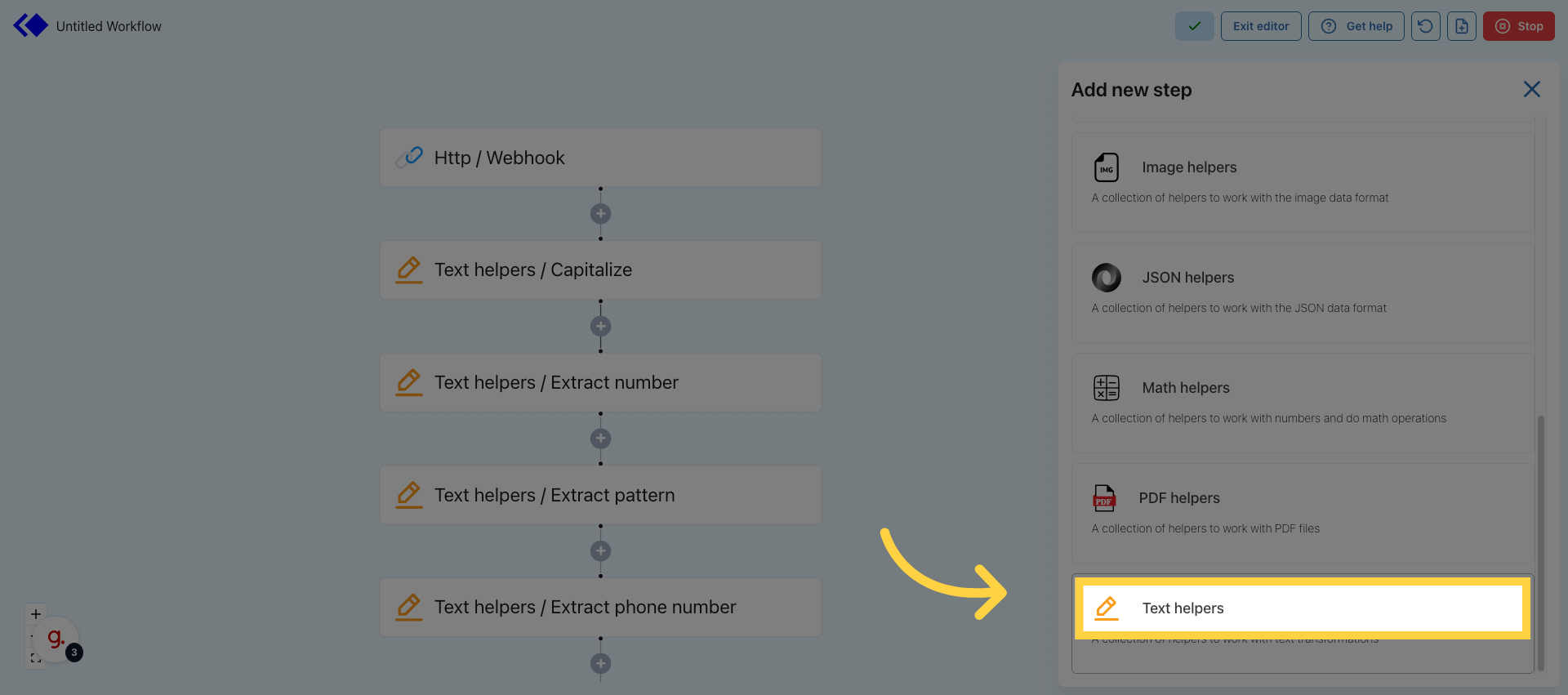
Choose Text Helpers 

4. Select Capitalize All Helper
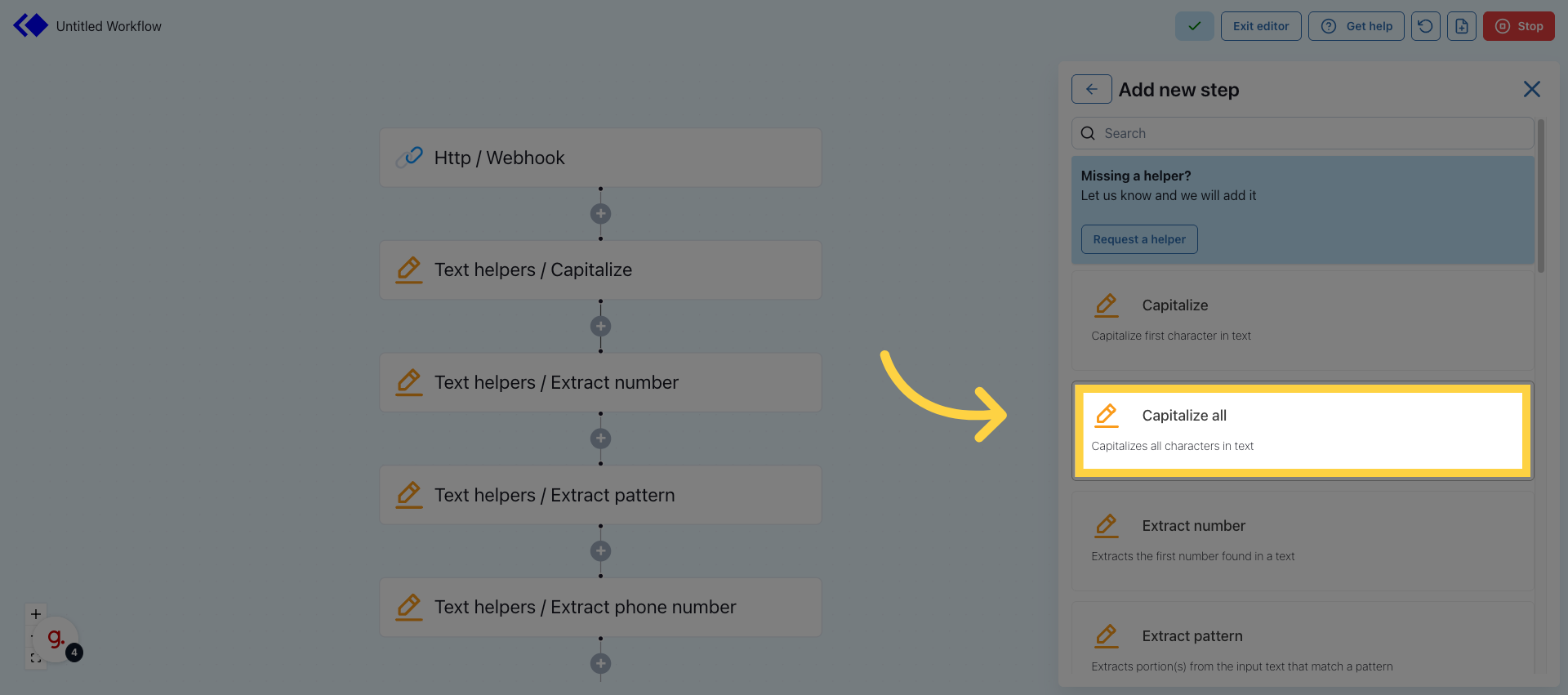
Select Capitalize All Helper 

5. Map or enter any text input
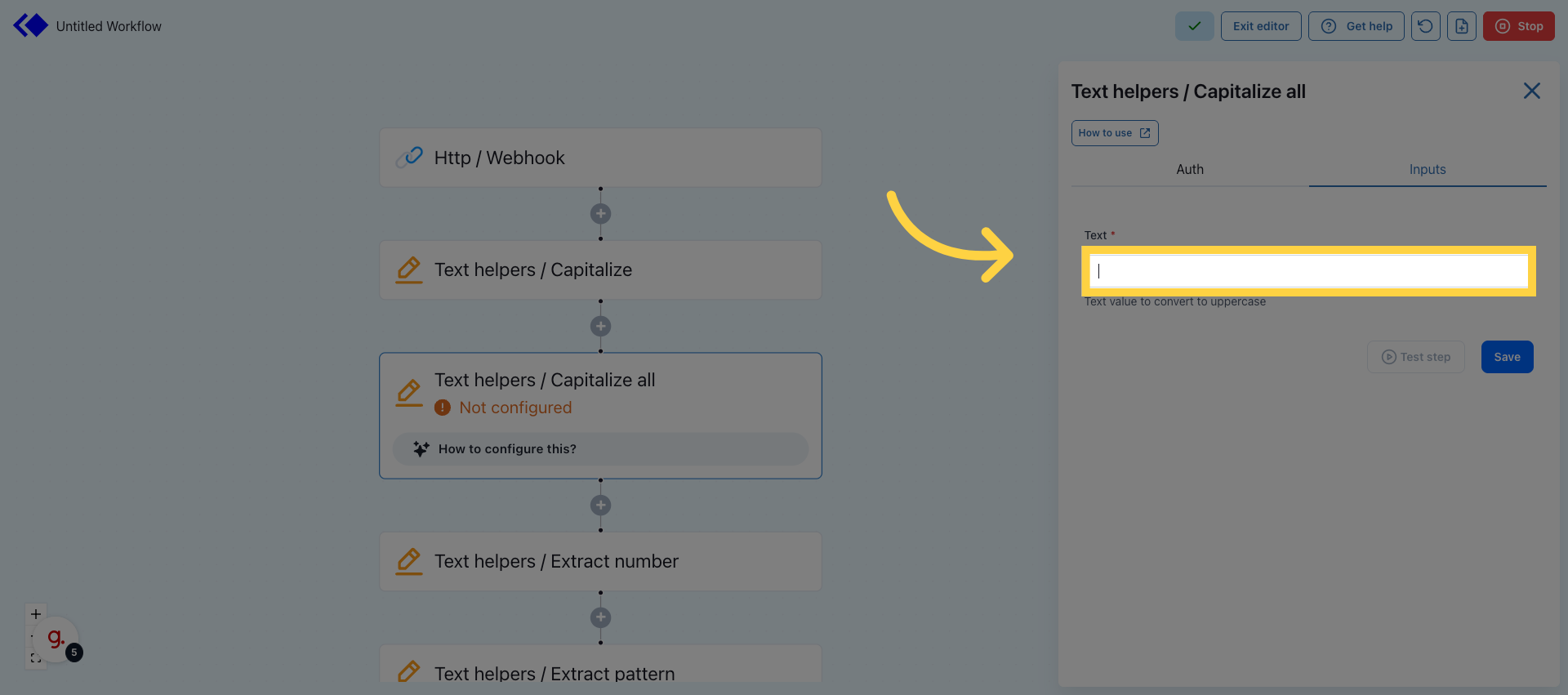
Map or enter any text input 

6. Click Save
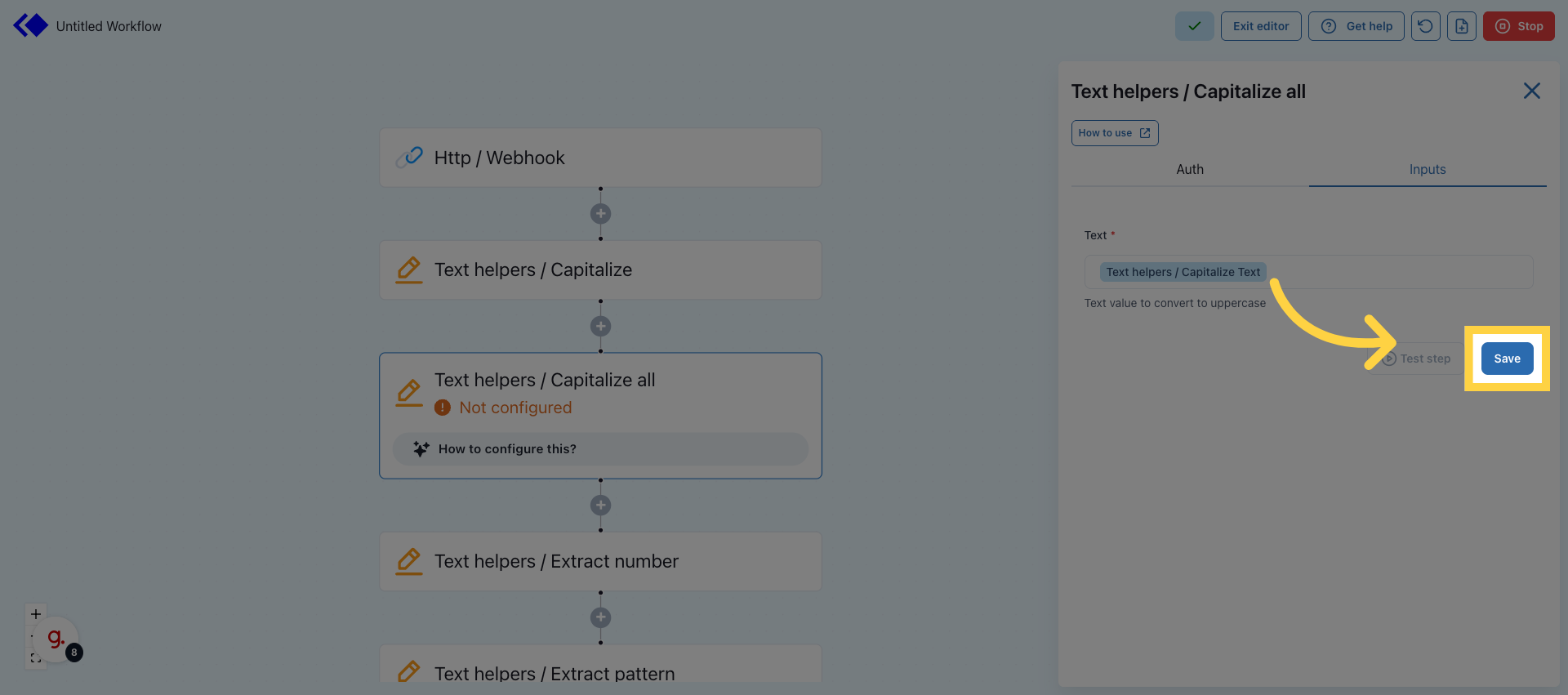
Click Save 

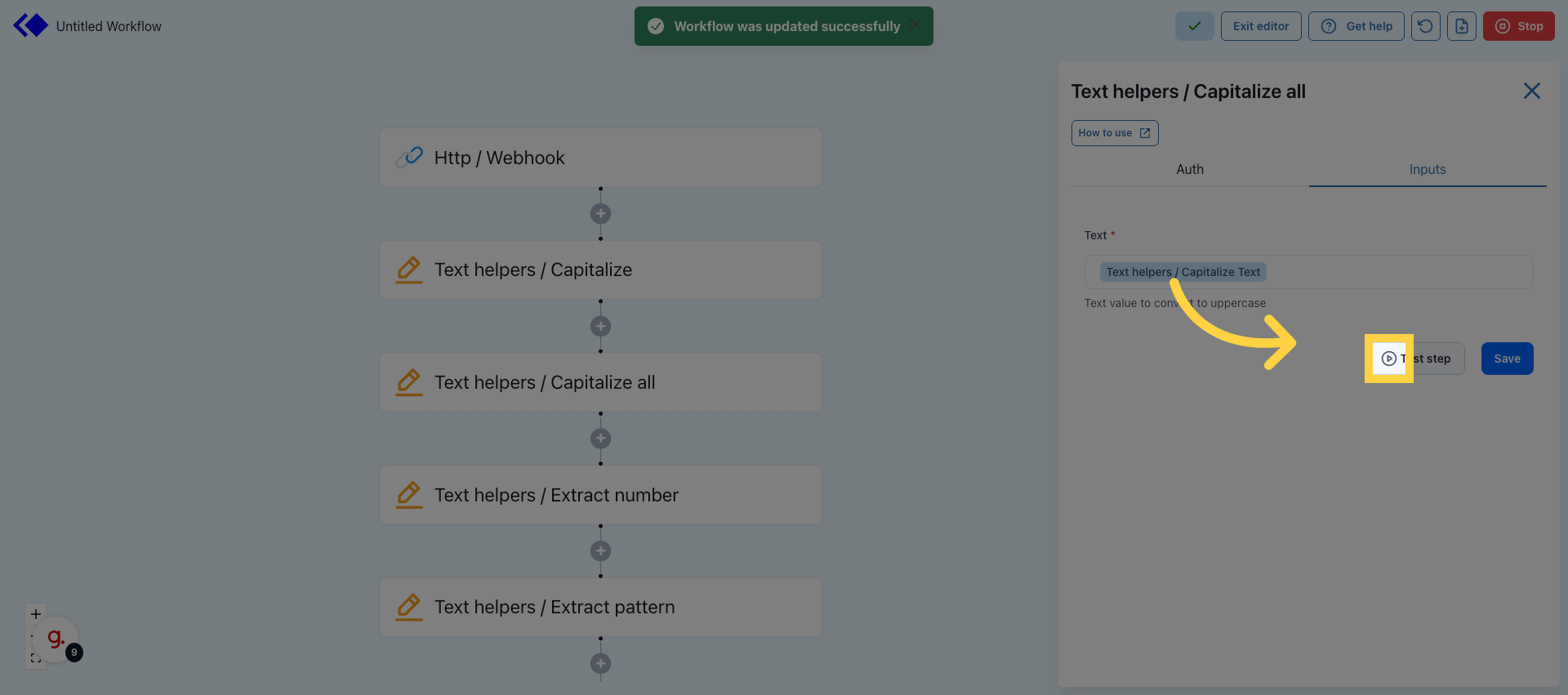
7. Test the step

Test the step 

8. Open Outputs Section
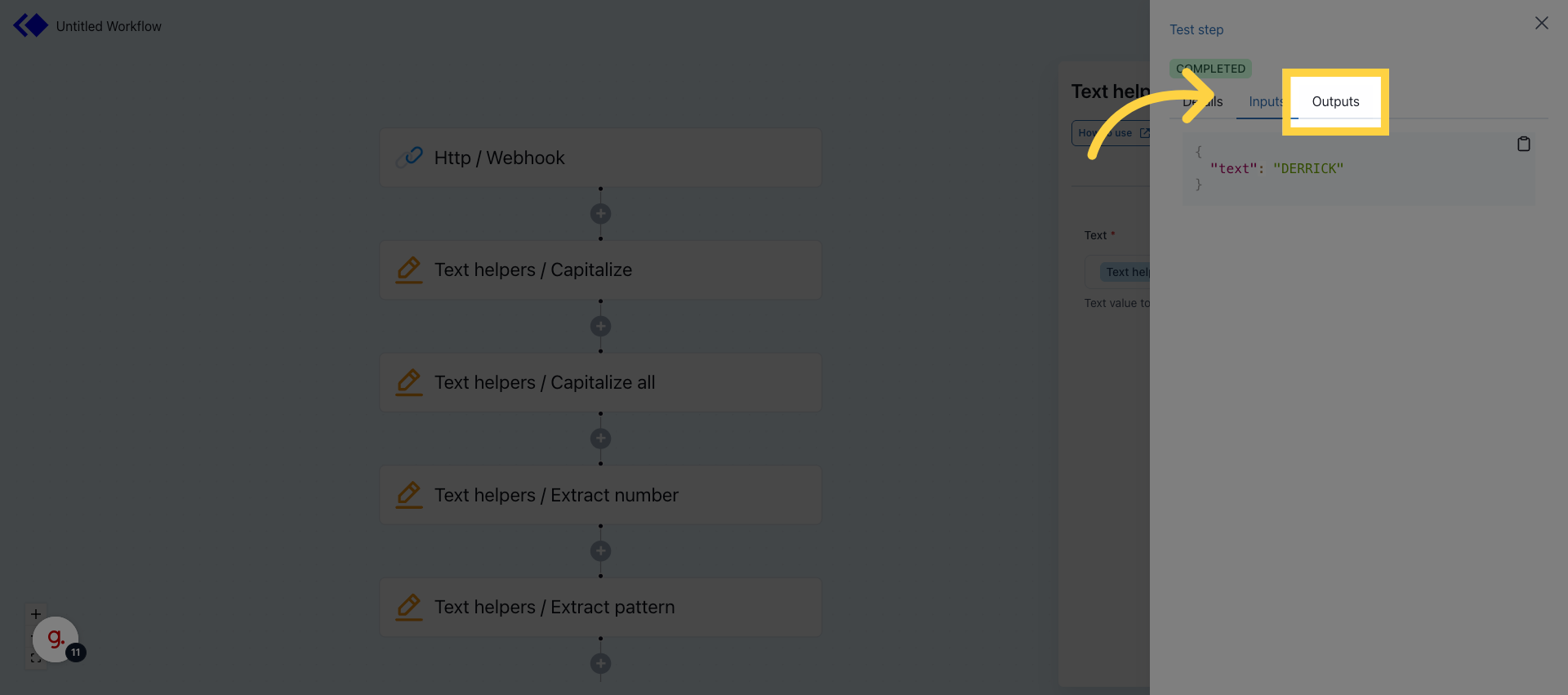
Open Outputs Section

Was this article helpful?
0 out of 0 found this helpful

Articles in this section

  • Finding Specific Objects in an Array using a Key and a Code step
  • Convert All Text to Lowercase Using "Lowercase all" Text Helper
  • Capitalize All Text Using Text Helper
  • Introduction to Data Formatting in Workflows
  • Use the AI copilot for formatting suggestions
  • Capitalize the First Character of a Text Using the "Capitalize" Text Helper
  • How to Compare Dates Using the "Compare Datetimes" Helper
  • Transform Datetimes to Relative Time Using the "Transform to Relative Time" Helper
  • Get the Current Datetime Using the "Get Current Date" Helper
  • Add or Subtract Time from a Date Using the "Add or Subtract Datetimes" Date Helper
See more

© Keragon 2026

LinkedIn
#
/hc/theming_assets/01HZKSVGQC73CJS4GPBHEXF11Y
FAQ
Questions about Lotus Themes products and services
custom
#
/hc/theming_assets/01HZKSVH2MATX2QRQ6NA7XM9AE
Guides
Instructions related to themes installation and usage
community
/hc/en-us/community/topics
/hc/theming_assets/01HZKSVH6Y76PWCT0WFYYDKSZJ
Community
Join discussions with other users
new_request
/hc/en-us/requests/new
/hc/theming_assets/01HZKSVHBMPJHEFZE4CTZWNED4
Submit a request
Contact us through a specially prepared form
installation, branding, customization