This guide shows you how to set up a webhook in Kintone.
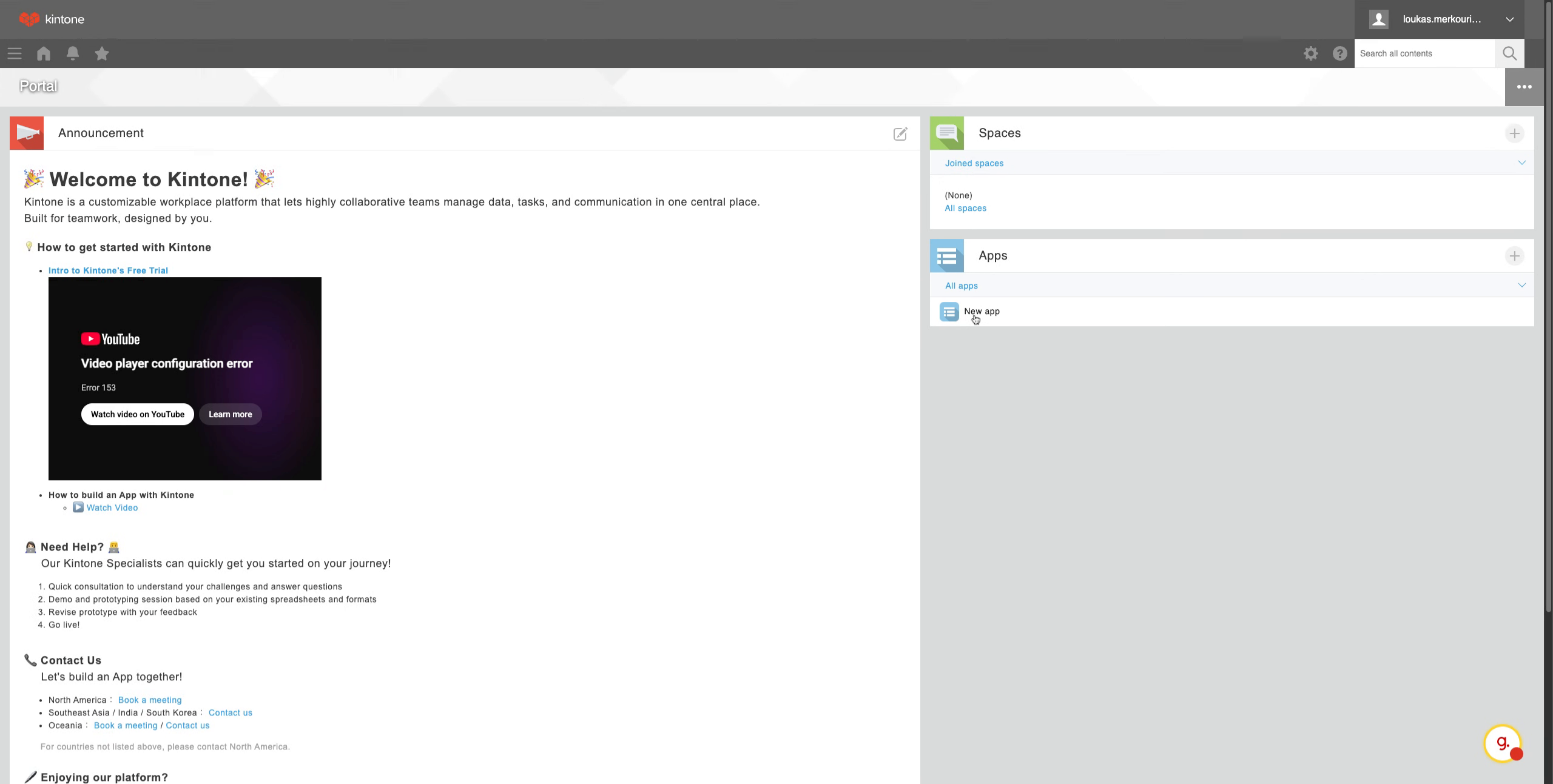
1. Select Your App
In Kintone dashboard, select your app, from the right menu under Apps.
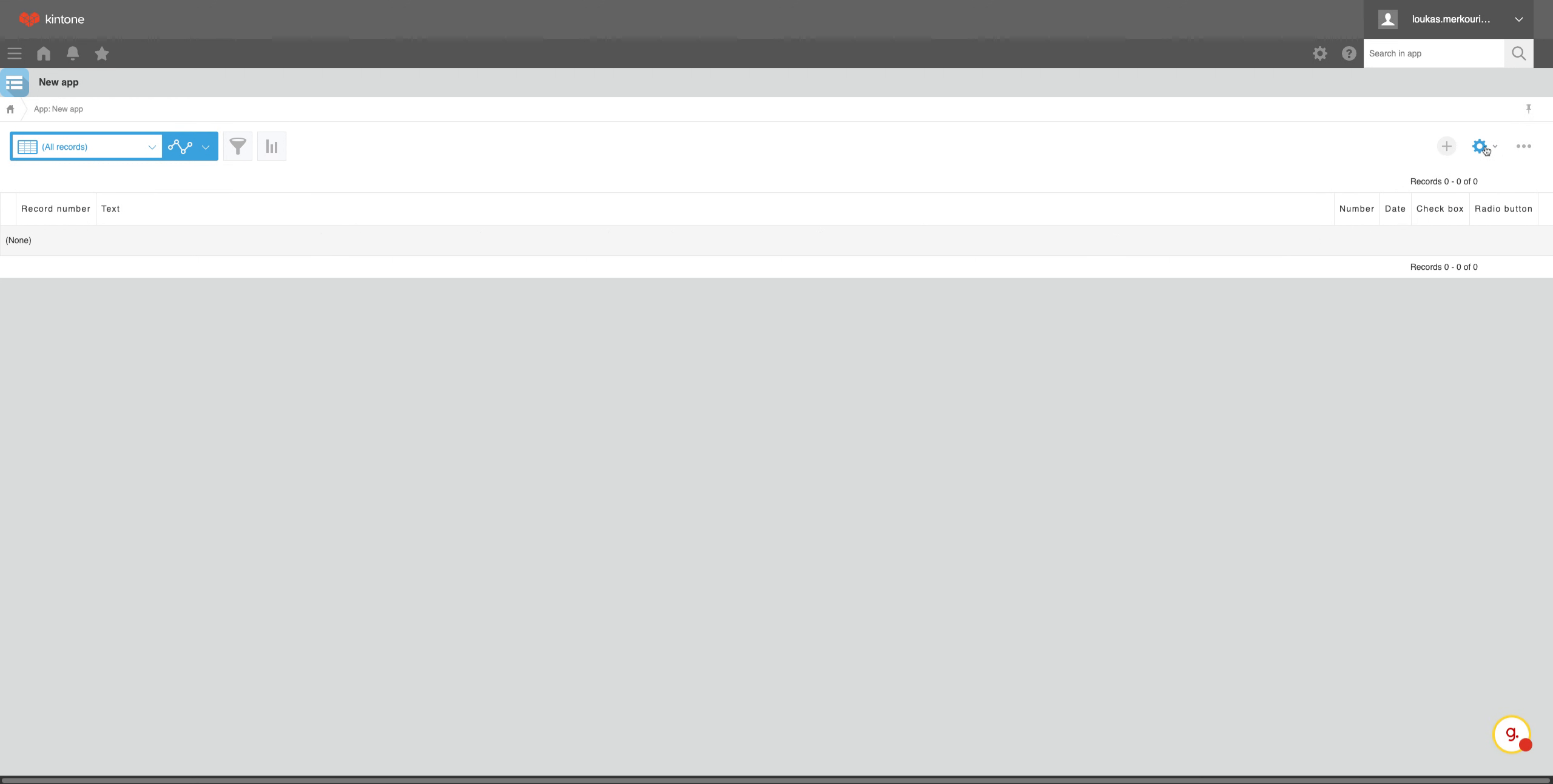
2. Access App Settings
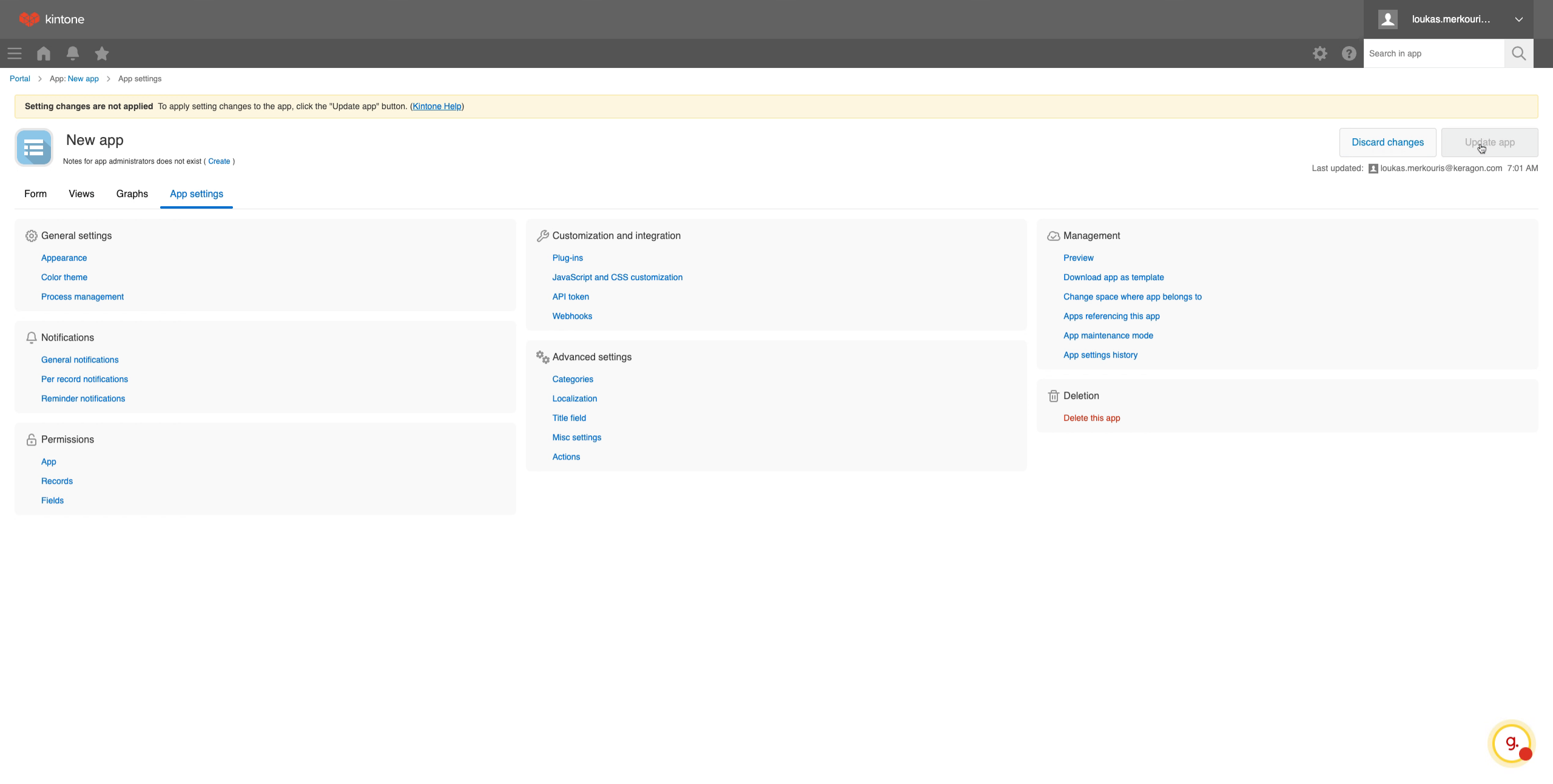
Go to settings. Go to app settings.
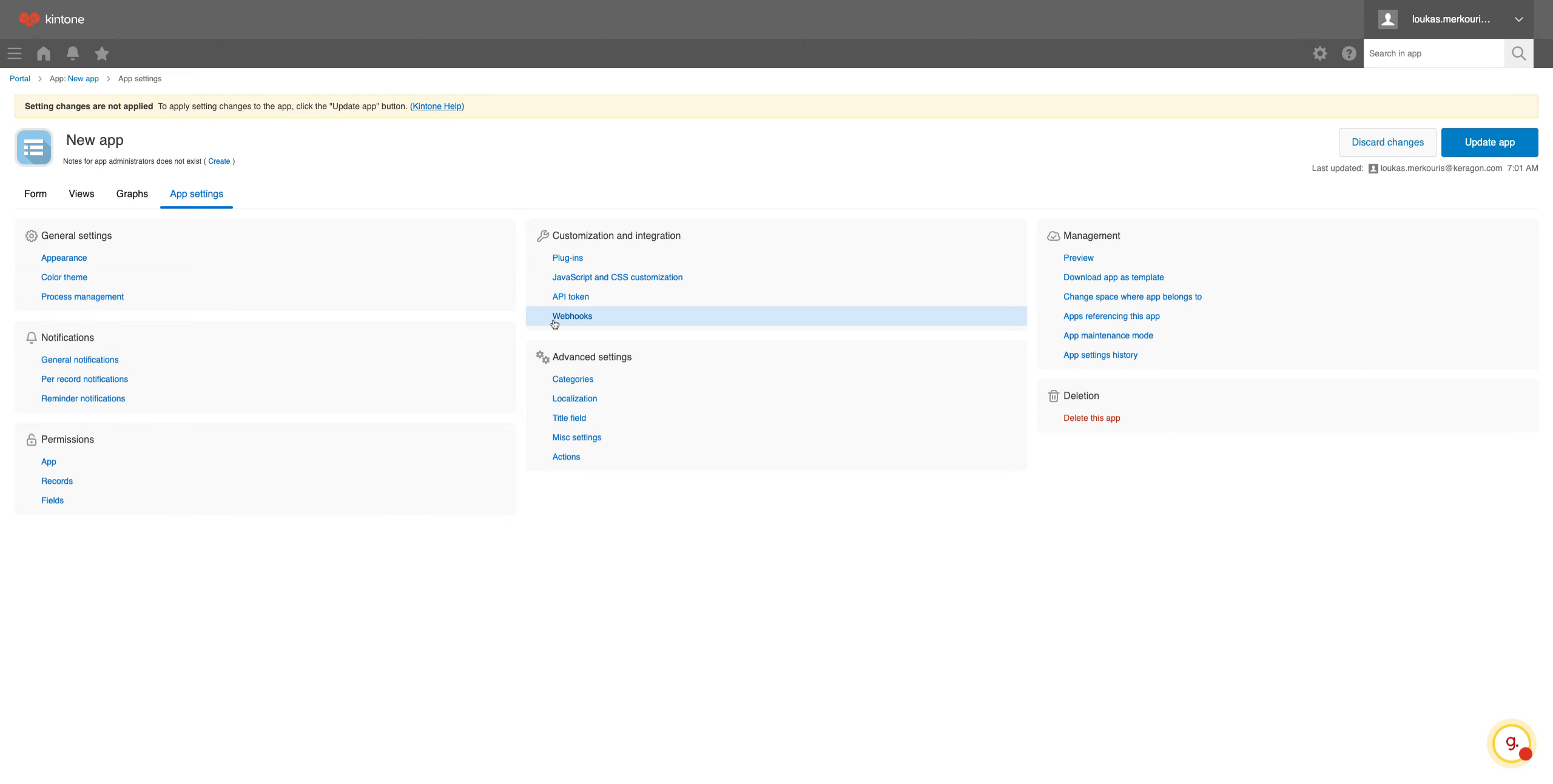
3. Open Webhook Settings
Select webhooks. Click add webhook.
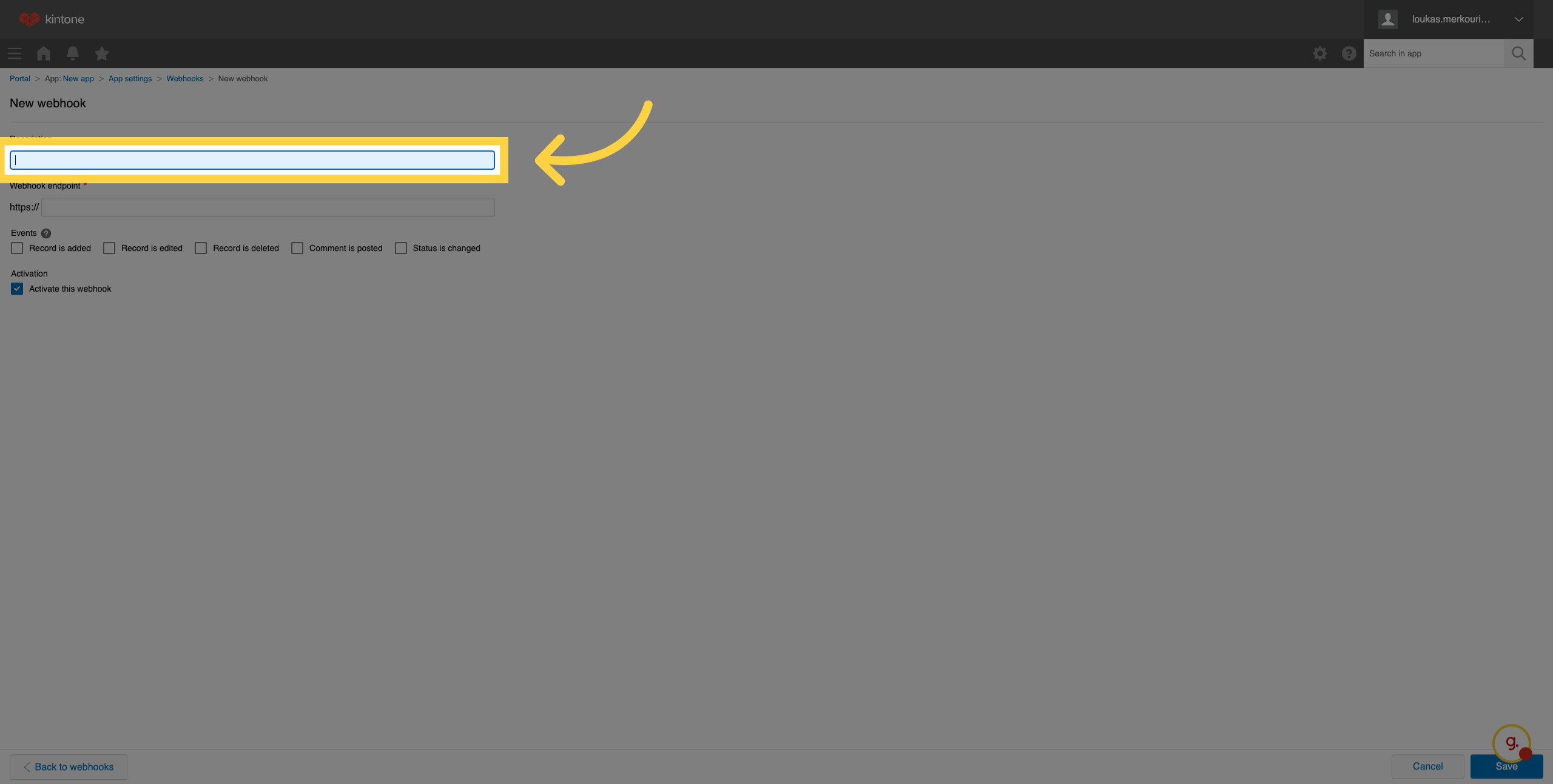
4. Click Description Field
Click the Description field to enter details about your webhook.
5. Click Webhook Endpoint Field
Click the Webhook endpoint field and add the webhook url keragon platform produced.
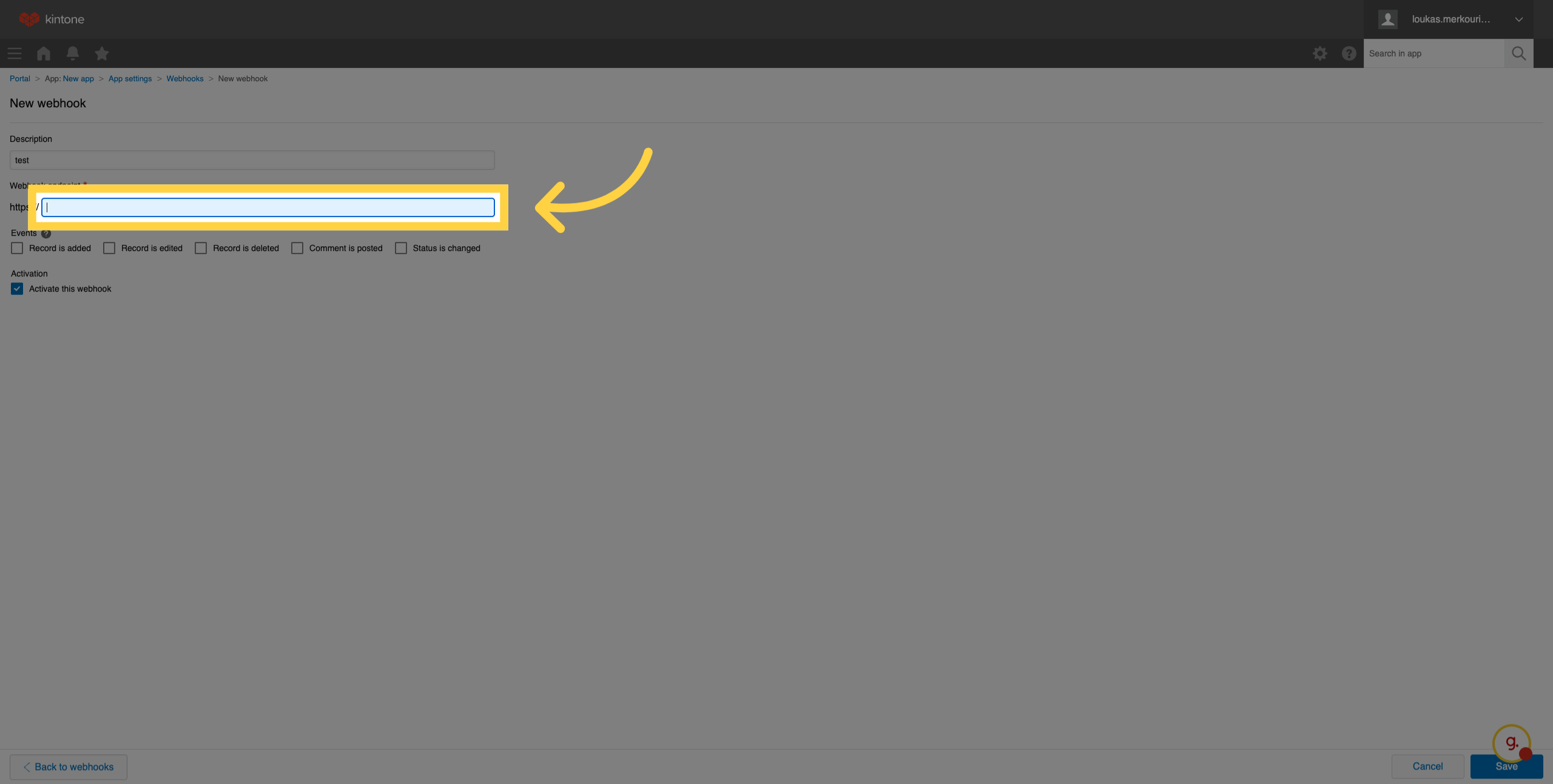
6. Configure Webhook URL and Events
Make sure to remove the https:// because Kintone already provides this for us. Select what events you want the webhook to fire upon click.
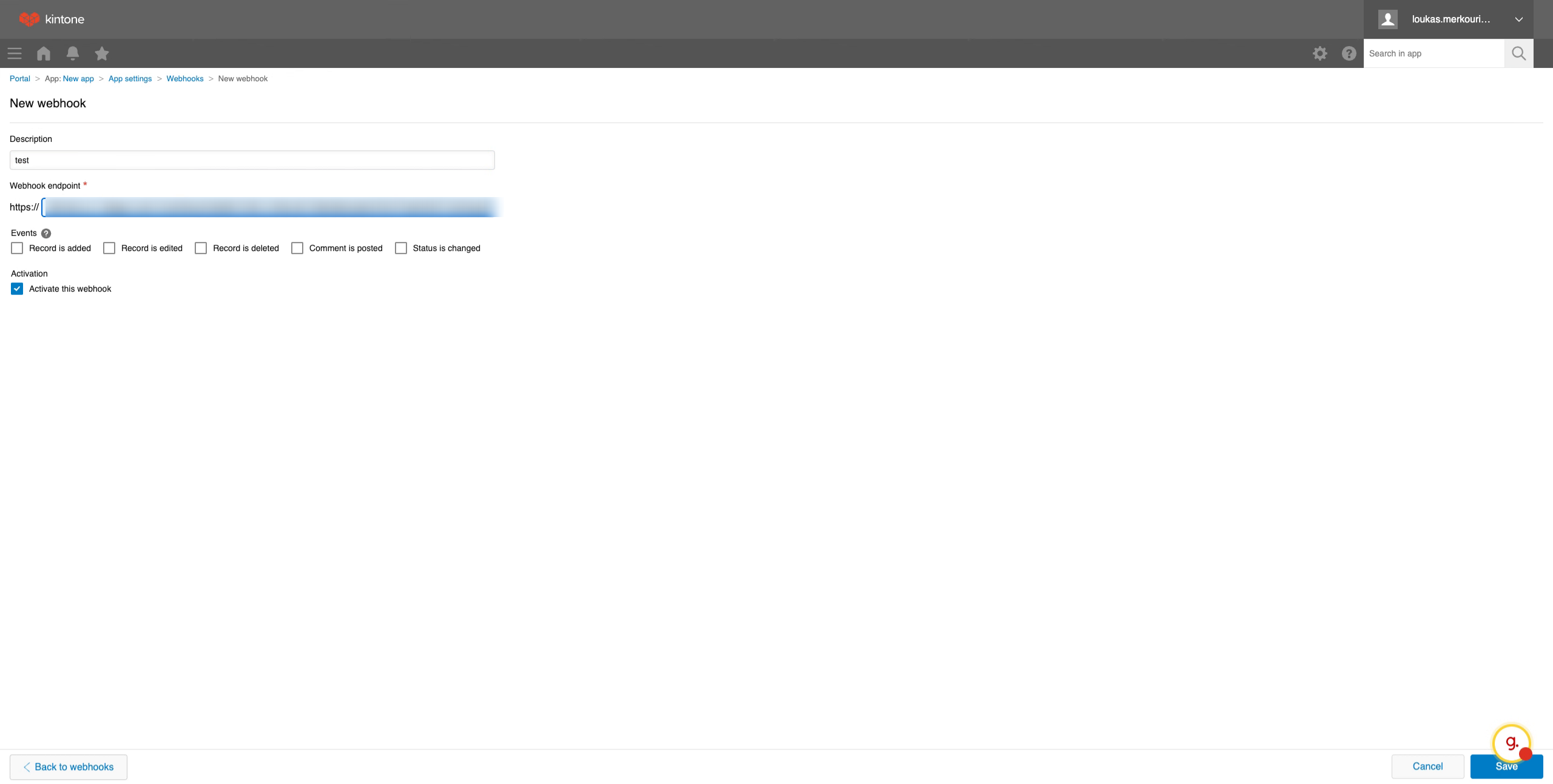
7. Save Your Webhook
Save your webhook configuration to apply the changes.
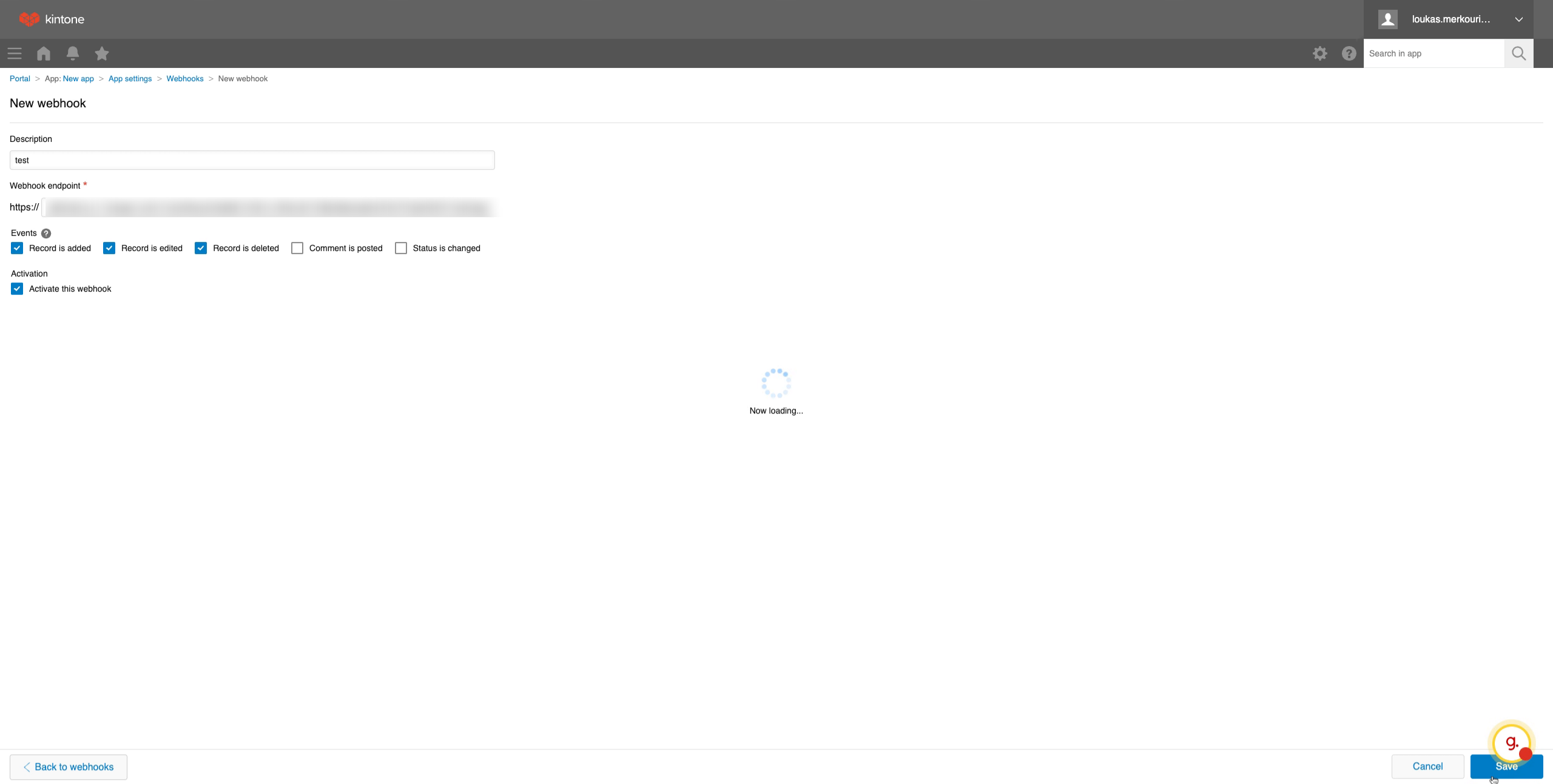
8. Return to App Settings
Webhook is ready. Next, go to app settings.
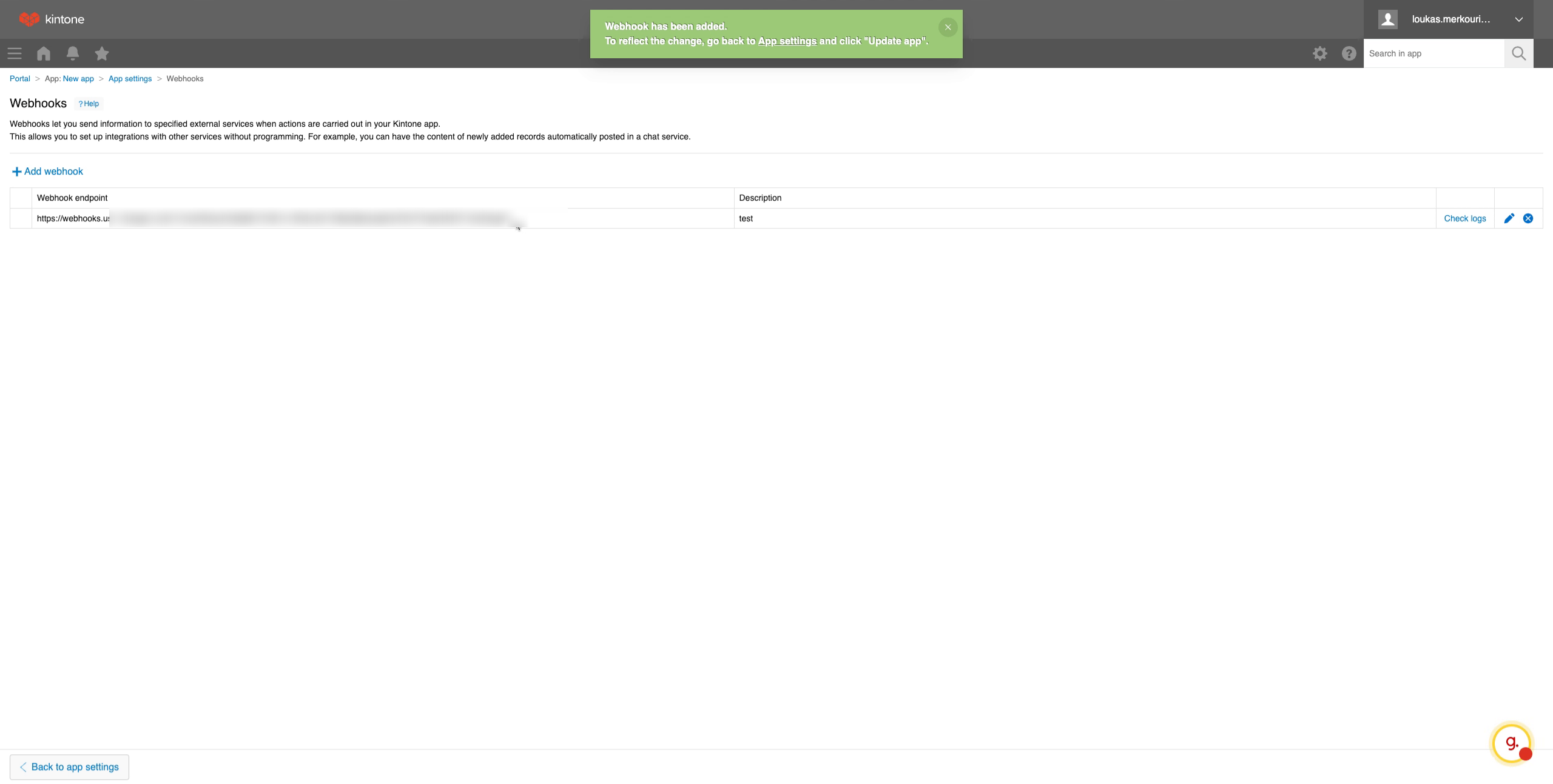
9. Confirm and Update Settings
Click update Update app, and your webhook is ready to receive events.
This tutorial guides you through setting up a webhook in Kintone, including selecting your app, configuring webhook details, and saving your settings to activate the webhook.