This article explains how to connect your Feathery account with the Keragon dashboard to enable seamless integration.
Go to app.feathery.io
1. Introduction
You will learn how to authenticate, configure settings, and link your forms for efficient management.
2. Access Email Login
Click the Email option to begin the login process in Feathery.
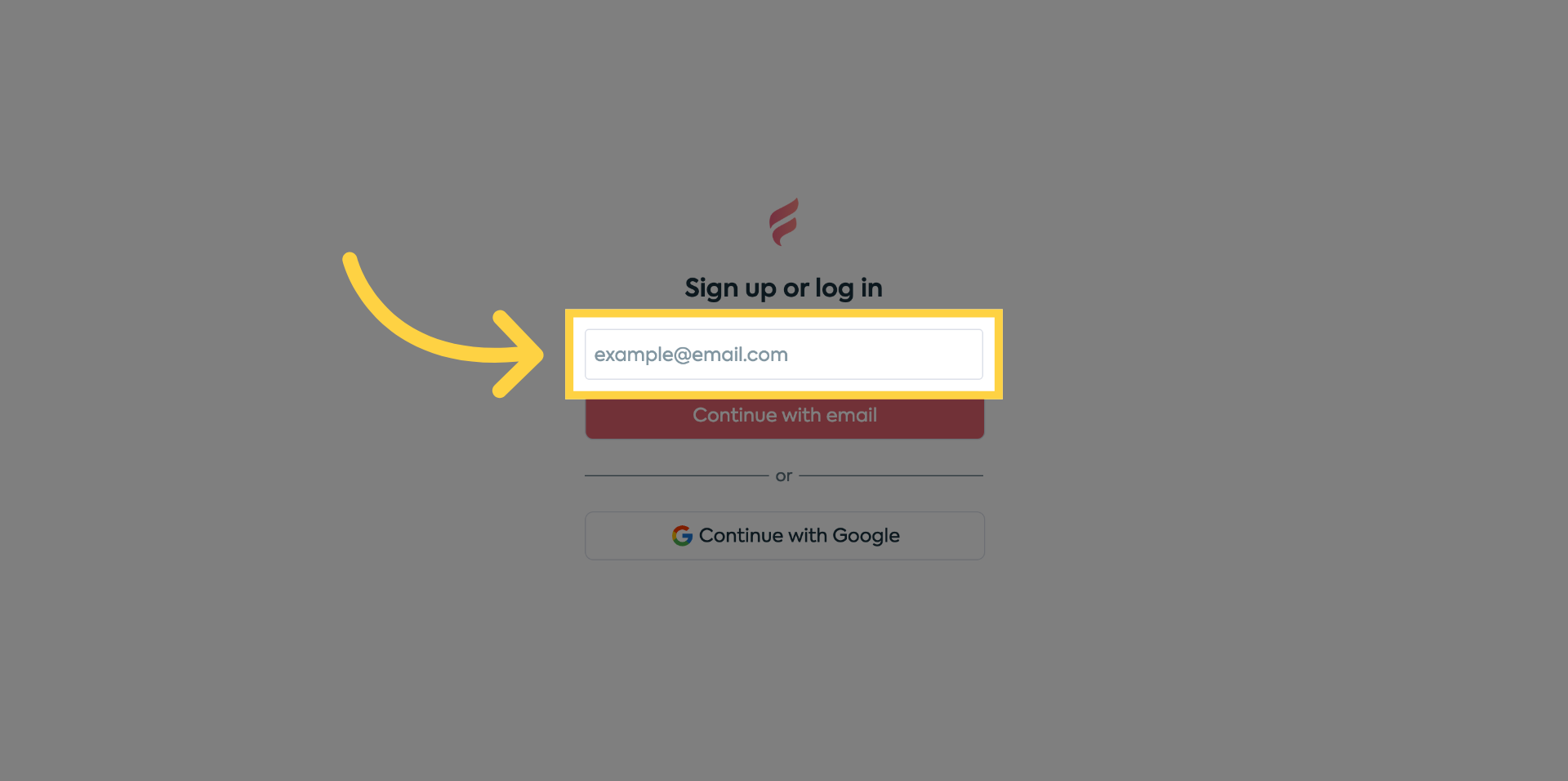
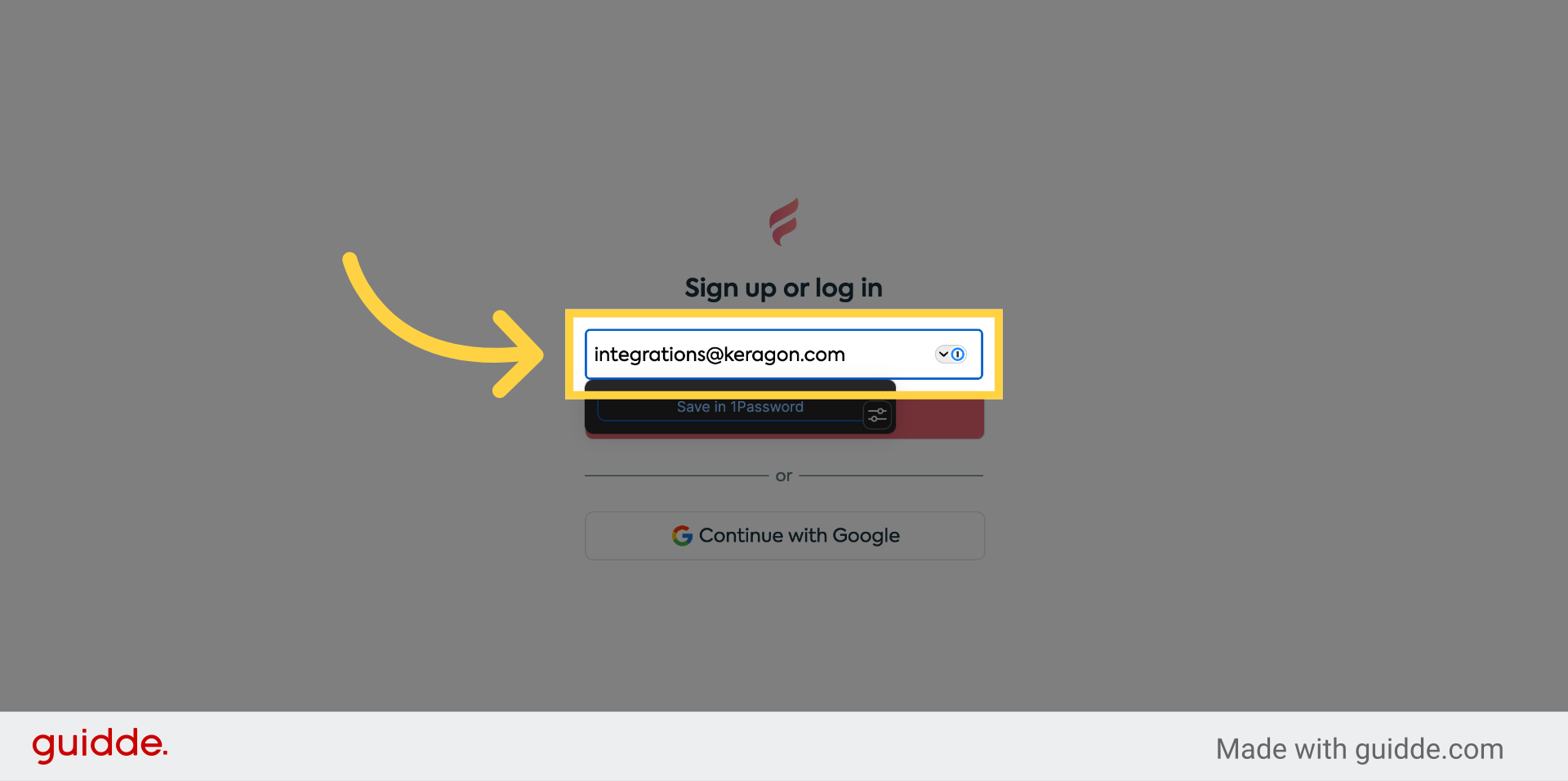
3. Enter Email Address
Enter your email address to proceed with authentication.
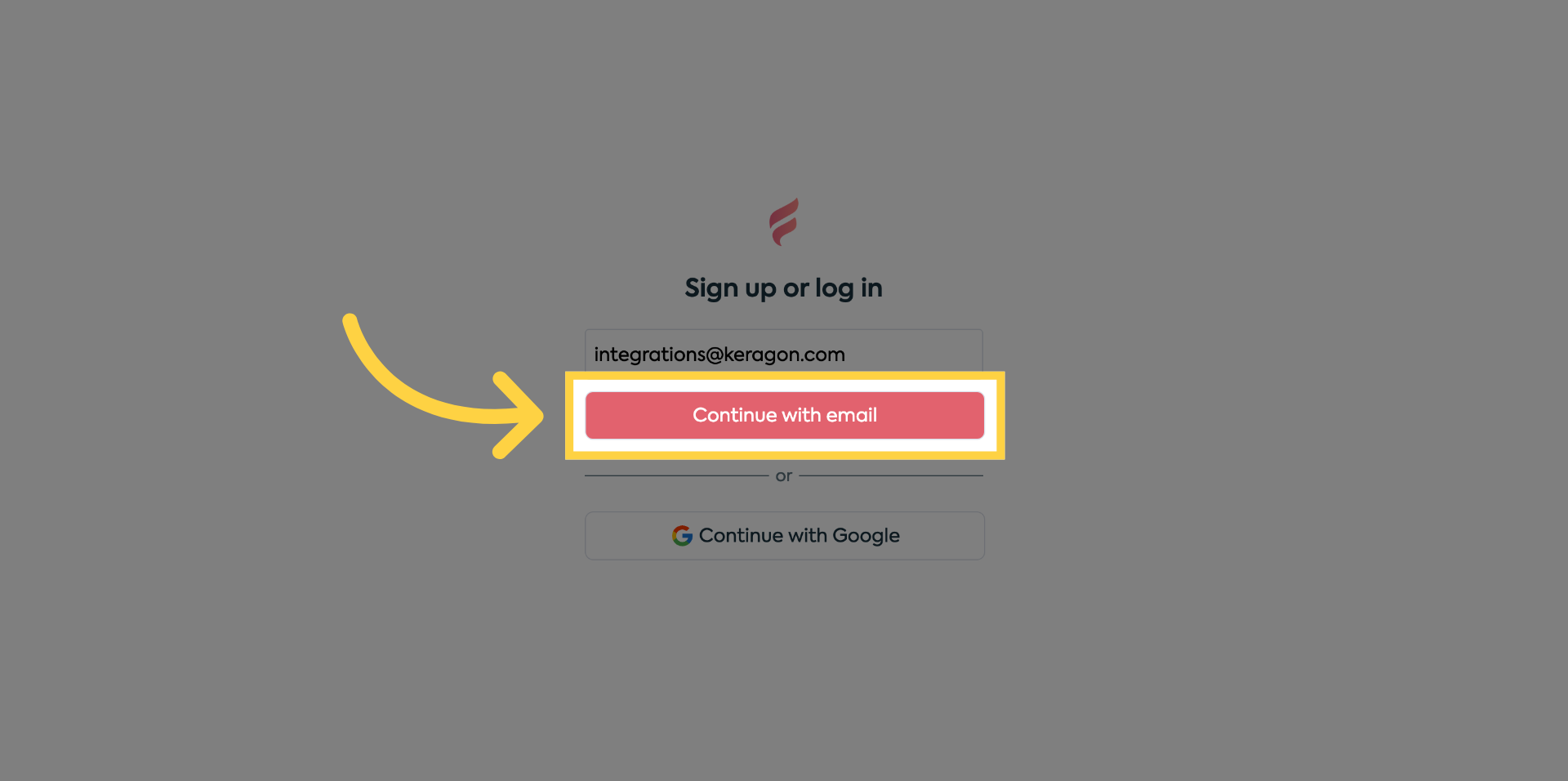
4. Continue With Email
Click Continue with email to move to the password entry step.
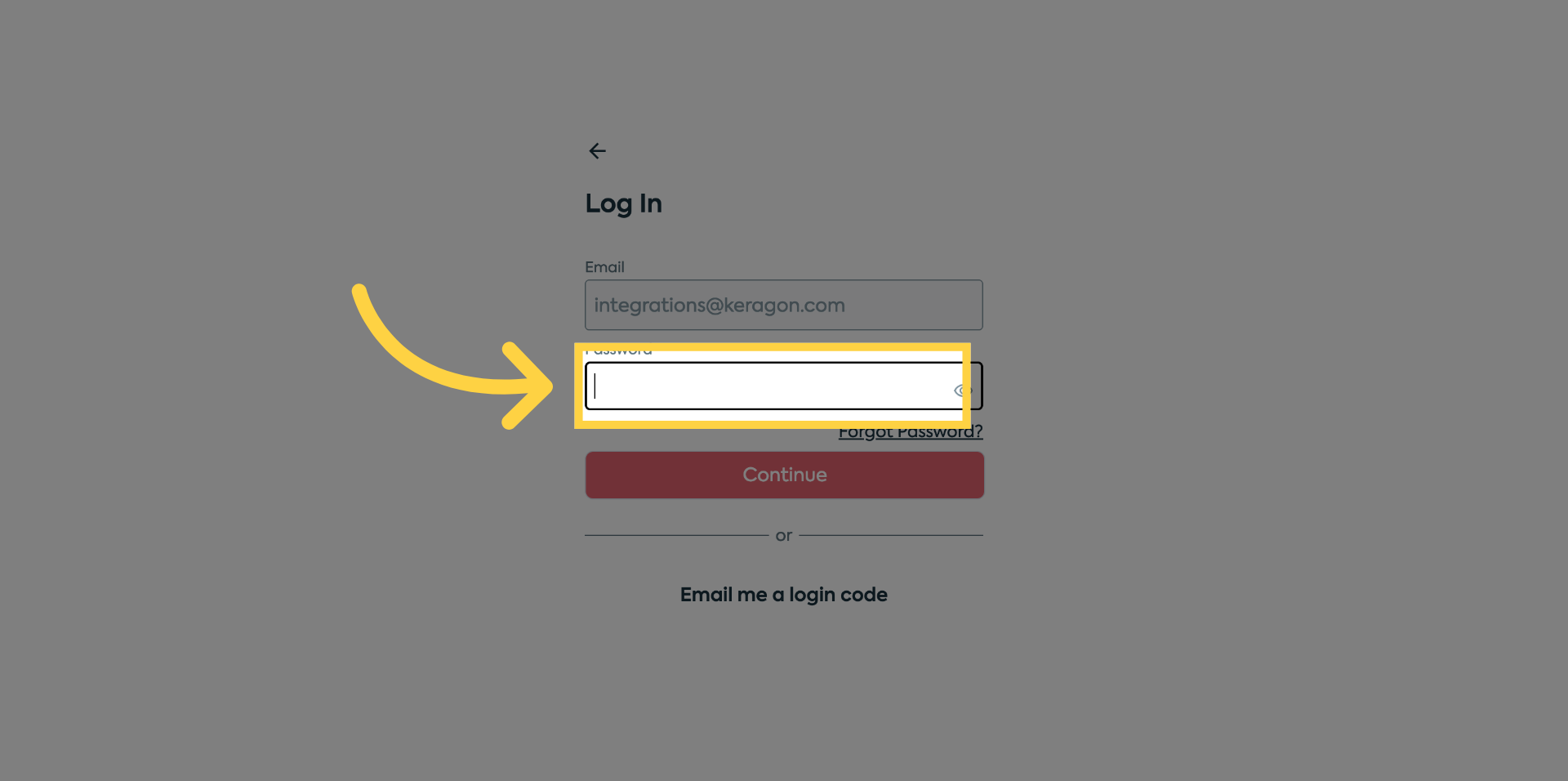
5. Select Password Field
Click the Password field to prepare for password input.
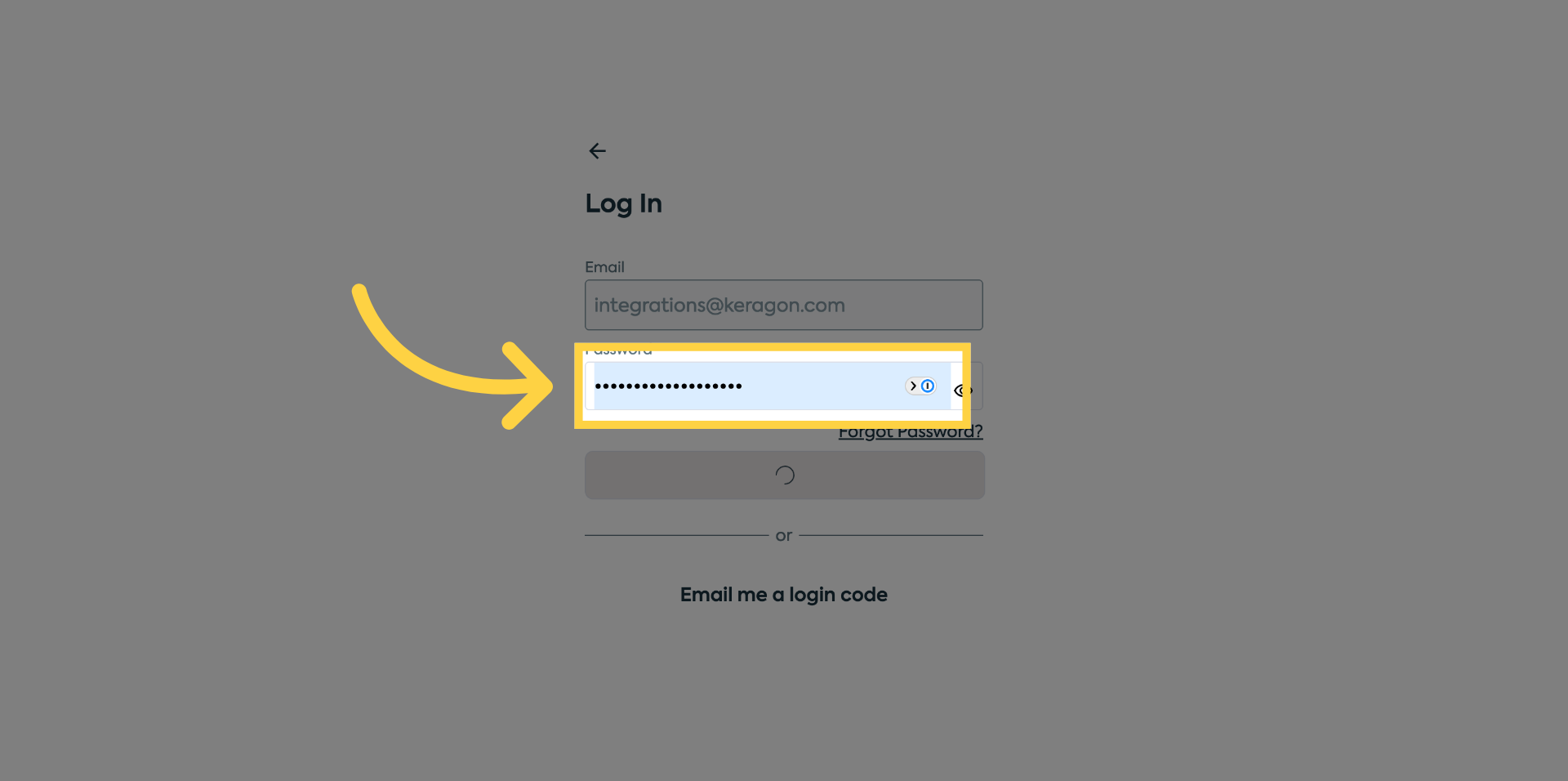
6. Enter Your Password
Enter your password to authenticate your Feathery account securely.
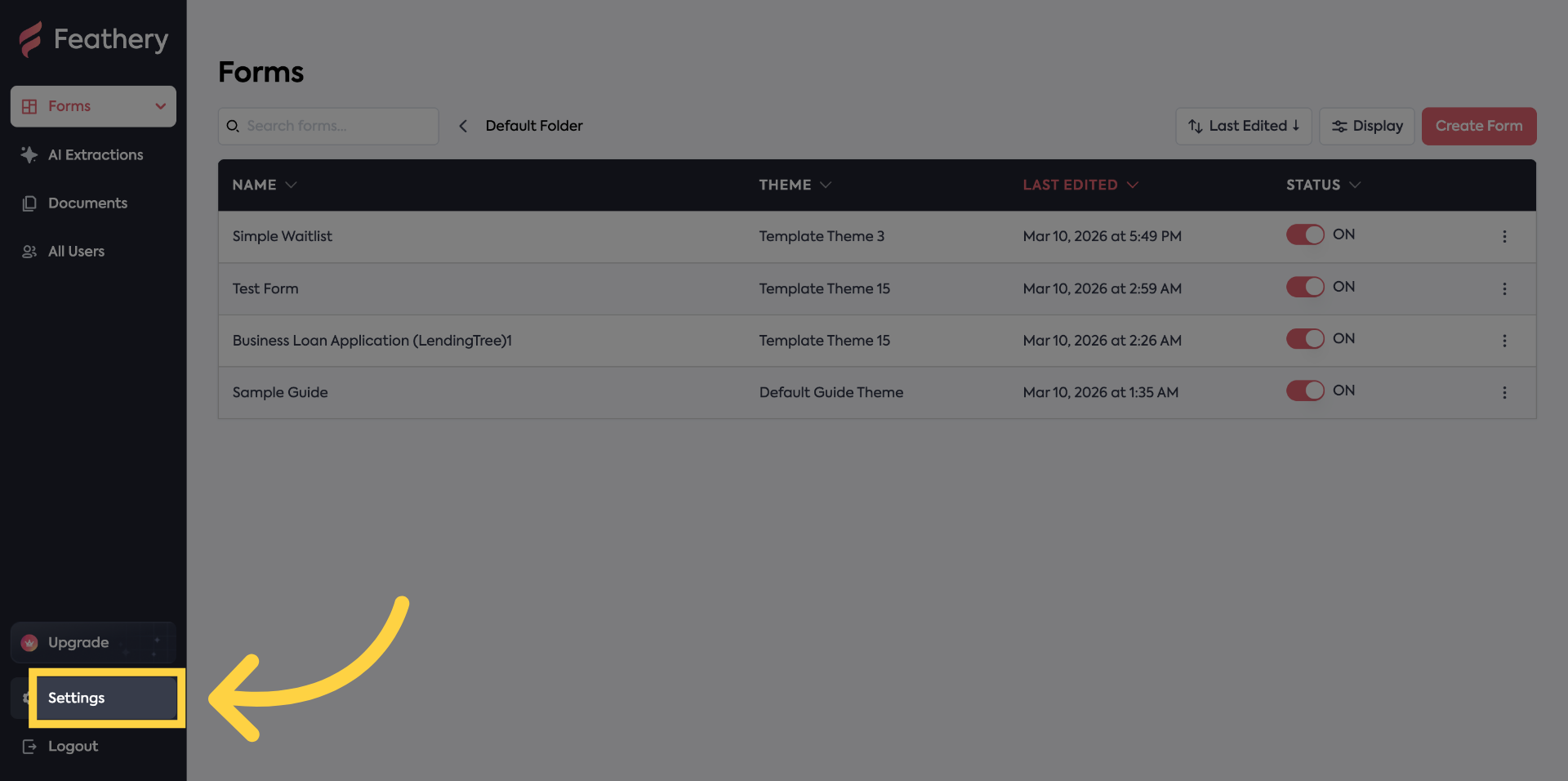
7. Open Settings Menu
Click Settings to access configuration options within Feathery.
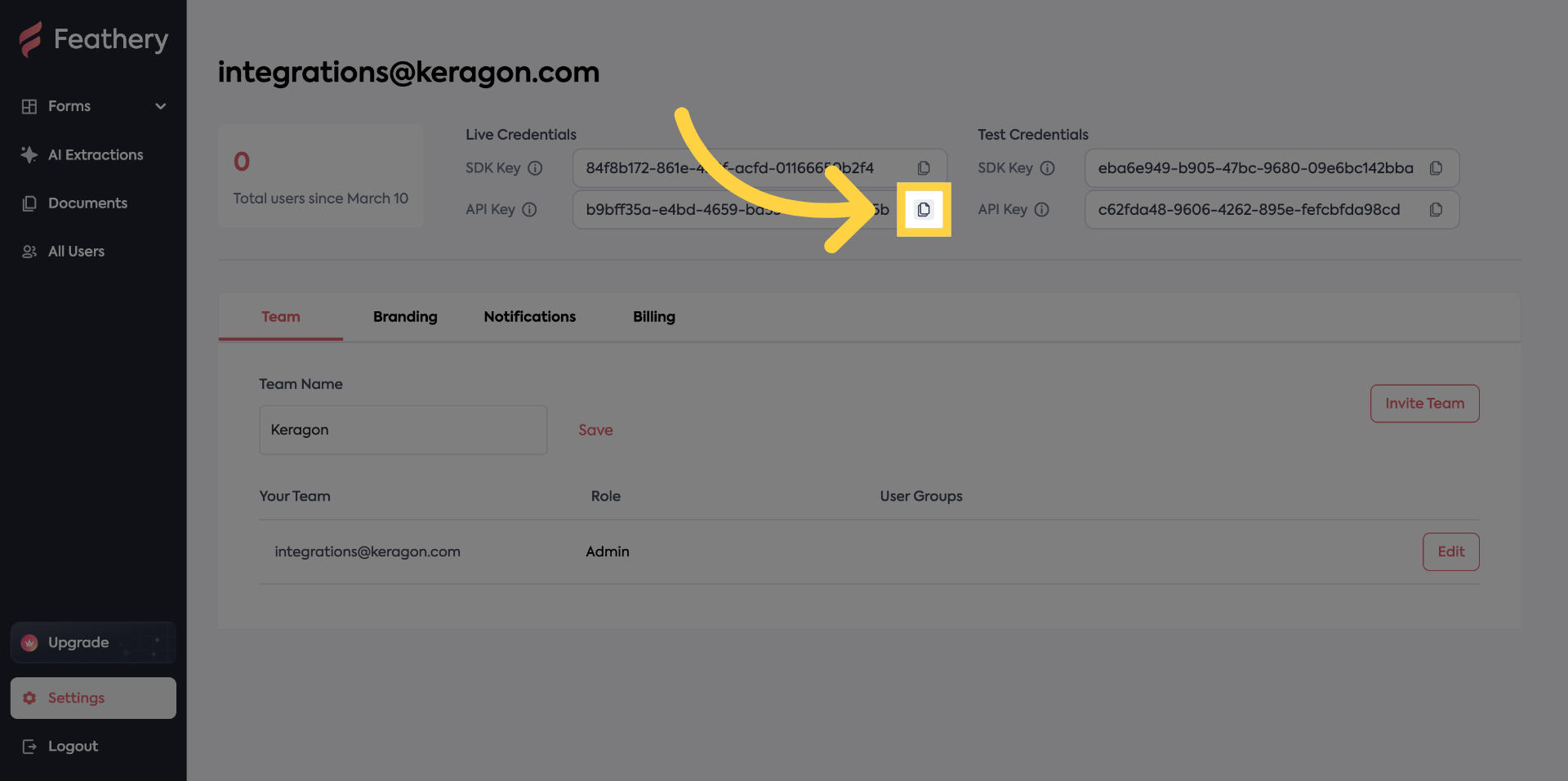
8. Copy the API key
Click here to copy the API key.
9. Switch to Keragon Dashboard
Switch to the Keragon dashboard at app.keragon.com to continue setup.
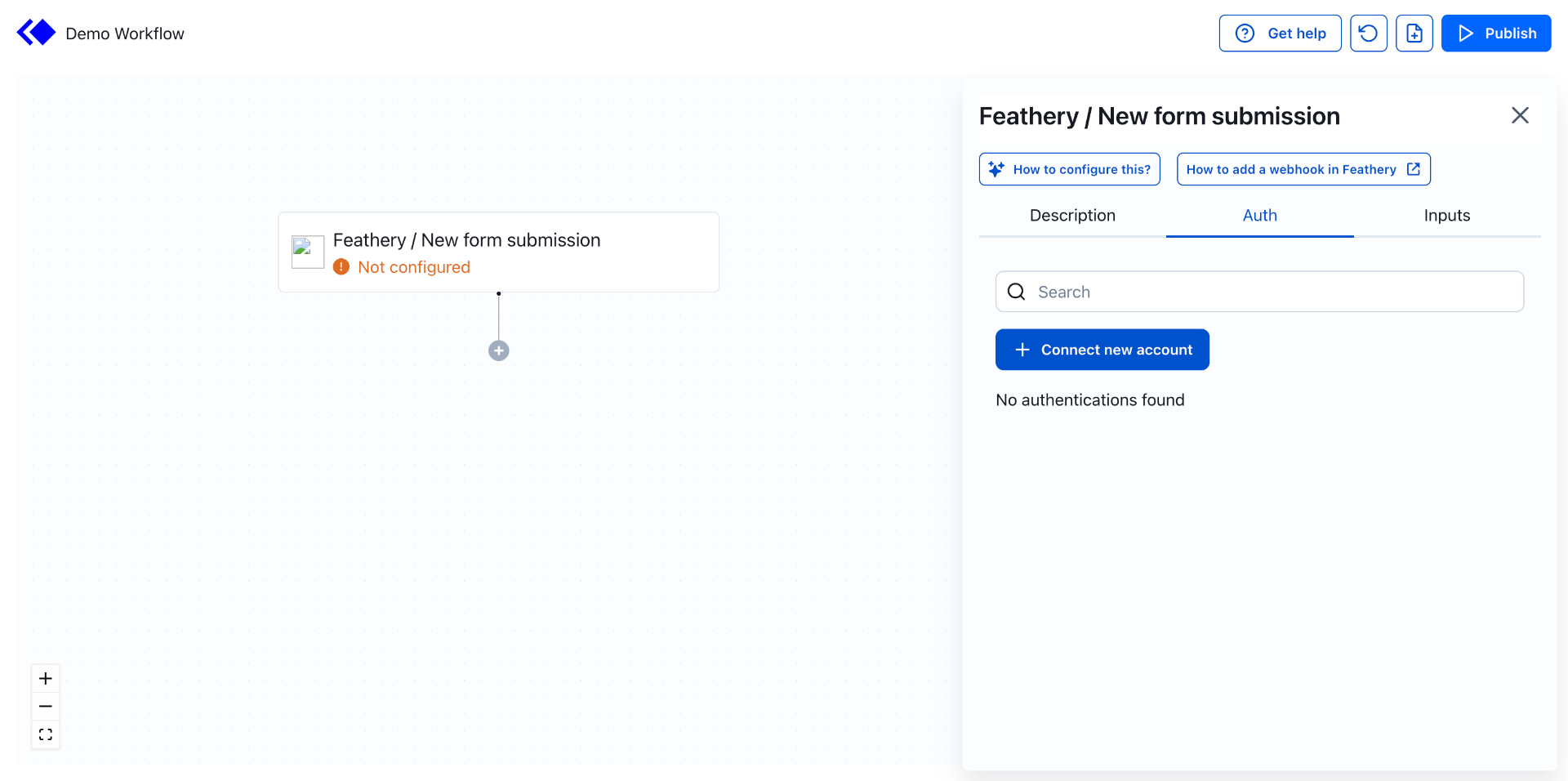
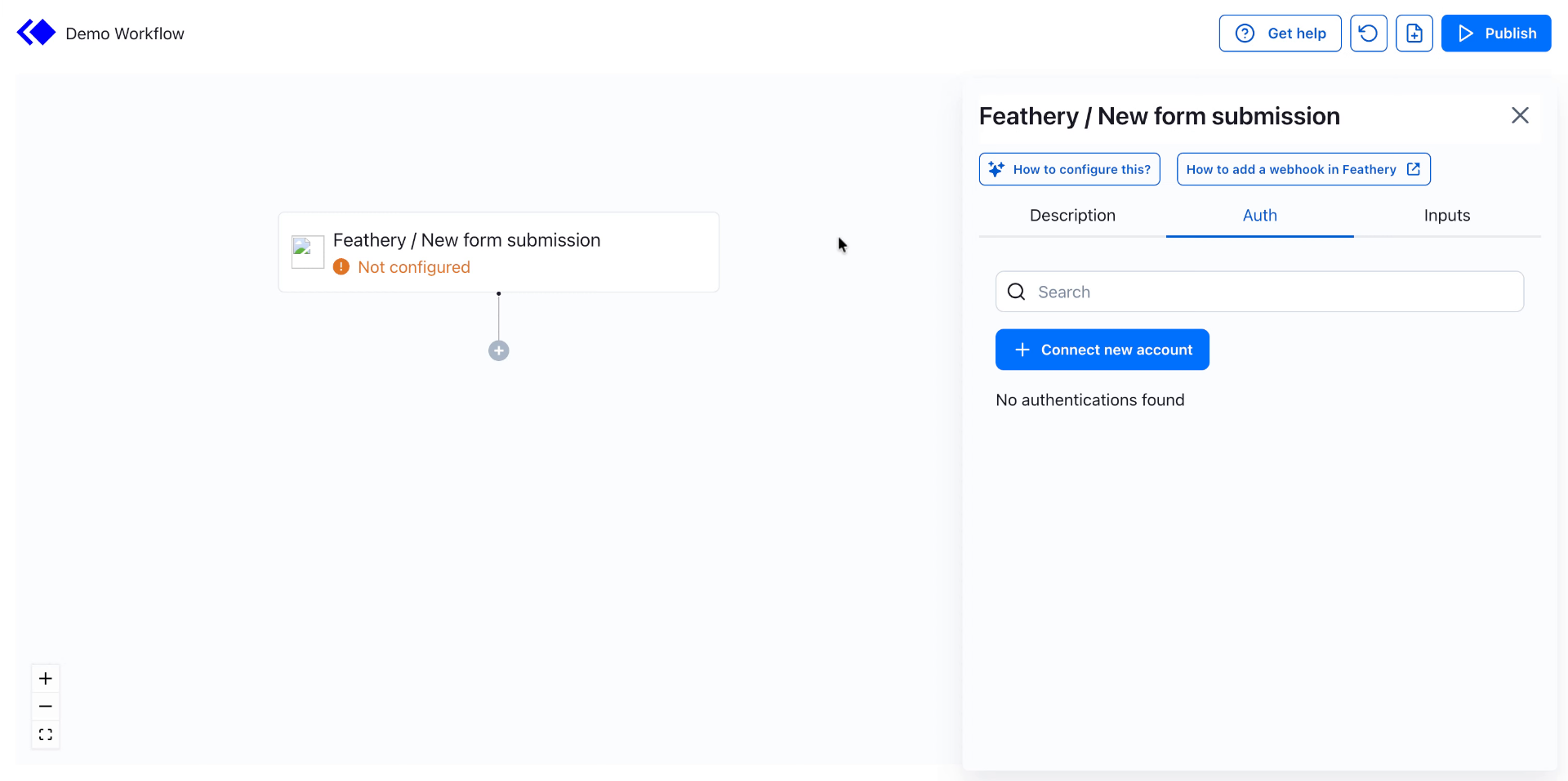
10. Initiate Account Connection
Click Connect new account to start linking your Feathery account with Keragon.
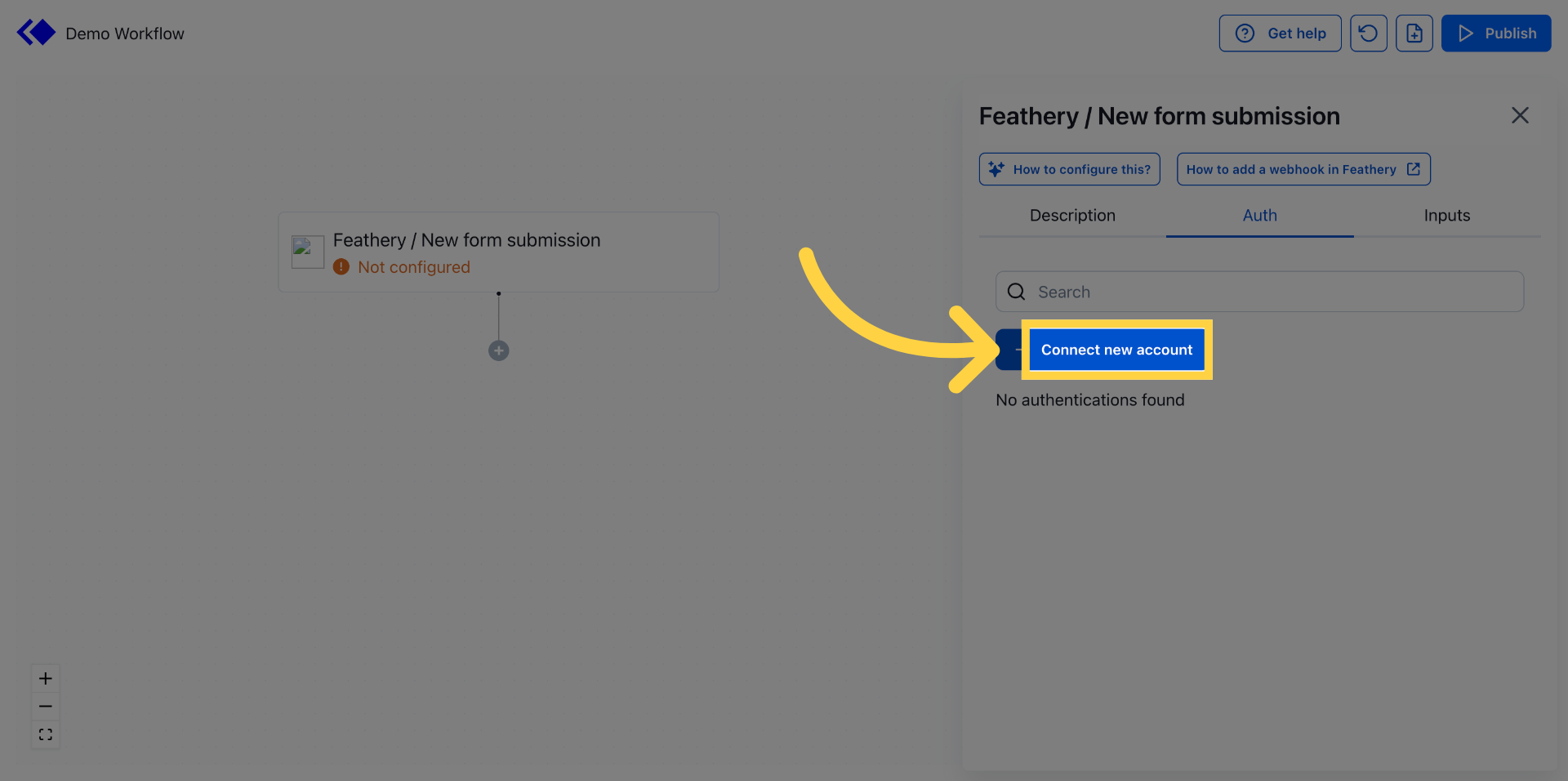
11. Select API Key Option
Click API key or access token to choose the authentication method for connection.
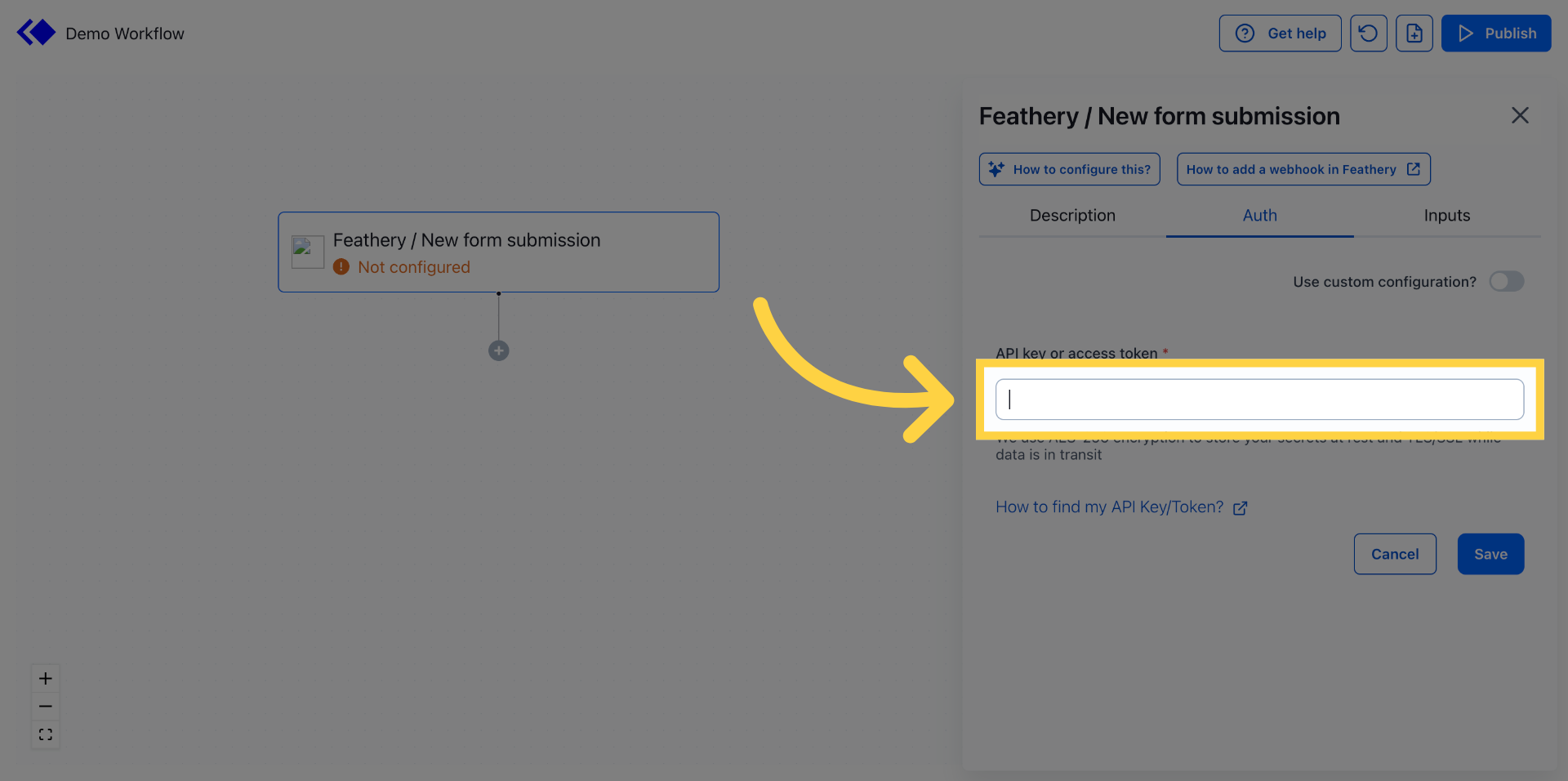
12. Enter API Key
Enter your API key or access token to authenticate the connection securely.
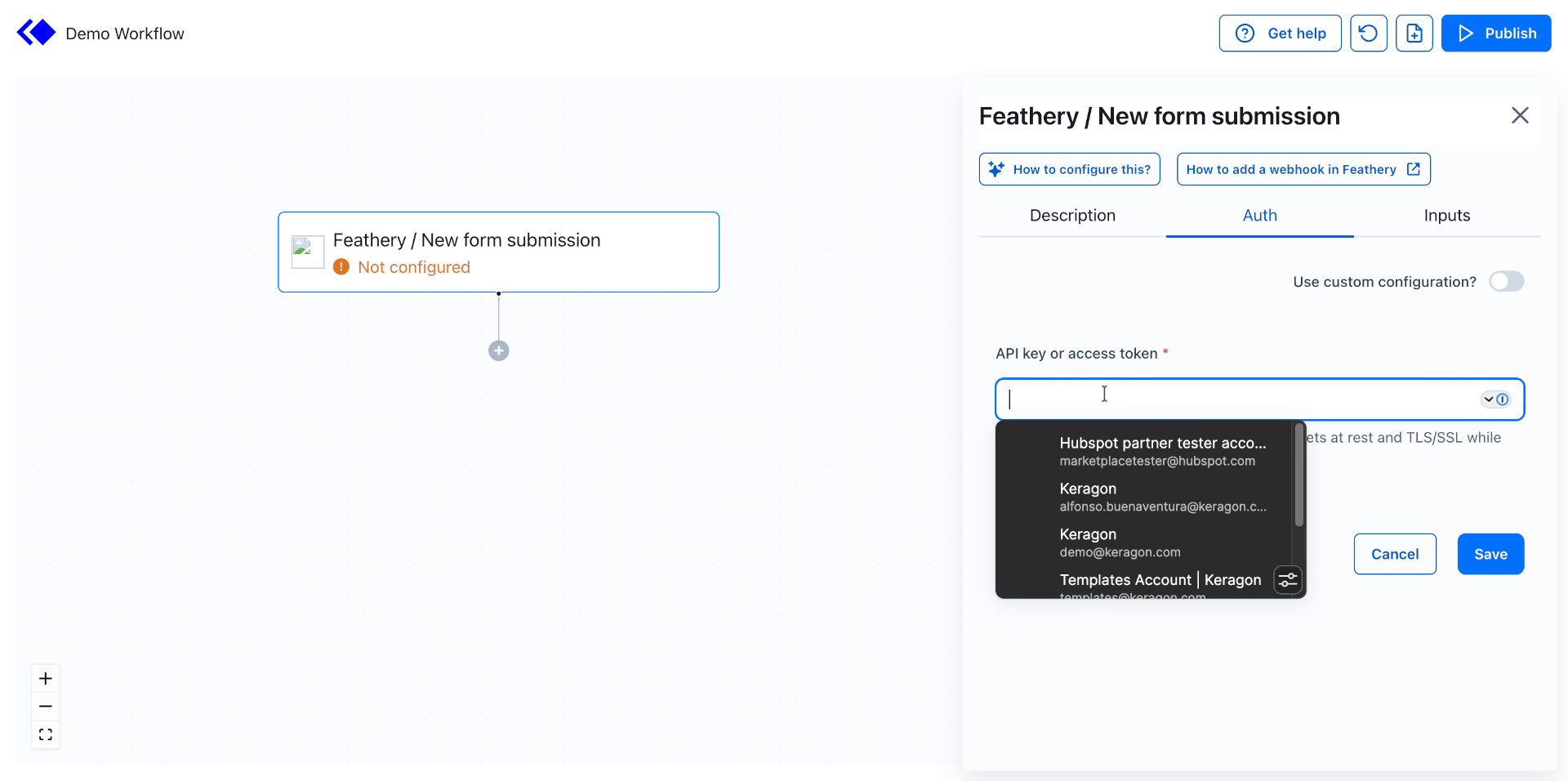
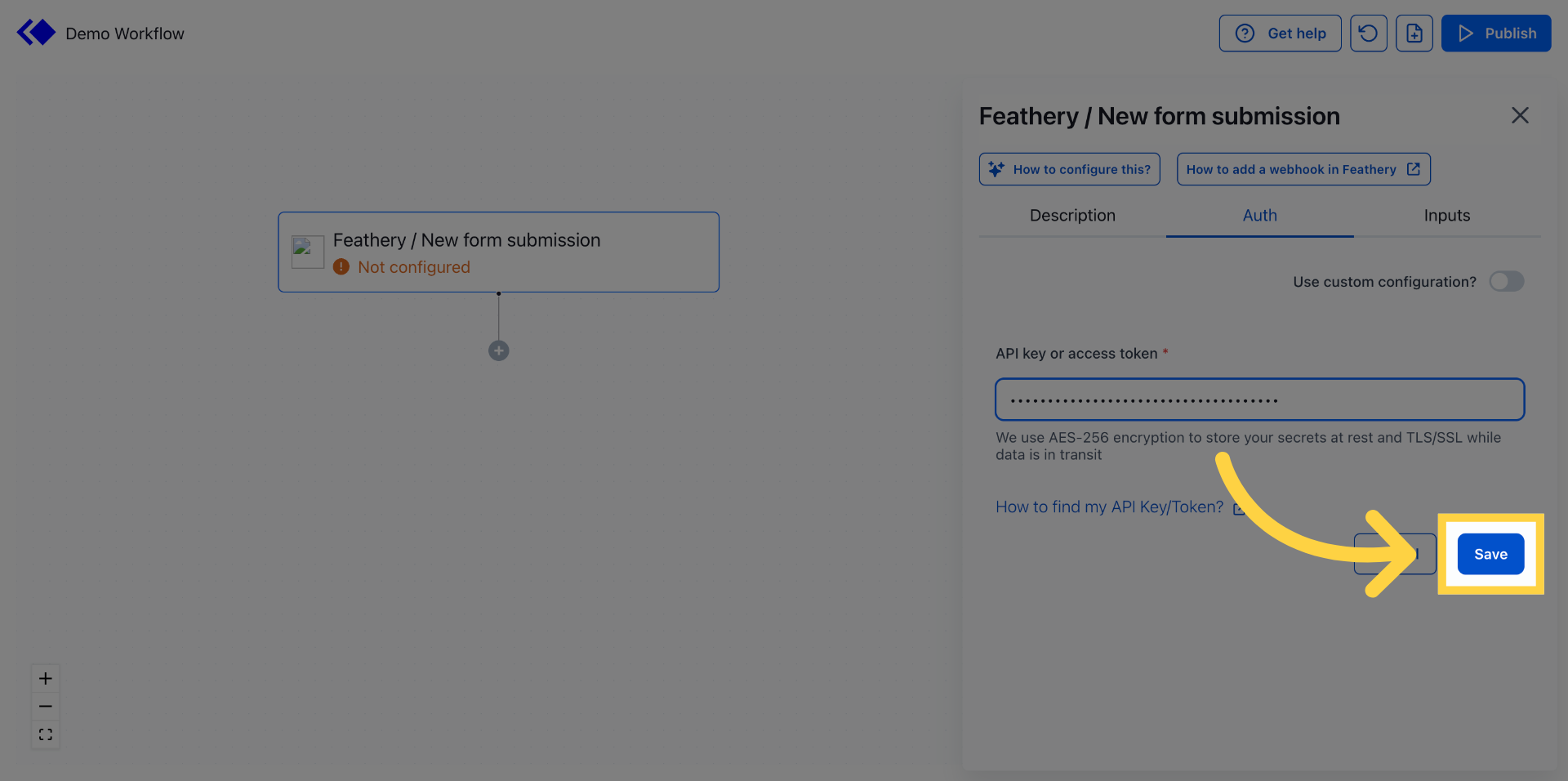
13. Save Connection Settings
Click Save to store your connection settings and finalize the integration.
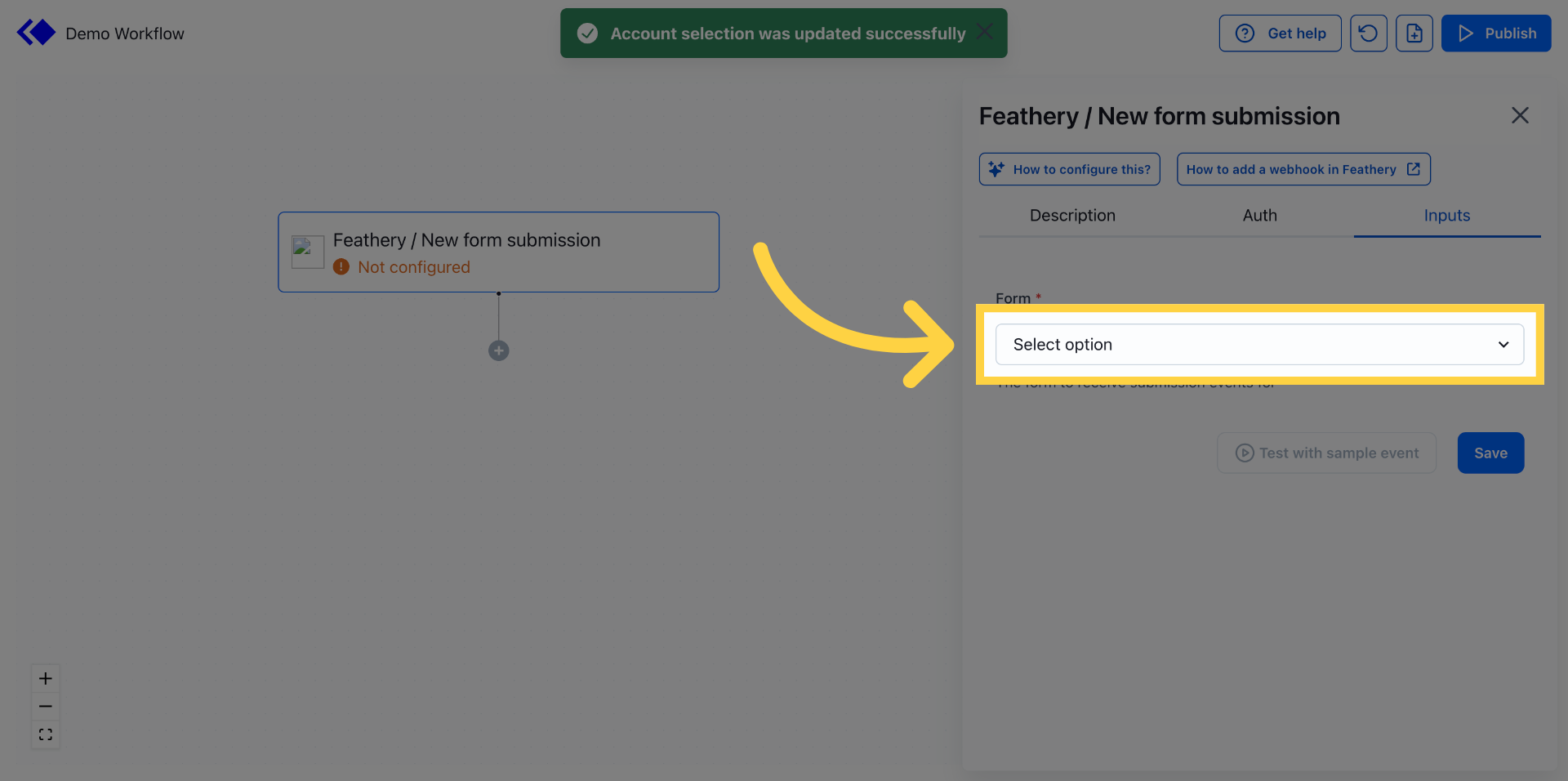
14. Select Form to Link
Click Select option and choose the form you want to link with Keragon for data synchronization.
This article guided you through connecting your Feathery account with the Keragon dashboard, including authentication, settings configuration, and form linking. For more information, refer to related integration and account management articles in the knowledge base.