This tutorial guides you through enabling integrations in the Simple Survey app.
Go to www.appsheet.com
1. Introduction
You will learn how to access settings, activate integrations, and retrieve the access key for external use.
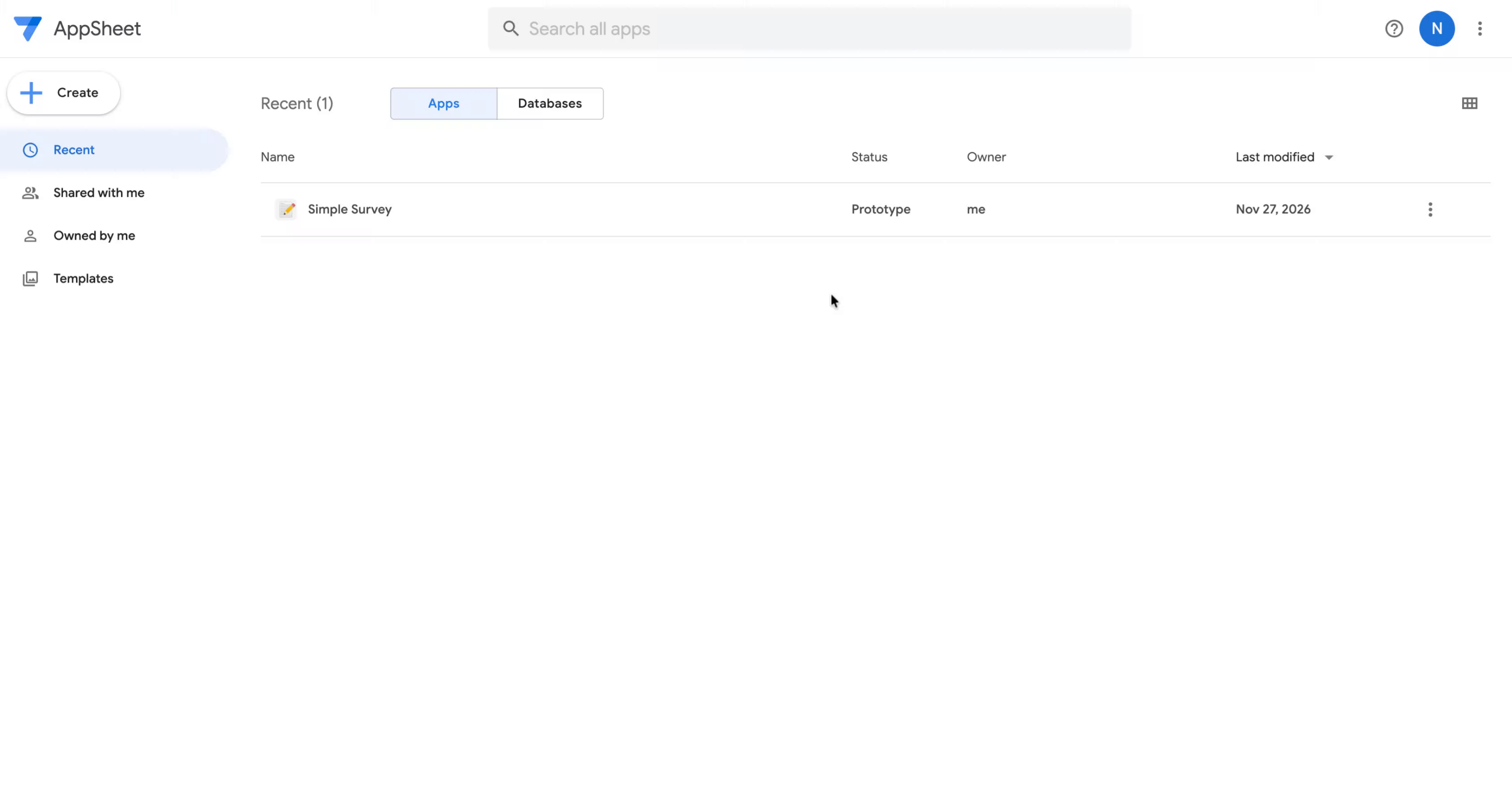
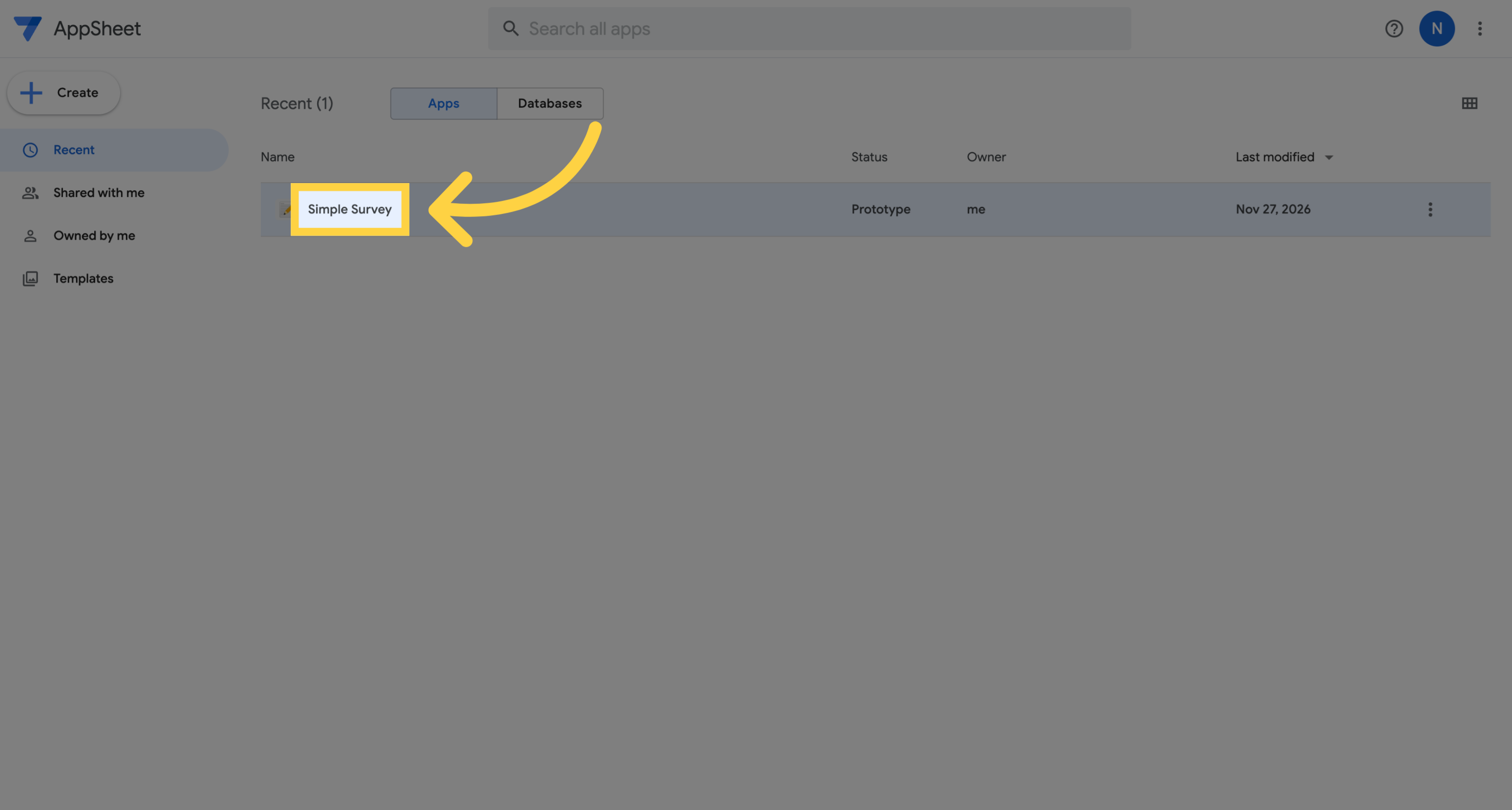
2. Access the Simple Survey App
Select the Simple Survey app to begin configuring its settings.
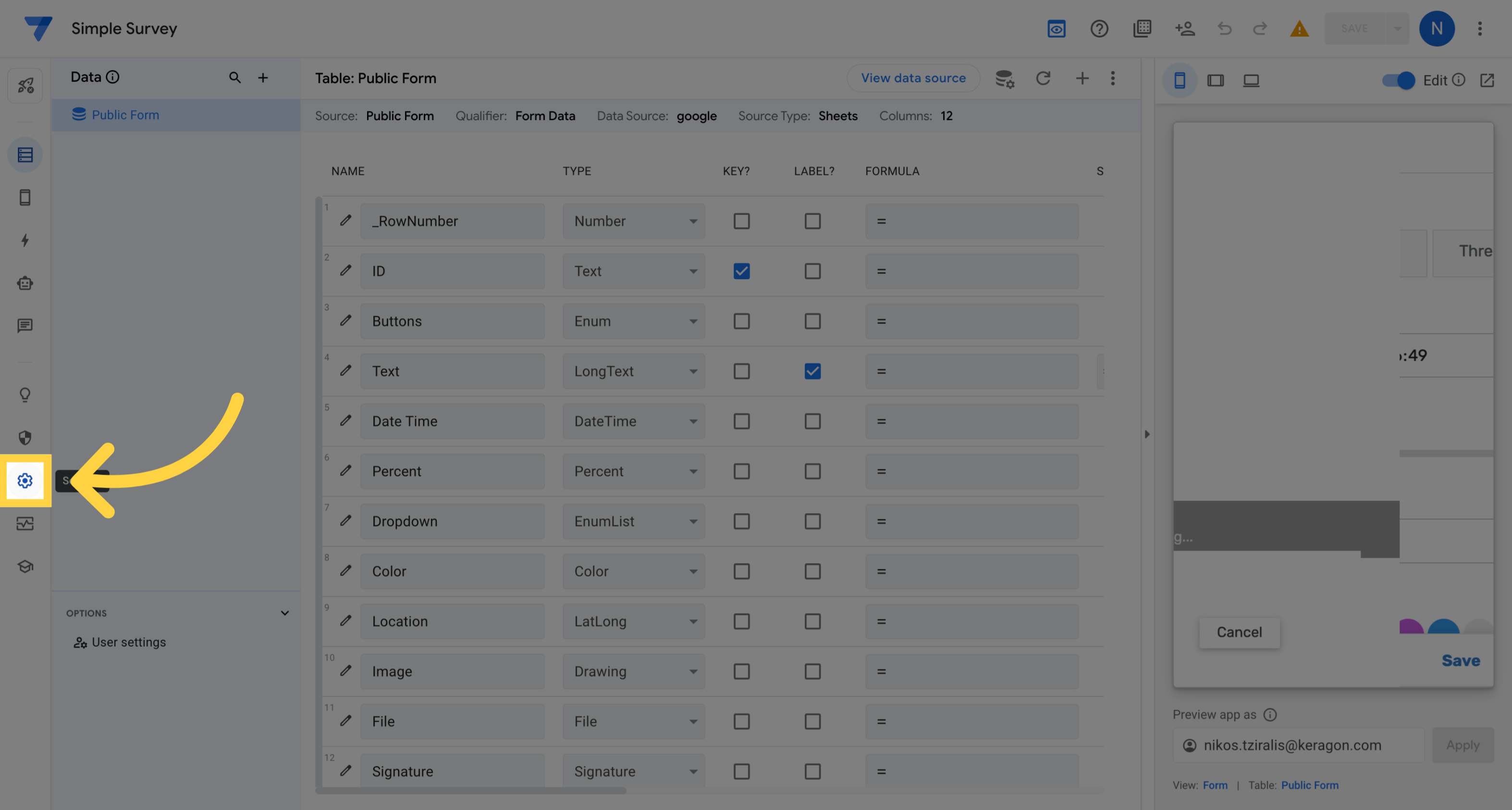
3. Open the Settings Menu
Open the Settings menu to access configuration options for the app.
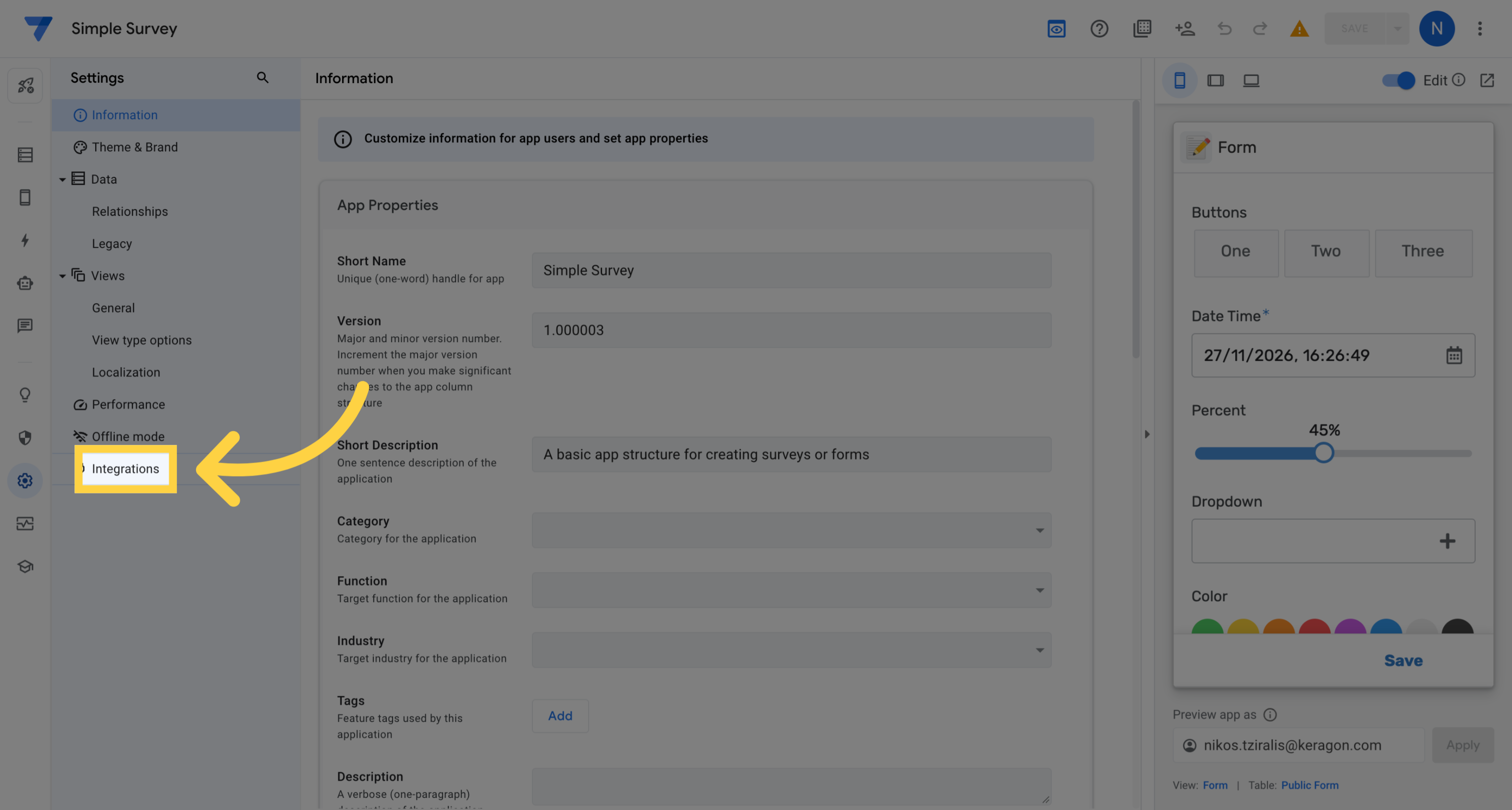
4. Navigate to Integrations Section
Click the Integrations tab to manage app integrations and connections.
5. Enable App Integrations
Enable integrations by clicking the integration toggle and filling in the required fields to activate the feature.
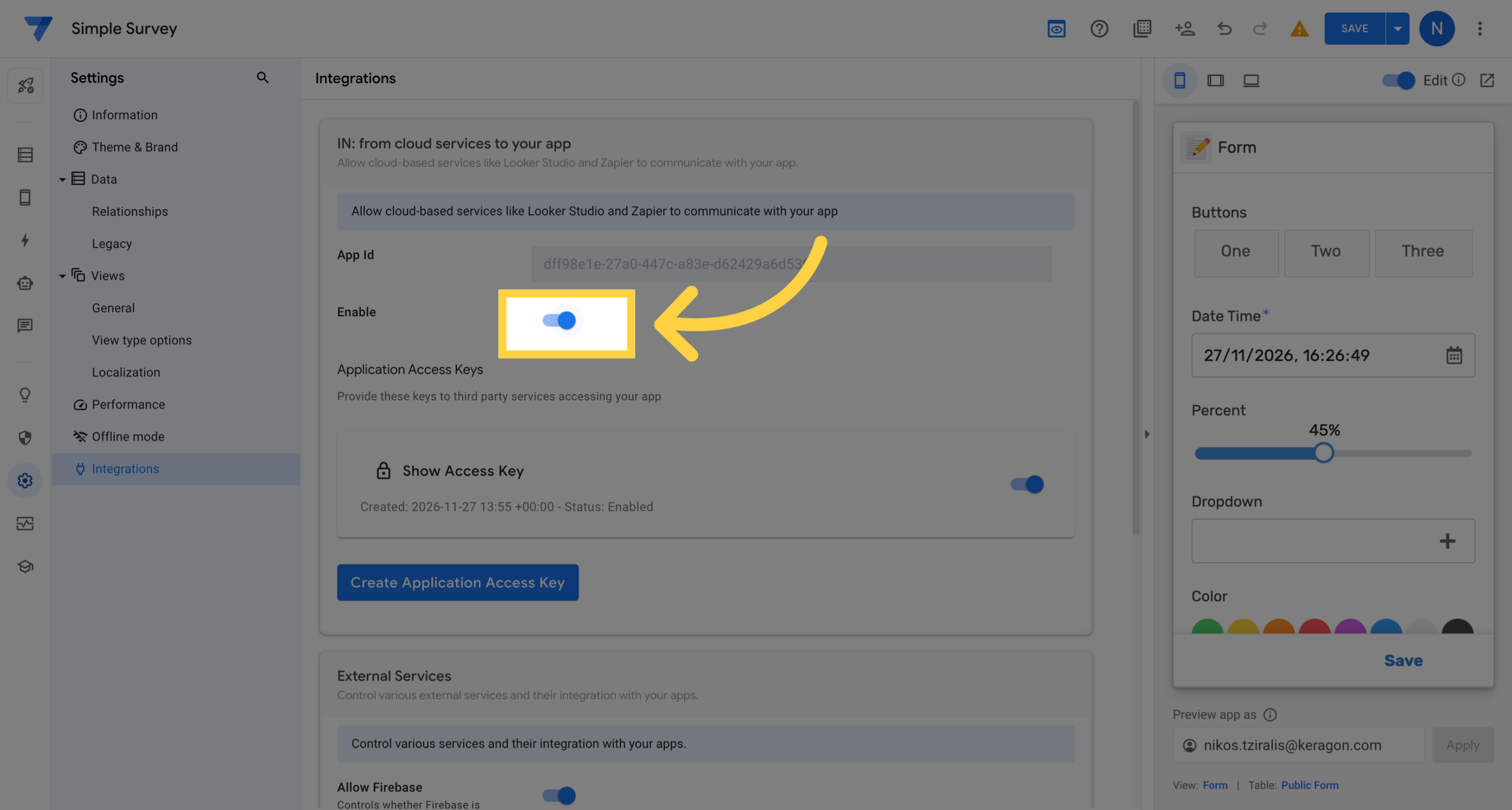
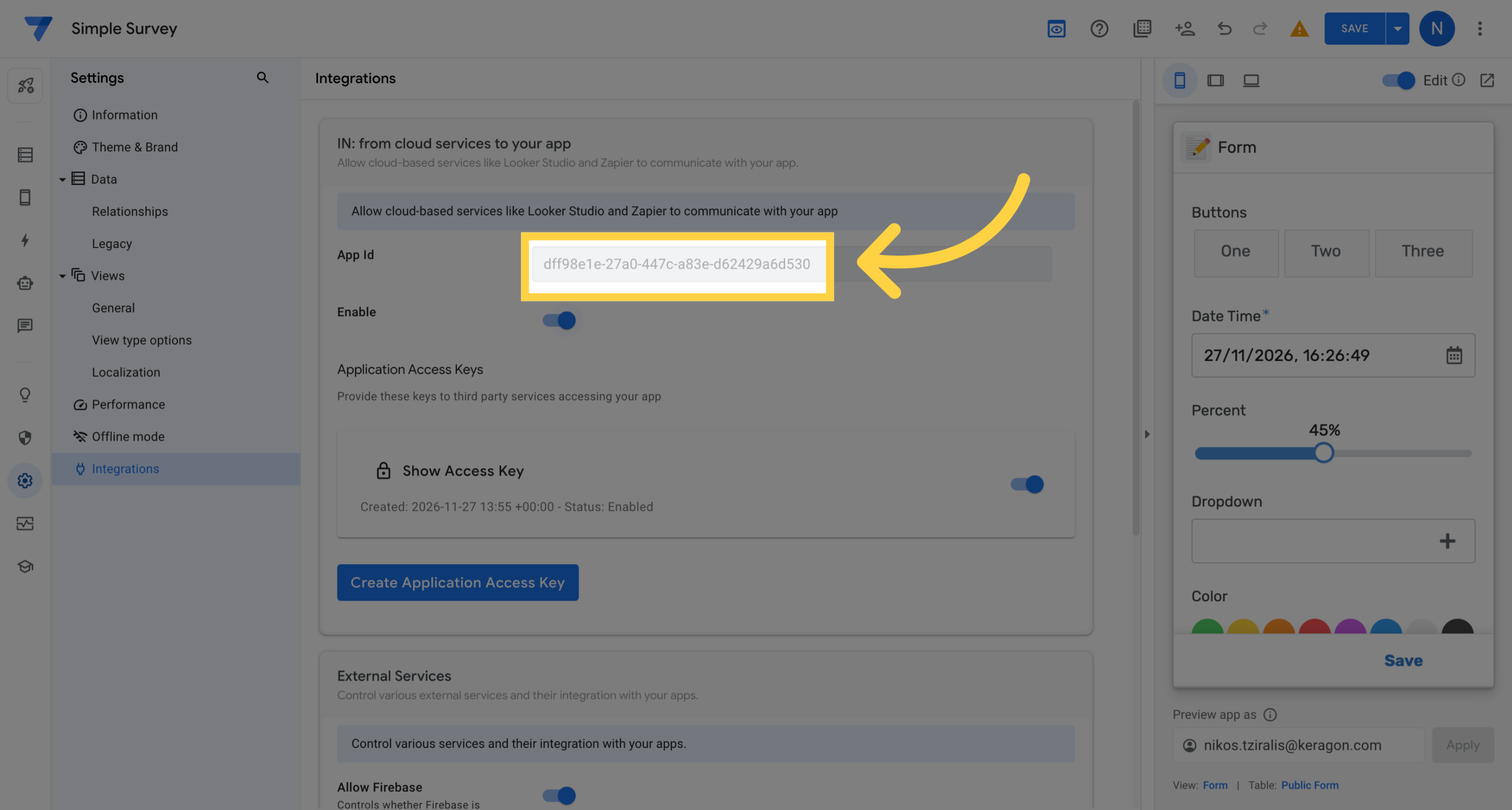
6. Enable App Integrations
Enable integrations by clicking the integration toggle and filling in the required fields to activate the feature.
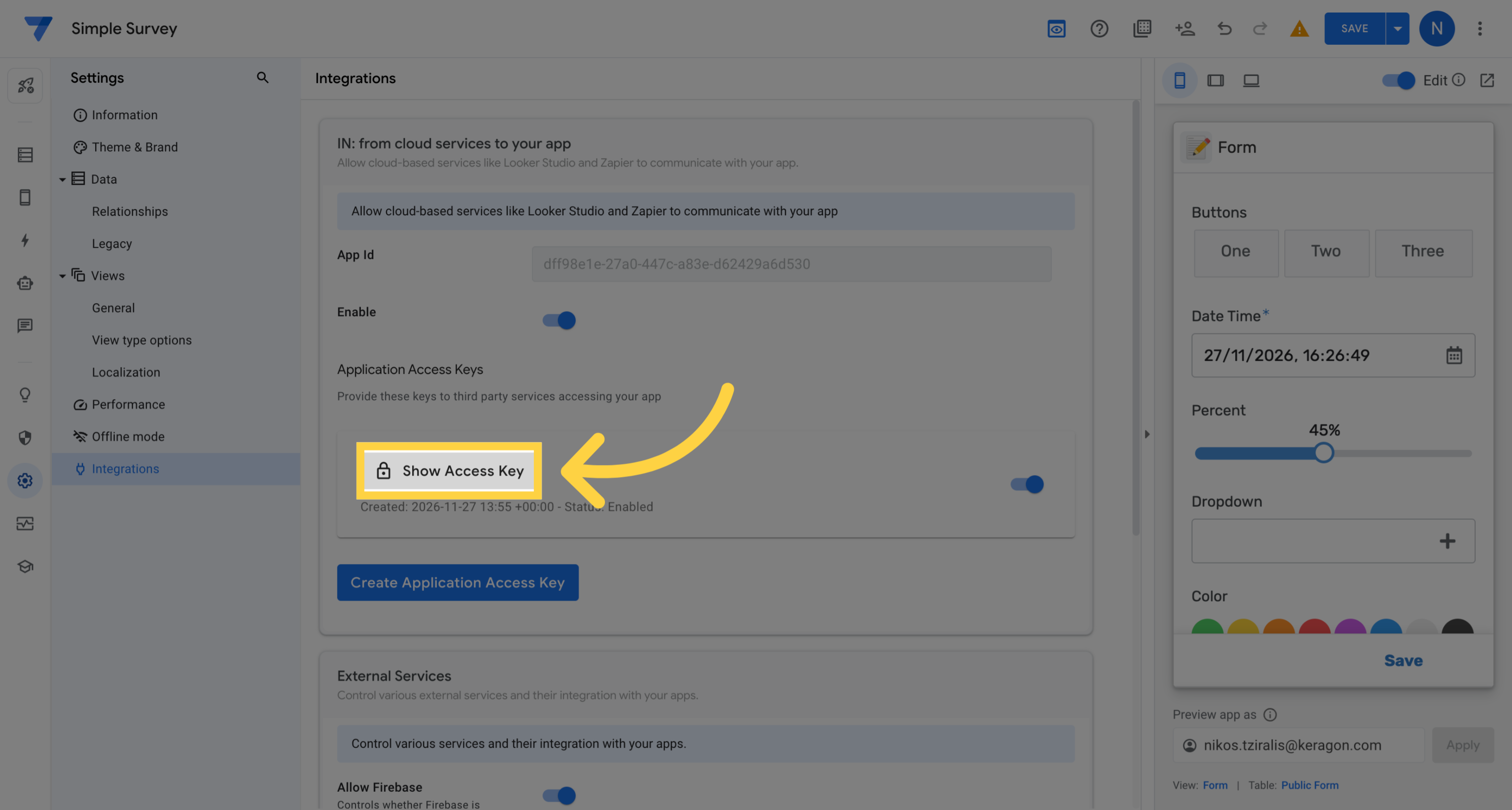
7. Reveal the Access Key
Click Show Access Key to view the key needed for integration authentication.
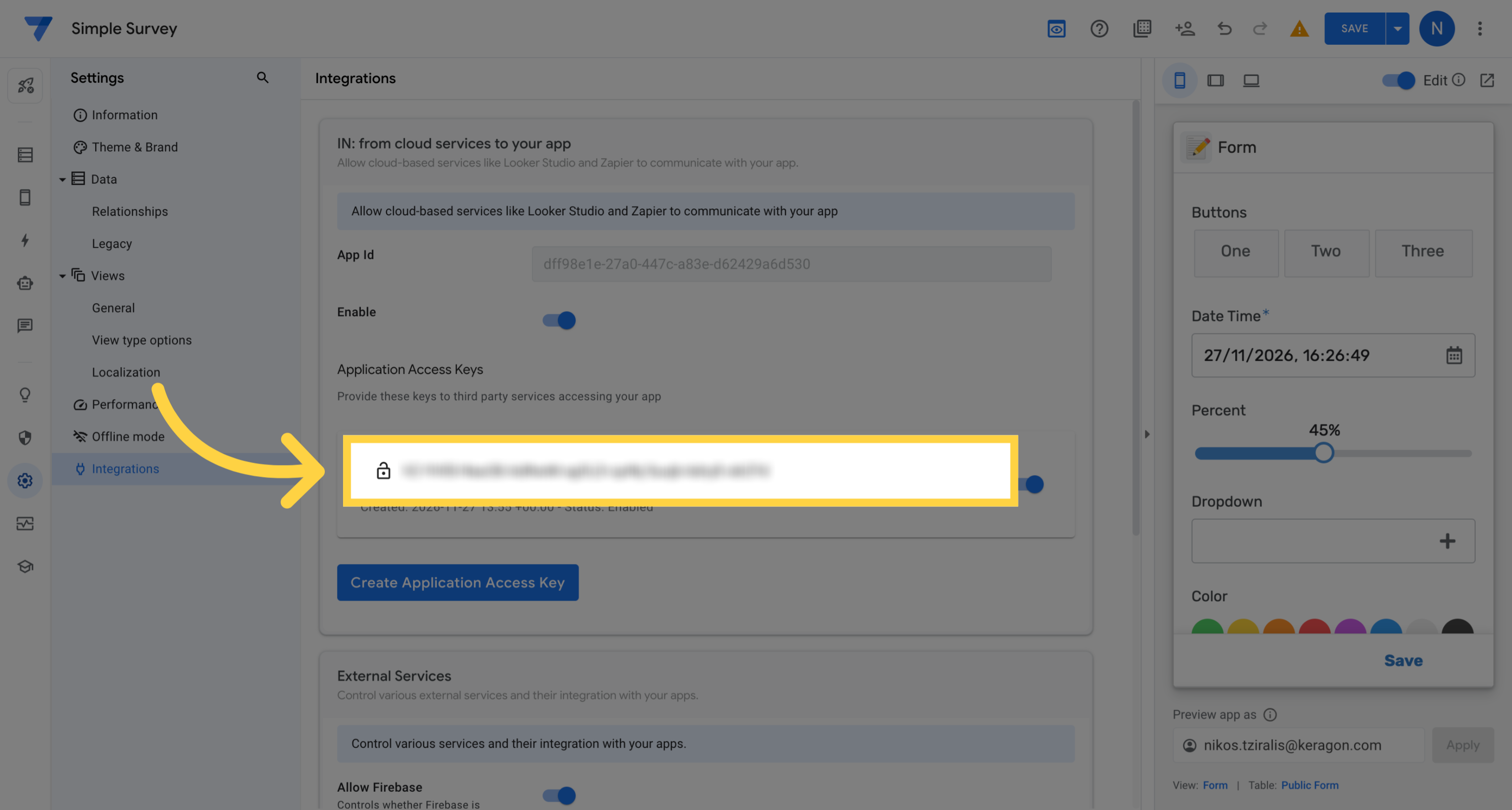
8. Copy the Access Key
Click the displayed access key to copy it for use in external applications.
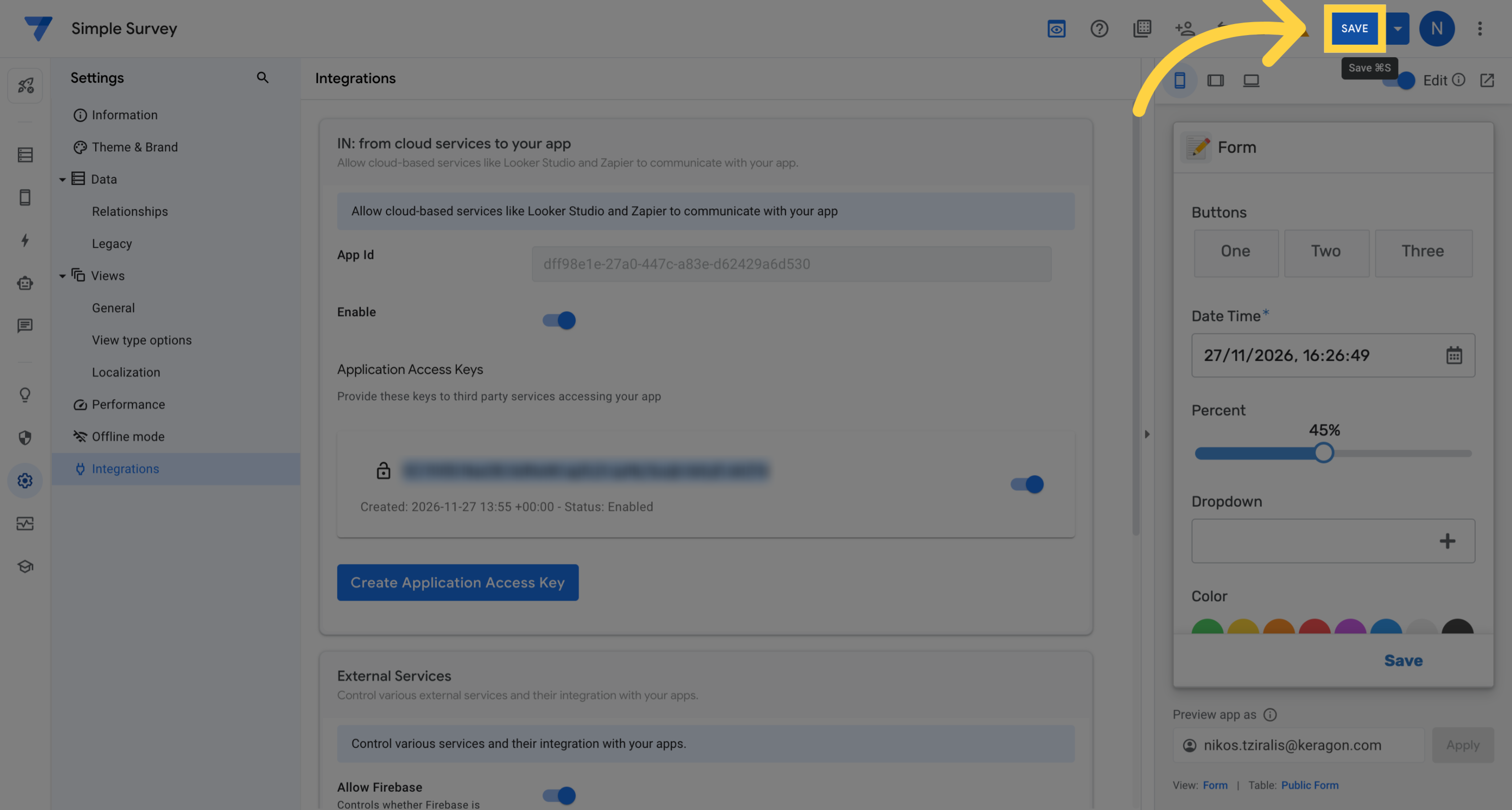
9. Save Integration Settings
Click the SAVE button to apply and save your integration settings.
You have successfully enabled and configured integrations for the Simple Survey app by accessing settings, revealing the access key, and saving your changes. Next, use the access key to connect external services or platforms as needed.