This article explains how to submit your app in eClinicalWorks. You will learn the step-by-step process to register, configure, and submit your application successfully.
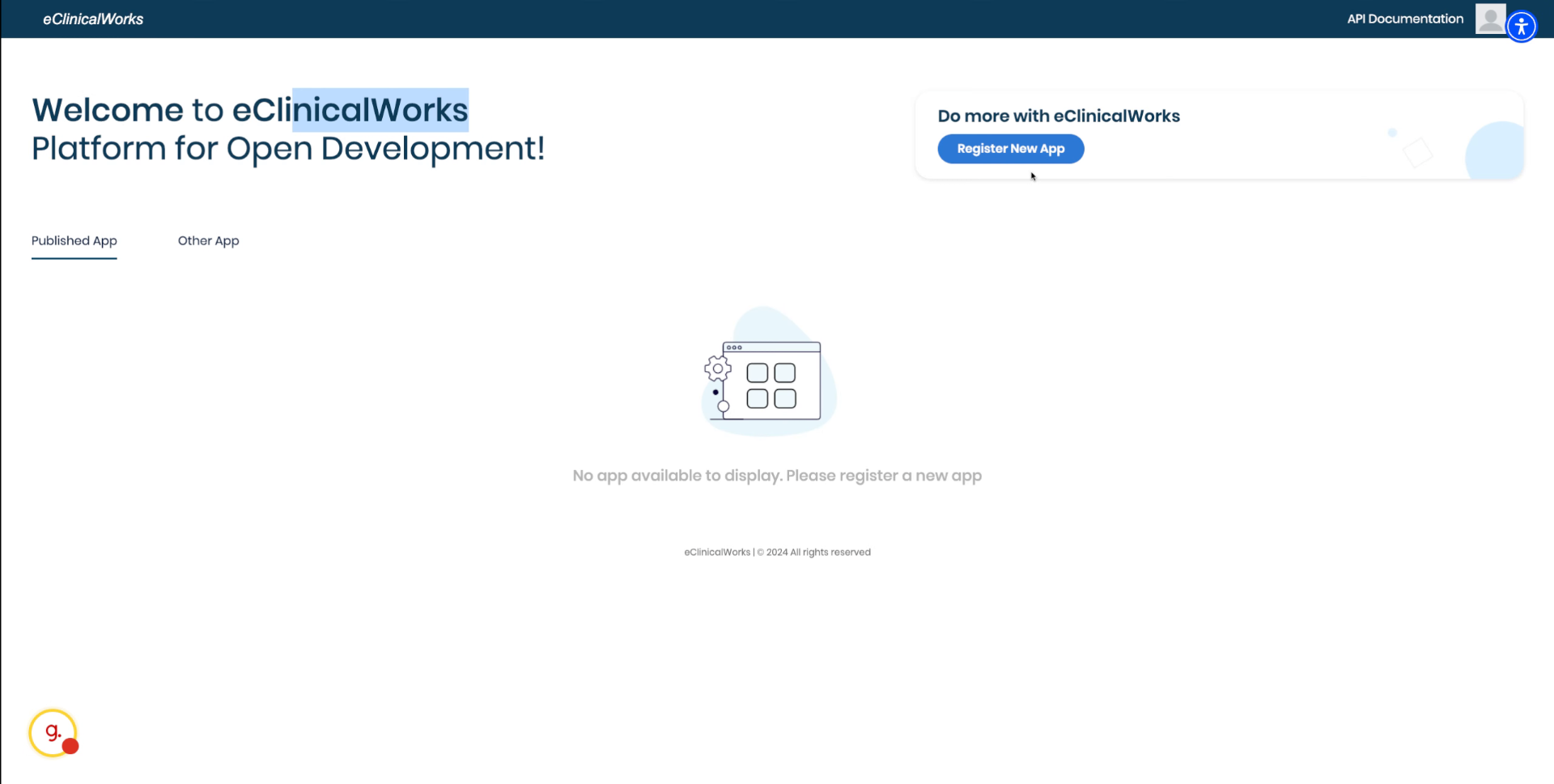
1. Open Register New App Page
Click register new app
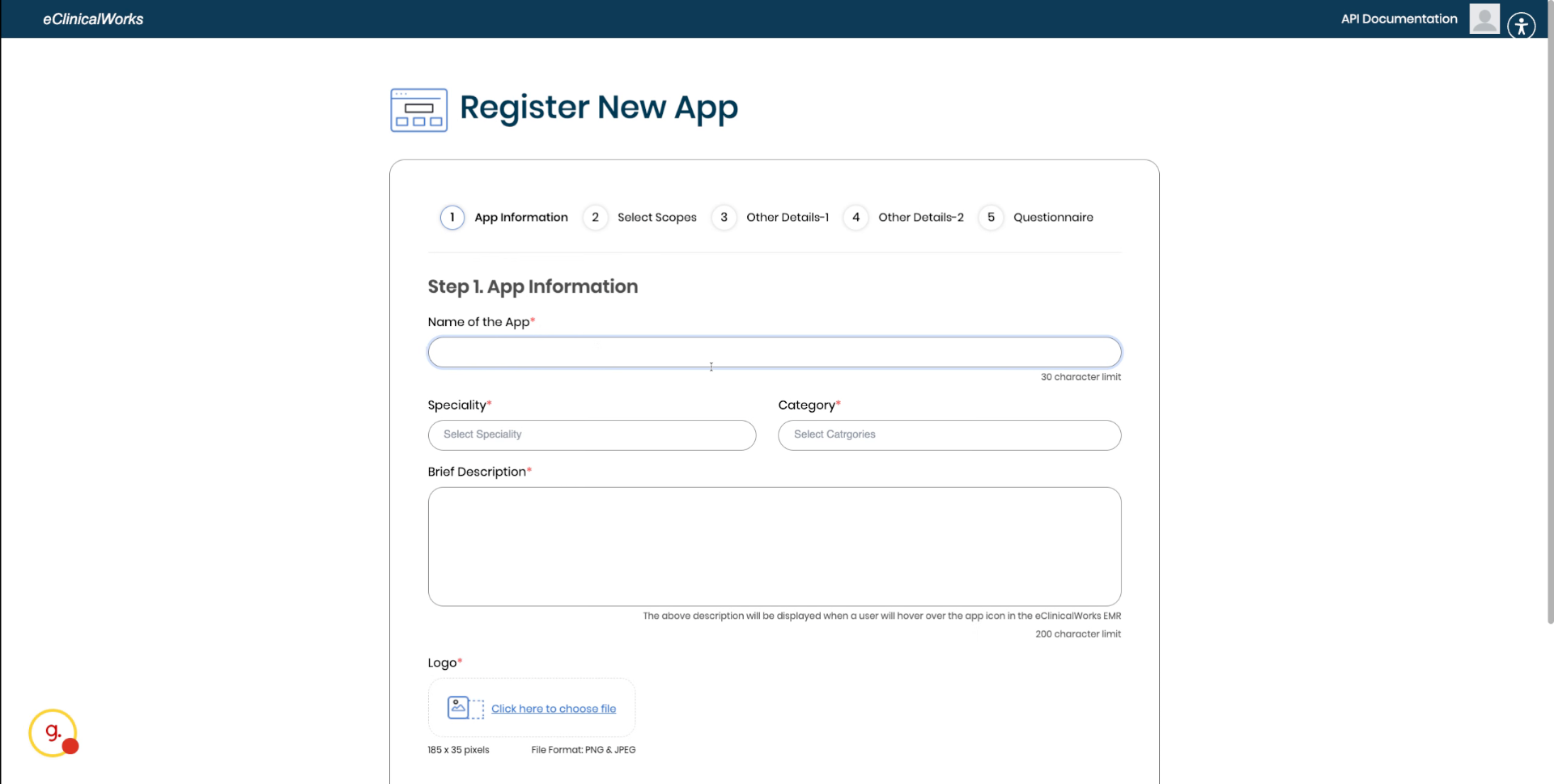
2. Enter App Details
Provide a name for your app, select speciality and category, add the description for the app and provide an icon.
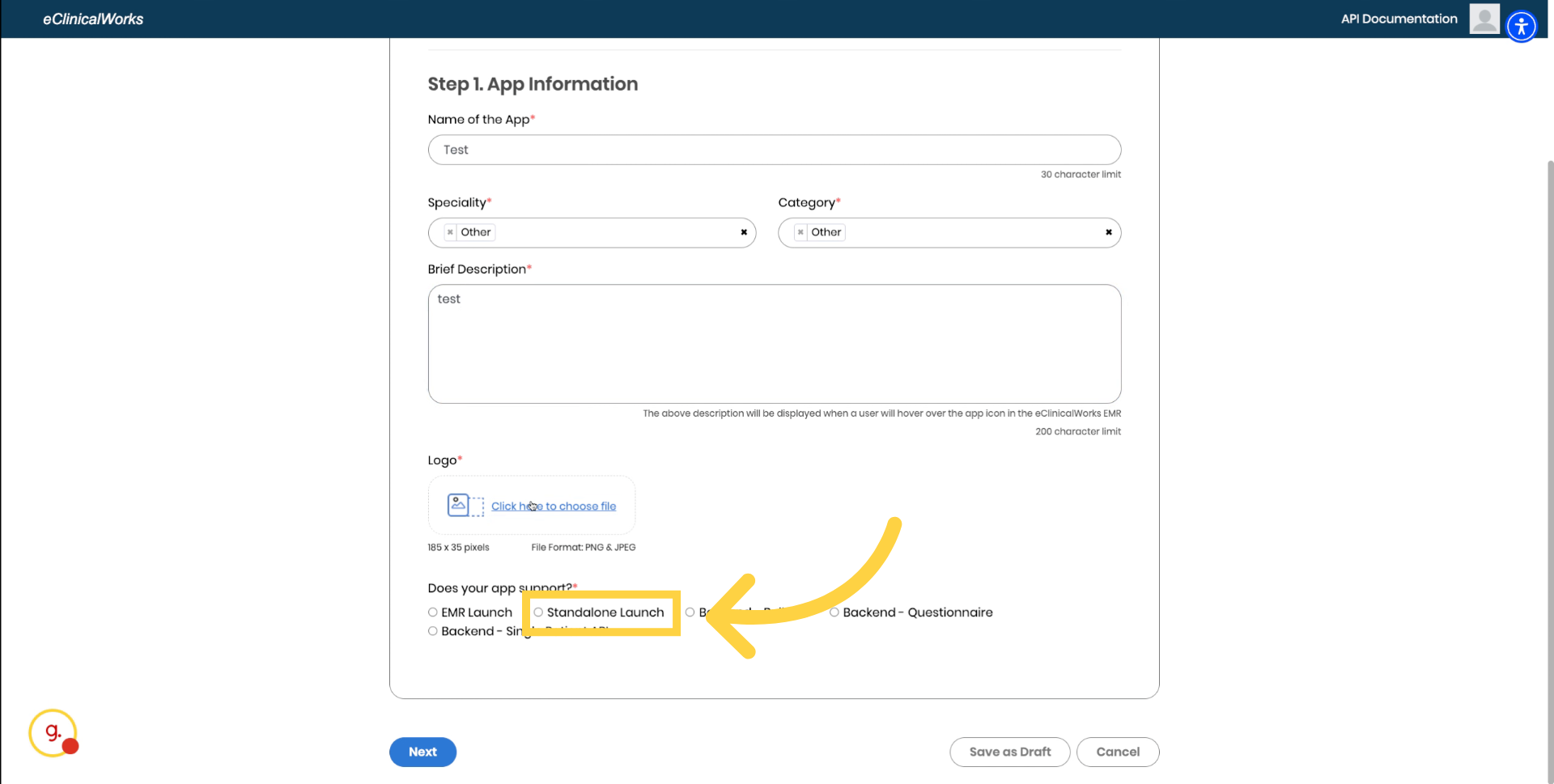
3. Select Standalone launch
In the "Does your app support" section select Standalone Launch
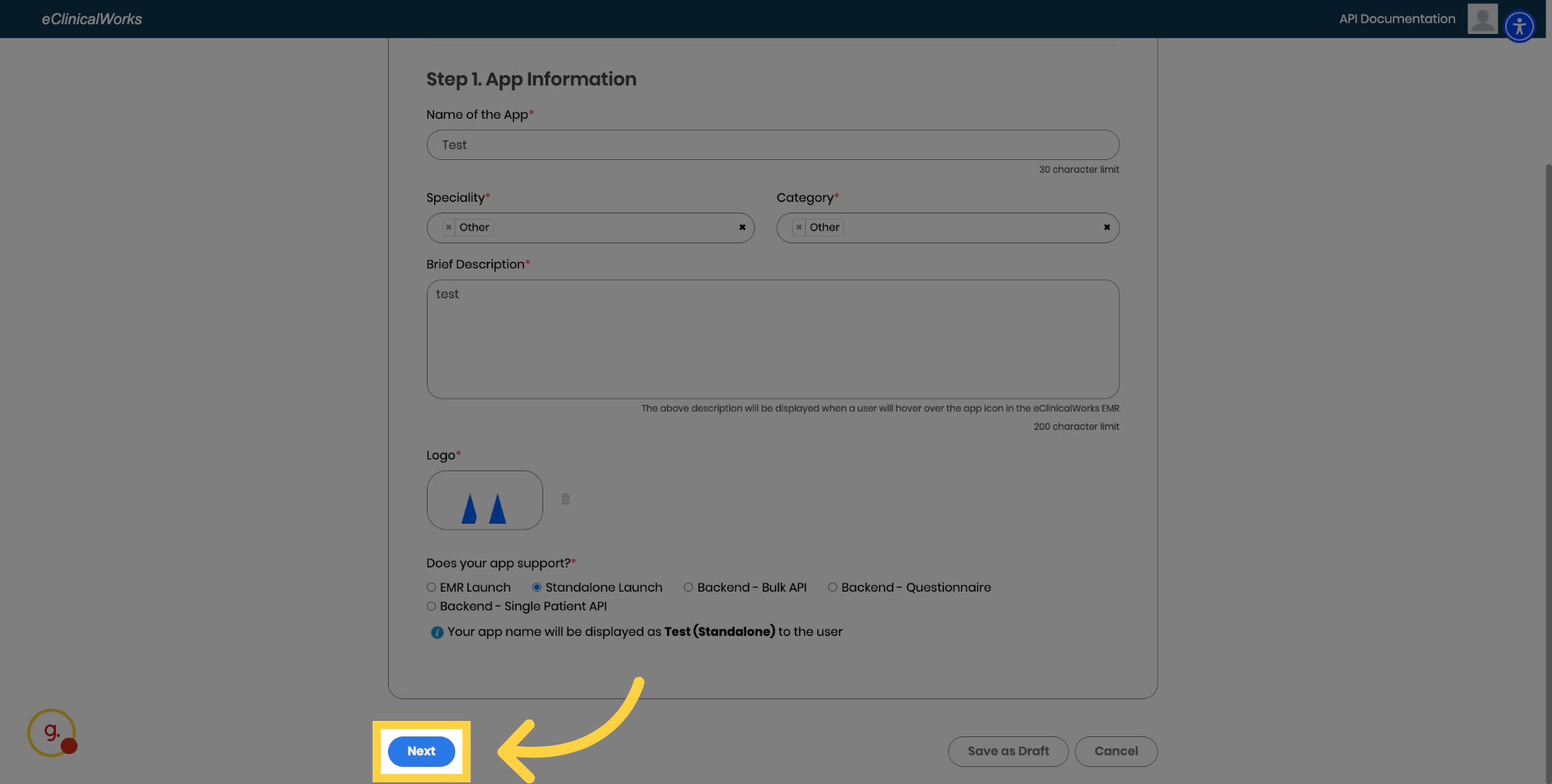
4. Proceed to Next Step
Click Next to continue to the following configuration step.
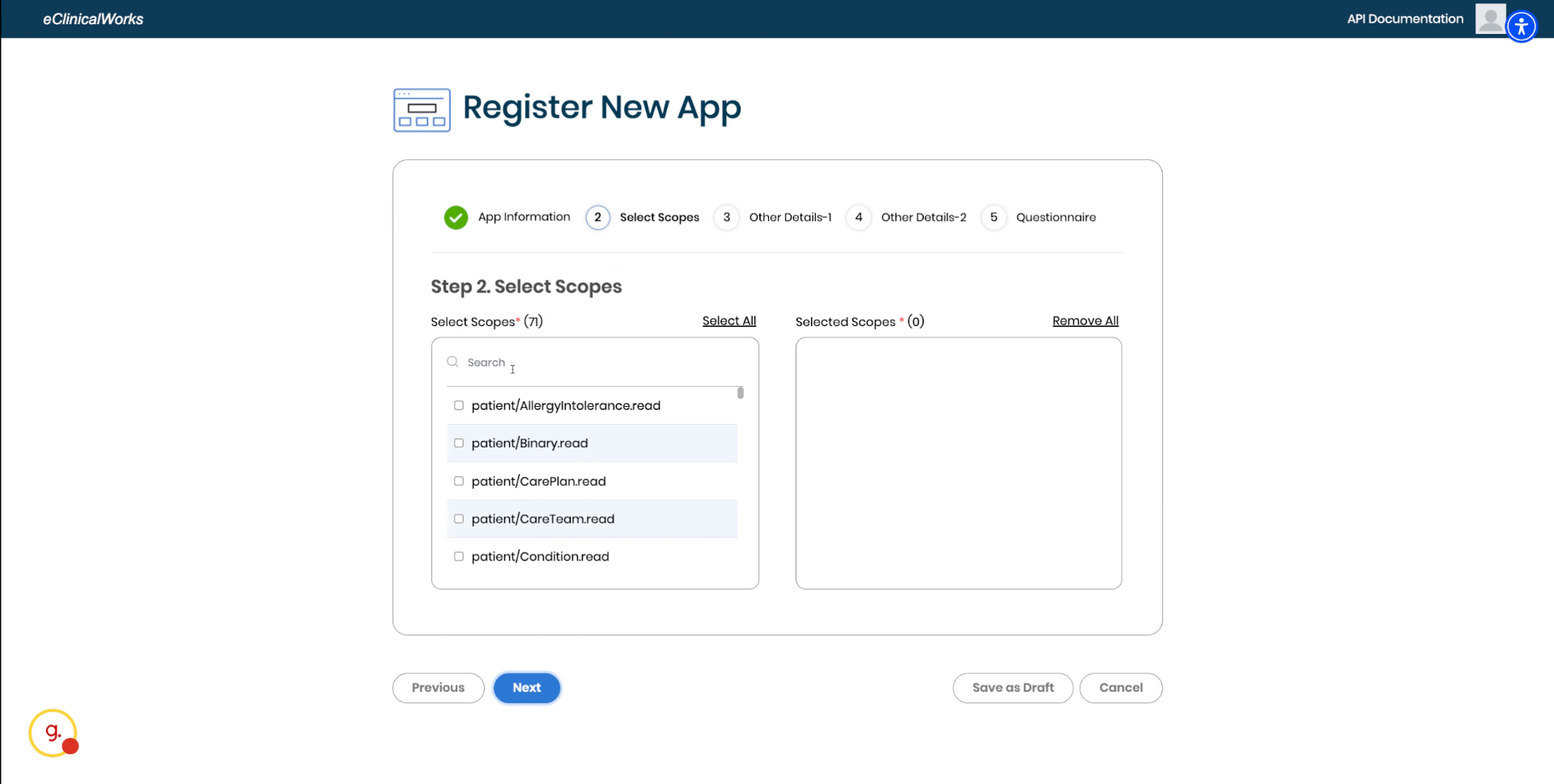
5. Select Required Scopes
Select the scopes that you need.
6. App details
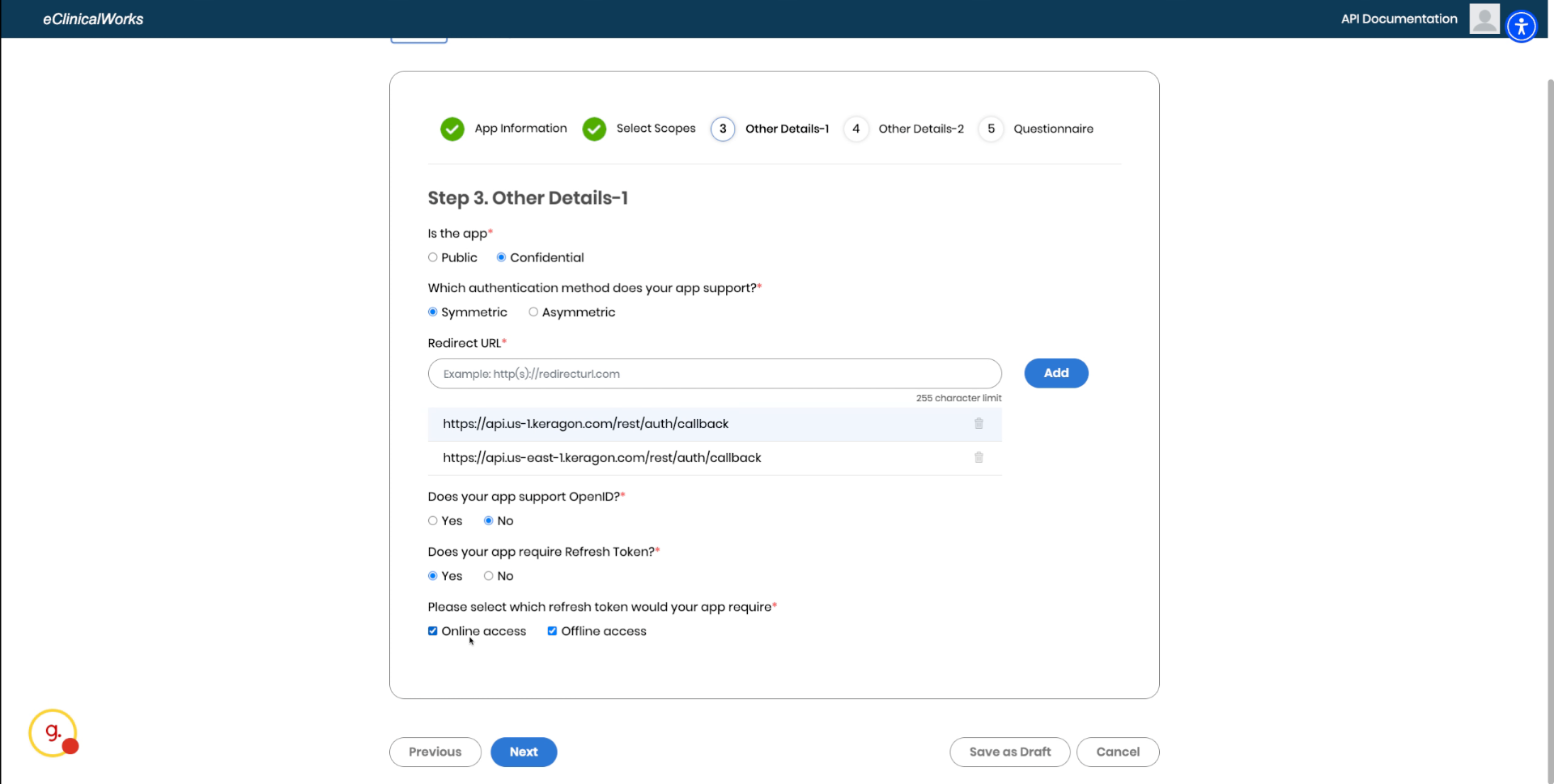
Select confidential app, select Symmetric authentication method, select no to OpenID support, Select Yes to require a refresh token, select both online and offline access
For redirect URL add :
https://api.us-1.keragon.com/rest/auth/callback
https://api.us-east-1.keragon.com/rest/auth/callback
https://api.us-1.keragon.com/rest/auth/callback
https://api.us-east-1.keragon.com/rest/auth/callback
7. Other details
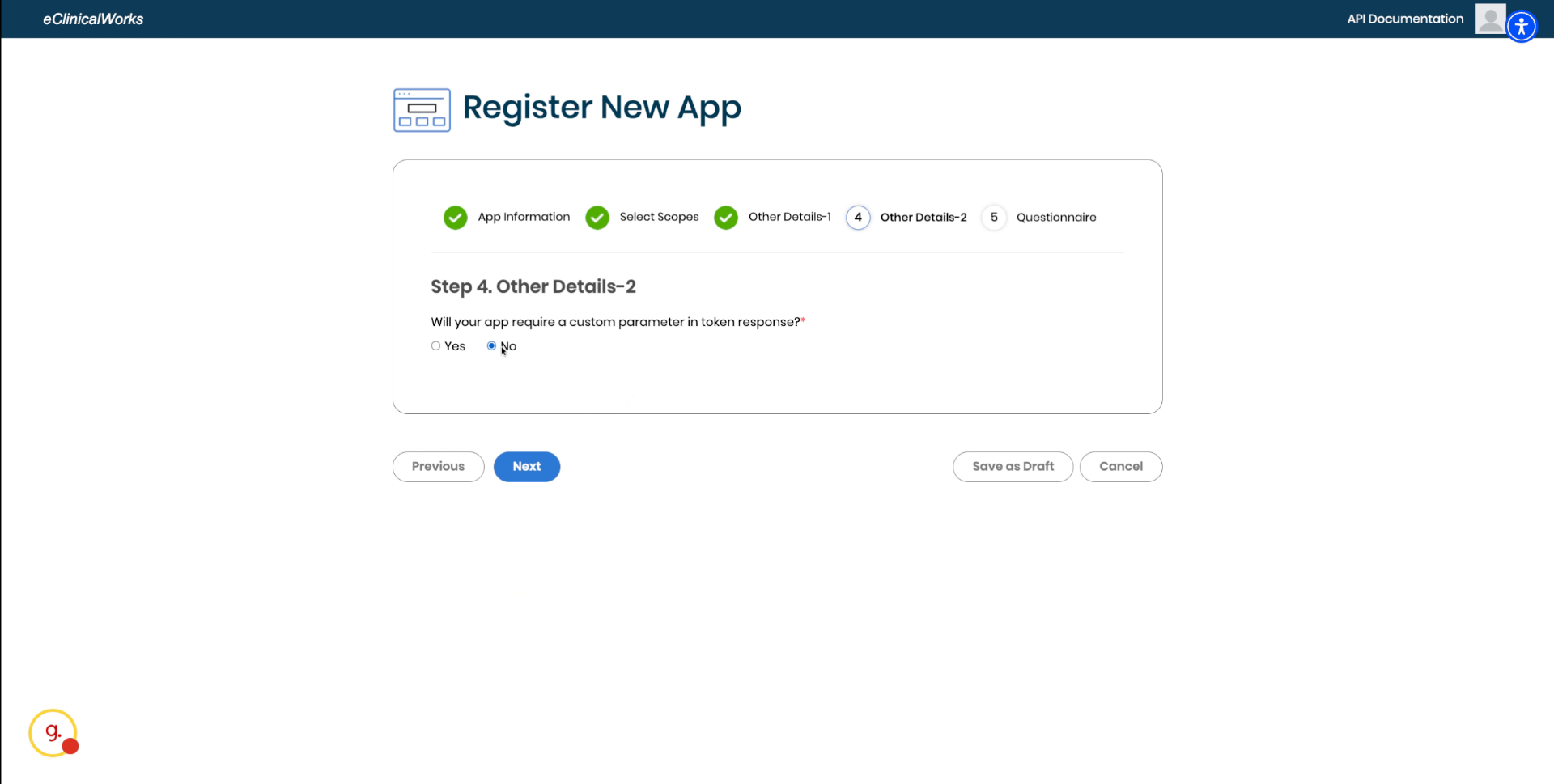
Select no to custom parameter token.
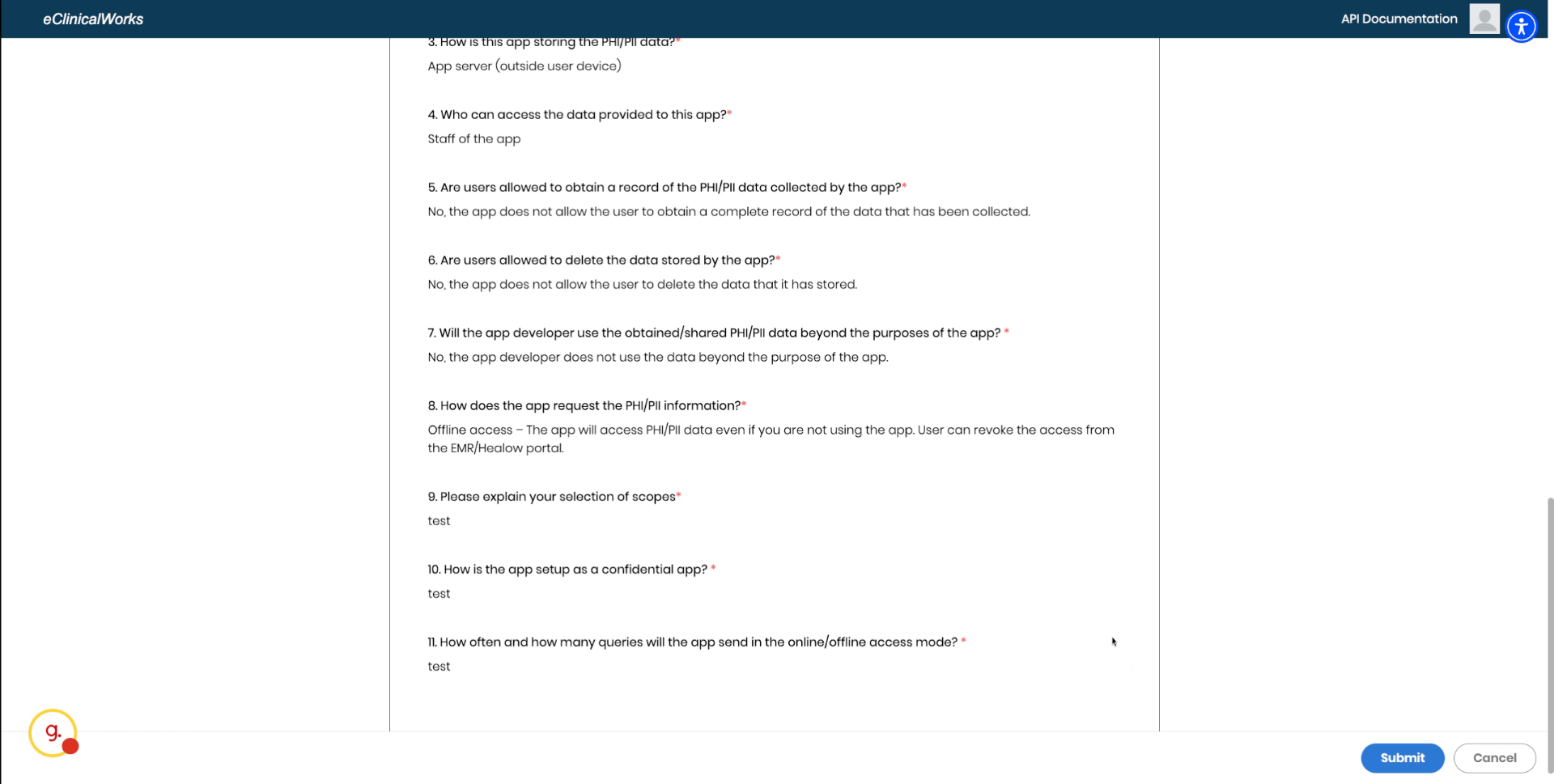
8. Complete App Description Form.
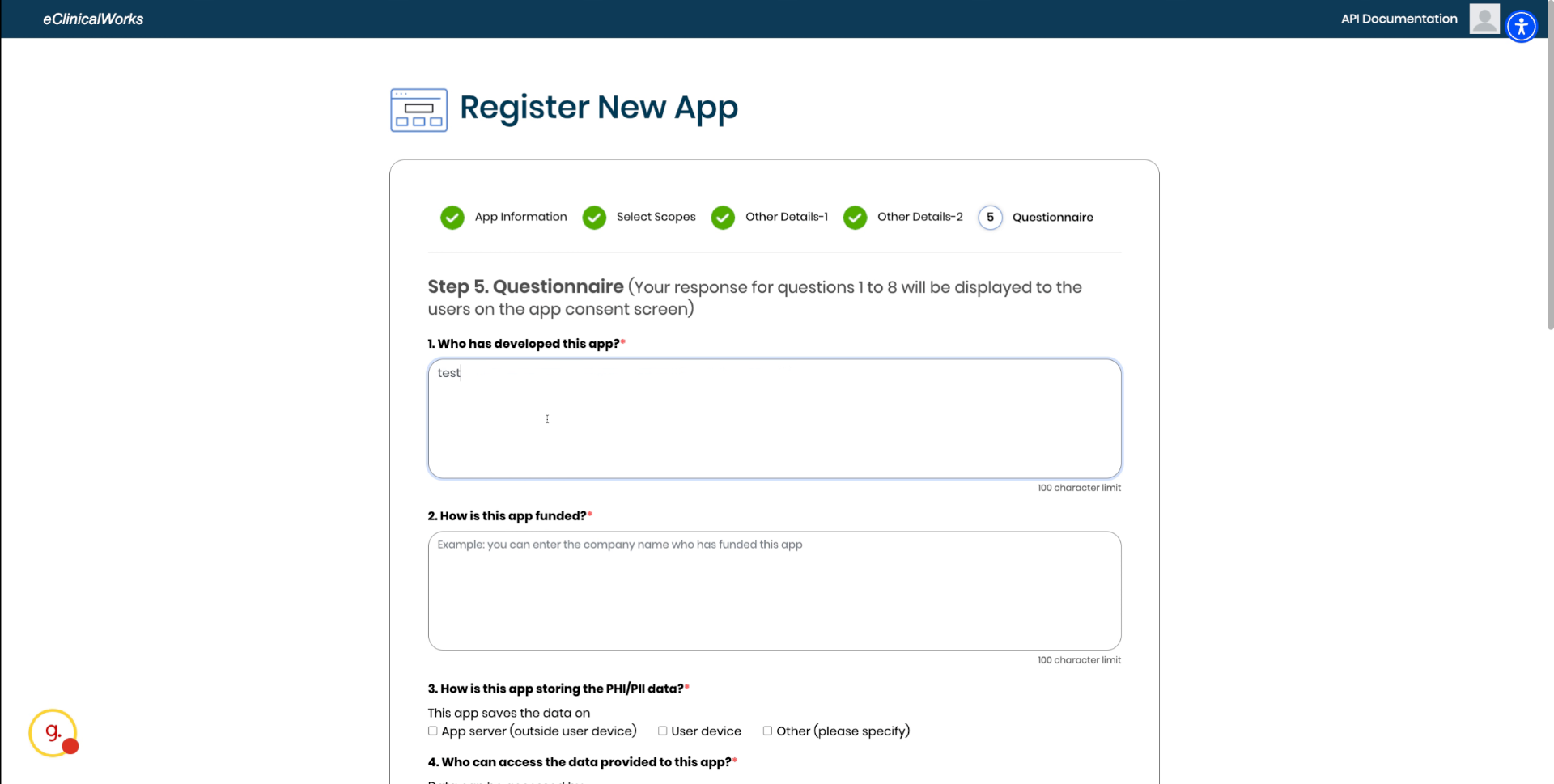
Add extra information about your application.
9. Confirm App Submission
Finally submit your application and after eclinicalworks review the application, you will be granted with a Client ID and a Client Secret.
This article has guided you through the complete process of submitting your app in eClinicalWorks.