This article explains how to enable temporary access for Keragon support to assist with your account
Go to app.keragon.com
1. Introduction
You will learn the steps to configure and save this setting securely within your profile preferences.
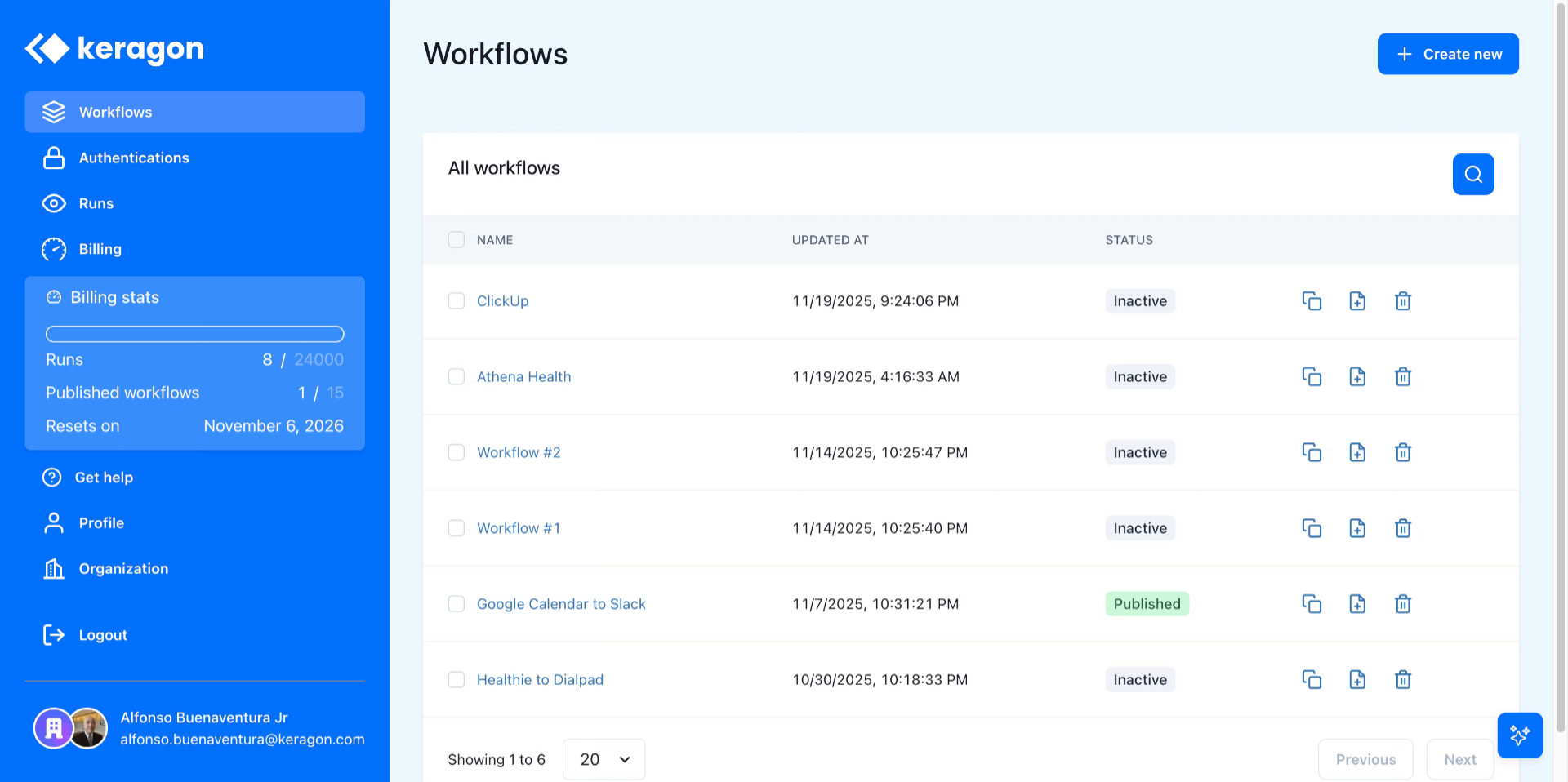
2. Open "Settings", then "Profile" tab
Click the Profile menu to access your account settings.
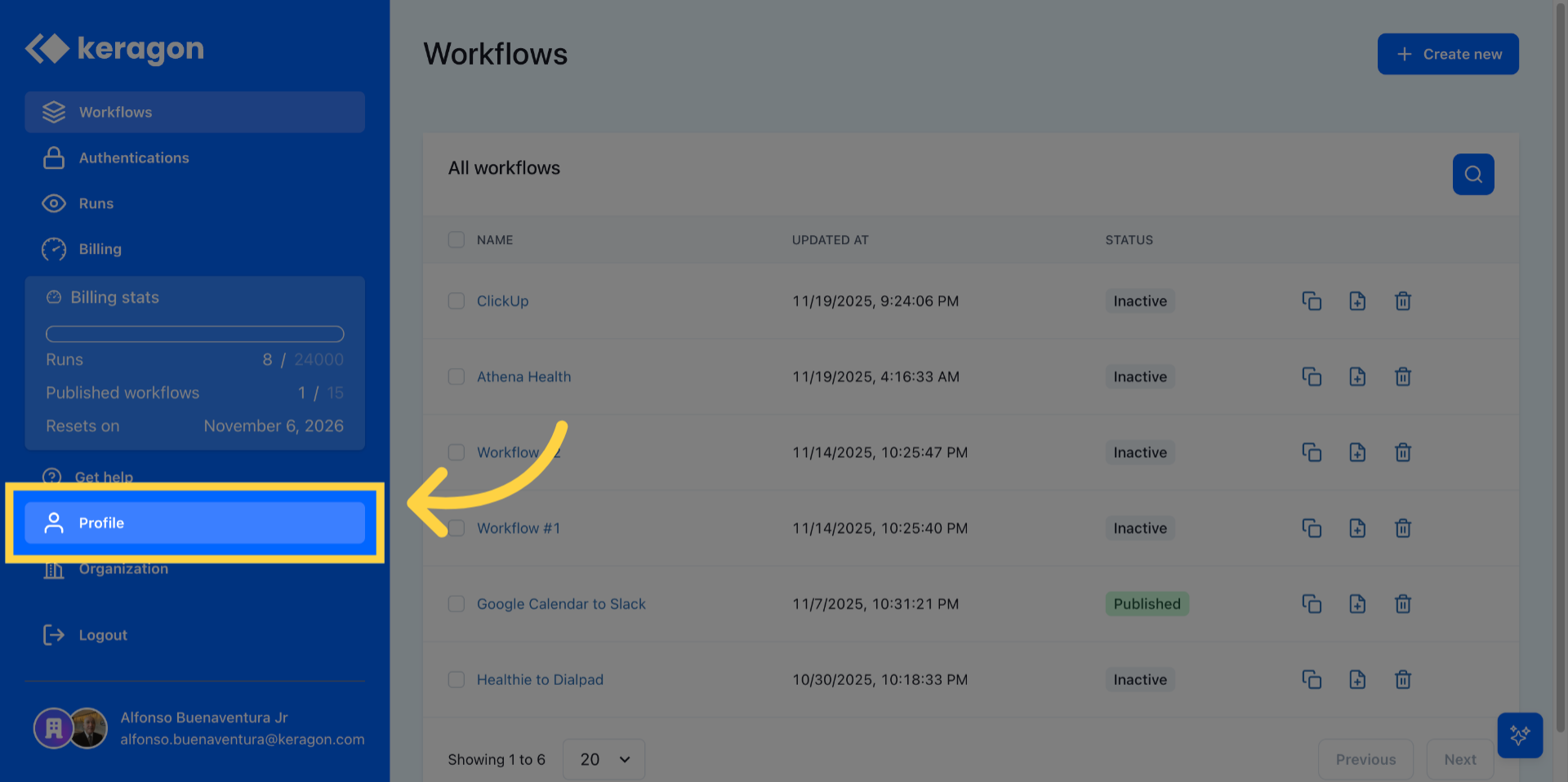
3. Access Preferences Section
Click Preferences to open your account customization options.
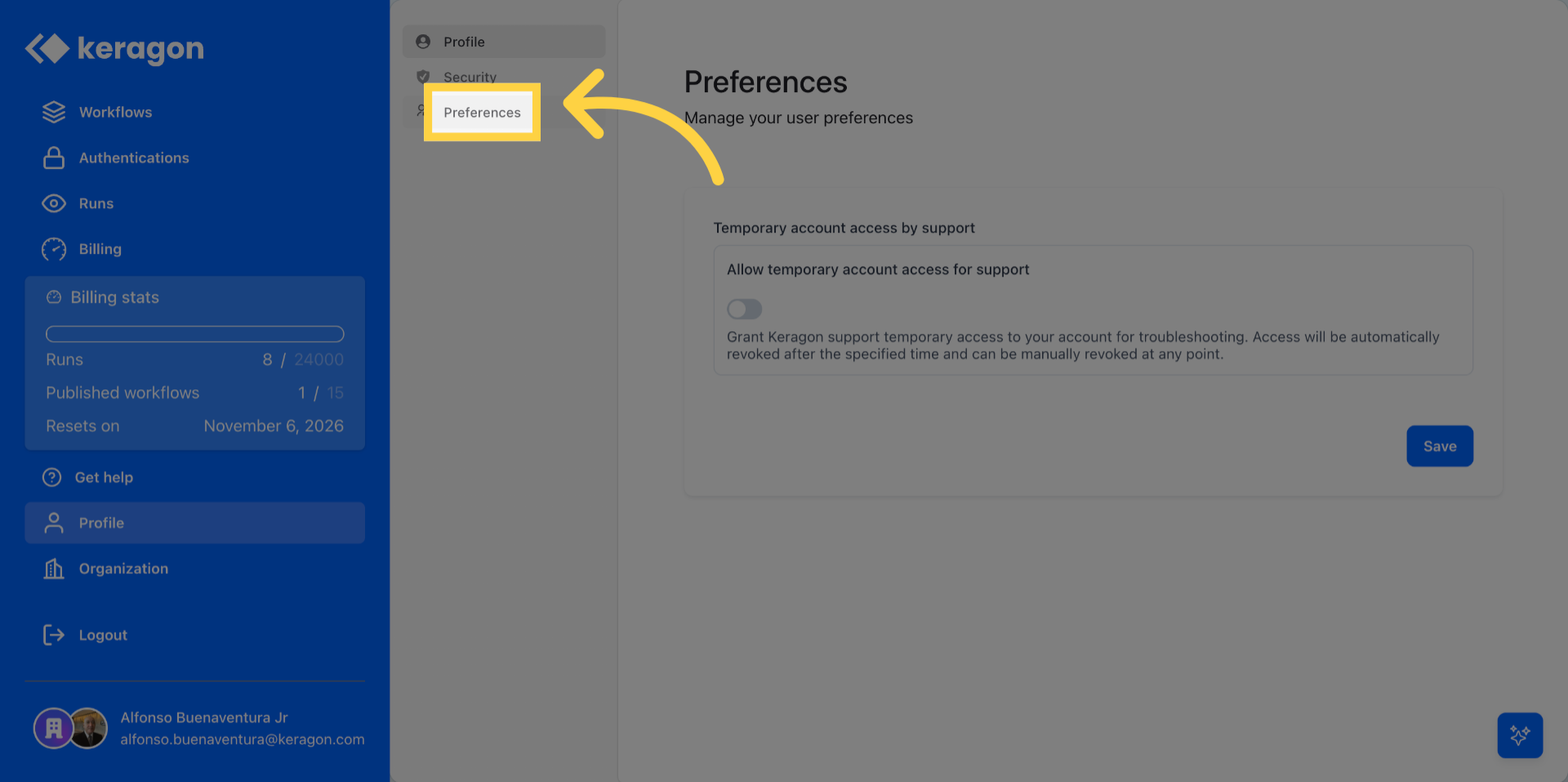
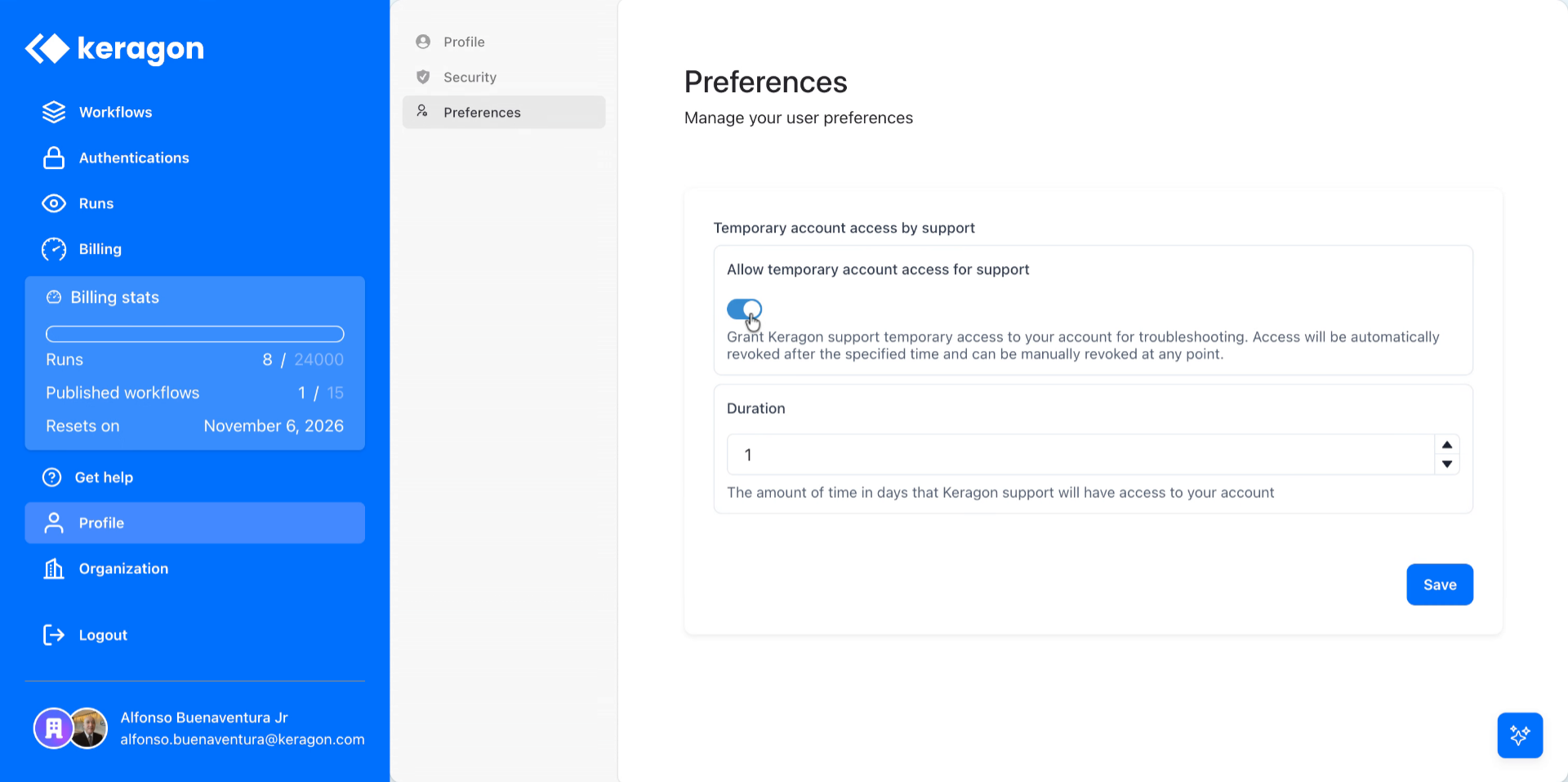
4. Locate Temporary Access Setting
Click the option to allow temporary account access for support.
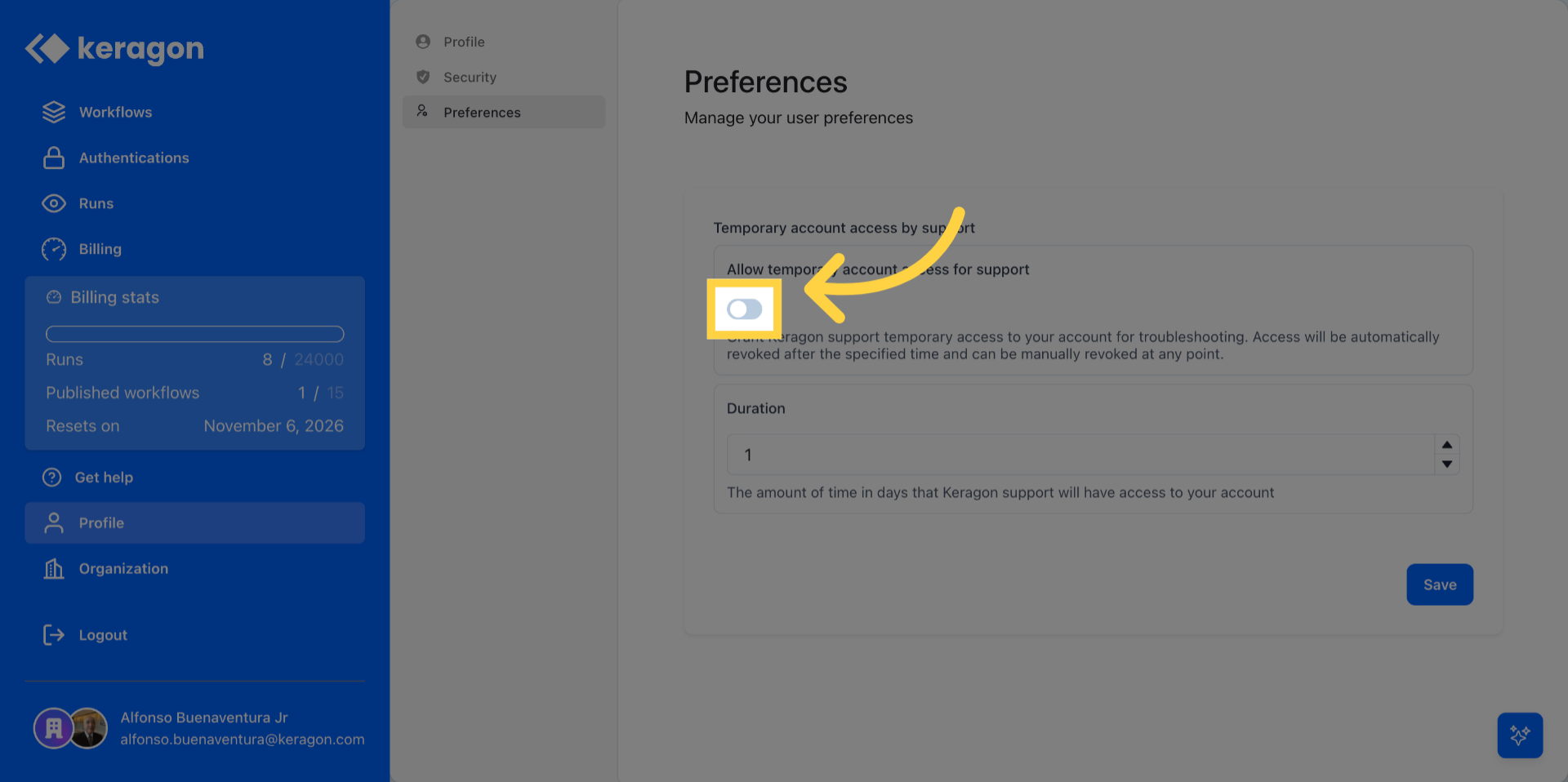
5. Enable Temporary Account Access
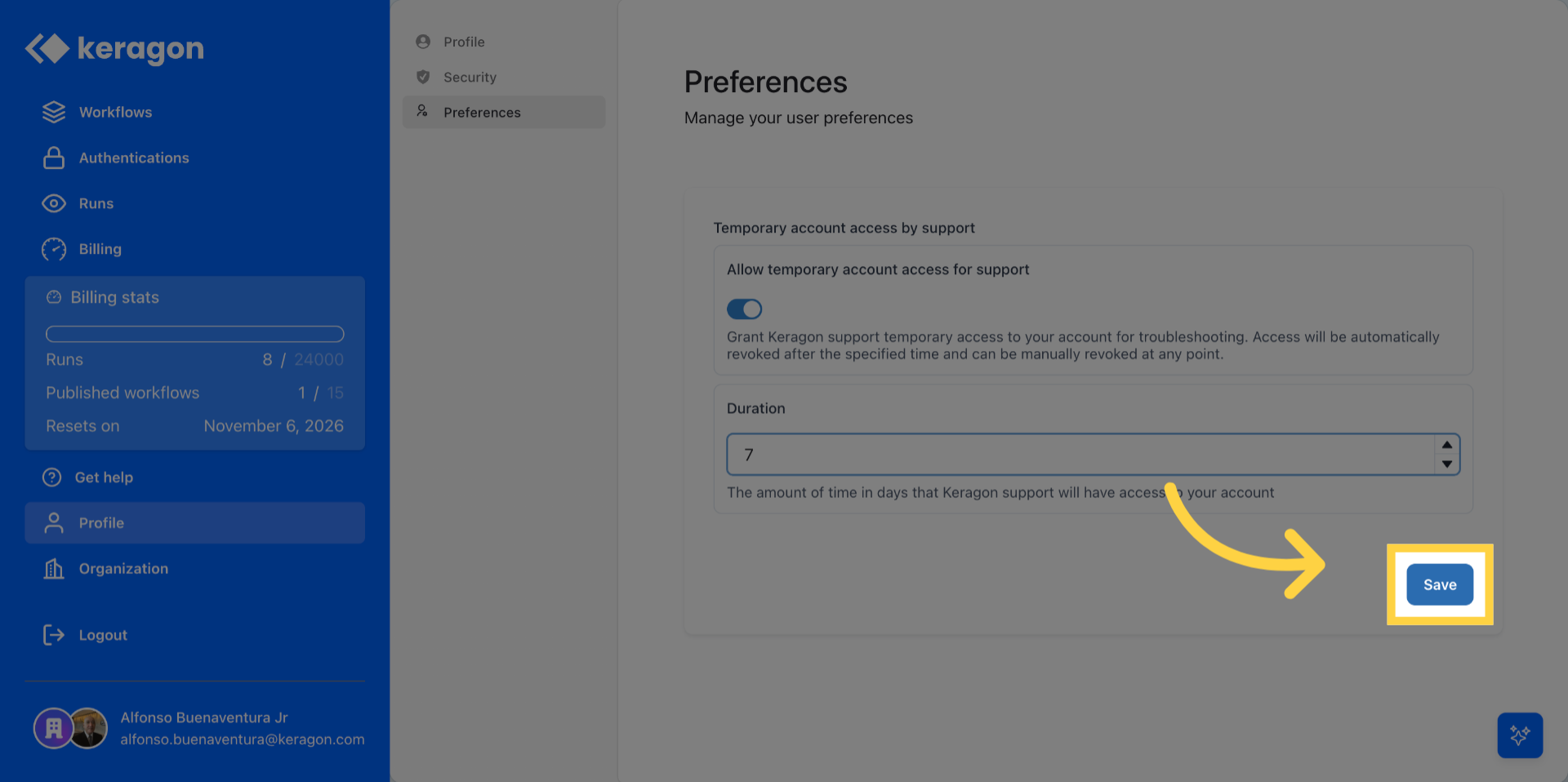
Enter the setting to allow temporary account access for support. Don't forget to set the Duration to 7.
6. Save Access Configuration
Click Save to apply and confirm the temporary access settings.
You have successfully enabled temporary access for Keragon support by updating your profile preferences and saving the changes. For more information, see related articles on account security and support access.