This article explains how to use Zoho Forms to trigger workflows through webhook integration
Go to app.keragon.com
1. Introduction
You will learn how to configure and connect Zoho Forms with Keragon to automate your processes effectively.
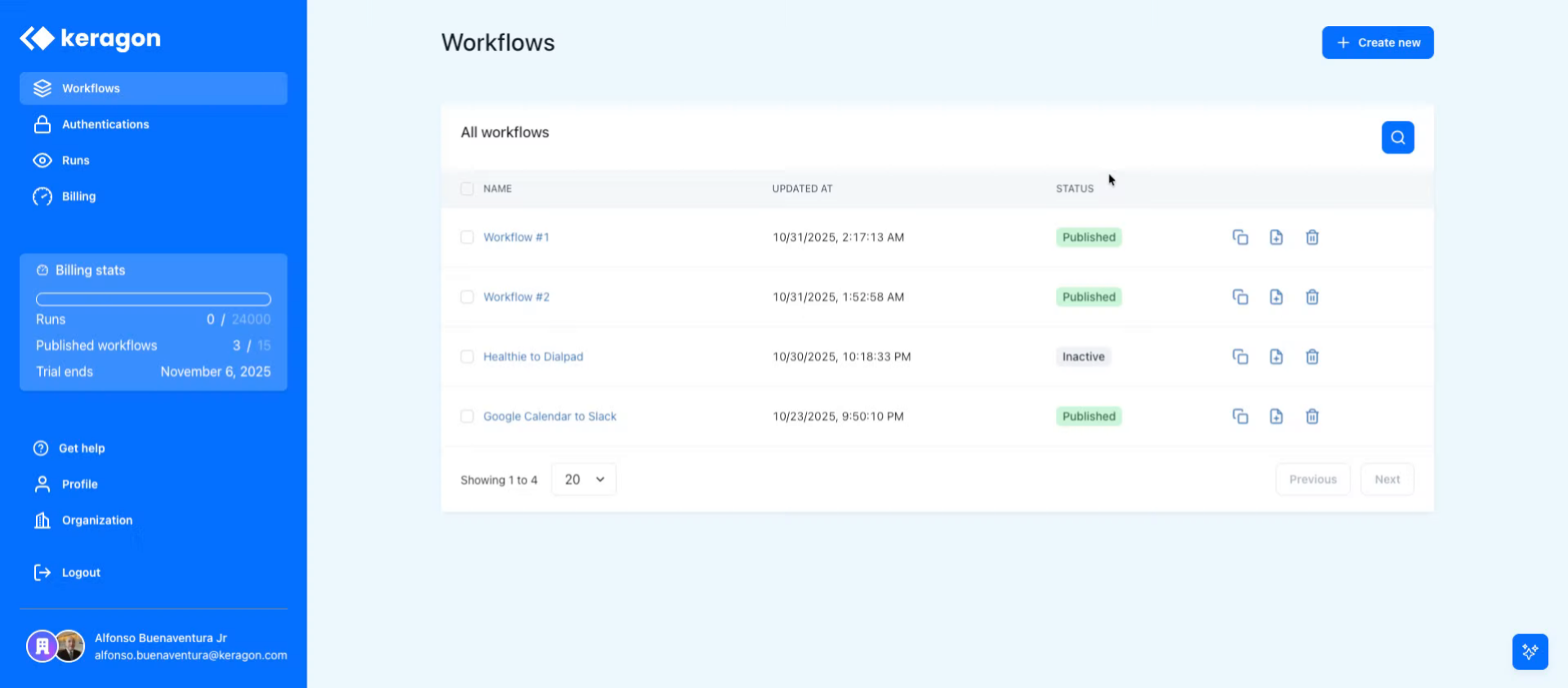
2. Create New Workflow
Click "Create new" to start setting up a new workflow in Keragon.
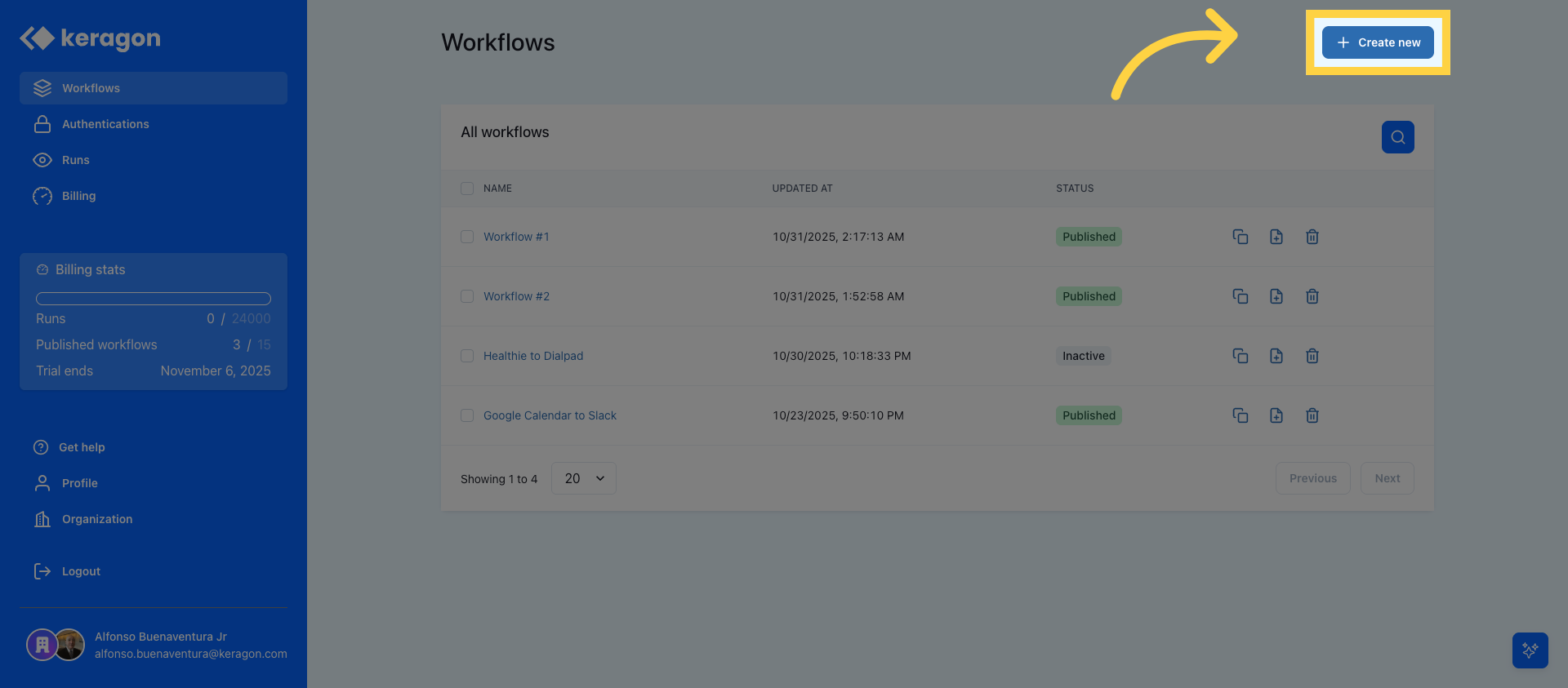
3. Search Http Connector
Click "Search" to find the HTTP connector needed for the integration.
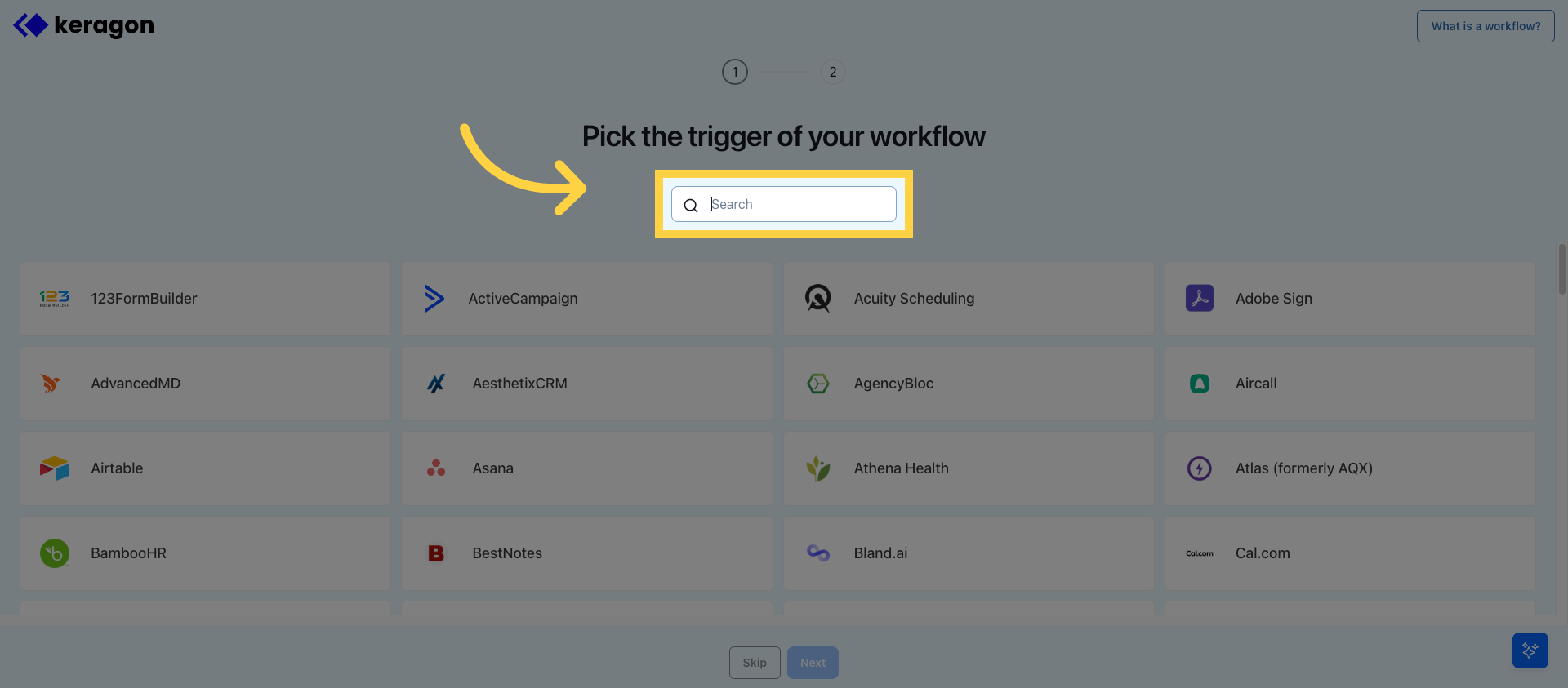
4. Enter Http Keyword
Enter "http" in the search field to filter connectors related to HTTP.
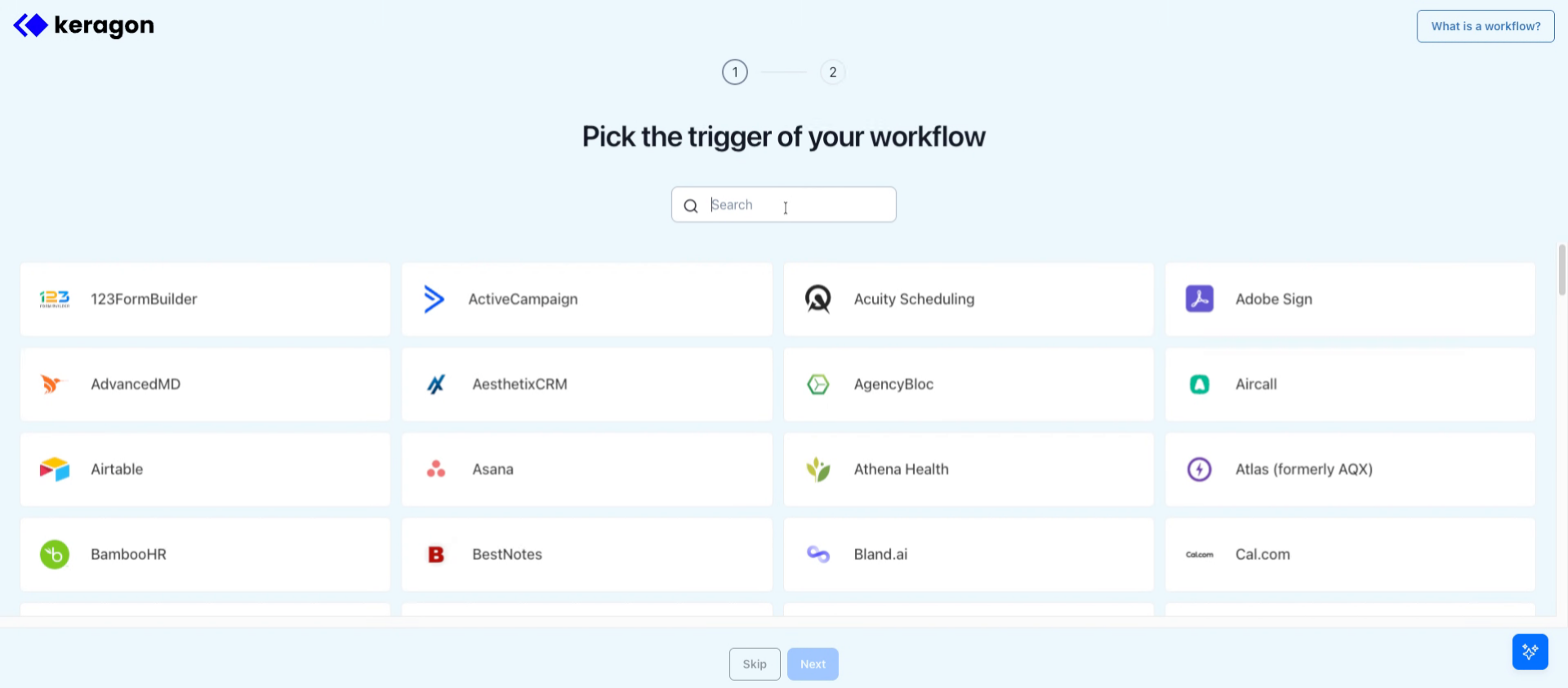
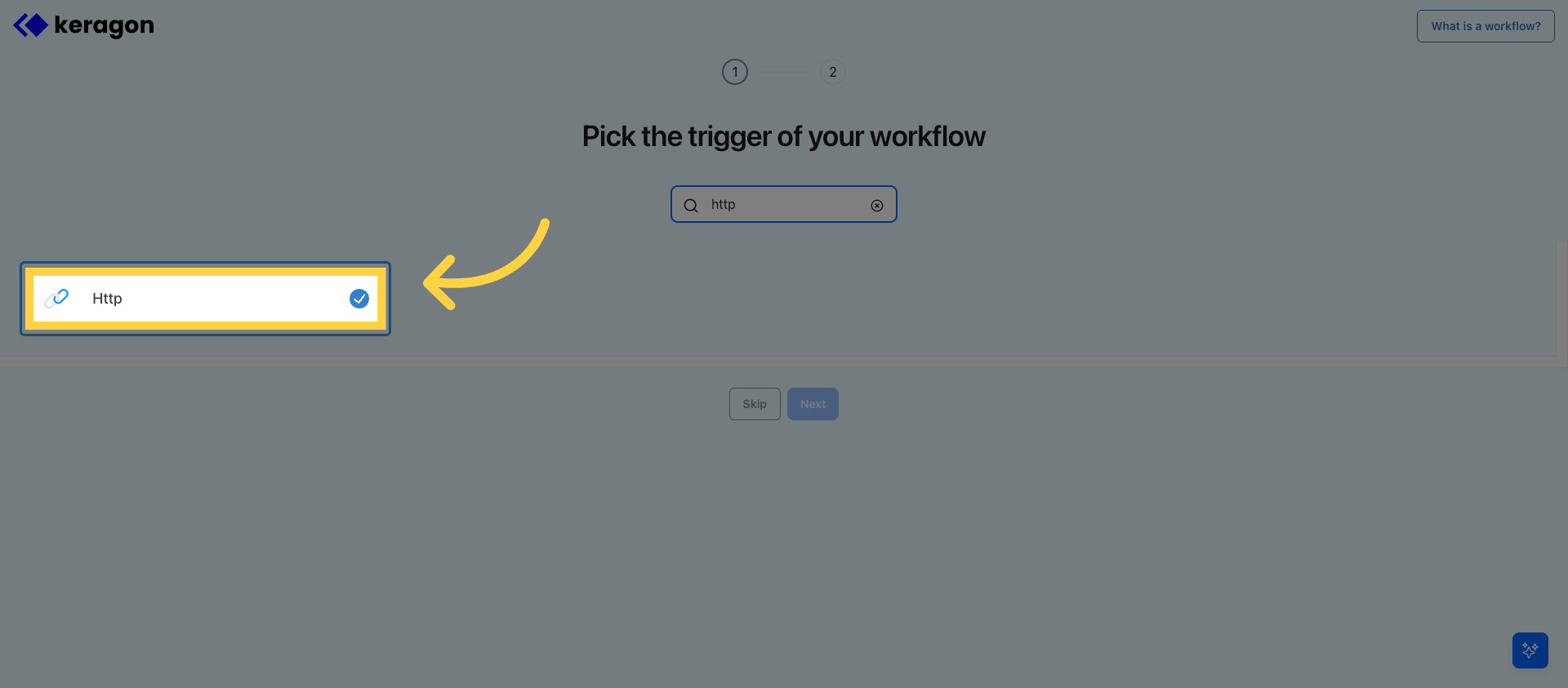
5. Select Http Connector
Click "Http" to select the HTTP connector for your workflow.
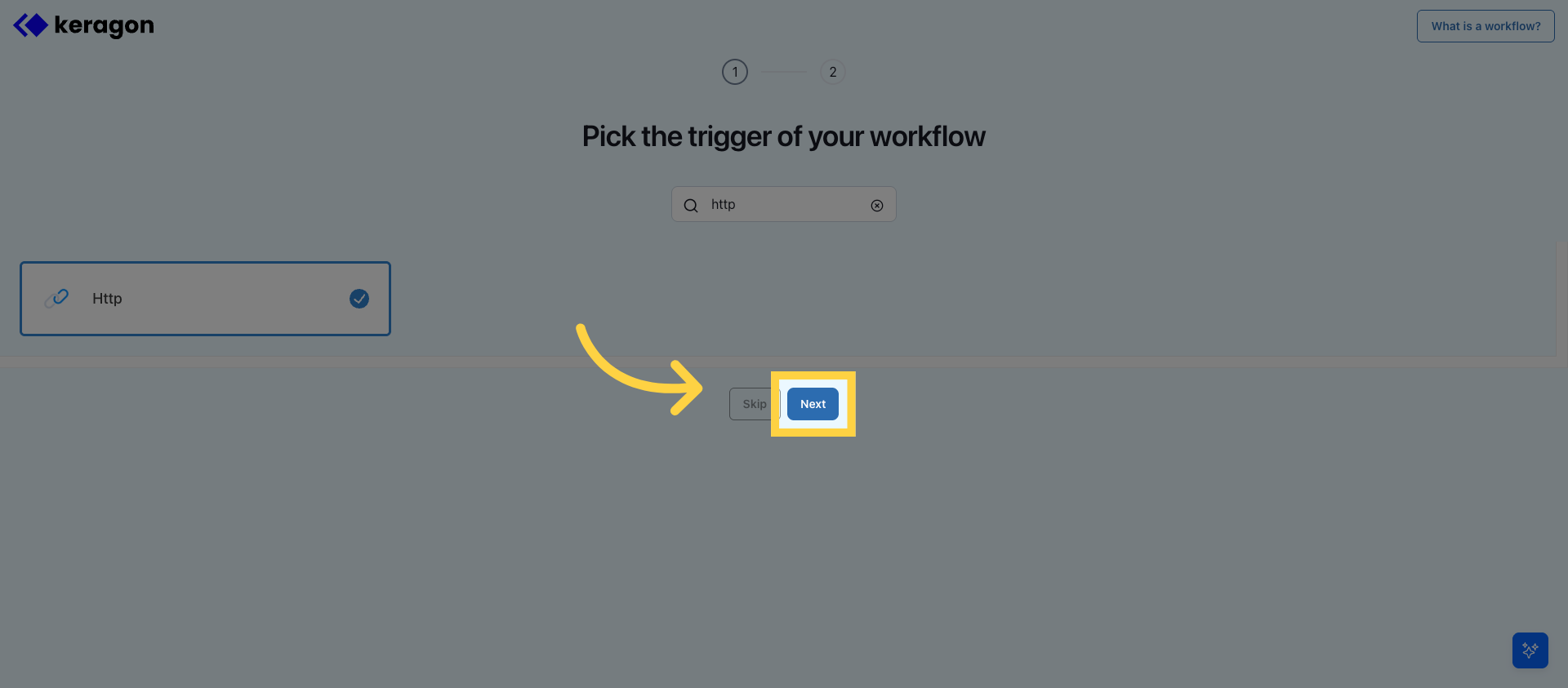
6. Proceed To Next Step
Click "Next" to continue configuring the workflow after selecting the connector.
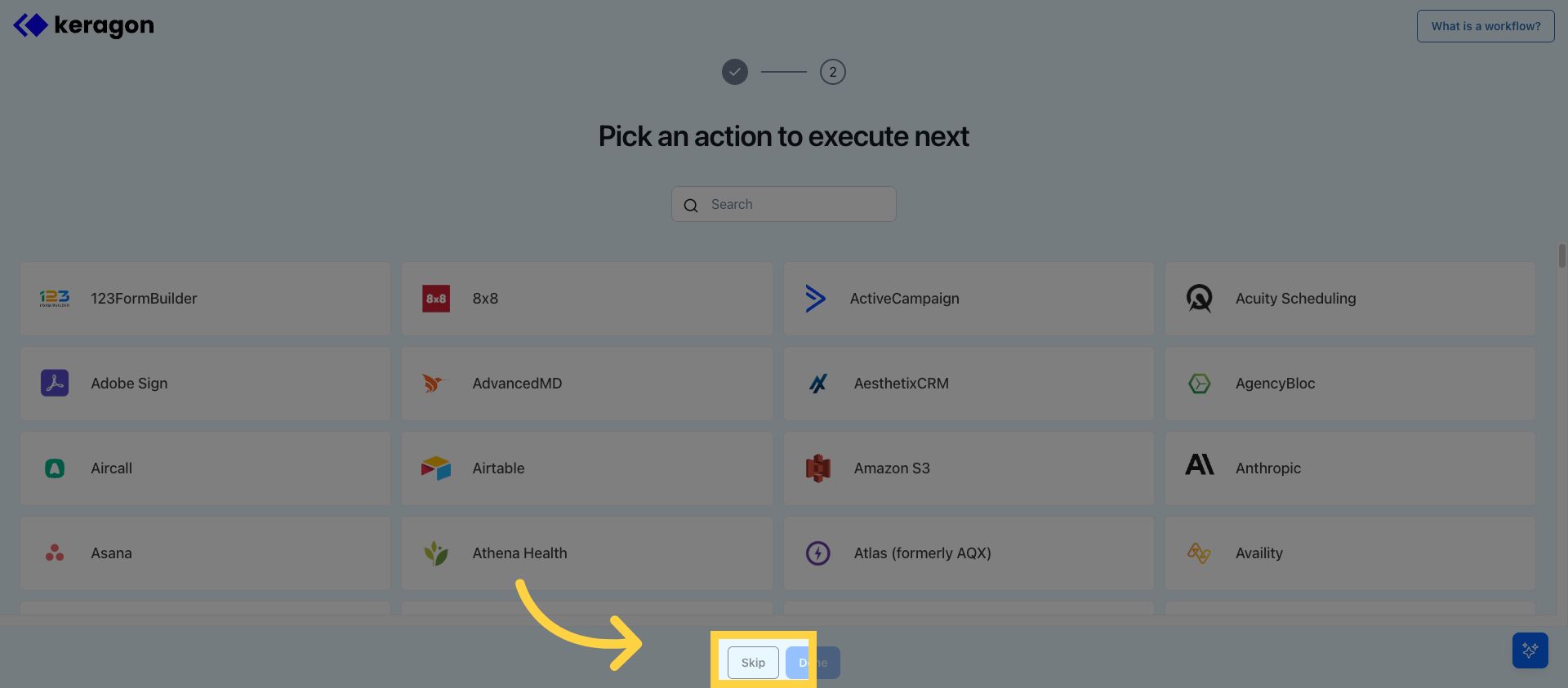
7. Skip Optional Configuration
Click "Skip" to bypass optional setup steps and proceed.
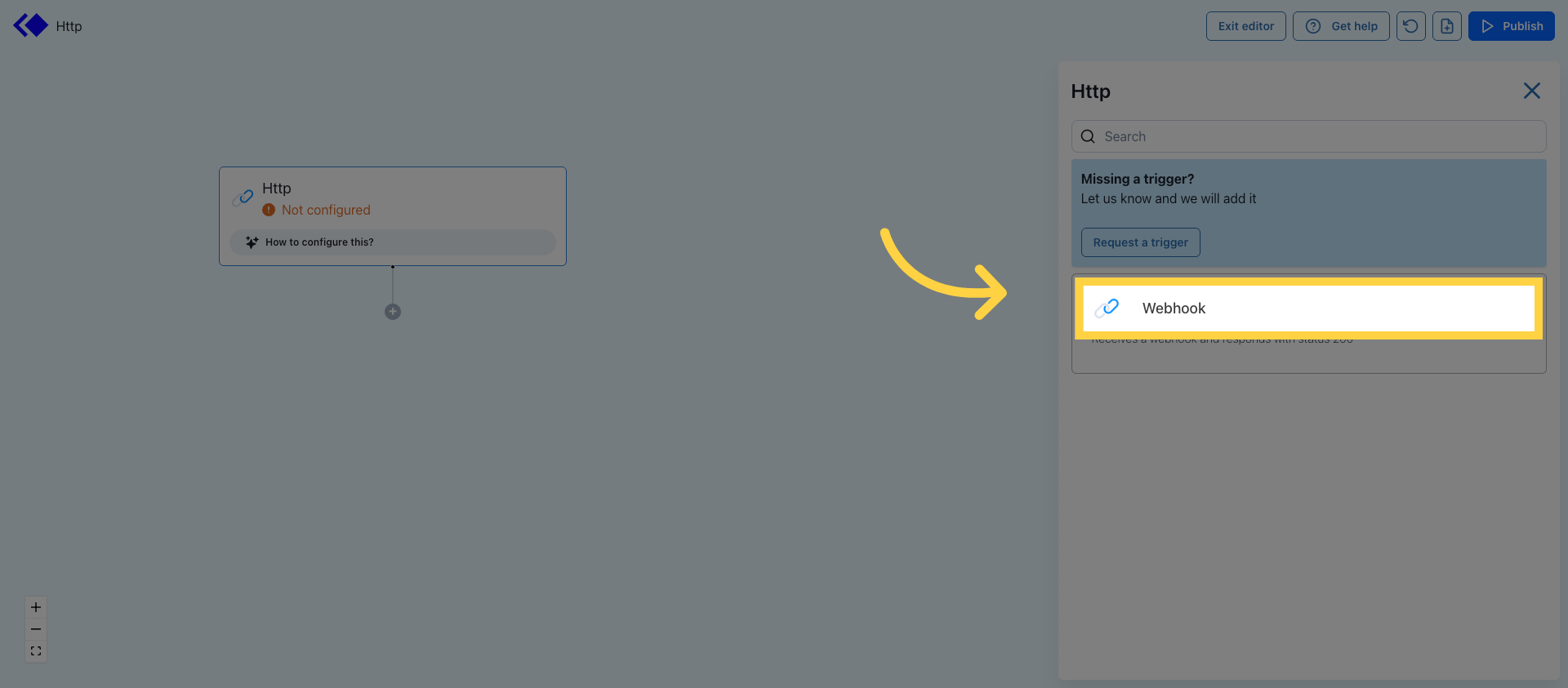
8. Choose Webhook Action
Click "Webhook" to specify that the workflow will use a webhook action.
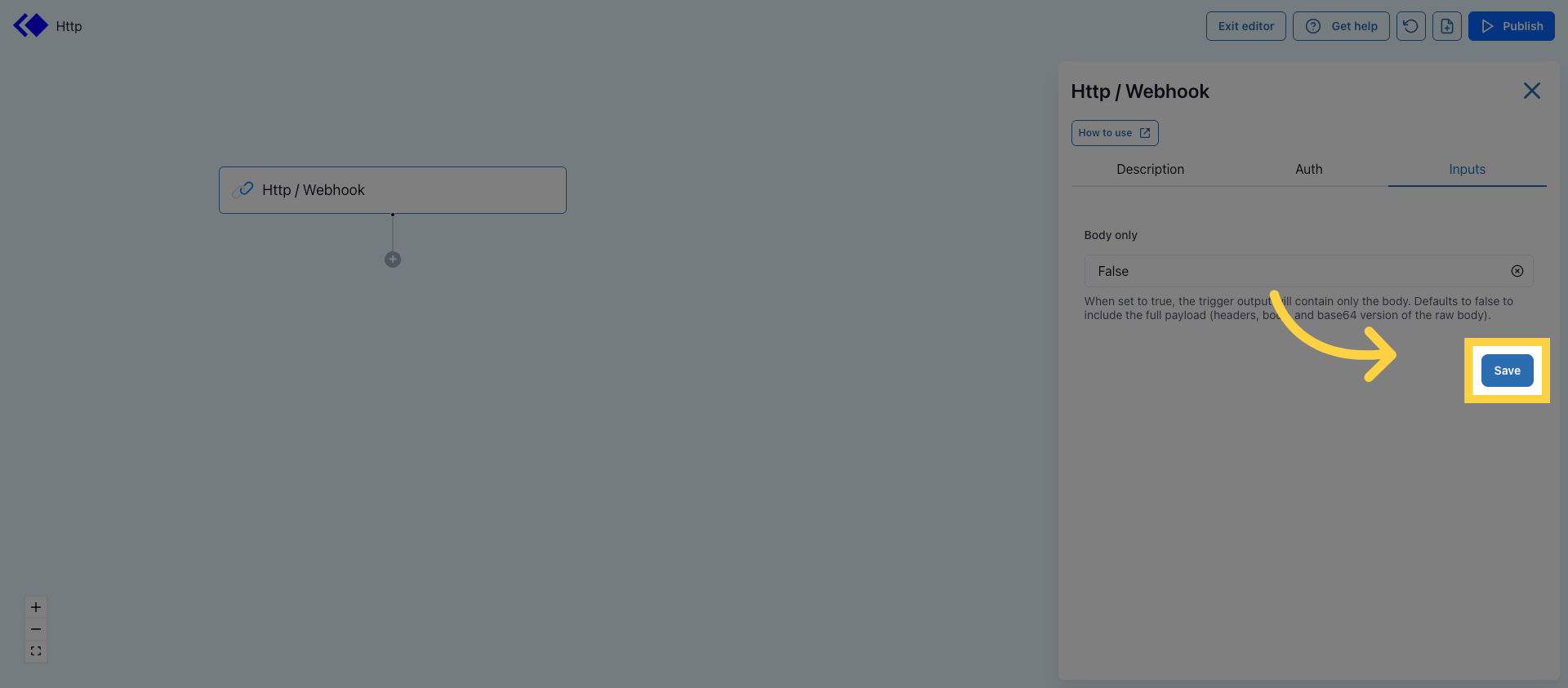
9. Save Workflow Setup
Click "Save" to save the webhook configuration within the workflow.
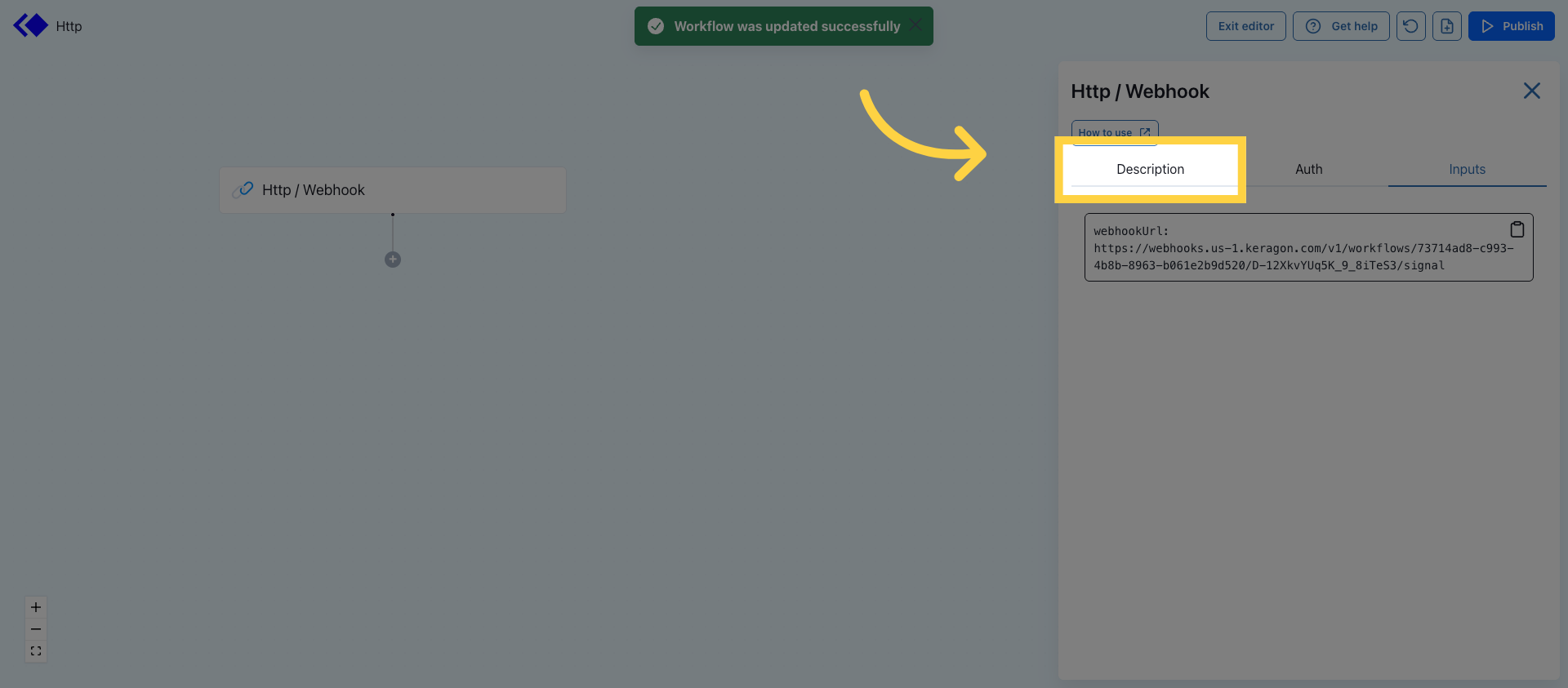
10. Access Description Field
Click "Description" to add or edit details about the workflow.
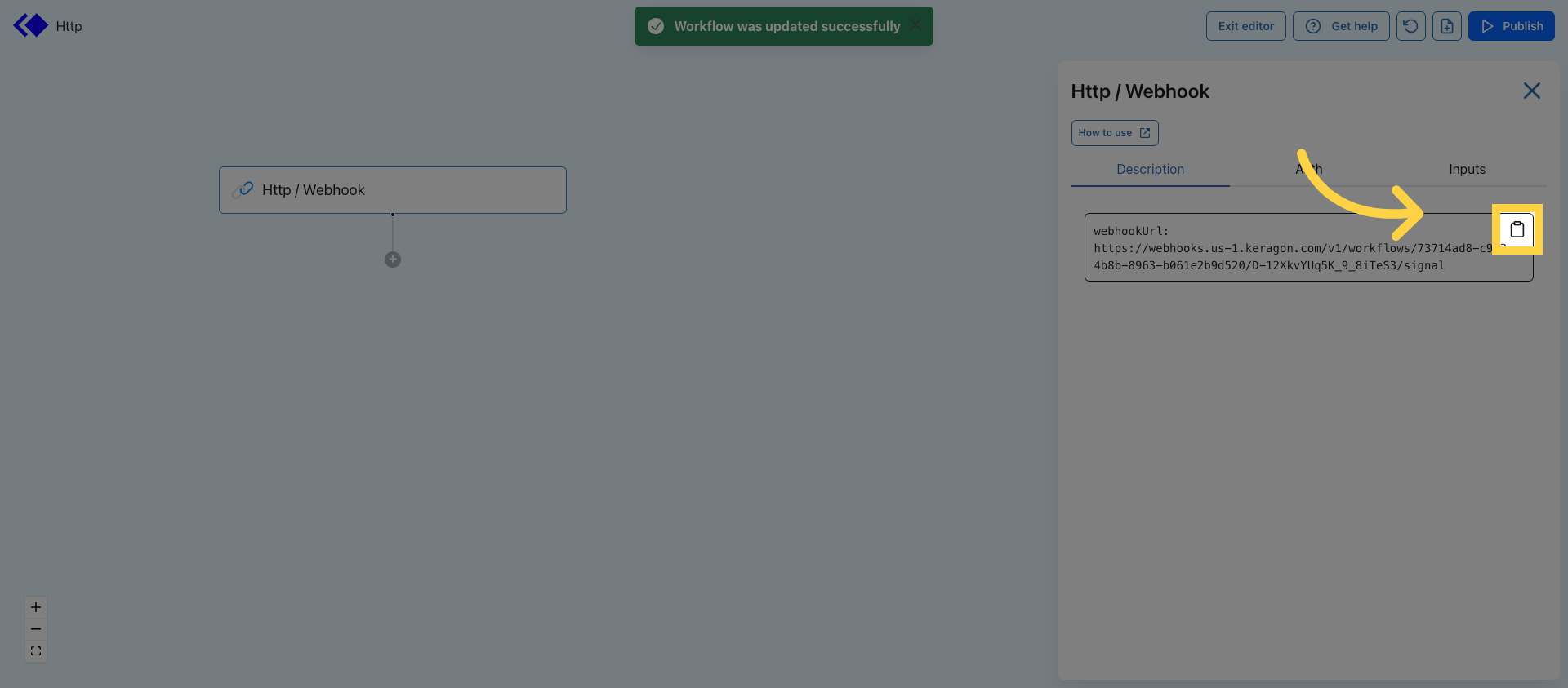
11. Click Link For Details
Click here to access additional settings or information related to the workflow.
12. Switch To Zoho Forms
Switch to "forms.zoho.eu" to begin configuring the integration on the Zoho Forms platform.
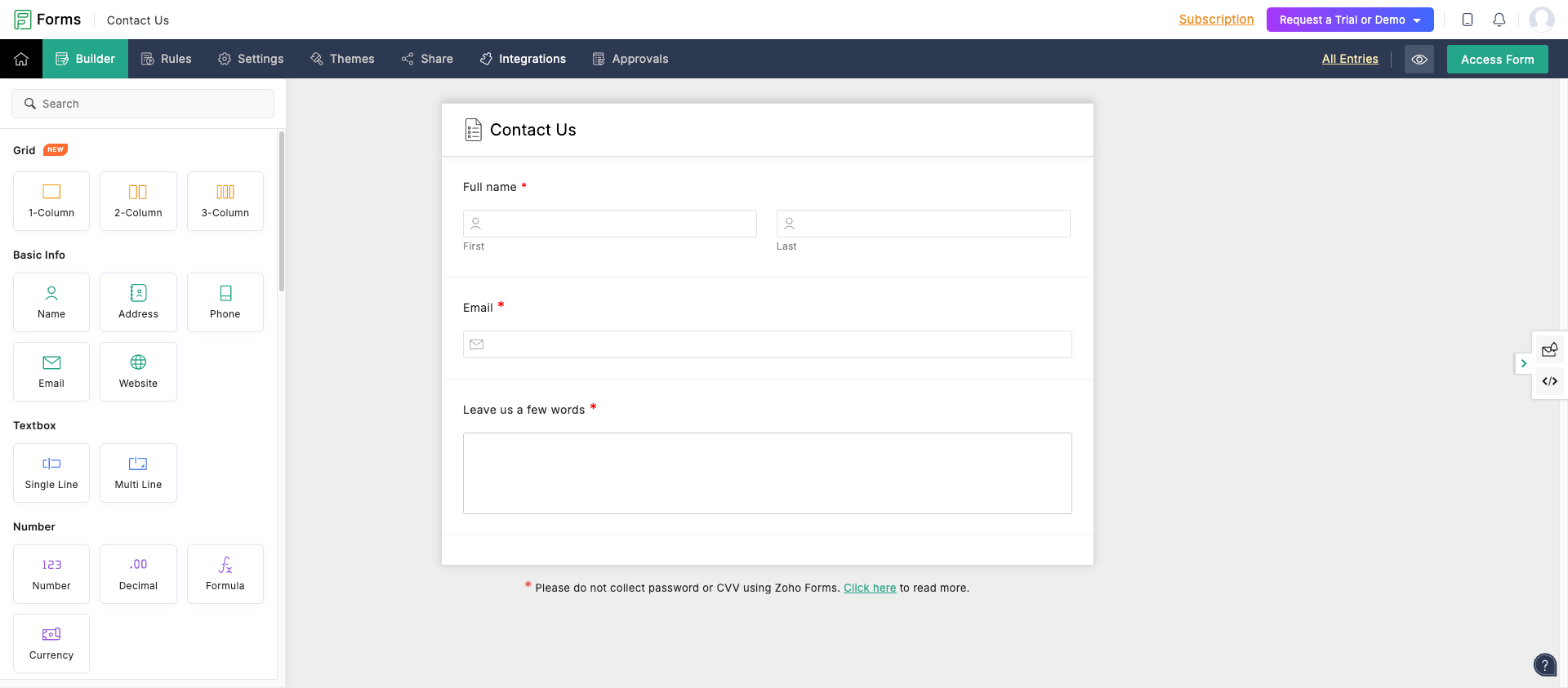
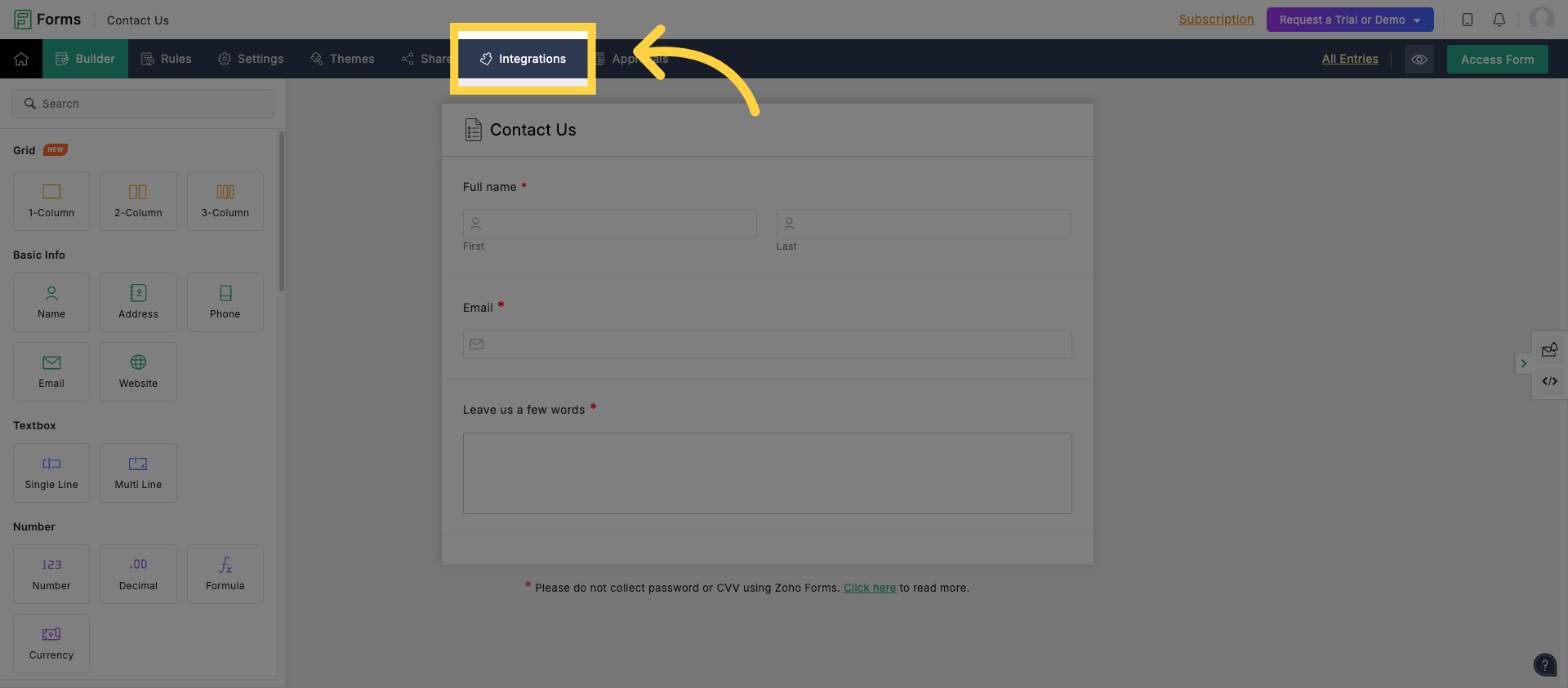
13. Open Integrations Tab
Click "Integrations" within Zoho Forms to access available integration options.
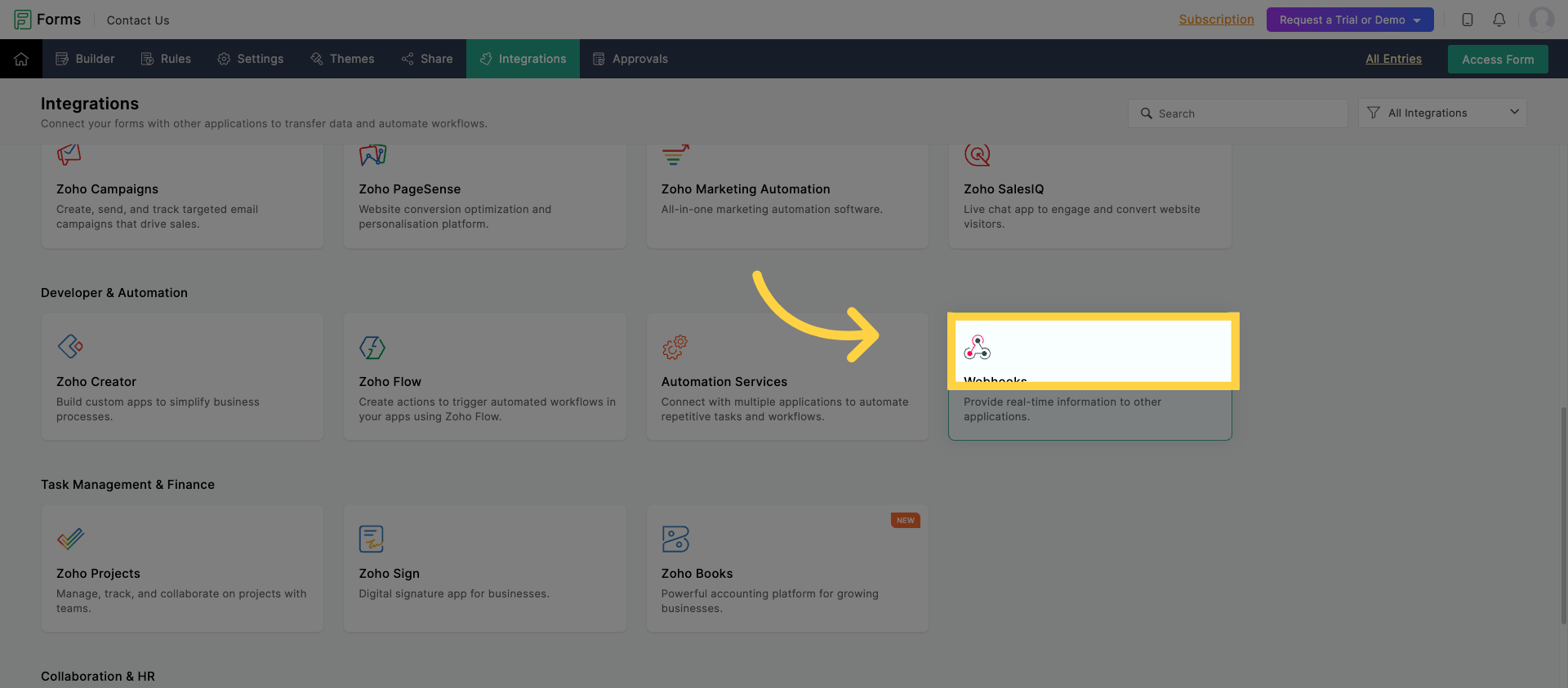
14. Access Webhook Settings
Click here to open the webhook configuration settings in Zoho Forms.
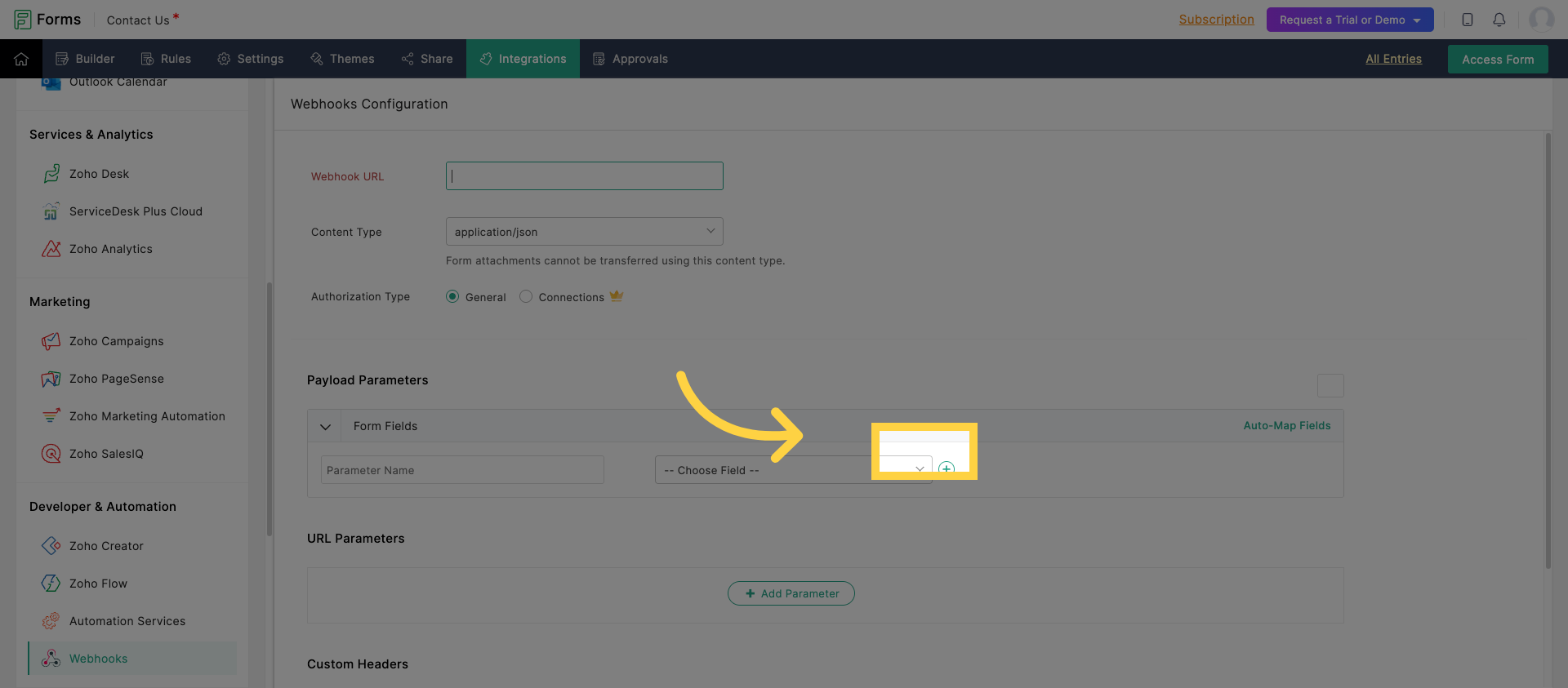
15. Configure Webhook
Click "Configure Webhook" to set up the webhook that will trigger the workflow.
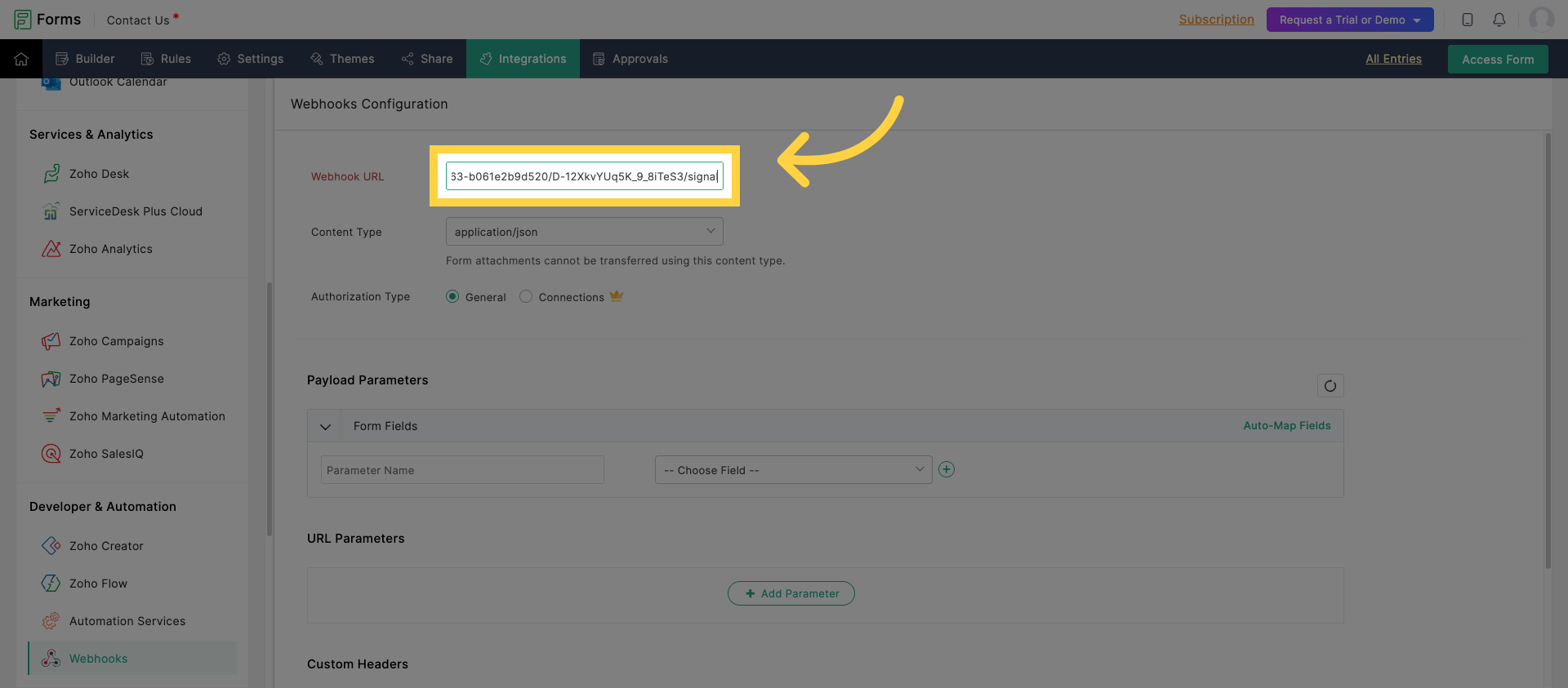
16. Enter Webhook URL
Enter the webhook URL provided by Keragon to link Zoho Forms with the workflow.
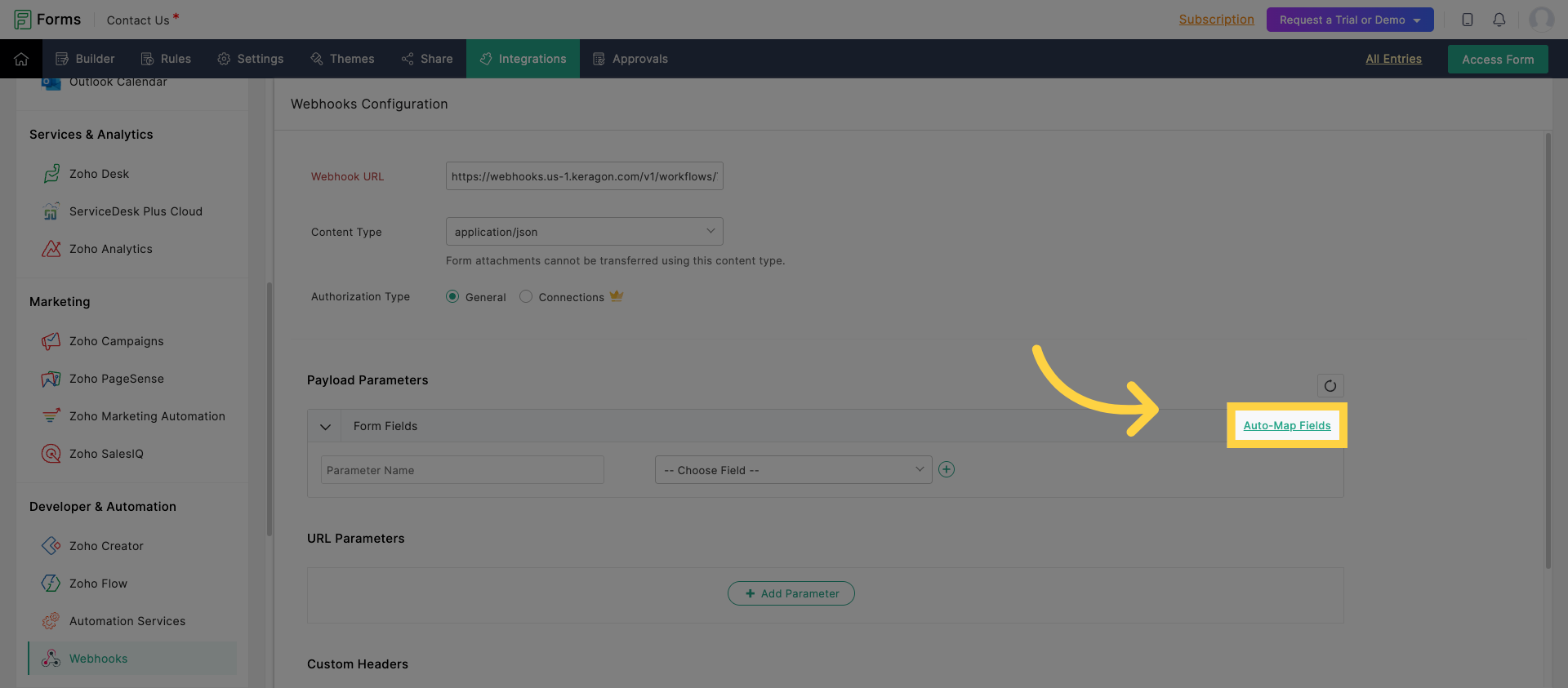
17. Auto-Map Form Fields
Click "Auto-Map Fields" to automatically match Zoho Form fields with the webhook data.
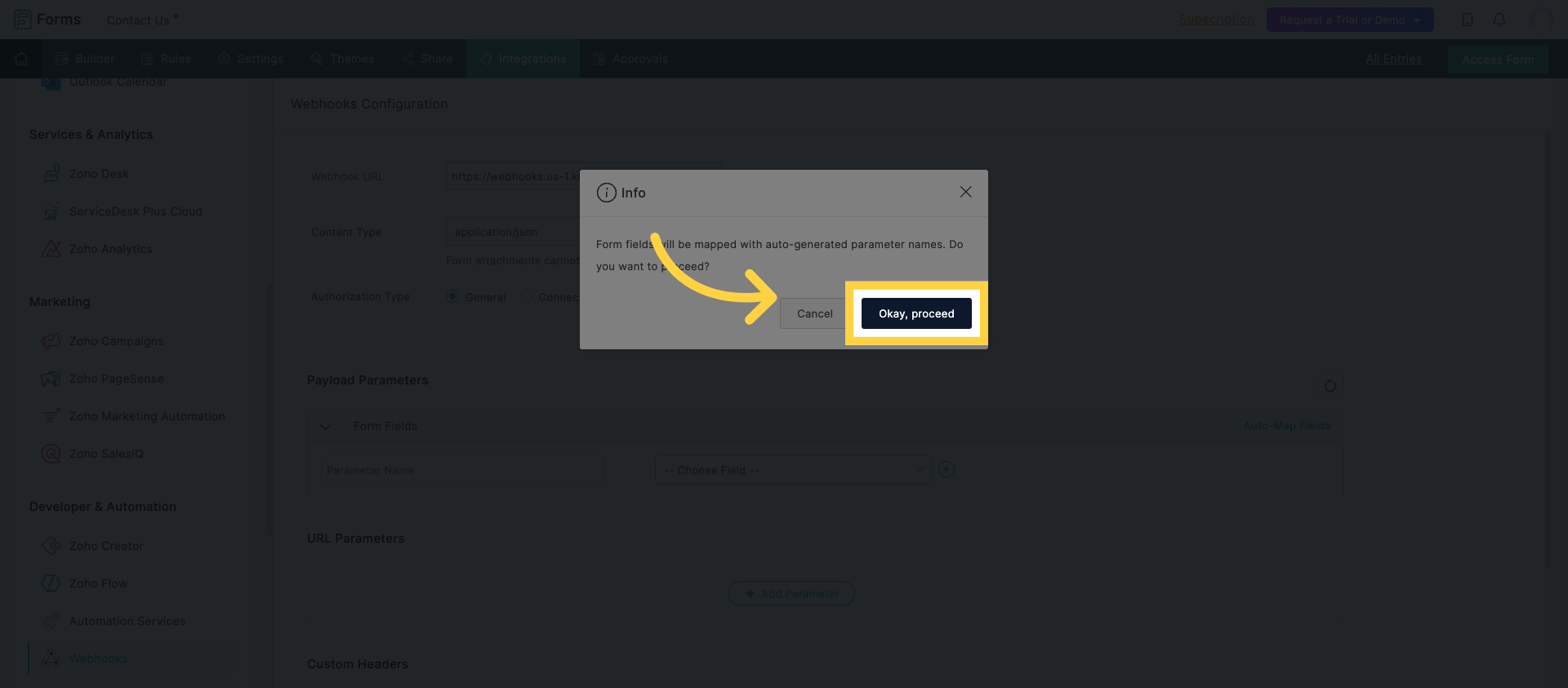
18. Confirm Webhook Setup
Click "Okay, proceed" to finalize and activate the webhook integration.
You have successfully configured Zoho Forms to trigger workflows in Keragon using webhook integration. For more information, see related articles on webhook setup and workflow automation.