This tutorial will guide you through obtaining your client ID and client
secret in Box
Go to app.box.com
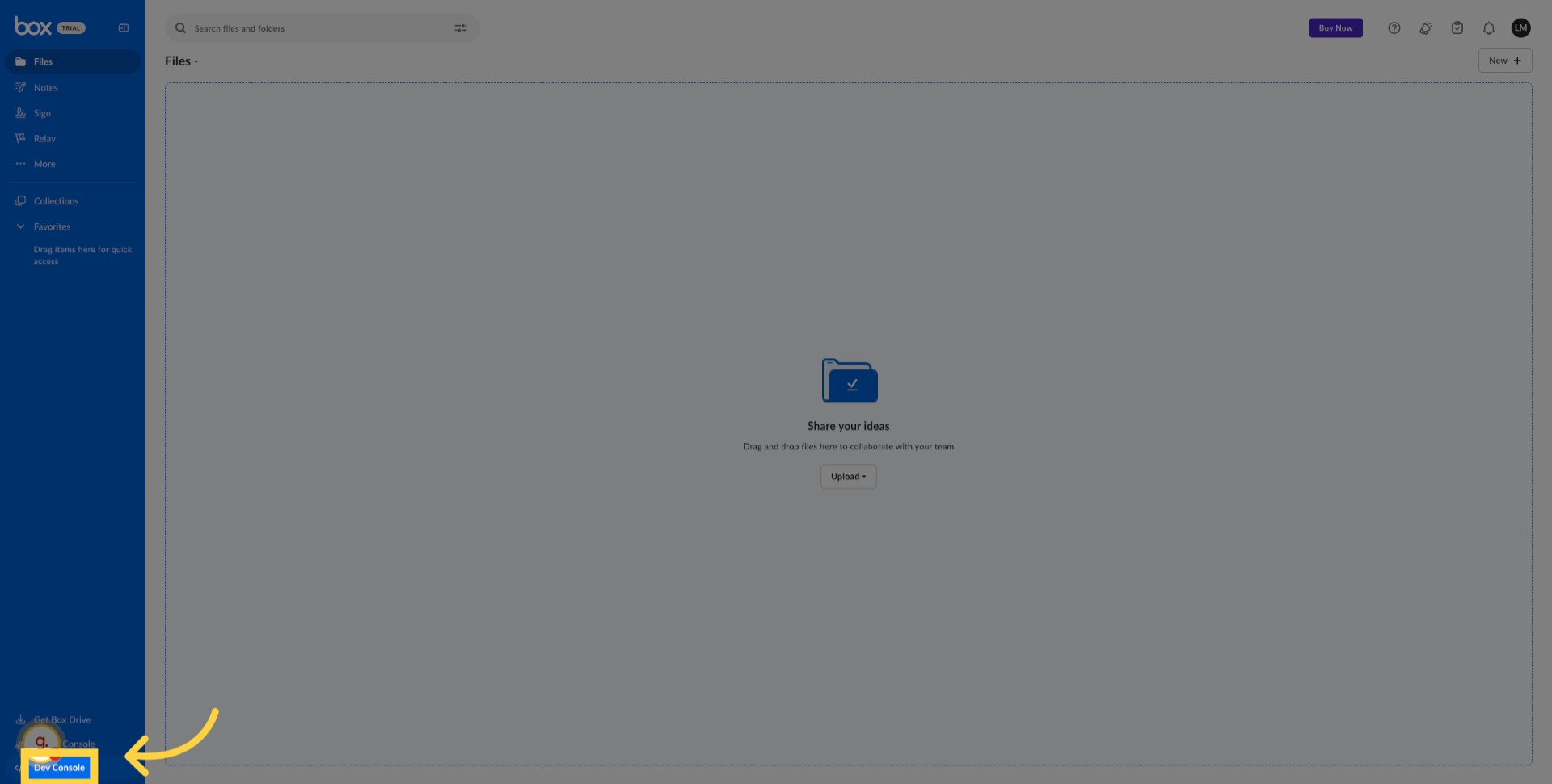
1. Click Dev Console
Login to your box account and click "Dev Console" from the bottom of the menu
.
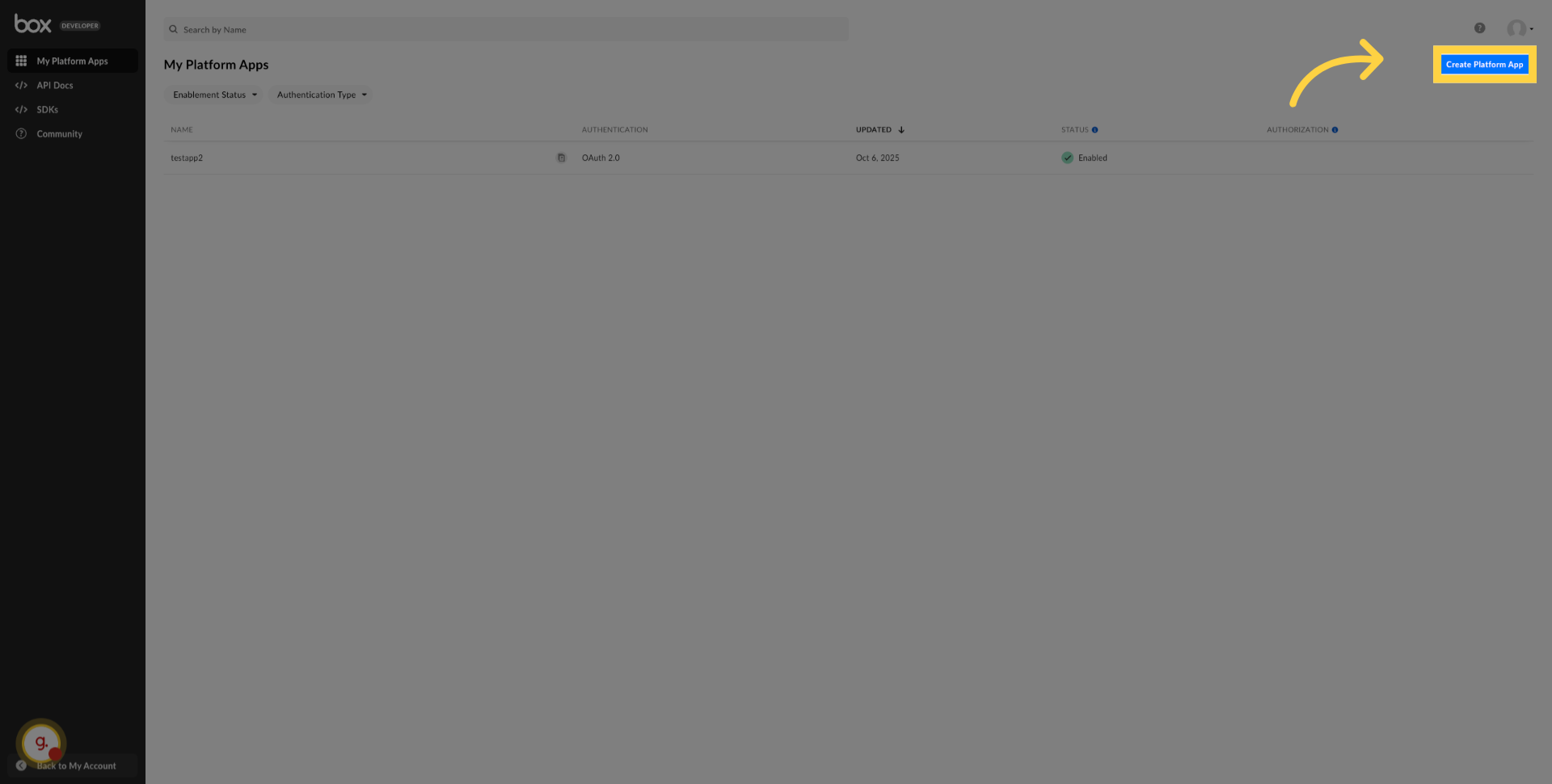
2. Click Create Platform App
Click "Create Platform App".
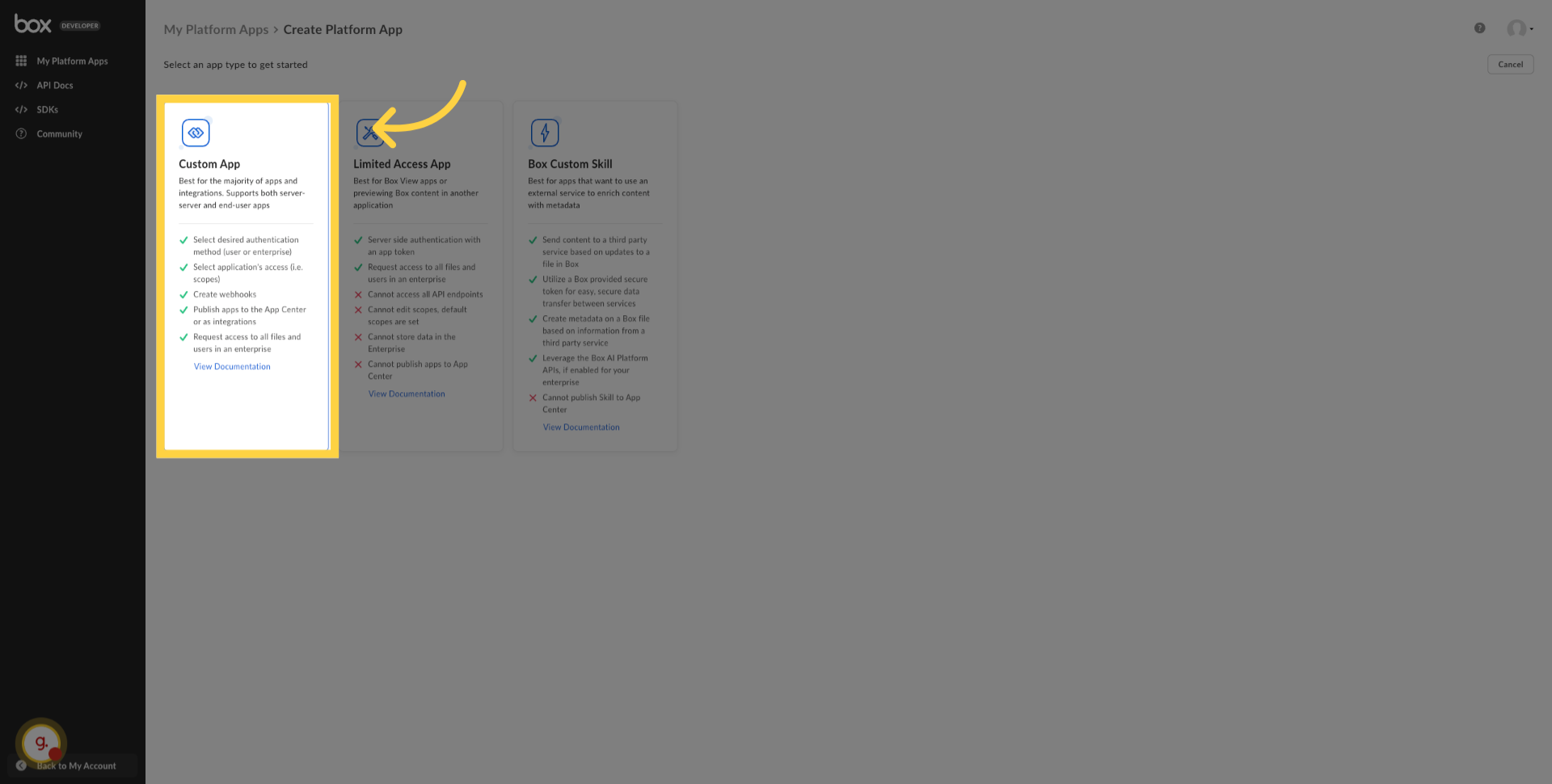
3. Select App Type Option
Click Custom App
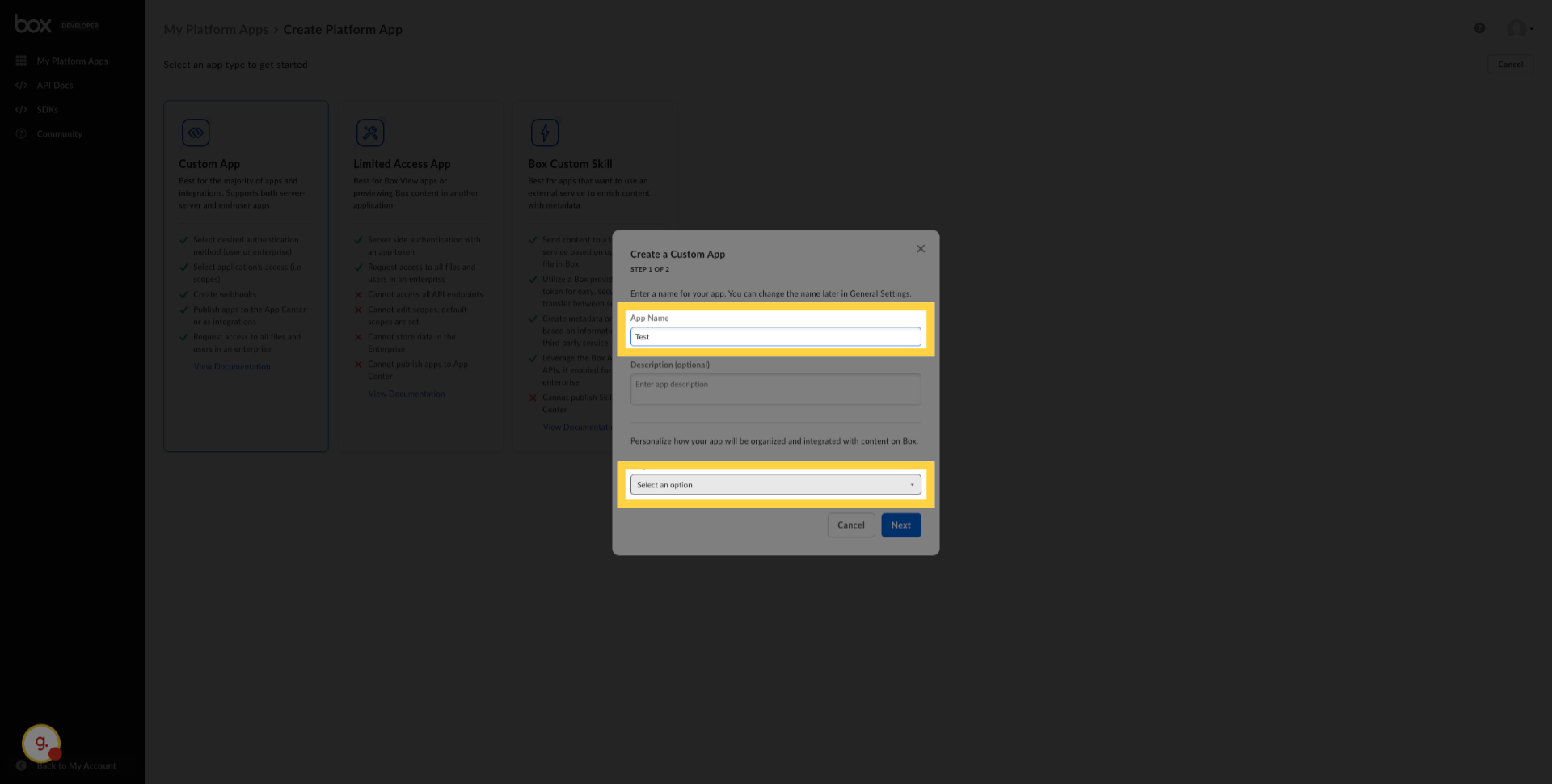
4. Create a Custom App
Set the name and purpose of your app and click next
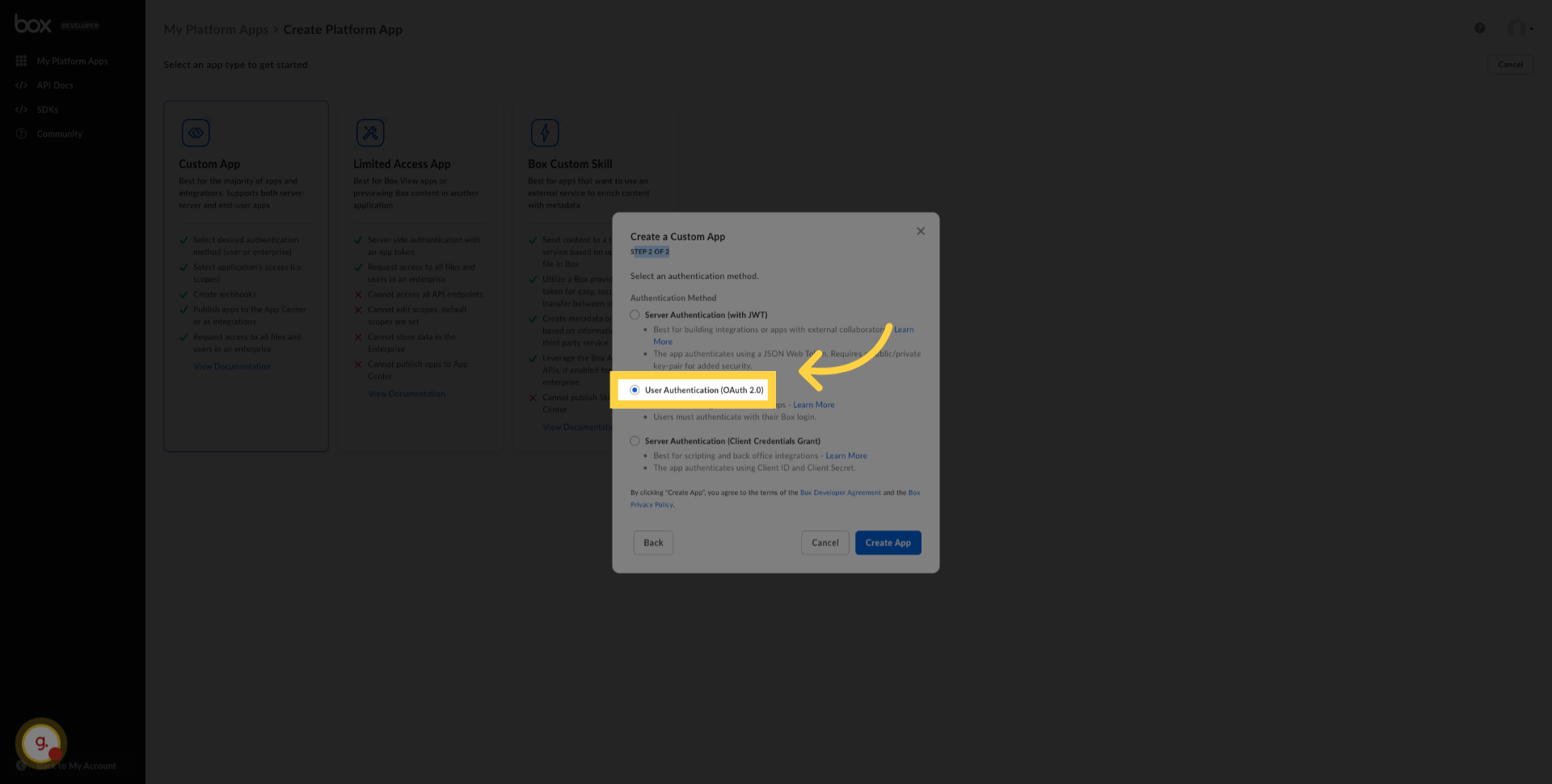
5. Select OAuth Authentication
Select "User Authentication (OAuth 2.0)".
6. Click Create App Button
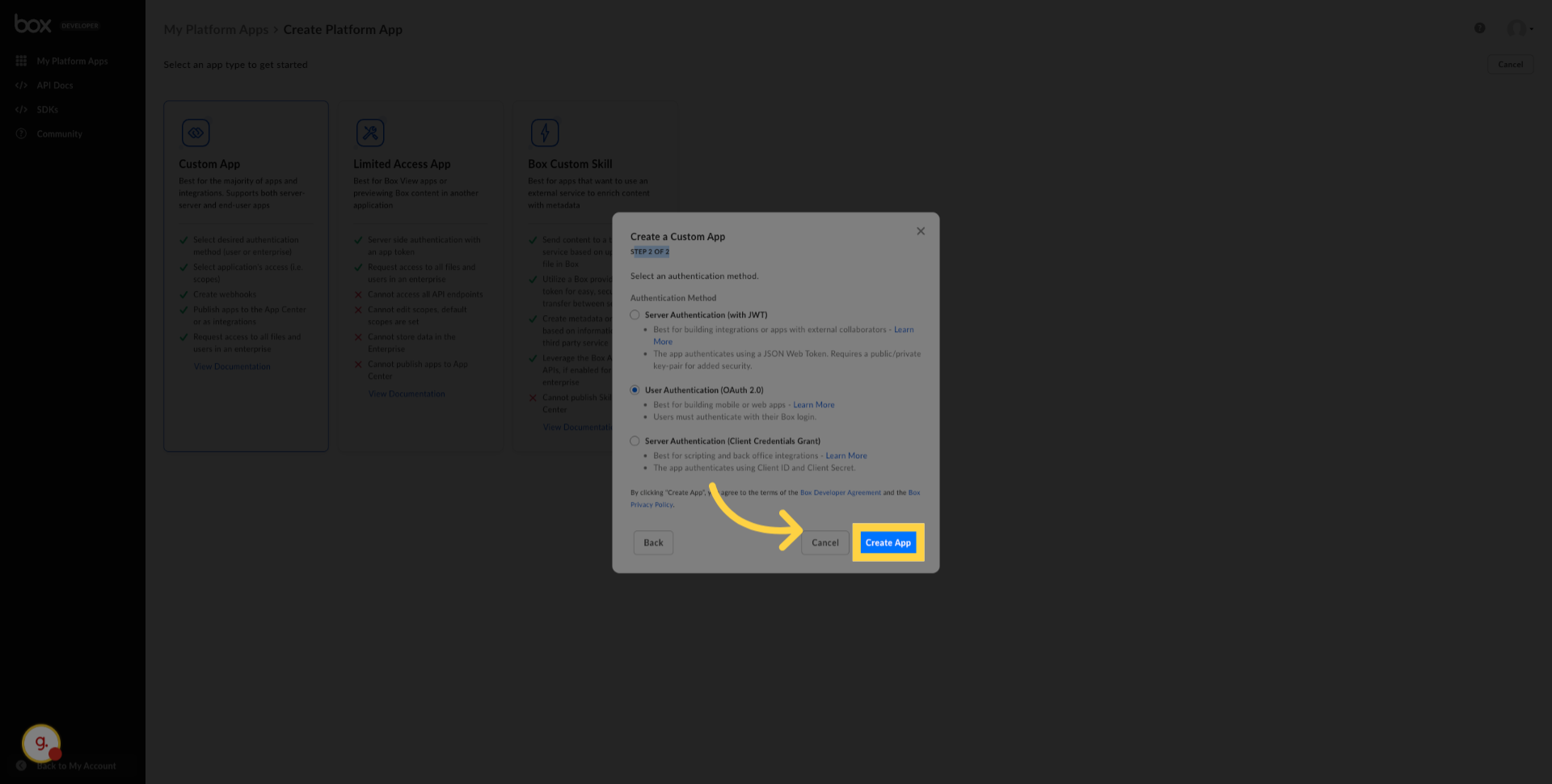
Click "Create App".
7. Click Redirect URI Field
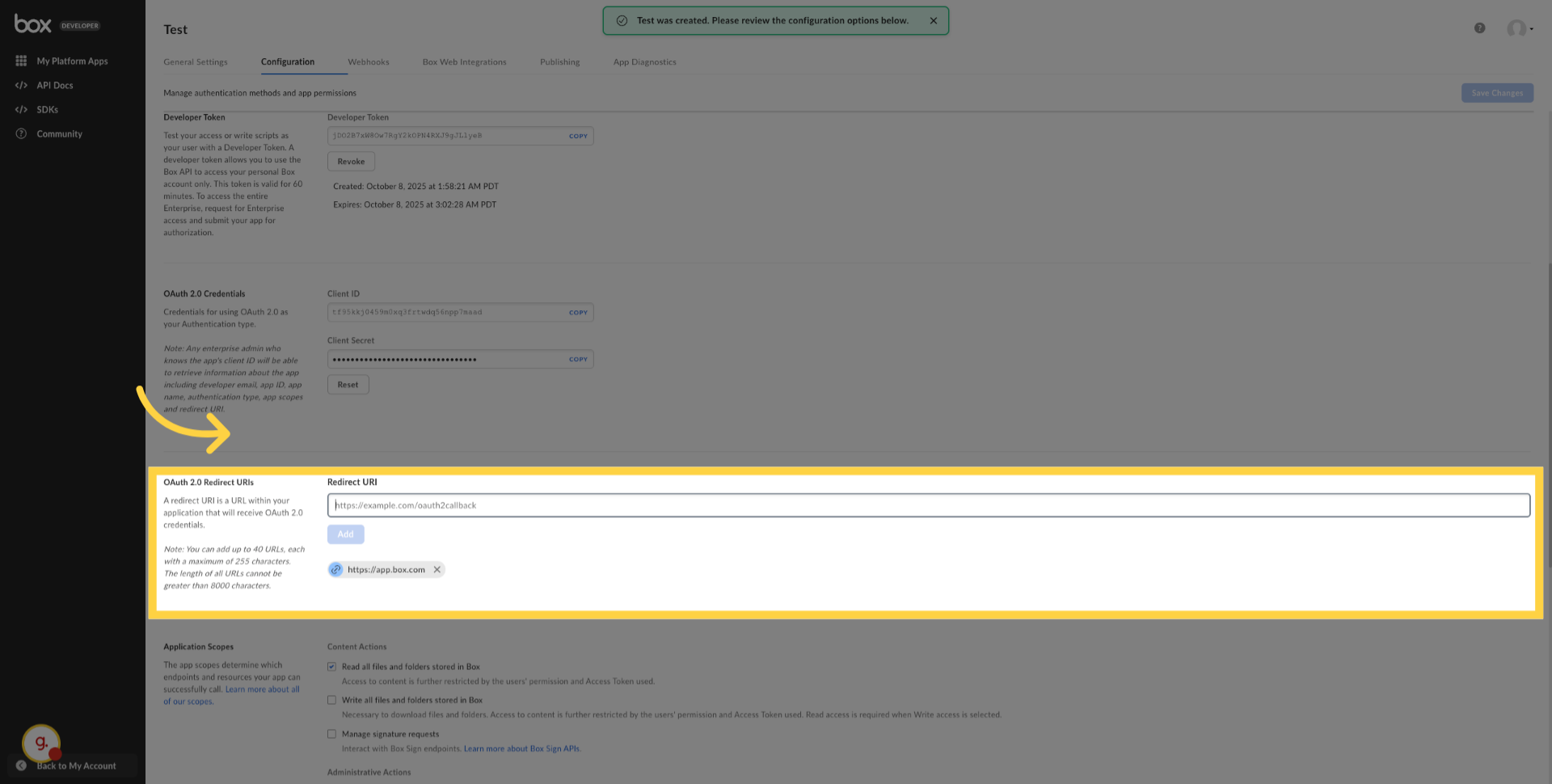
In the configuration of the created app add the redirect URIs from the OAuth
2.0 Redirect URIs section
Add the following URIs under Redirect URI:
Add the following URIs under Redirect URI:
- https://api.us-east-1.keragon.com/rest/auth/callback
- https://api.us-1.keragon.com/rest/auth/callback
8. Set scopes
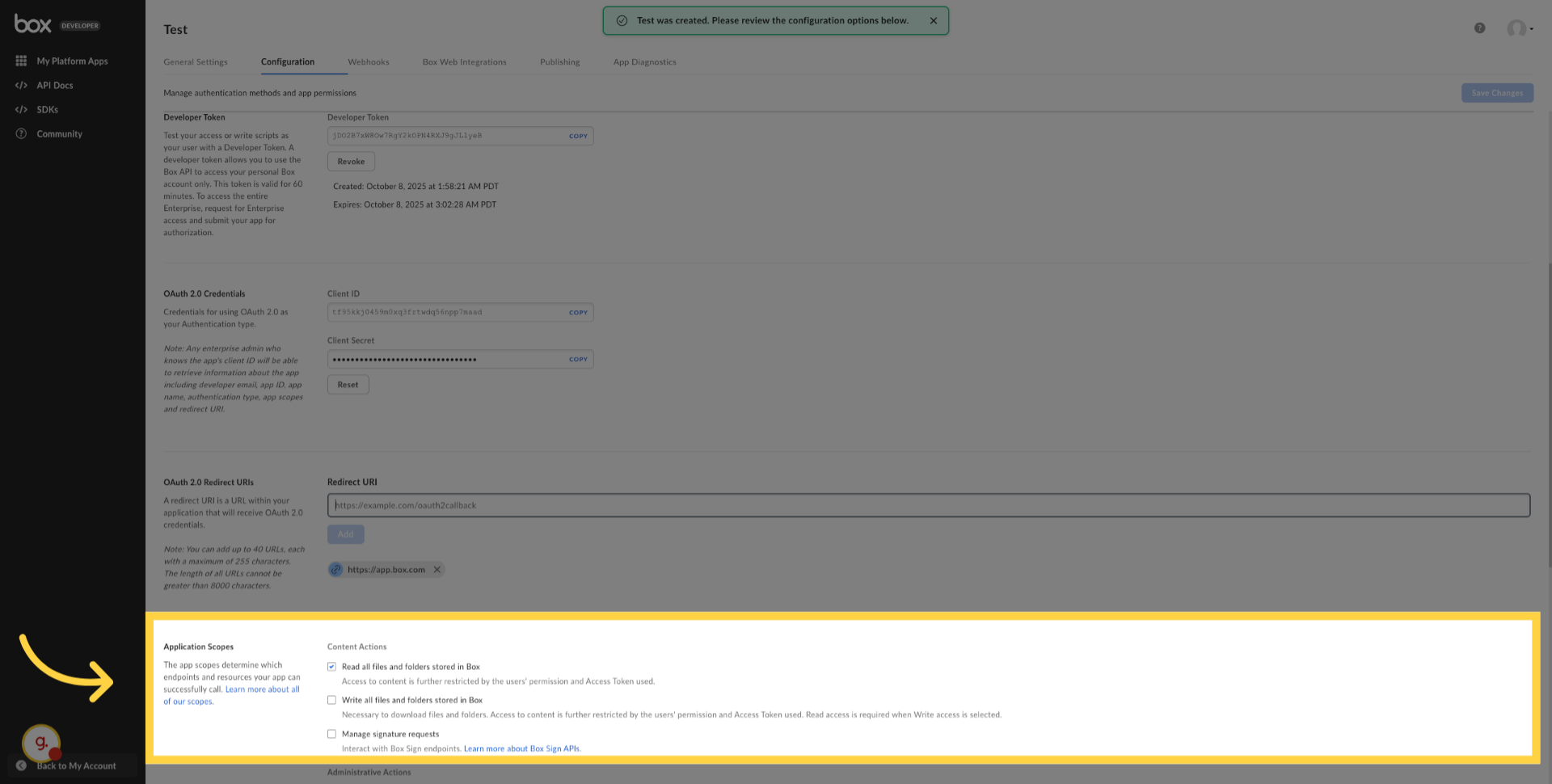
Select the "Write all files and folders stored in box scope"
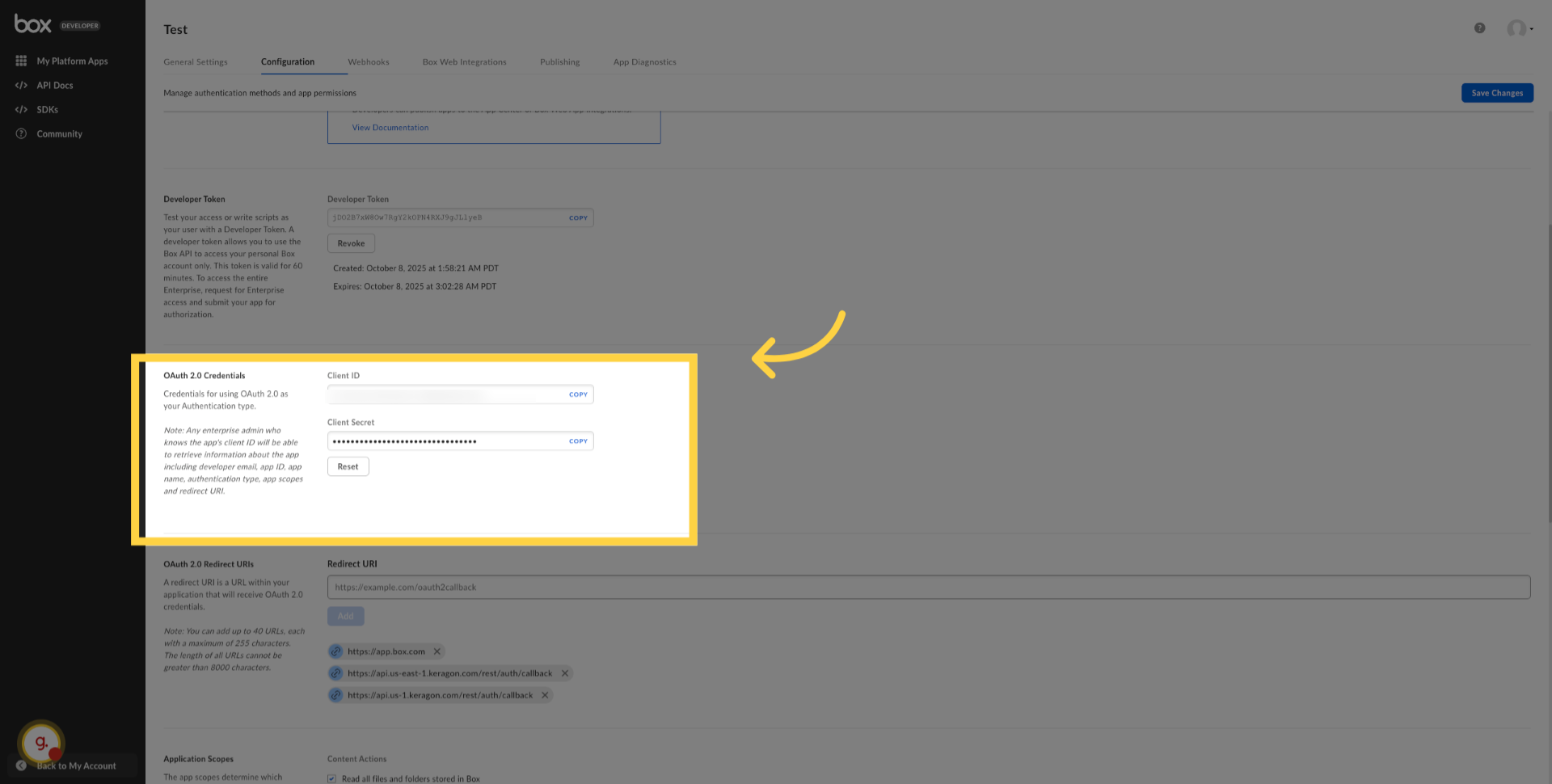
9. Get Client ID and Client Secret
In the OAuth 2.0 Credentials section, the client id and client secret have
been generated.
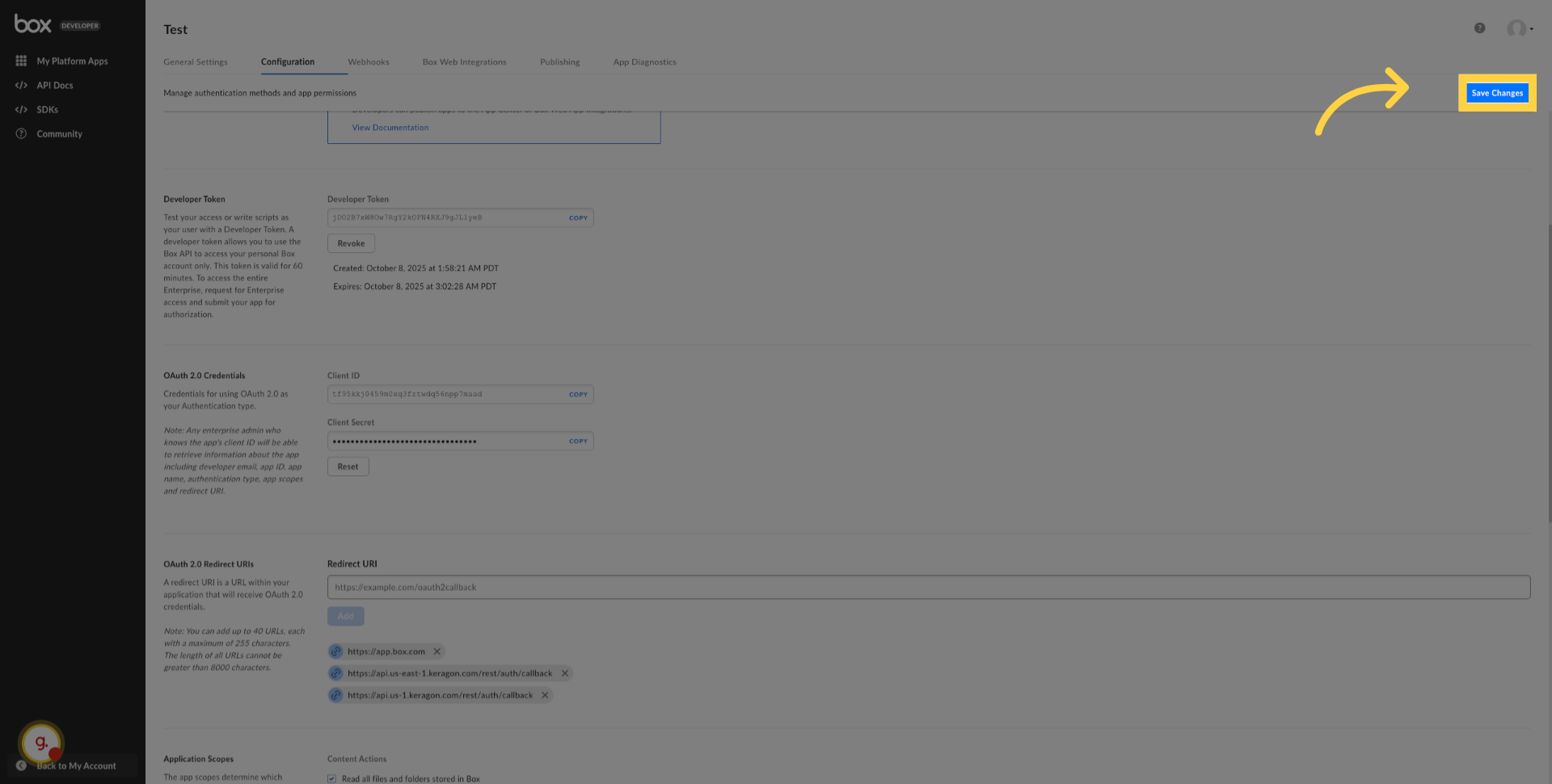
10. Click Save Changes
Click "Save Changes".
You have successfully created an OAuth 2.0 app in Box and obtained client id
and client secret