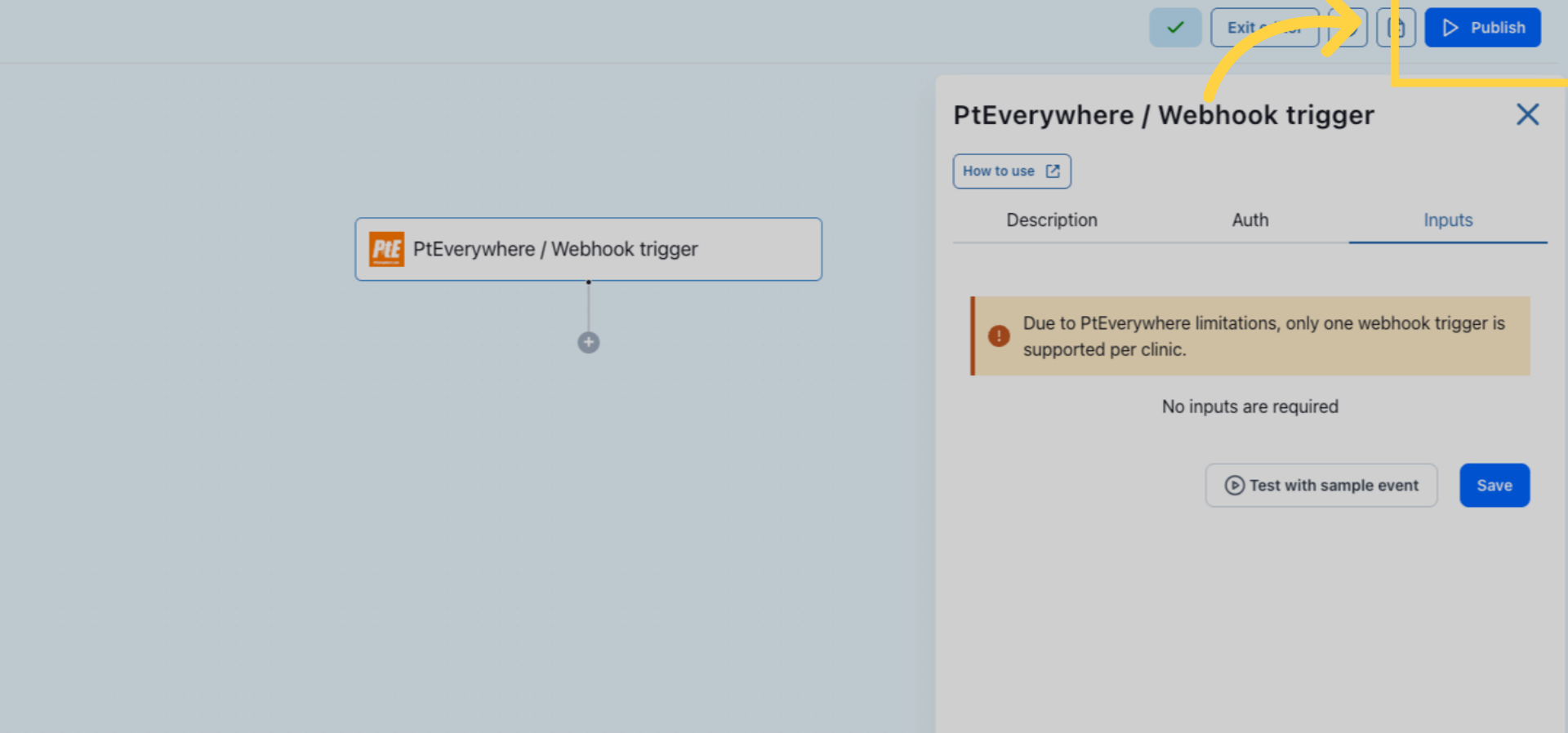
This tutorial guides you through setting up a generic trigger in PtEverywhere
Go to app.keragon.com
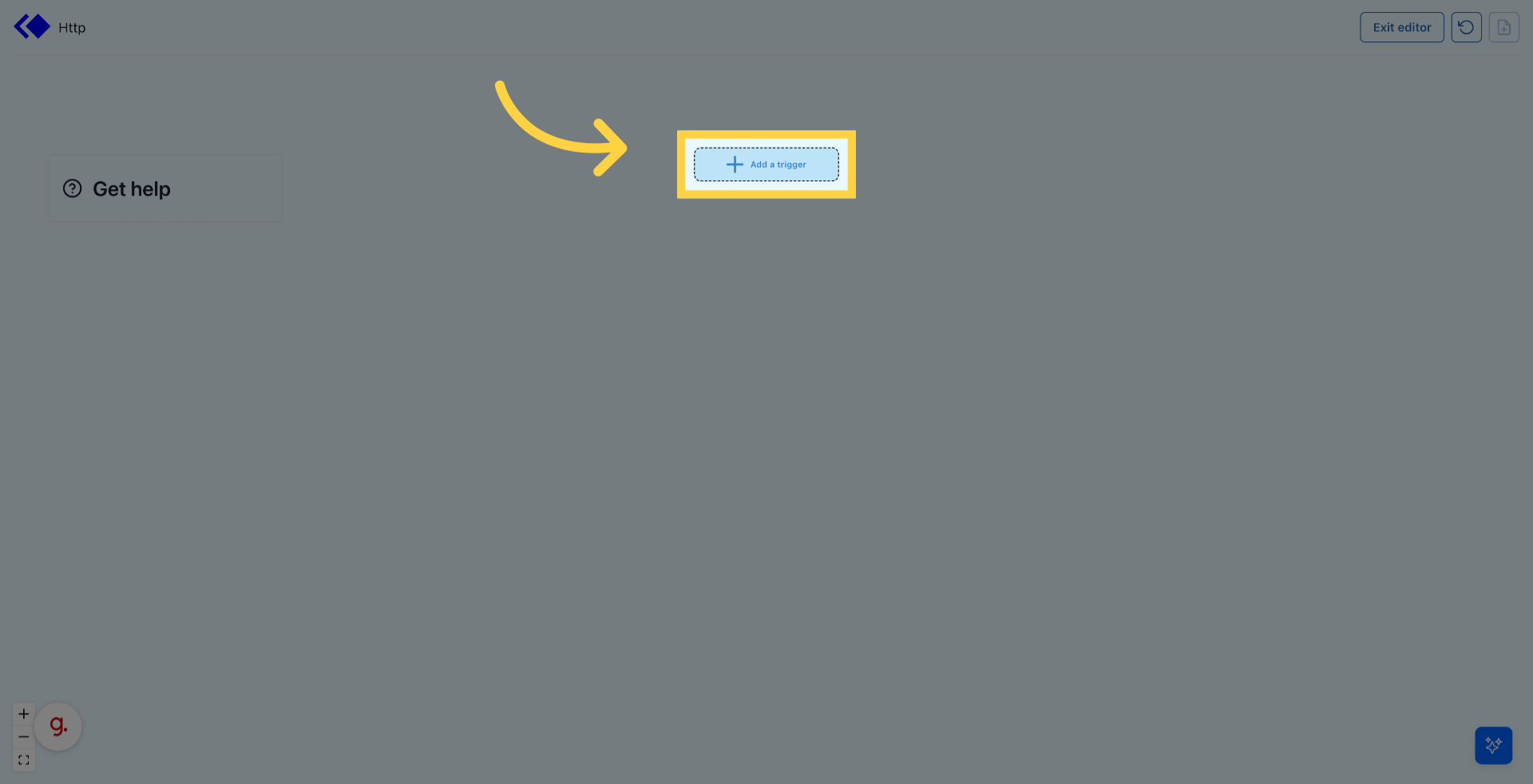
1. Click "Add a trigger"
Click "Add a trigger" to start creating a new trigger for your workflow.
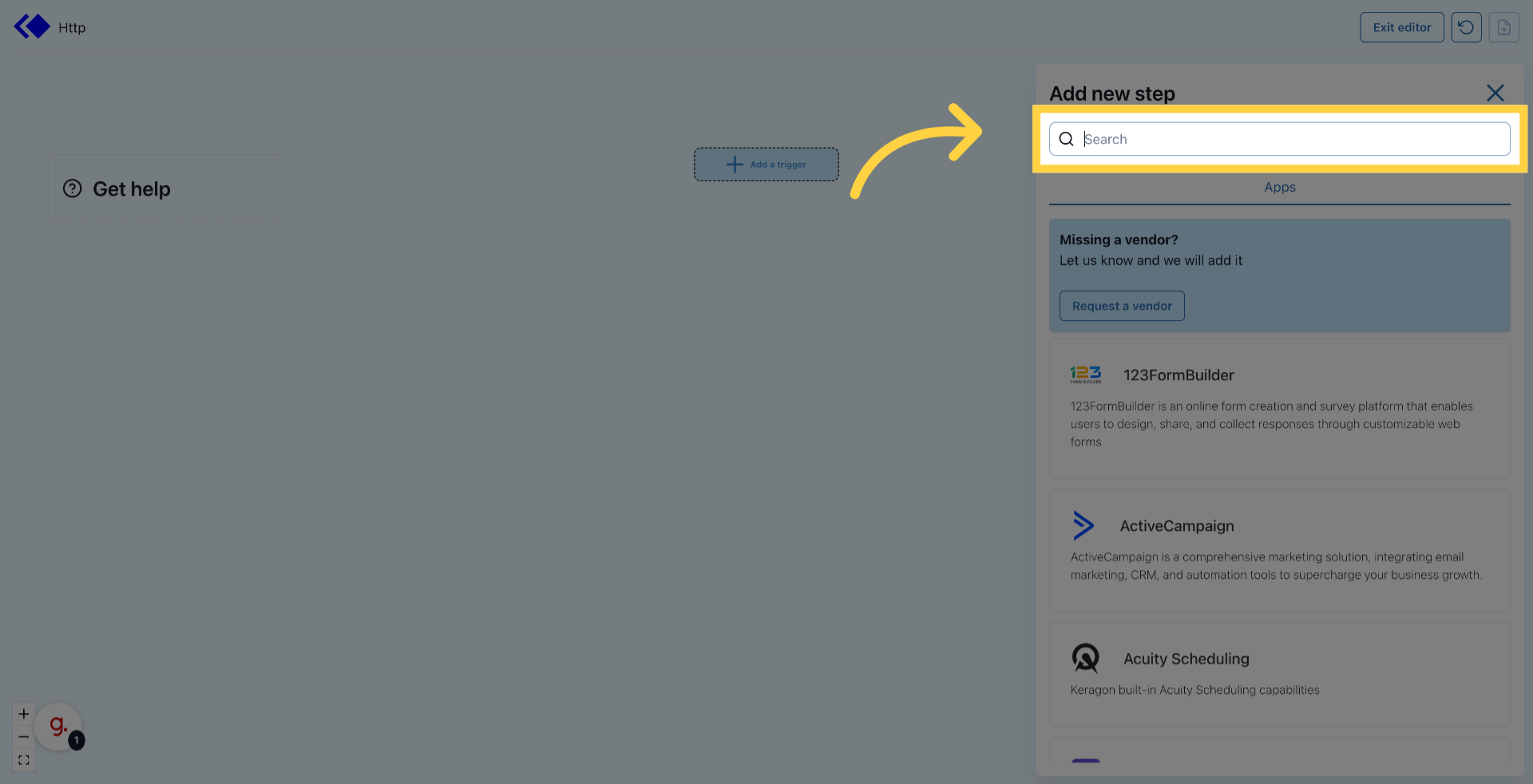
2. Click "Search"
Click "Search" to find the PtEverywhere integration quickly.
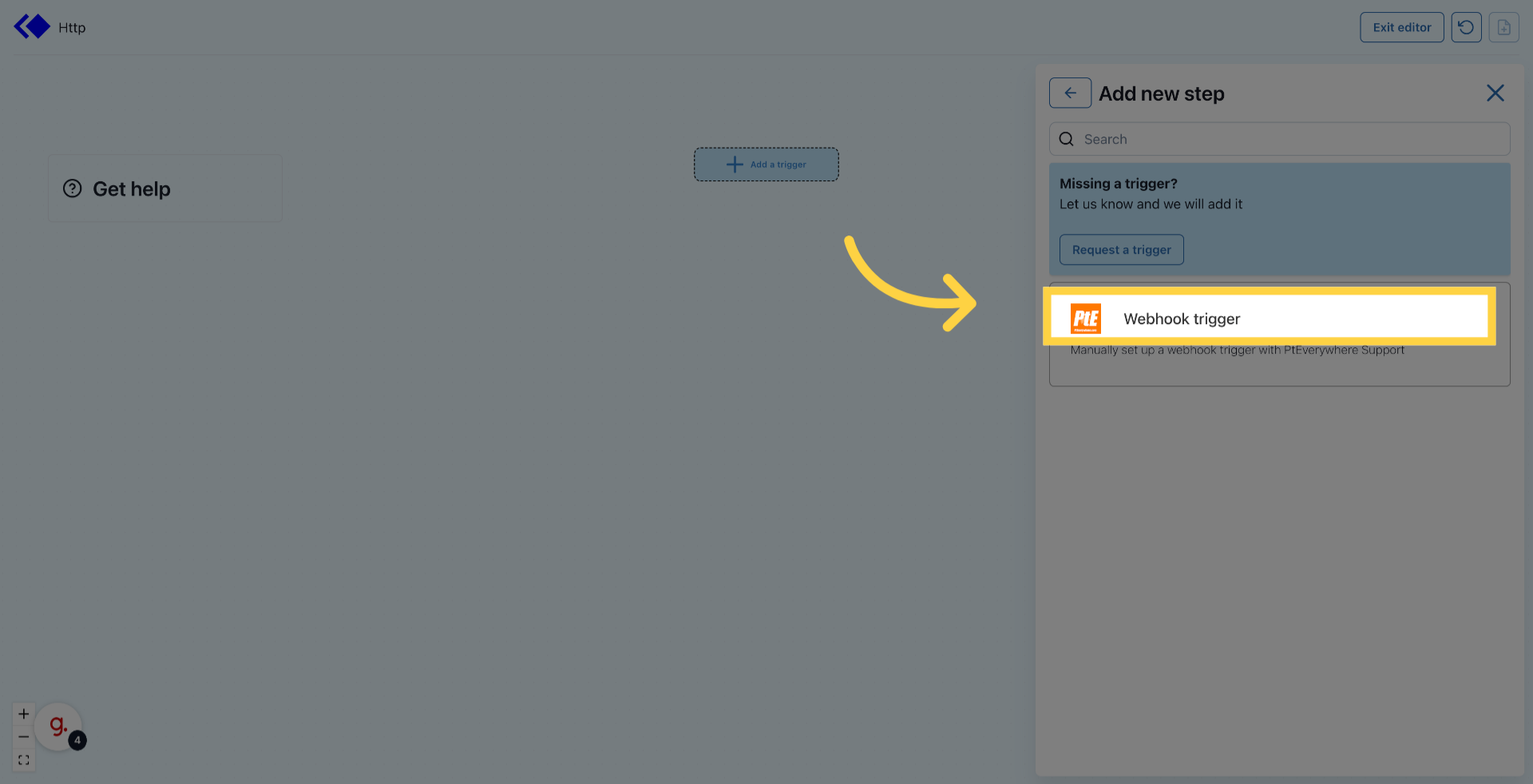
3. Click Webhook trigger
Click "Manually set up a webhook trigger with PtEverywhere Support" to configure the trigger manually.
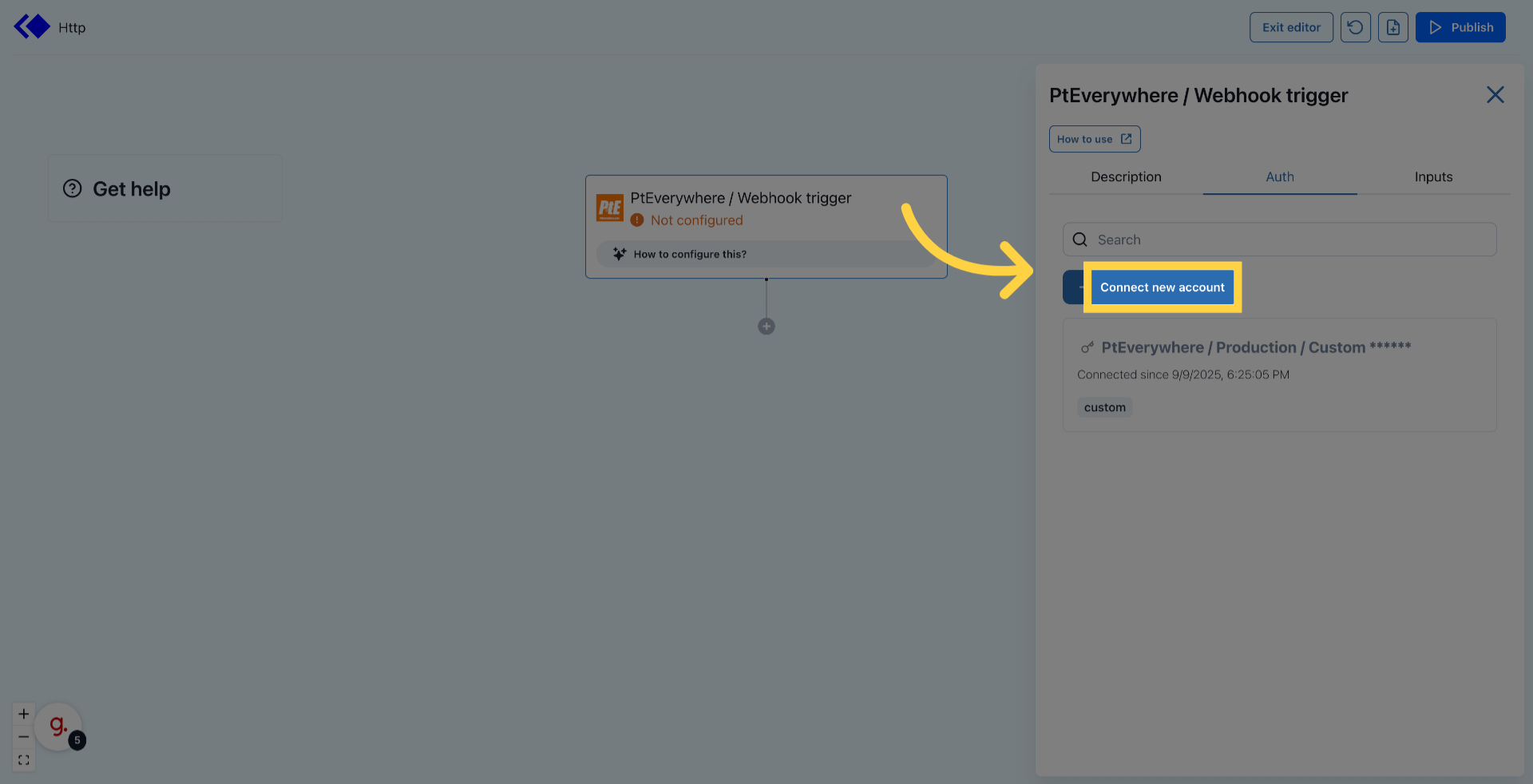
4. Click "Connect new account"
Click "Connect new account" to link your PtEverywhere account.
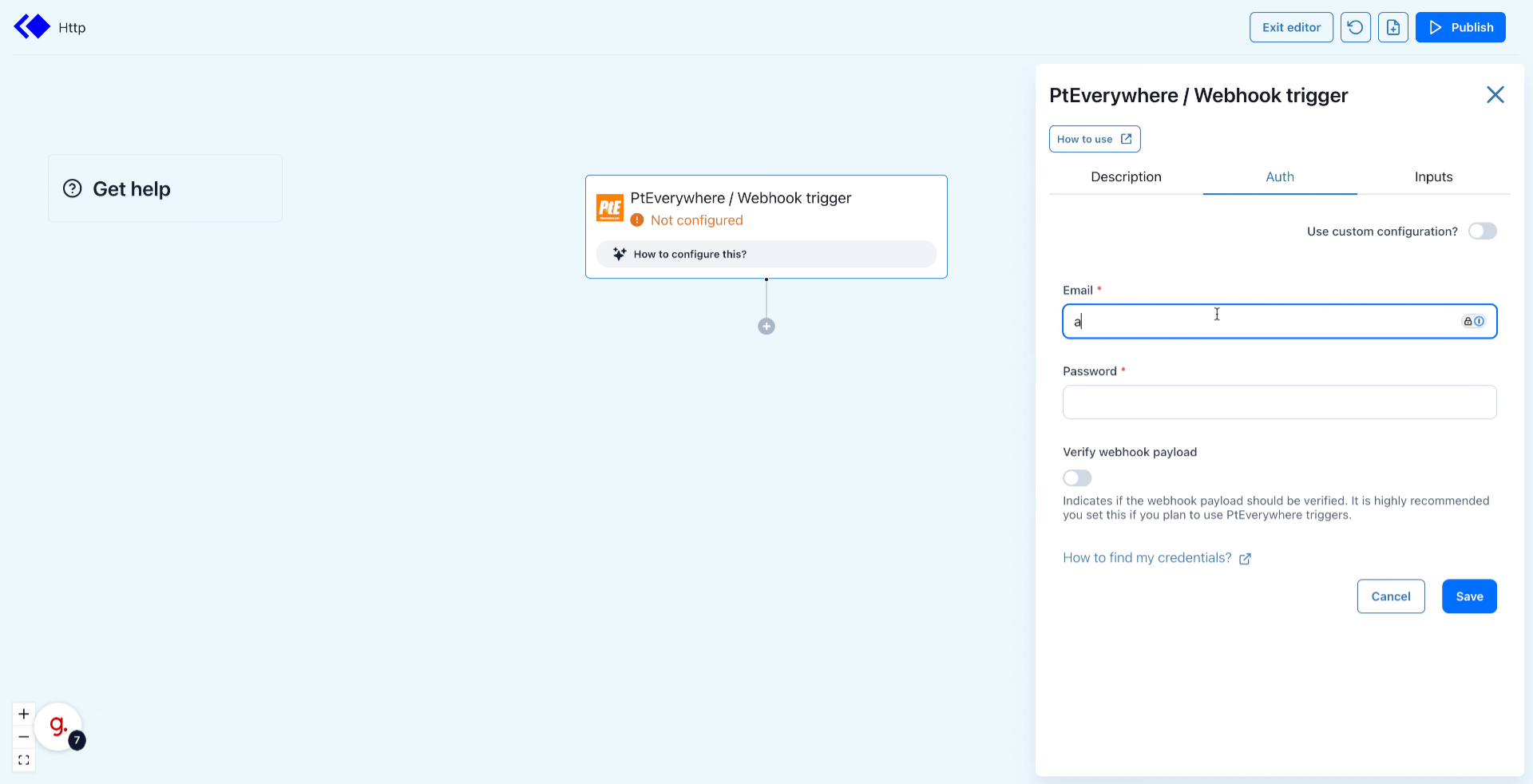
5. Fill in email and password
Fill "admin" as your email username placeholder.
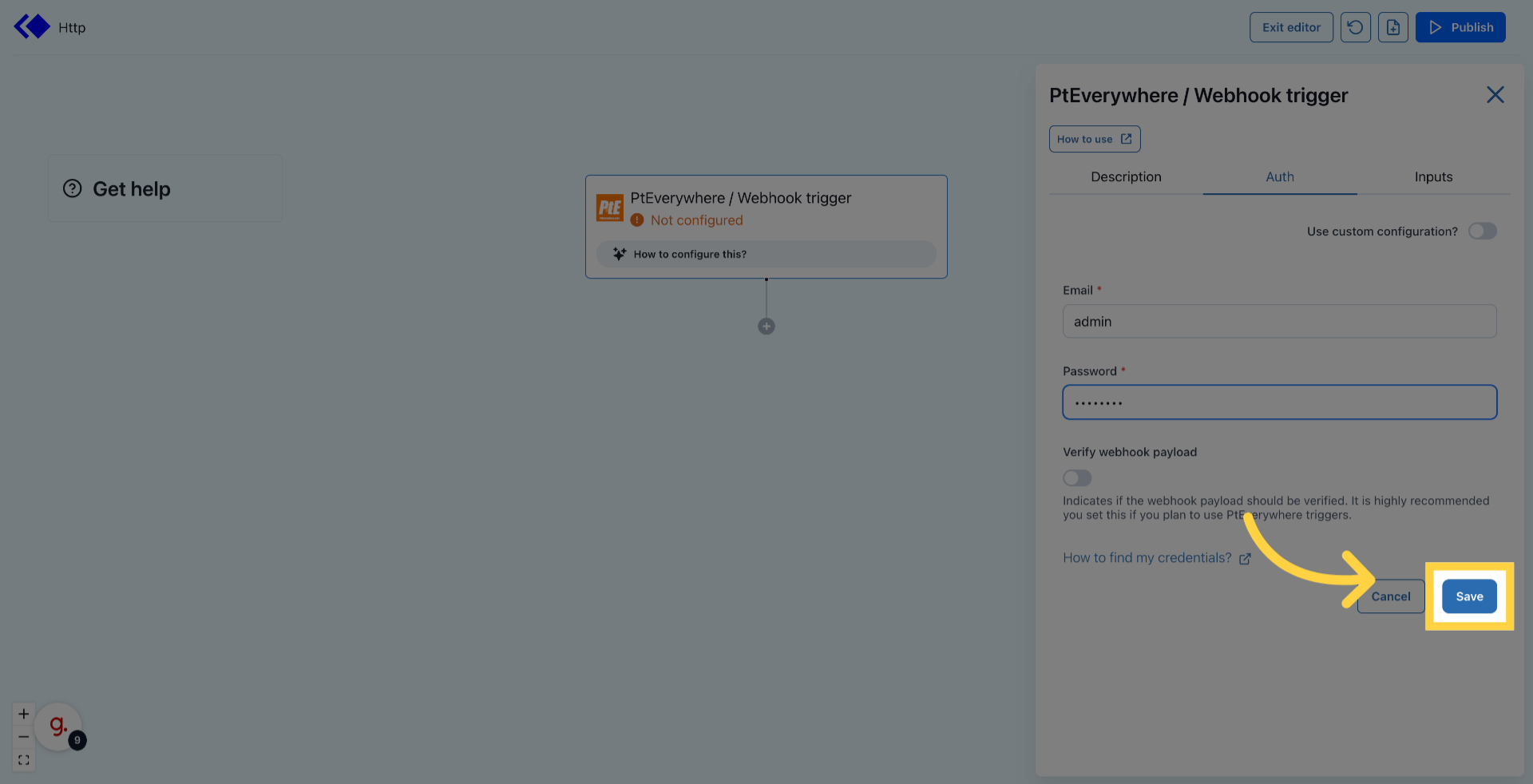
6. Click "Save"
Click "Save" to store your account connection details.
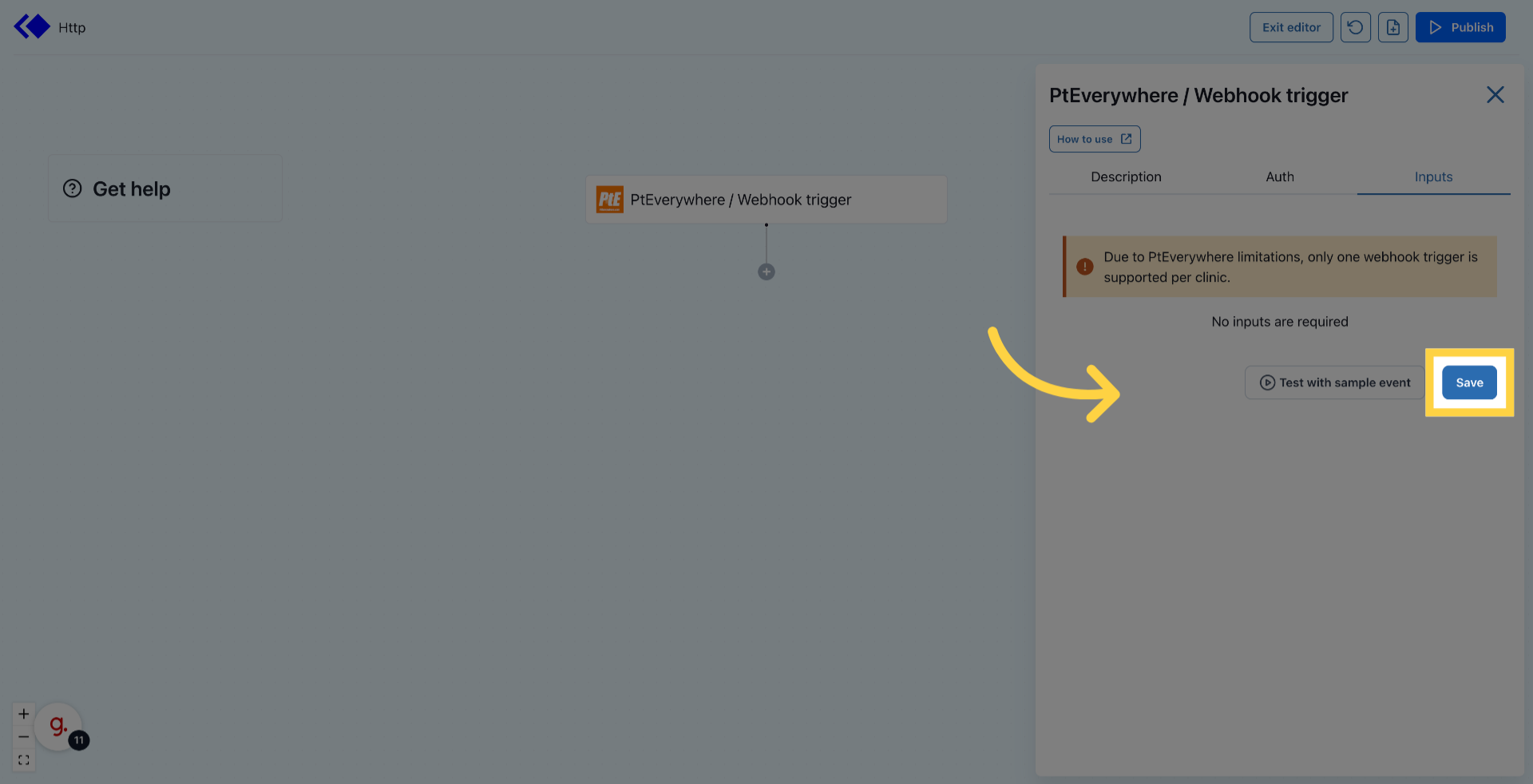
7. Click "Save"
Click "Save" again to confirm and save the trigger setup.
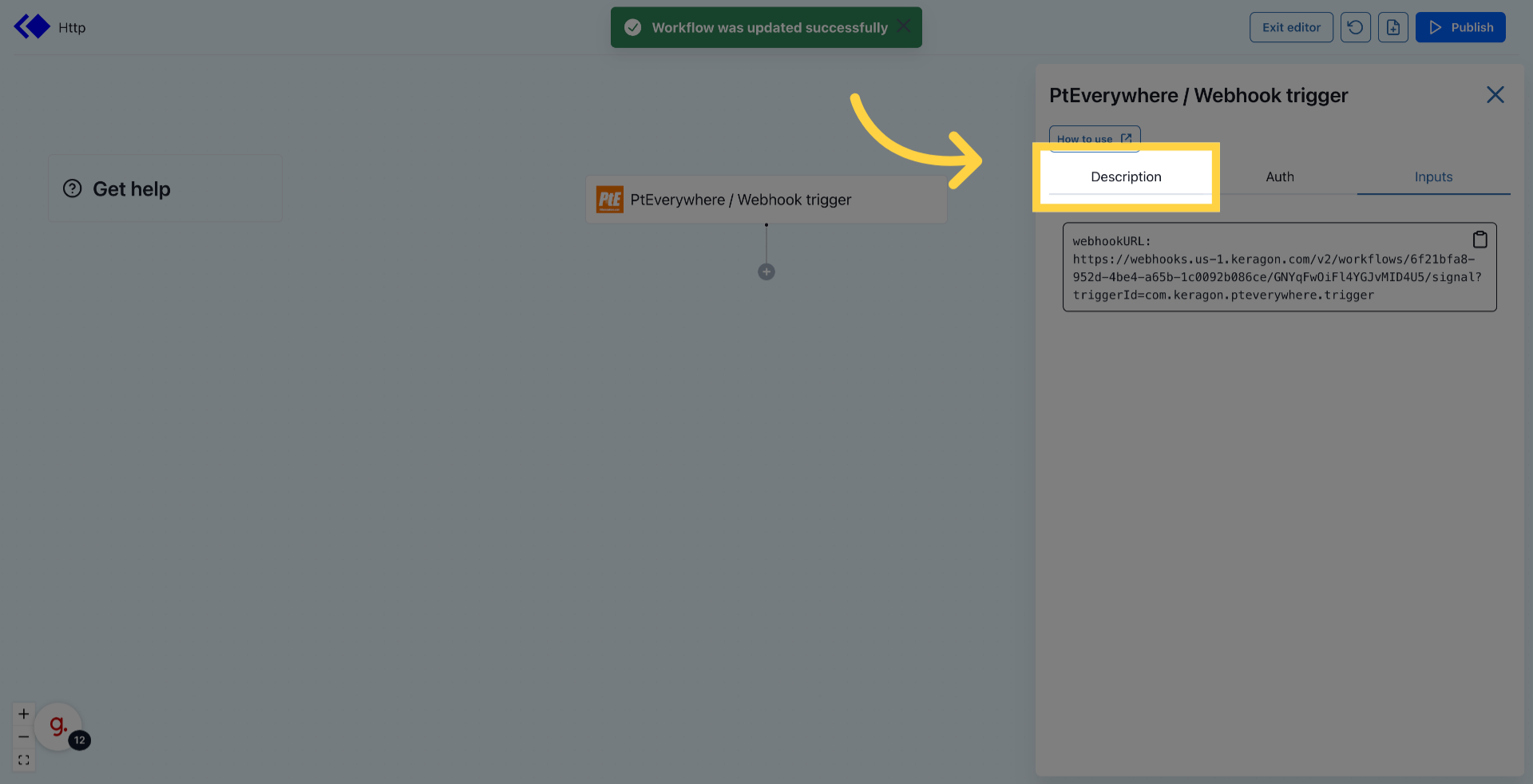
8. Click "Description"
Click "Description" to see the generated webhook URL
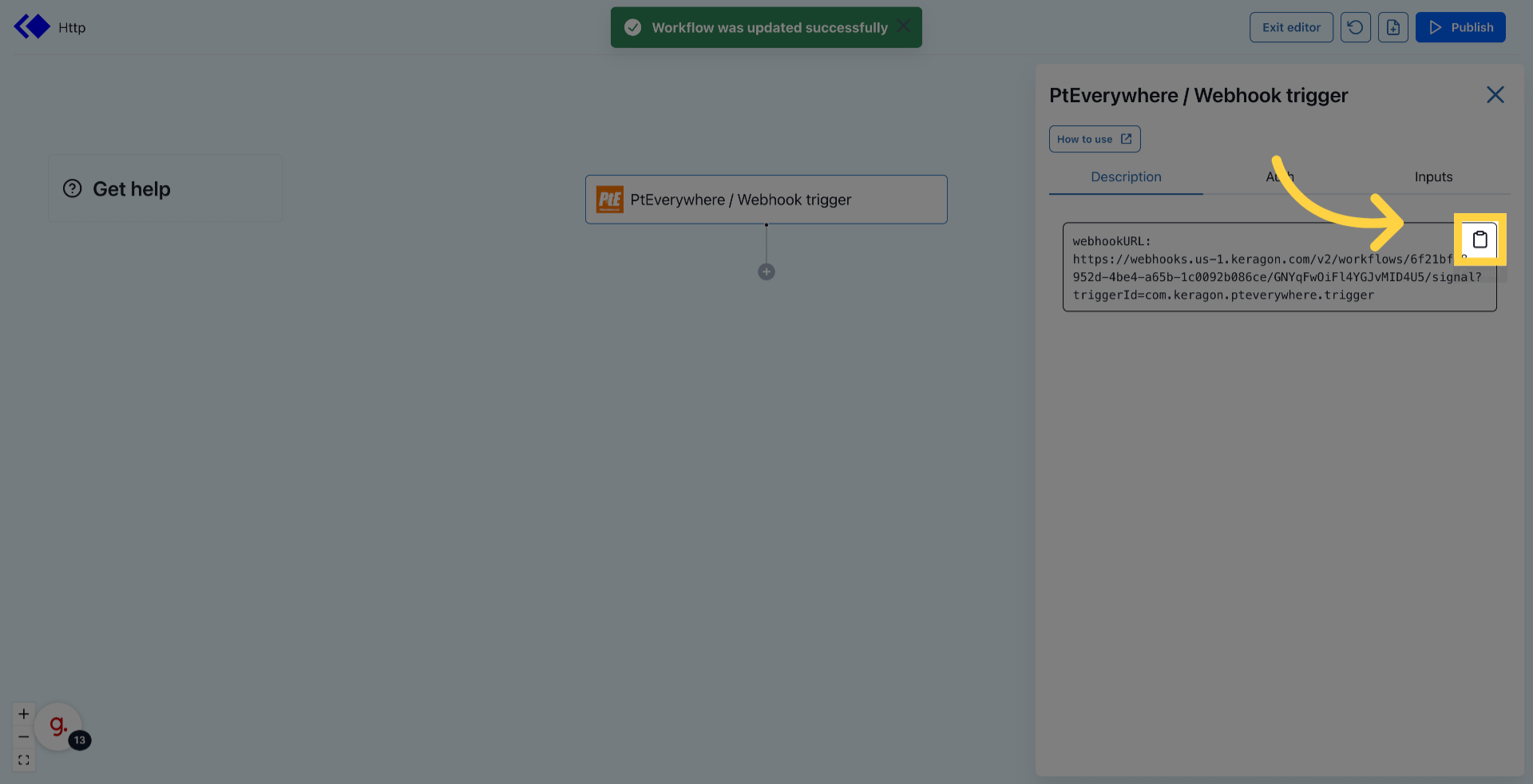
9. Click the Copy icon
Copy the webhook URL and reach out to PtEverywhere support to request enabling
webhooks.
Send an email to jonathan@pteverywhere.com to request and enable webhooks for
your clinic.
Provide the following:
- Webhook URL
- Events to subscribe to Patient created/updated, etc.
- Webhook URL
- Events to subscribe to Patient created/updated, etc.
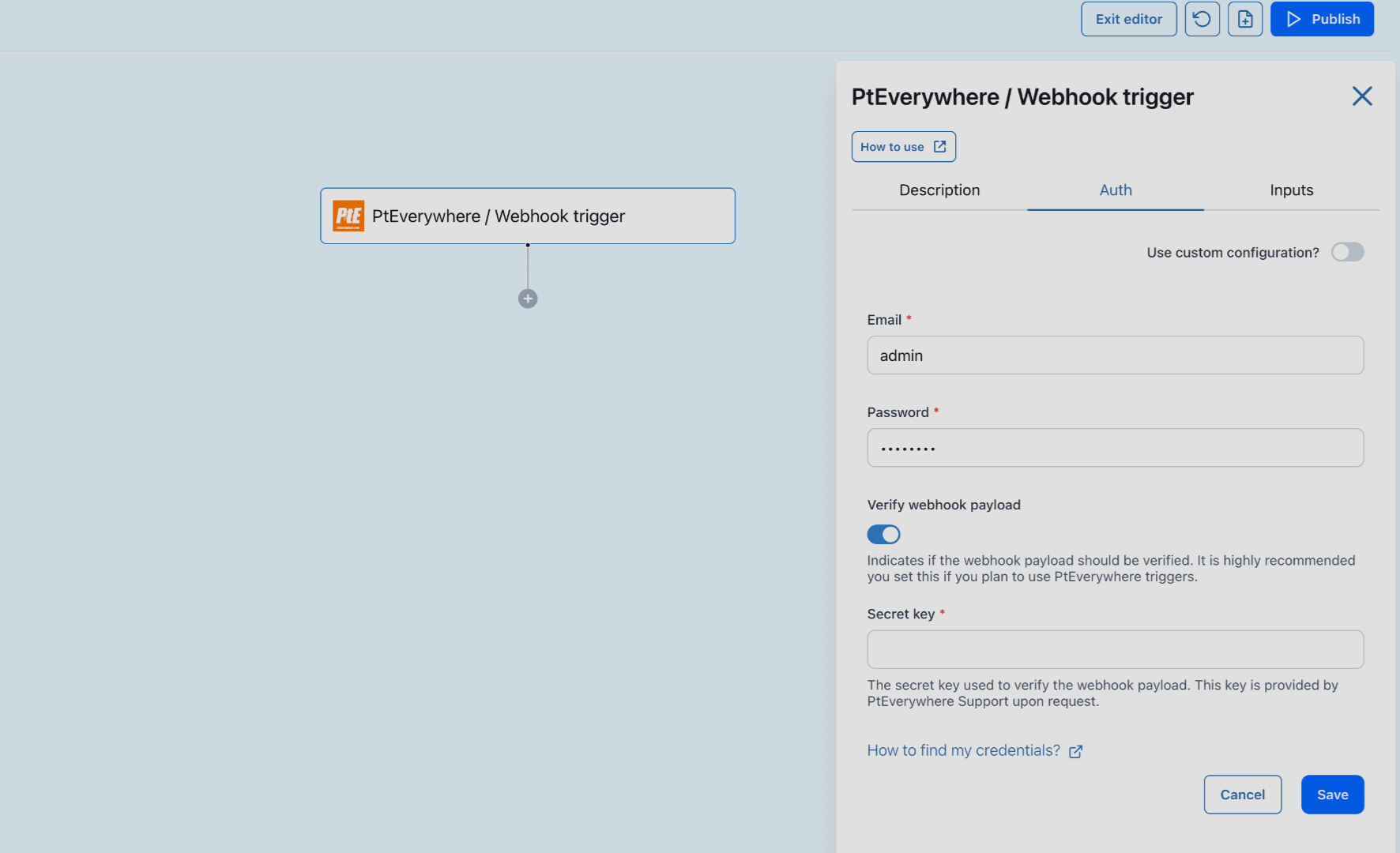
10. Create a new authentication with secret key
Once granted, you'll be provided a secret key used in verifying the events received from PtEverywhere
11. Click "Publish"