This guide is on how to set up a consumer key and secret for the WooCommerce REST API
Go to your.website.url
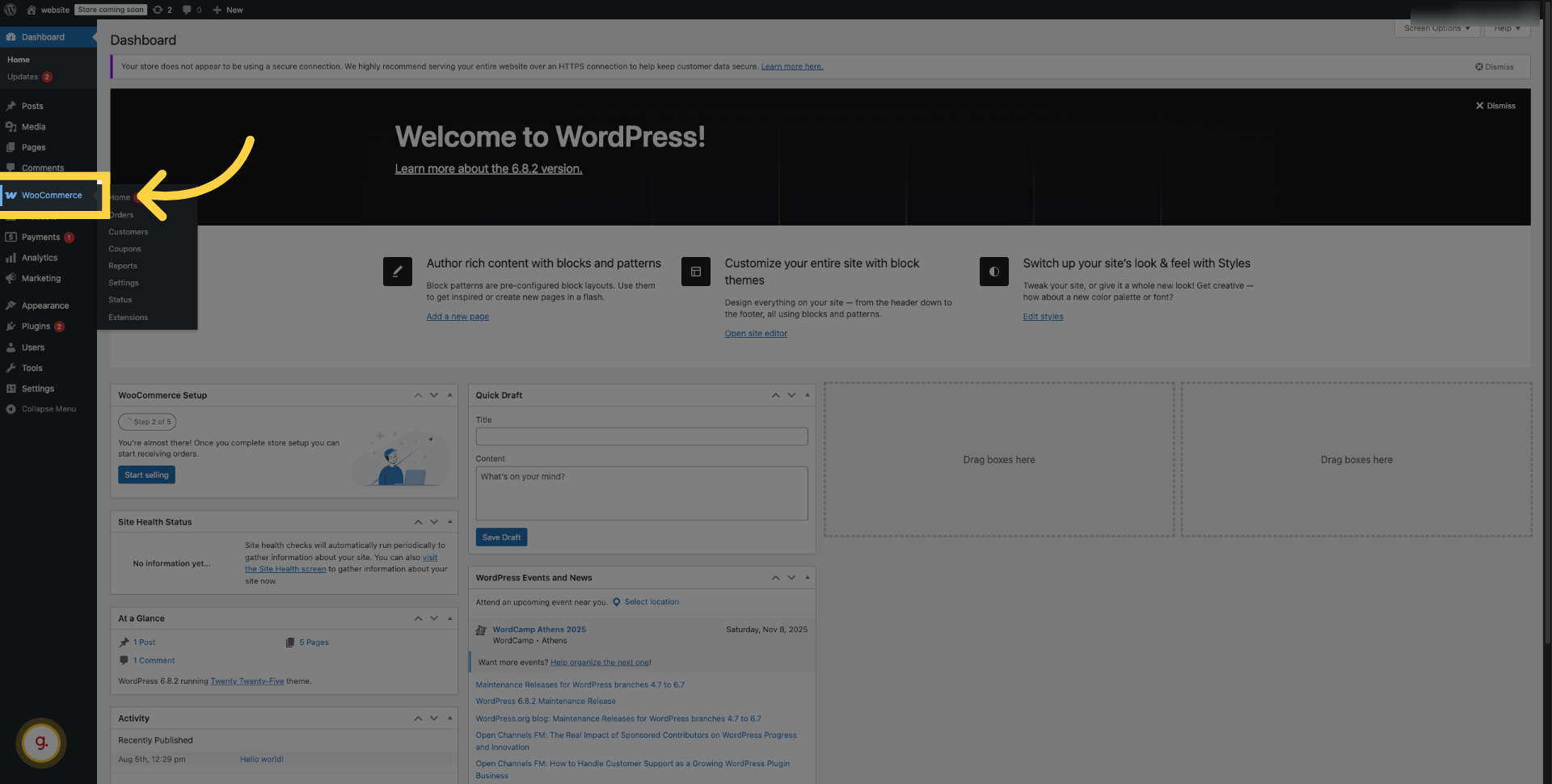
1. Click "WooCommerce"
From the WordPress dashboard, click on the WooCommerce menu to open its options.
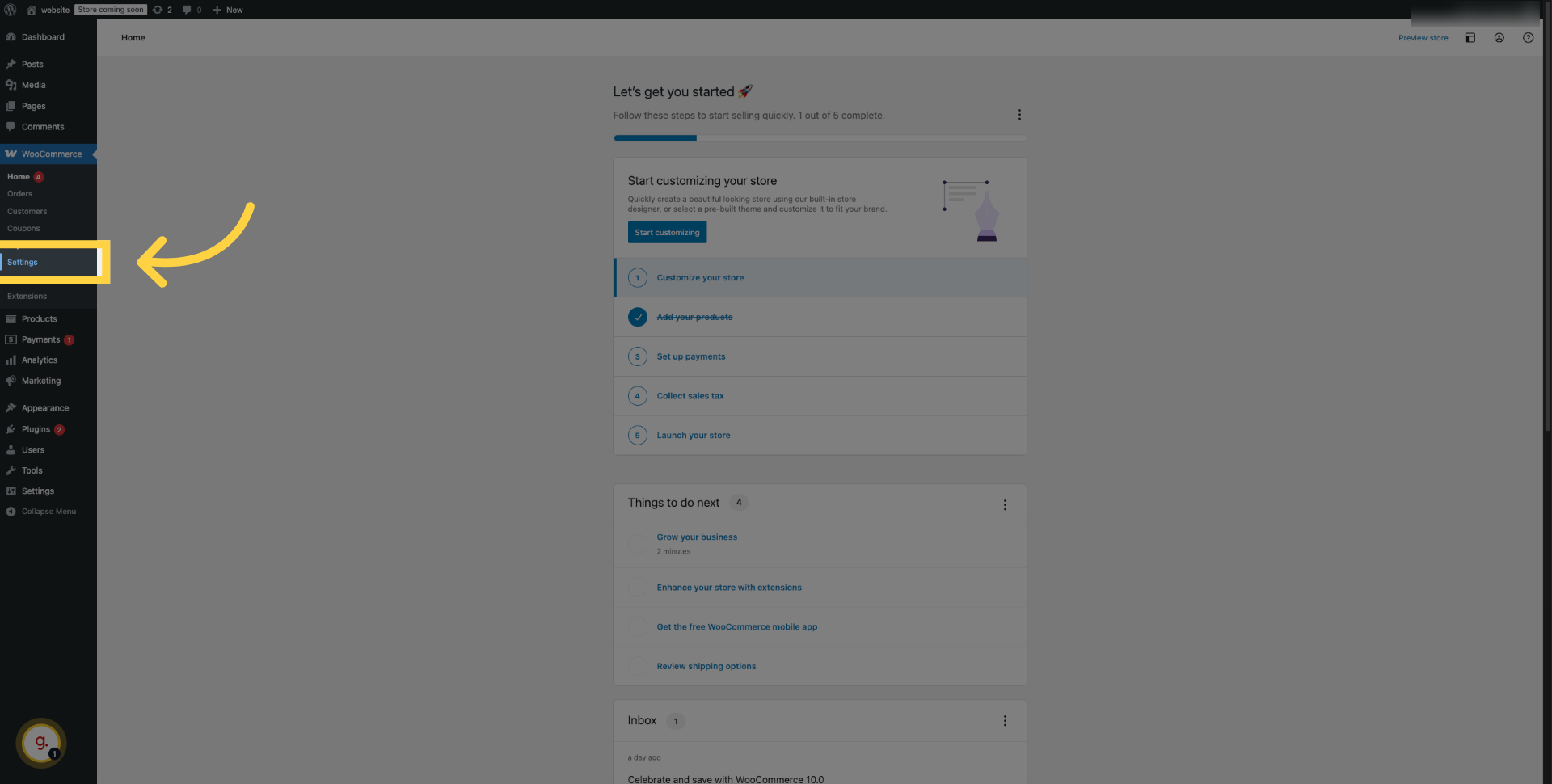
2. Click "Settings"
Click on the Settings option
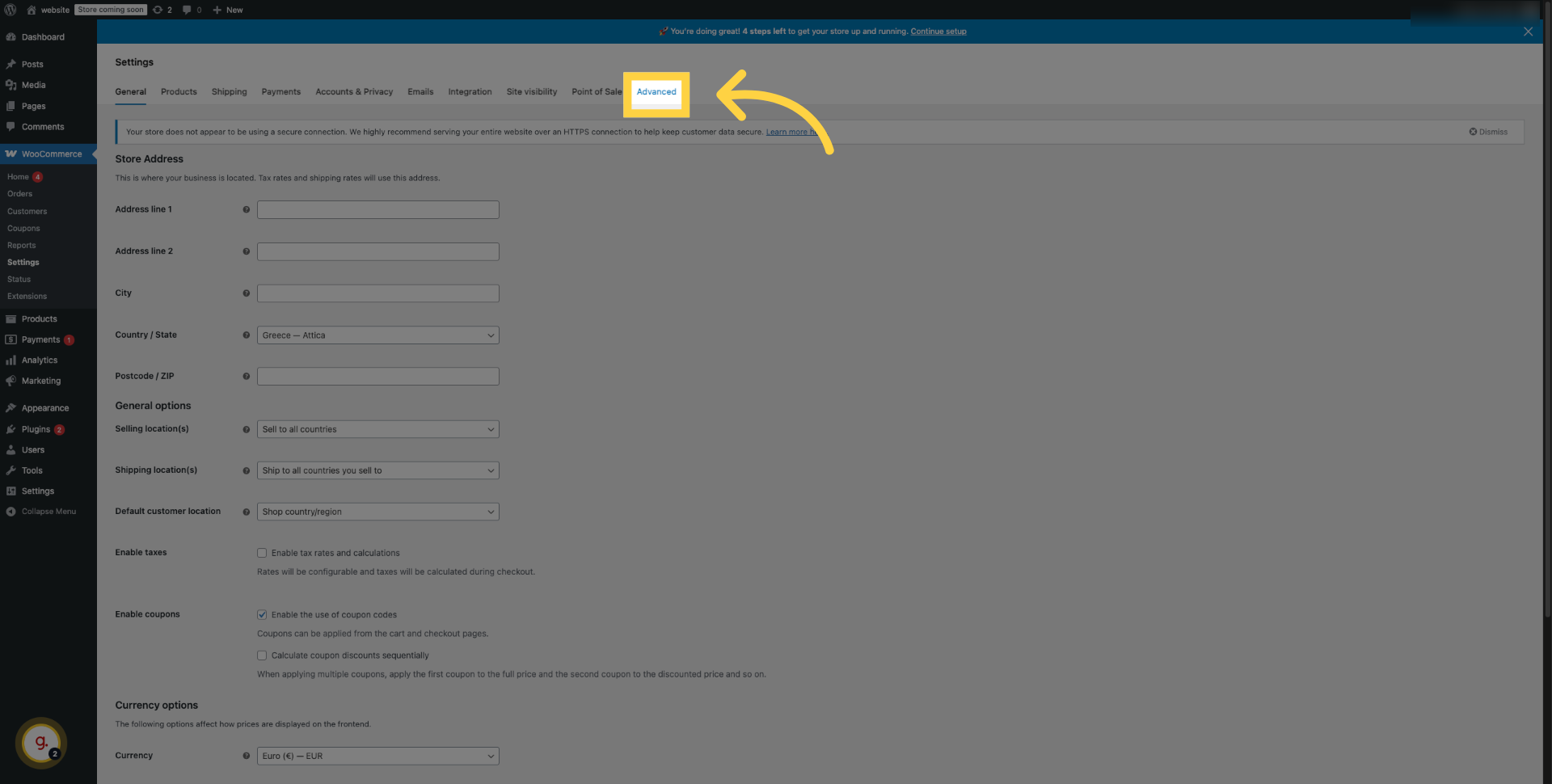
3. Click "Advanced"
Navigate to the Advanced tab
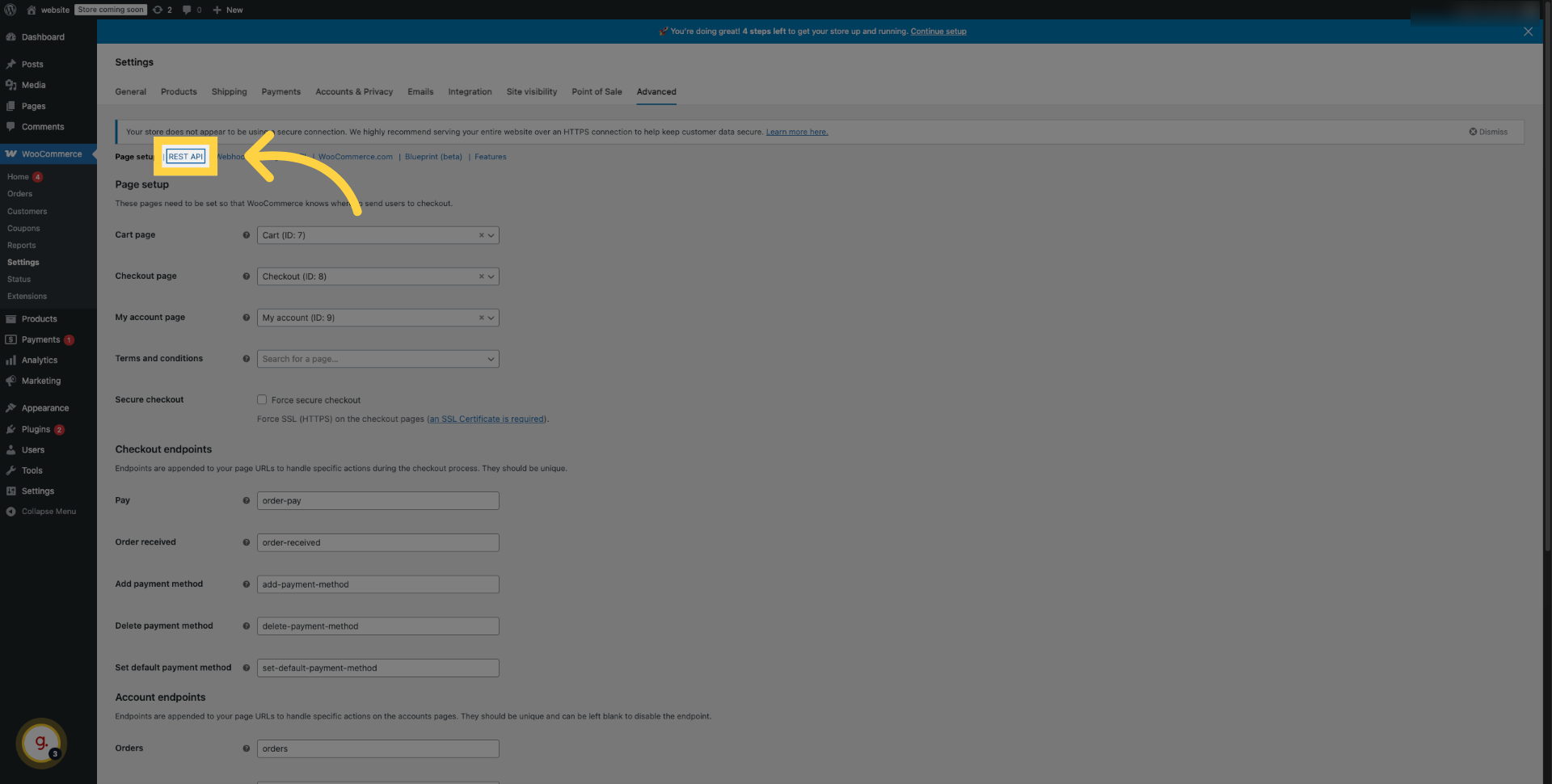
4. Click "REST API"
Click on the REST API submenu under the Advanced tab to manage API keys
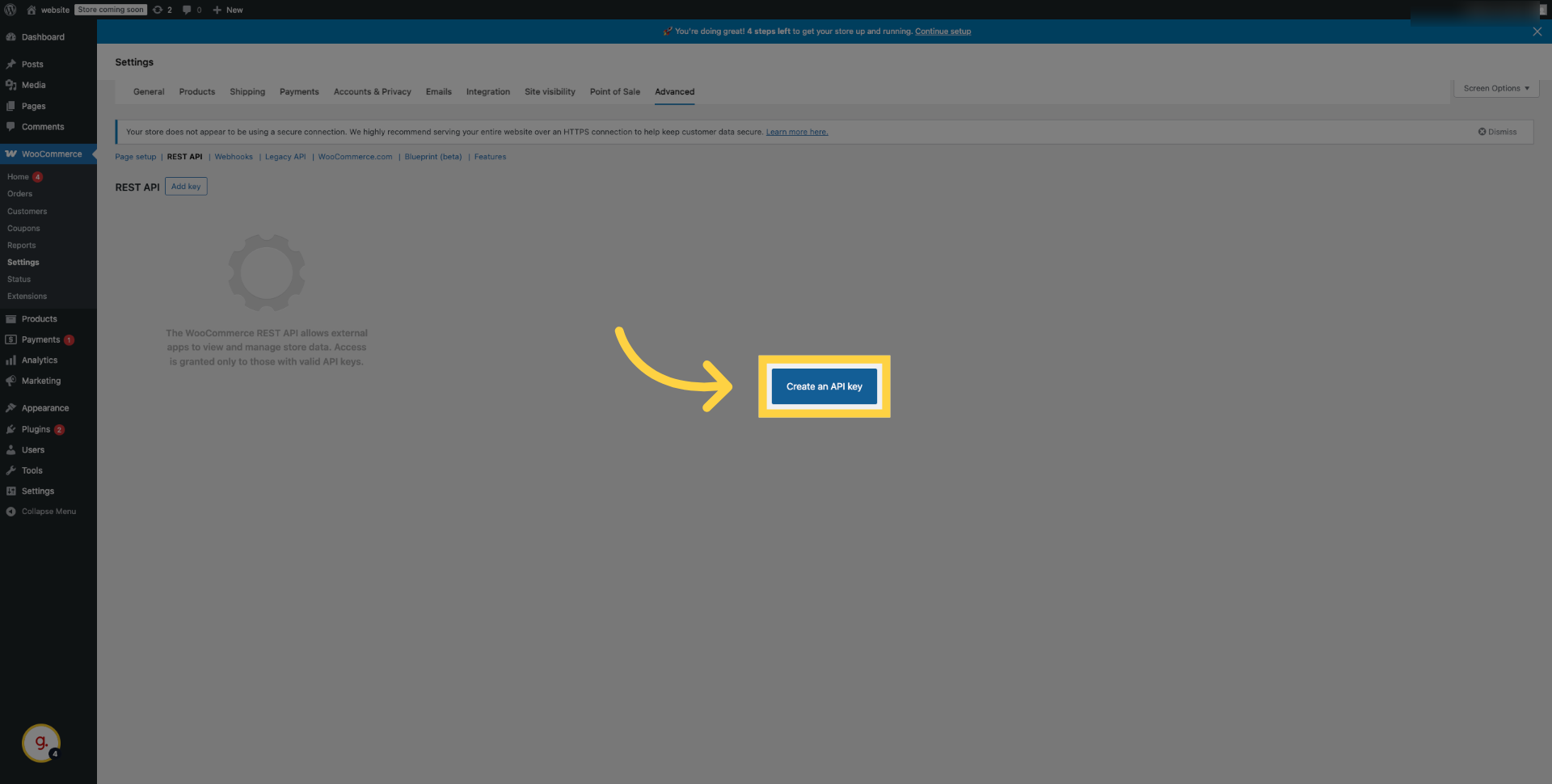
5. Click "Create an API key"
To create a new key, click the "Create an API key" button.
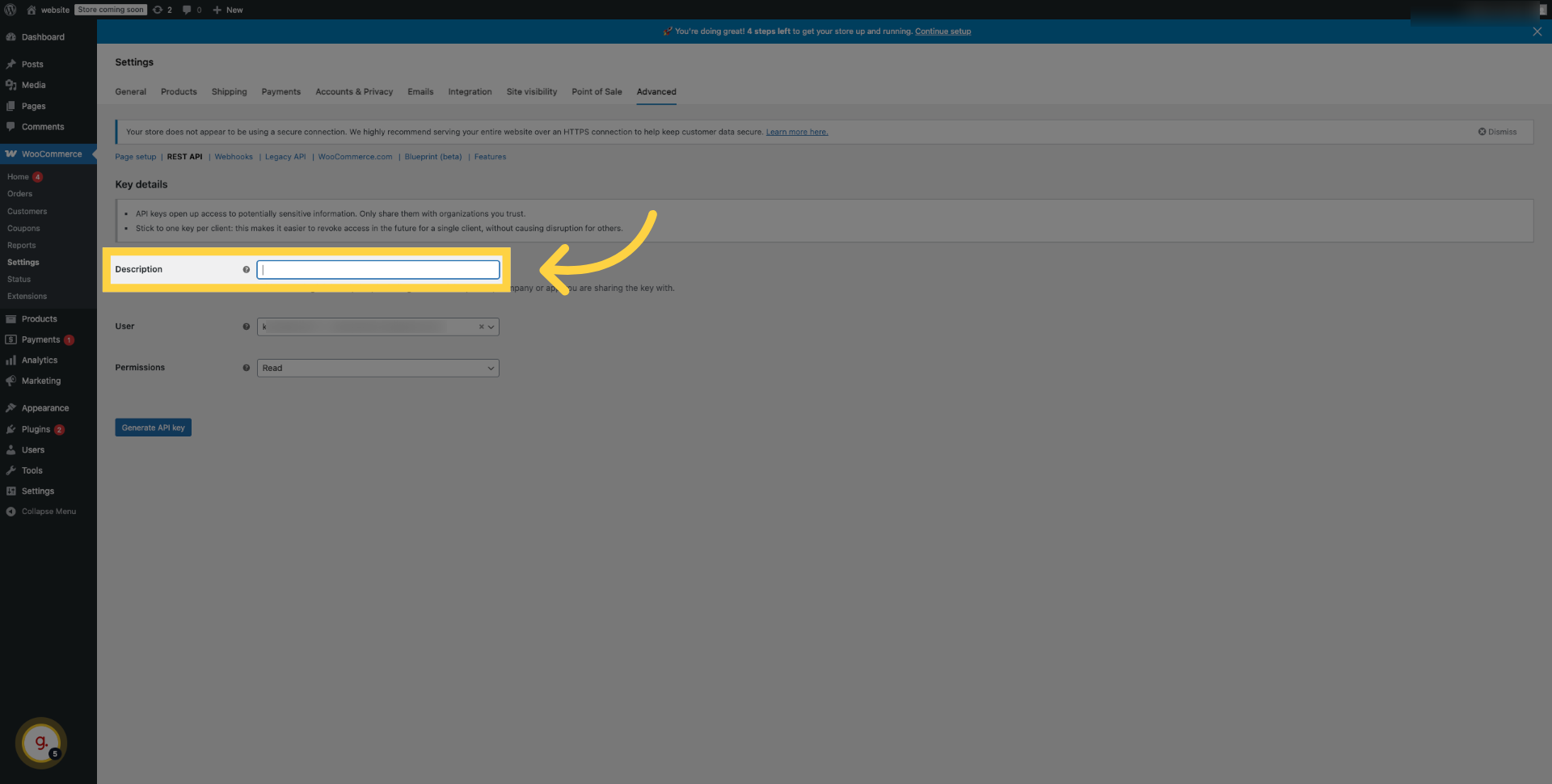
6. Click "Description"
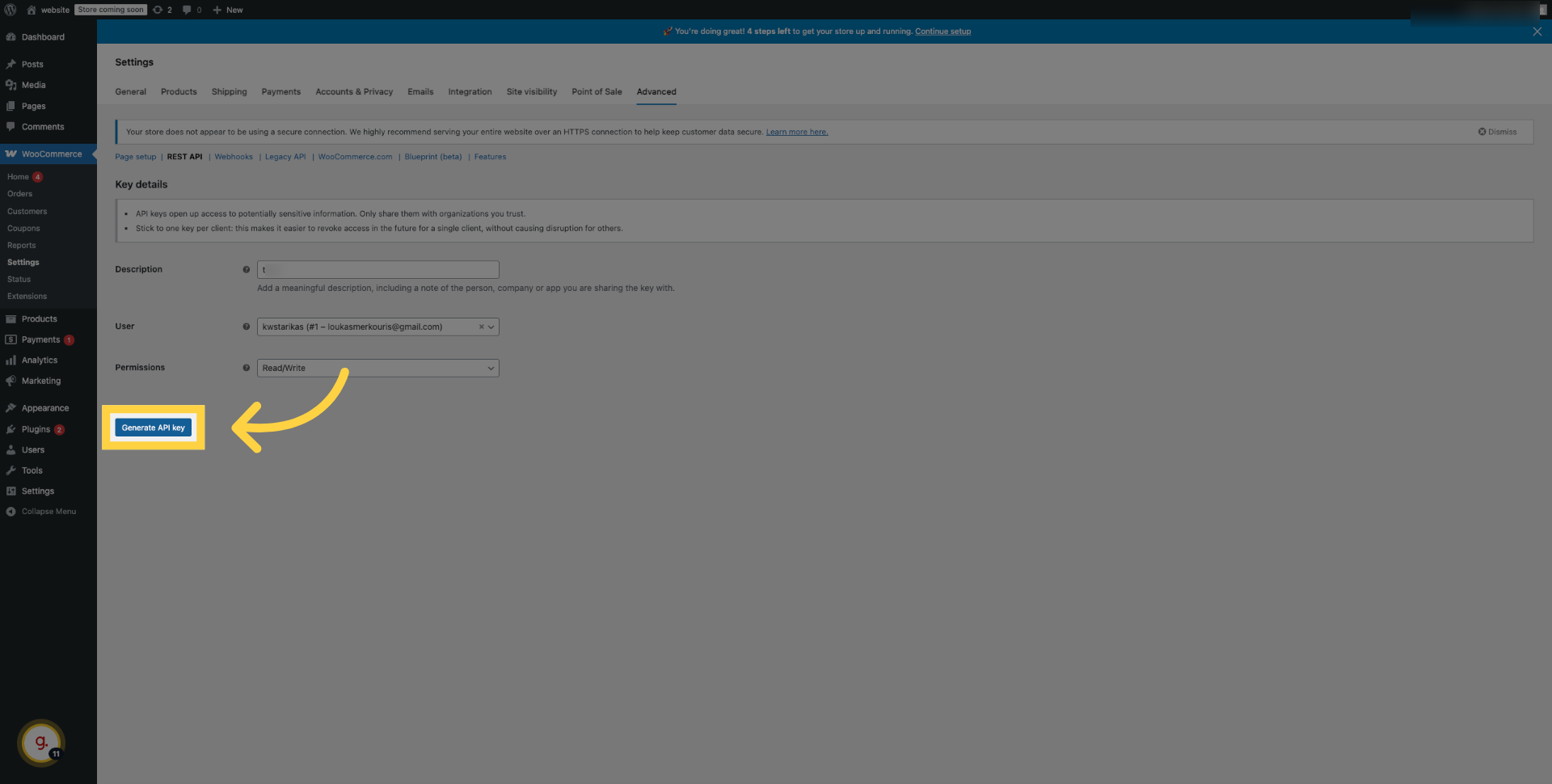
In the "Key details" section, you will be prompted to enter a "Description". Choose a clear and descriptive name for the key
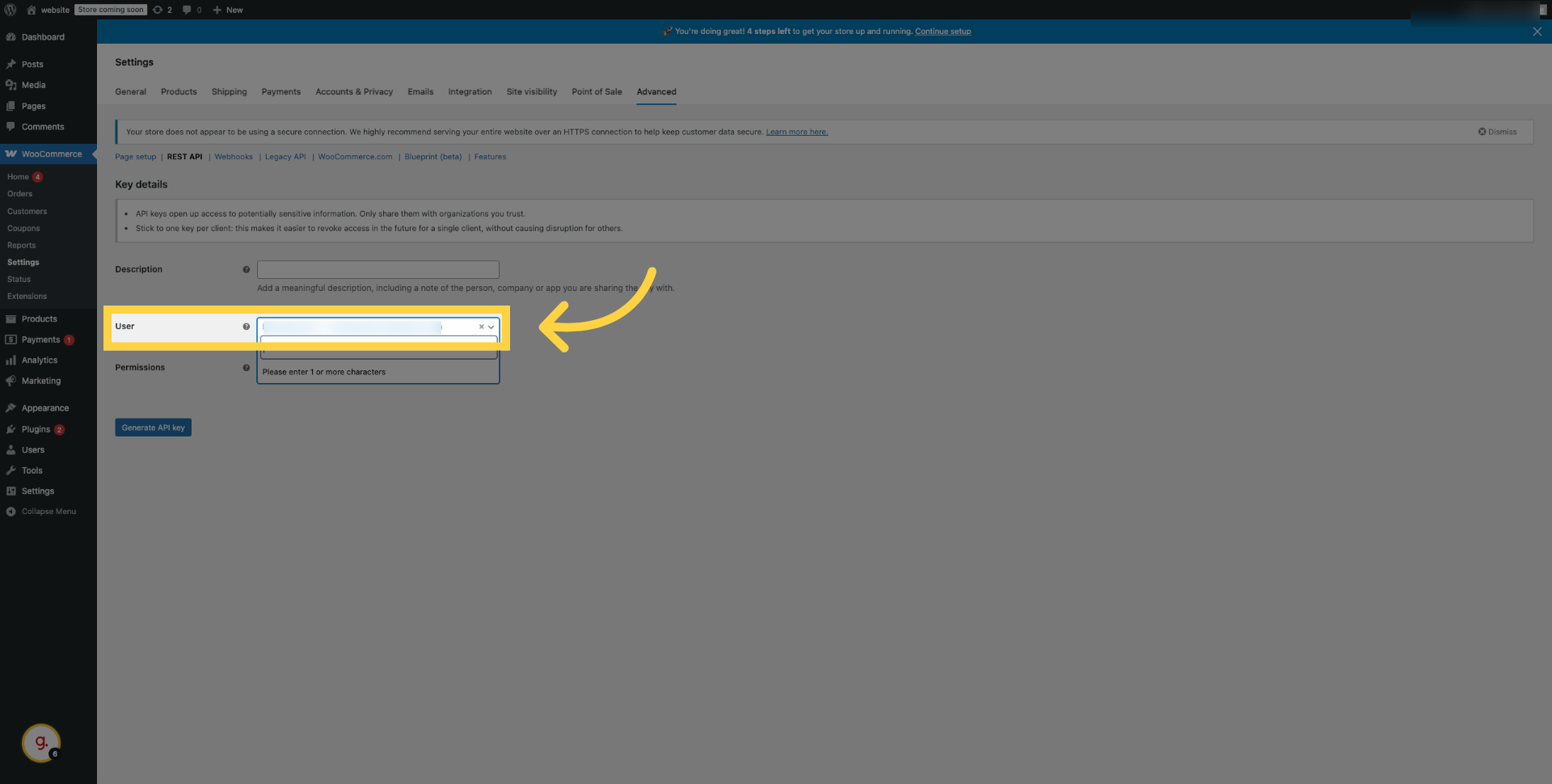
7. Add "User"
Click to select the user associated with this API key. For security, it’s best to create a dedicated user with admin rights just for API access. This limits exposure of your main admin account.
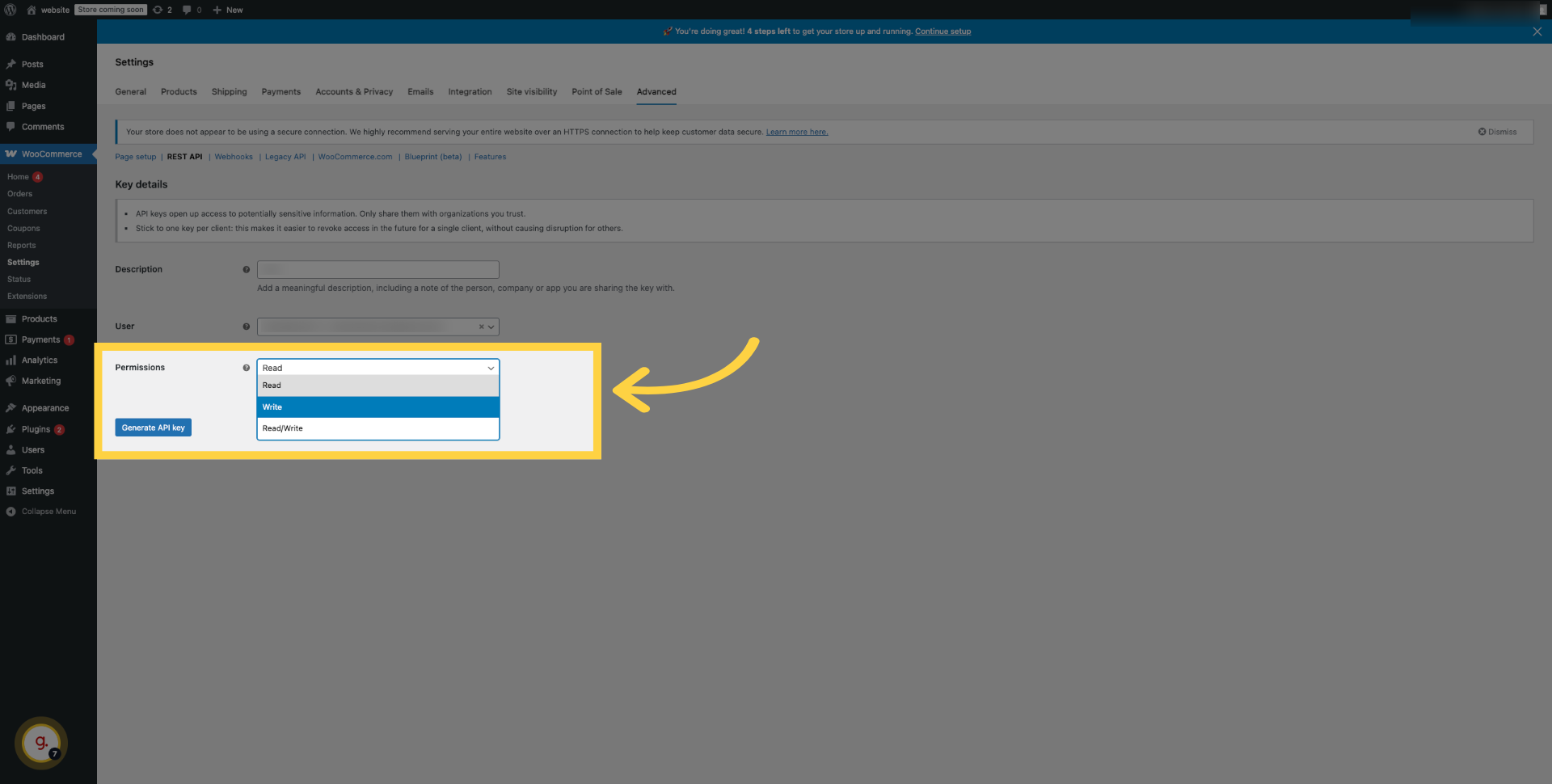
8. Select proper permissions for your keys
The permissions you select will determine what actions the key can perform.
9. Click "Generate API key"
Click the Generate API key button
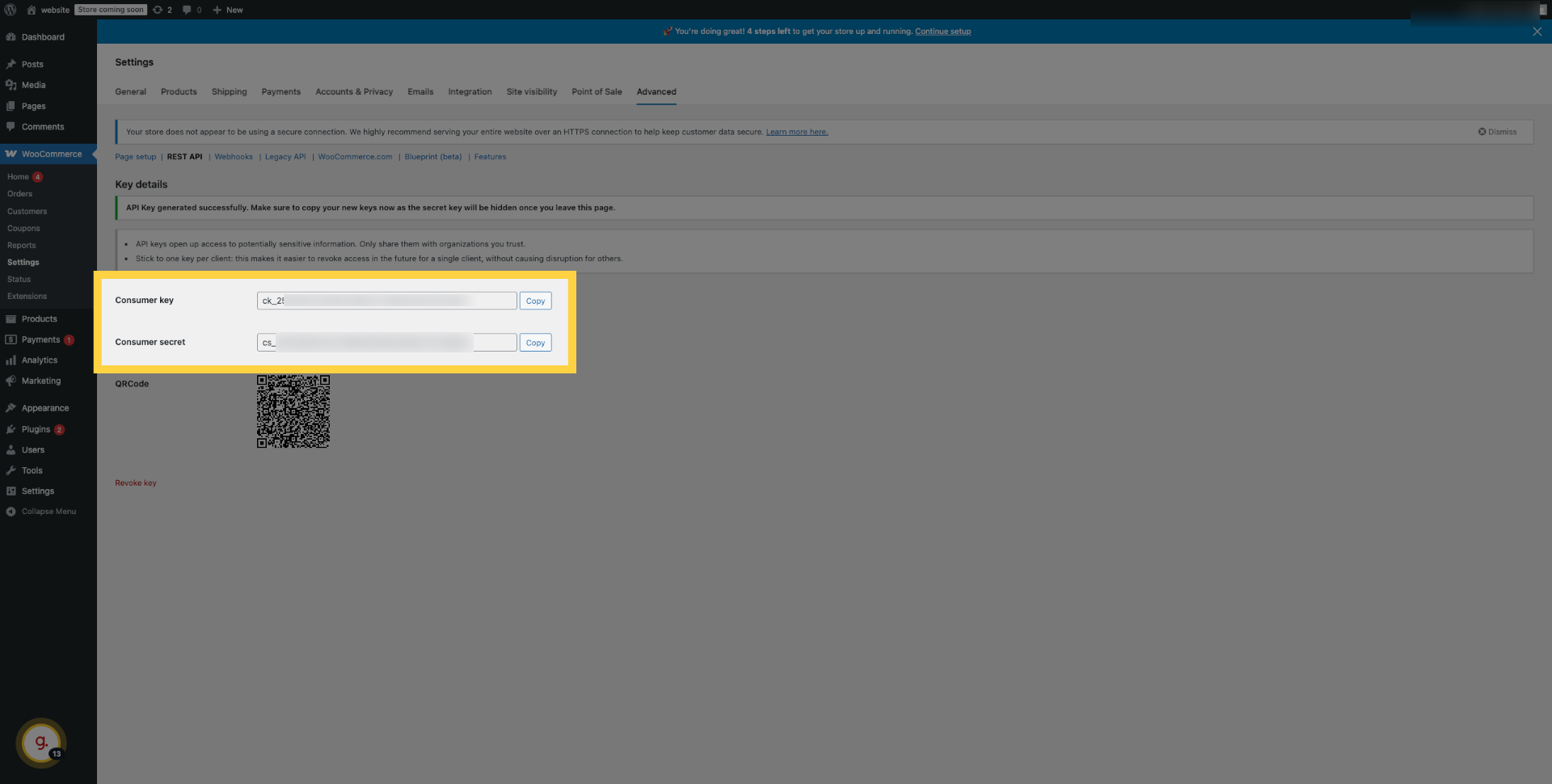
10. The key and secret are generated
WooCommerce will then generate a unique "Consumer Key" and "Consumer Secret." Copy these values to the Keragon form to create an authentication.
11. Set permalink to Wordpress
In WordPress, open Settings, then Permalinks. Under “Common settings”, choose the Post name permalink structure and save.
This guide covered how to set up a consumer key and secret in WooCommerce.