How to find your Client ID and Secret in Salesforce

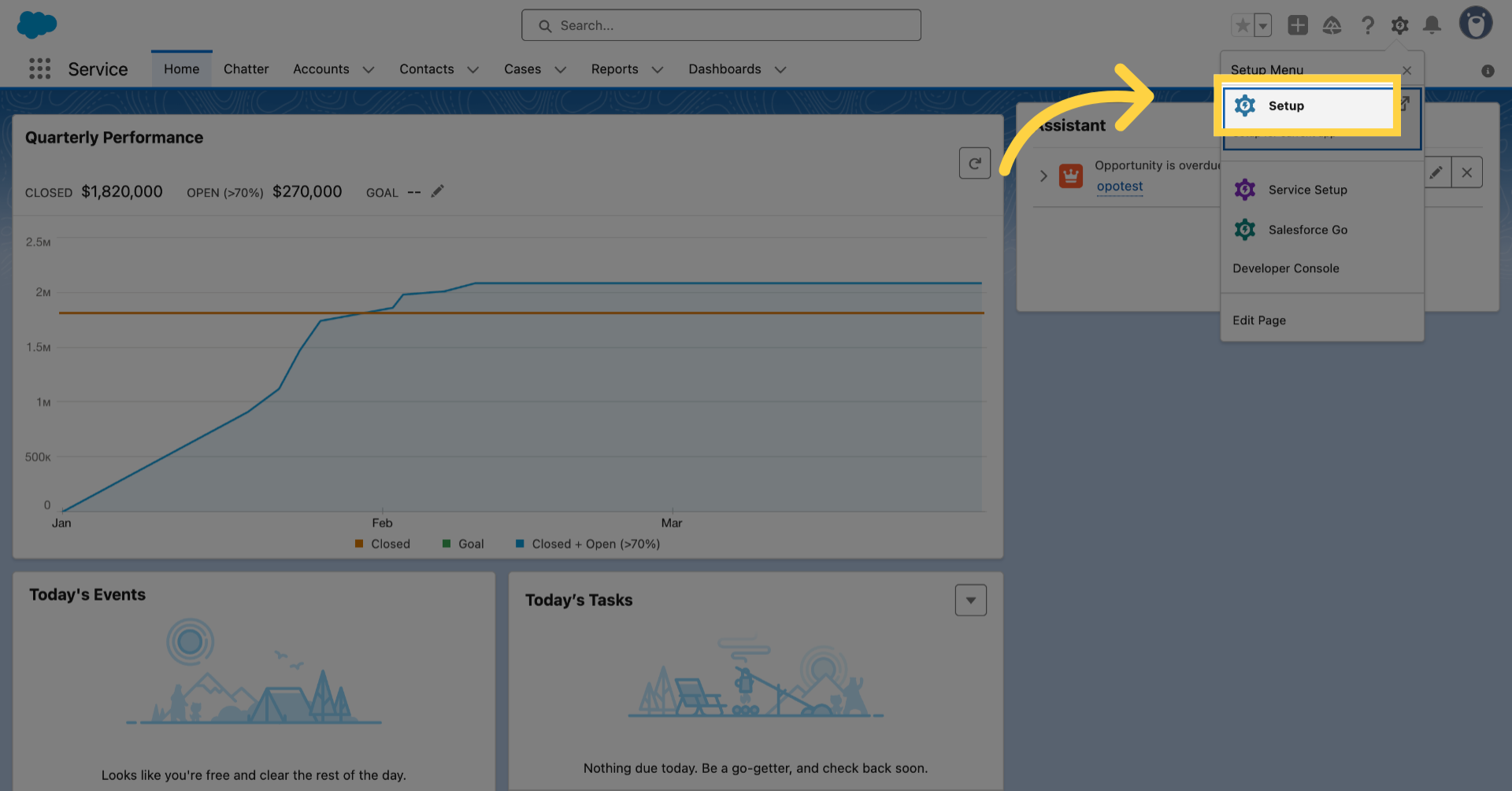
1. Click the gear icon
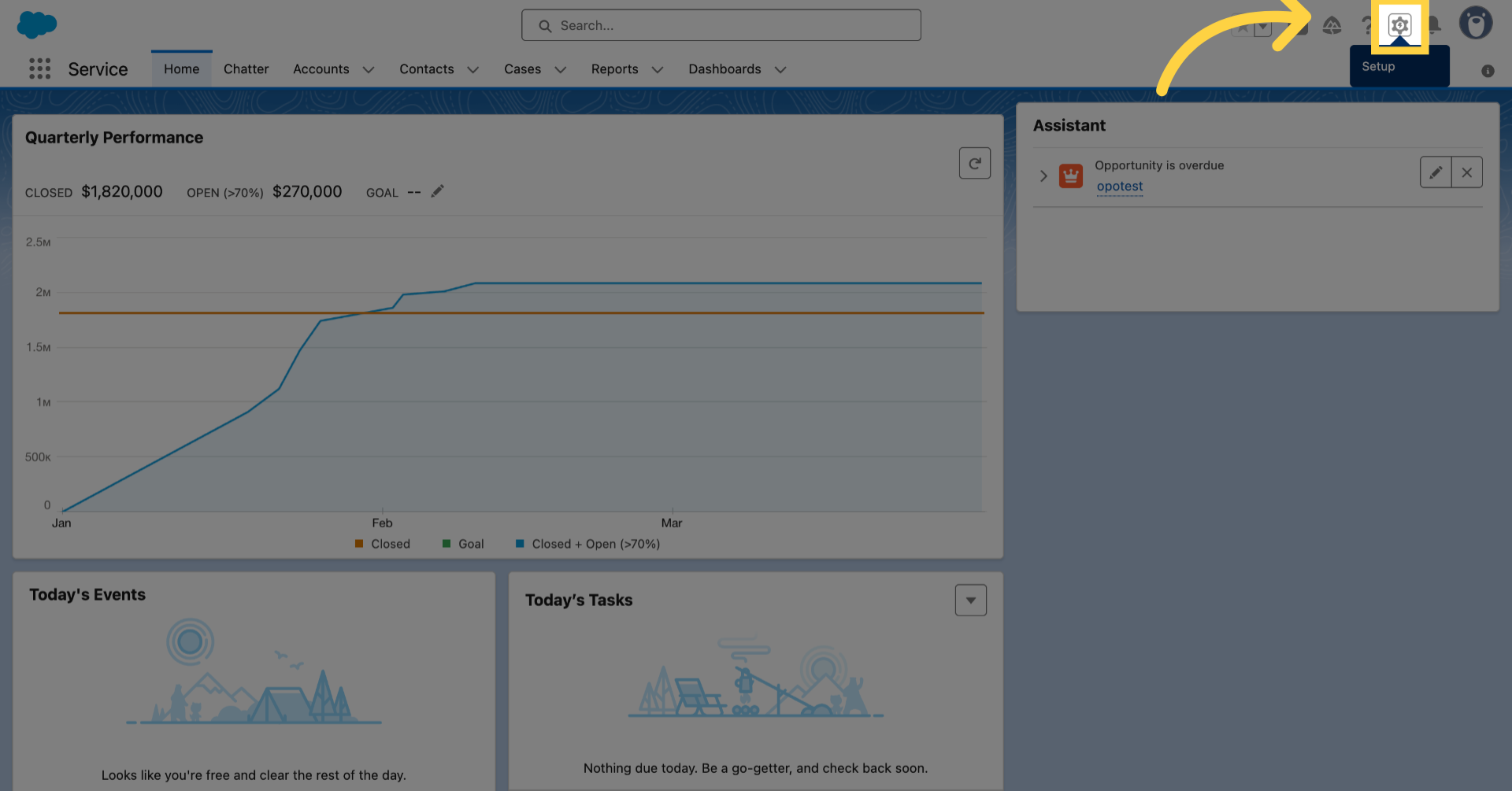
Click the gear icon

2. Click "Setup"

Click 'Setup'

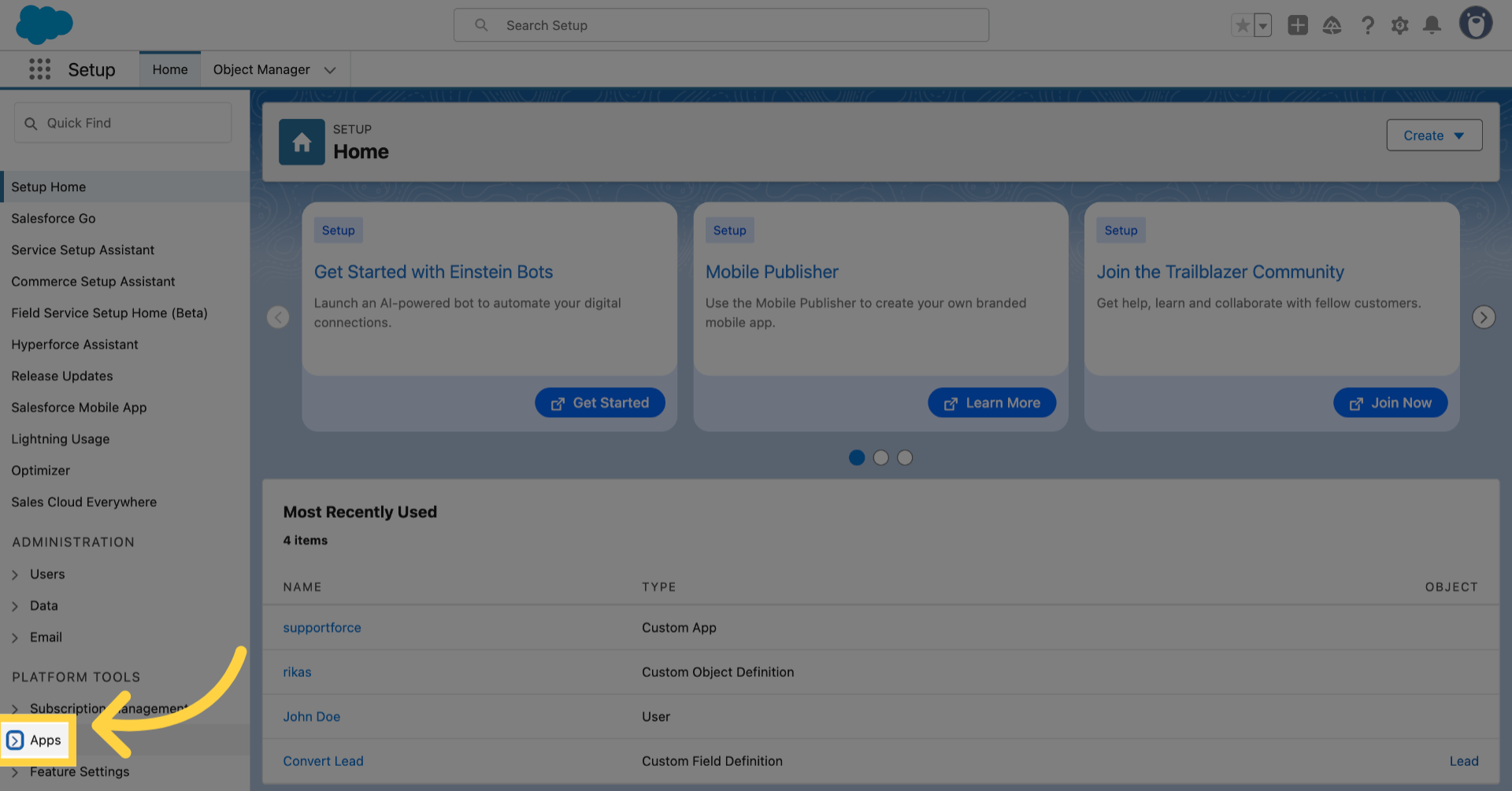
3. Click "Apps"

Click 'Apps'

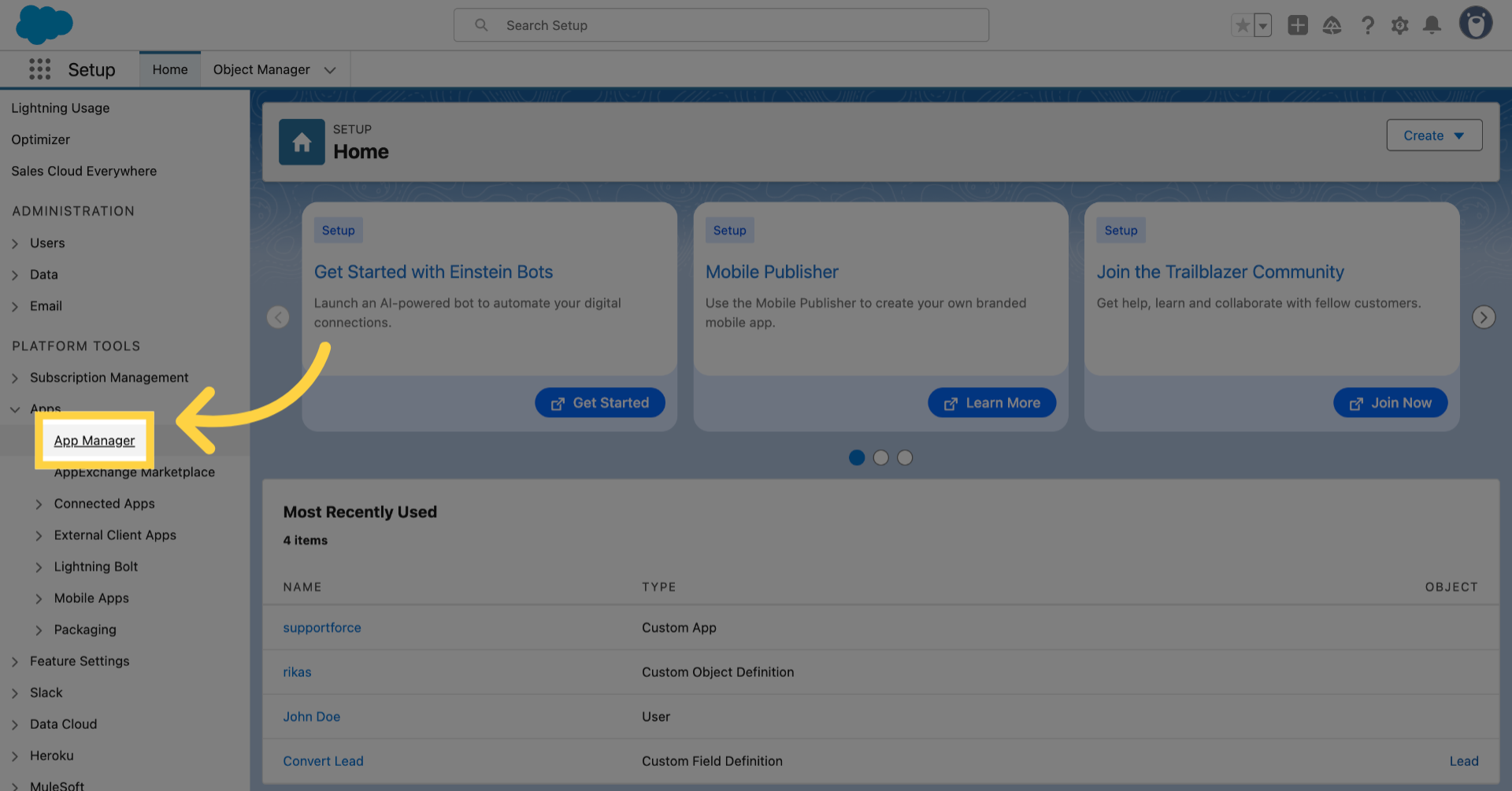
4. Click "App Manager"

Click 'App Manager'

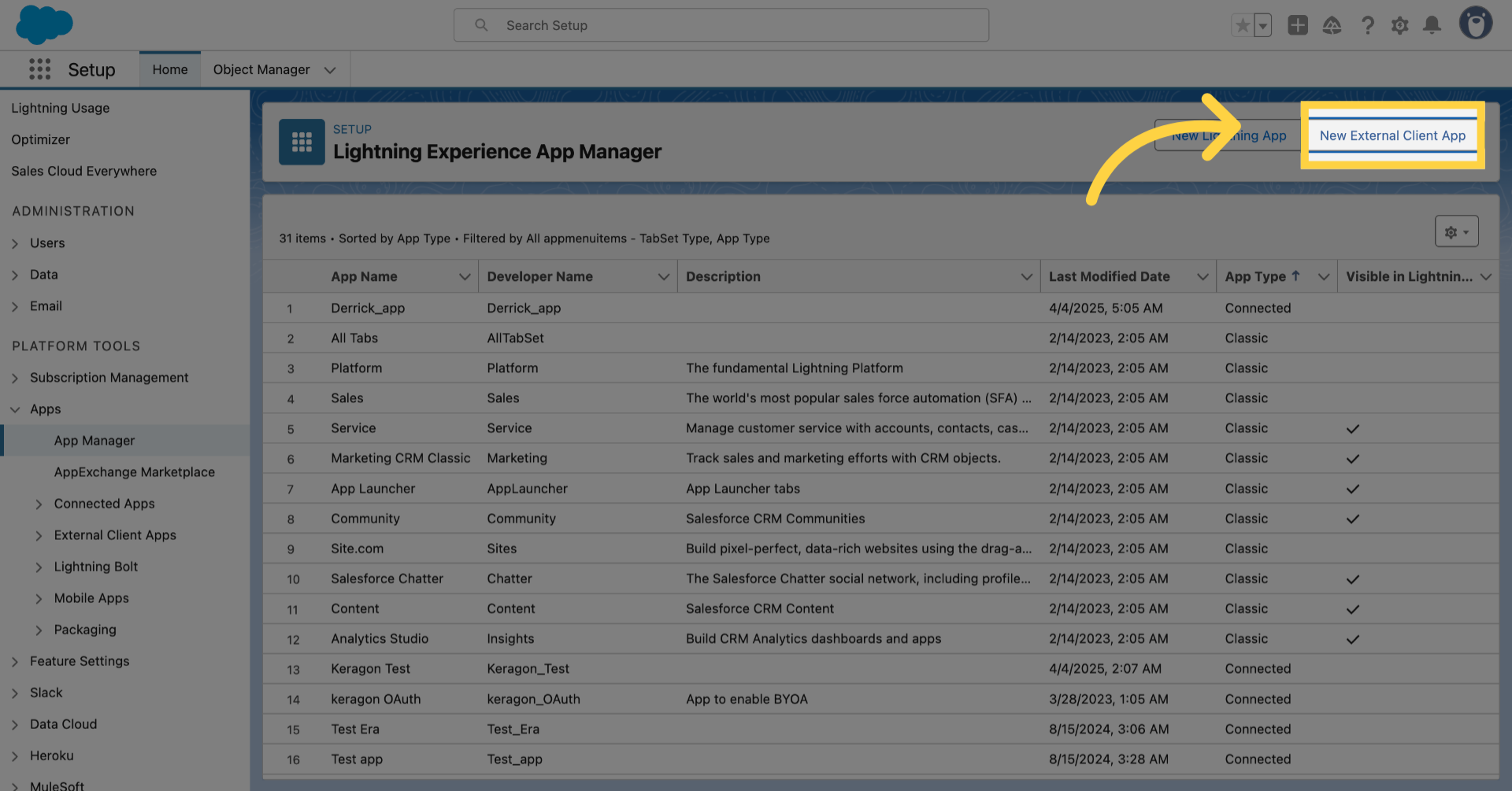
5. Click "New External Client App"

Click 'New External Client App'

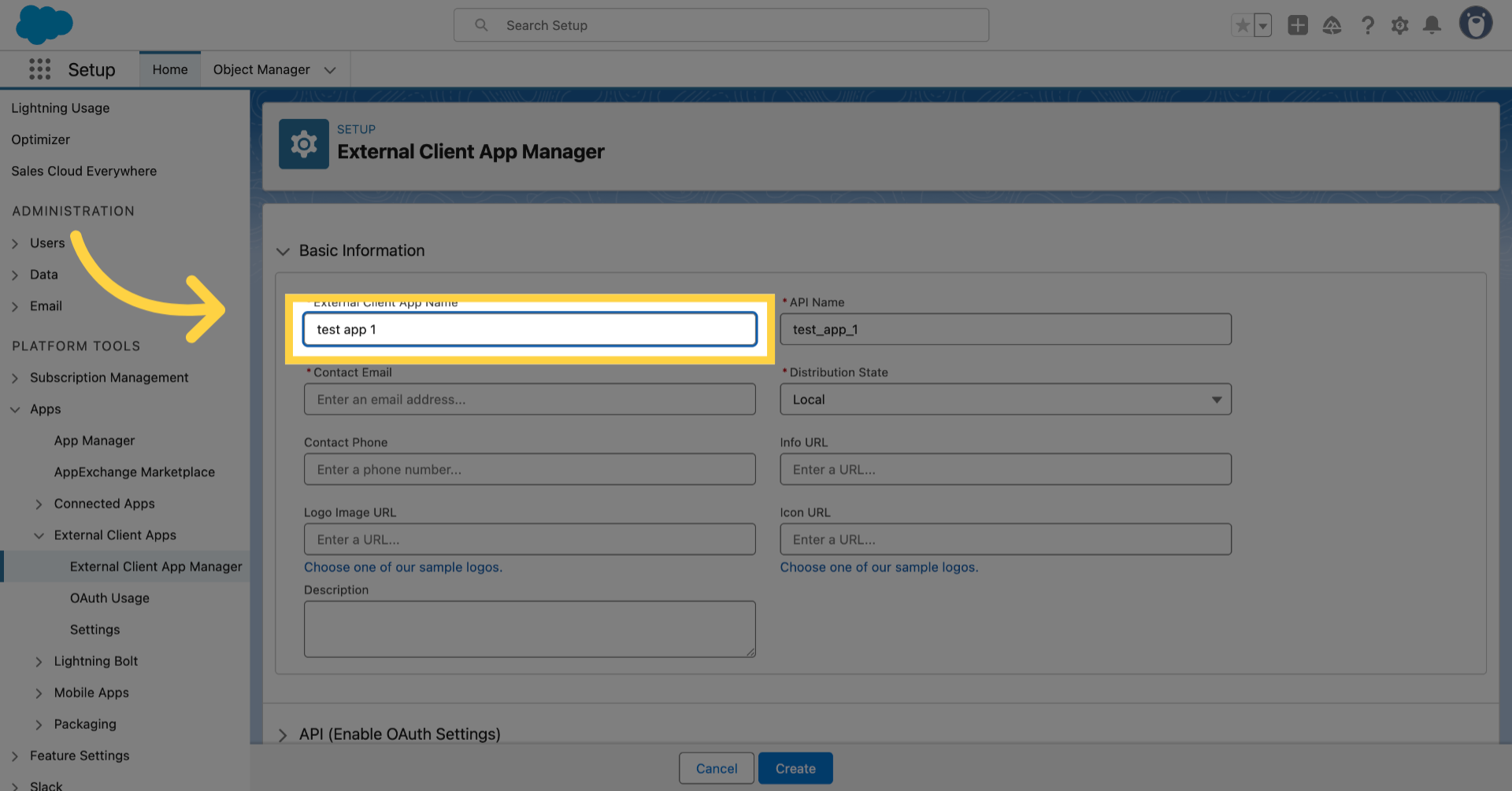
6. Fill the required details

Fill the required details

7. Fill the required details
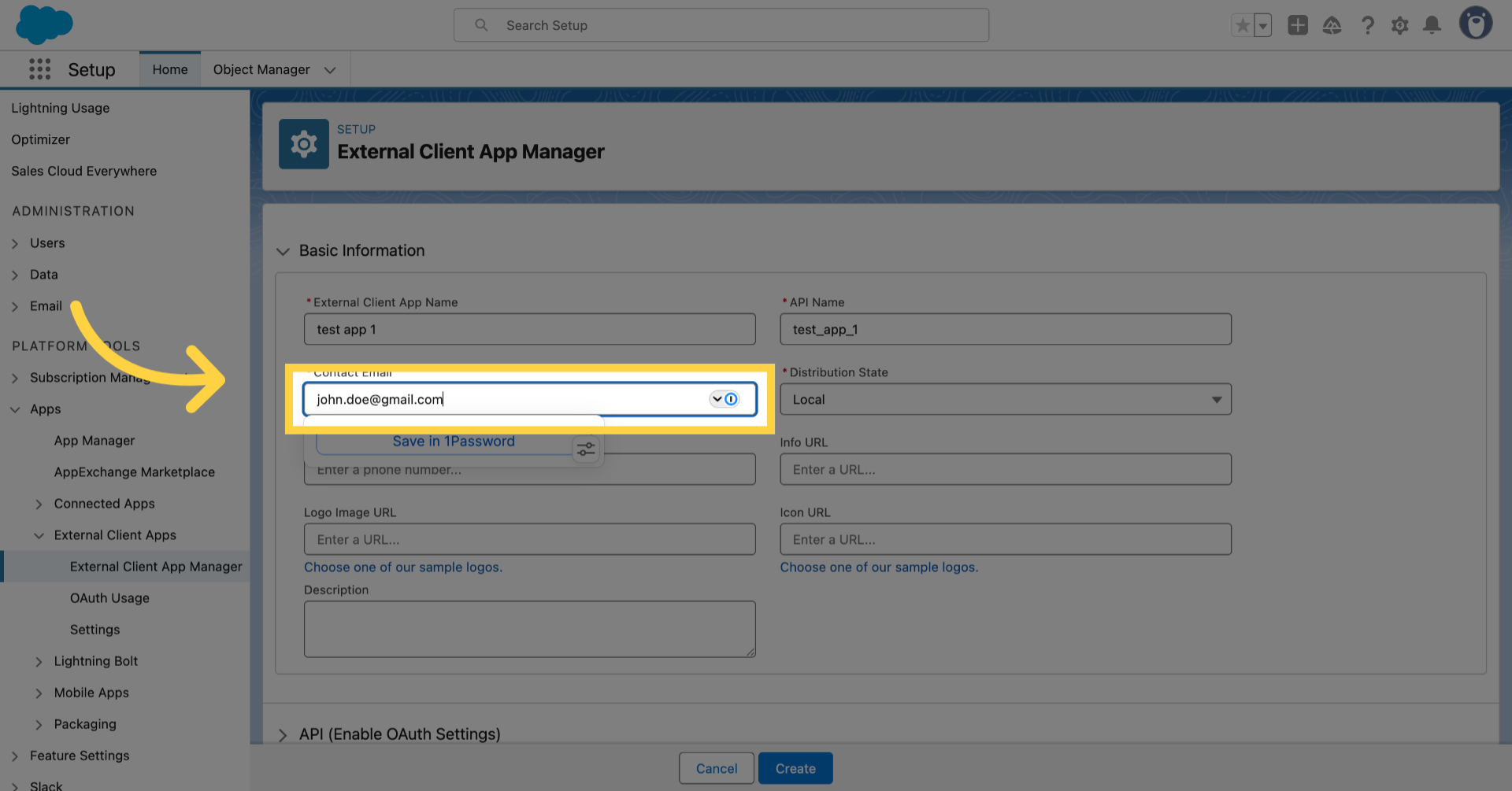
Fill the required details

8. Click "API (Enable OAuth Settings)
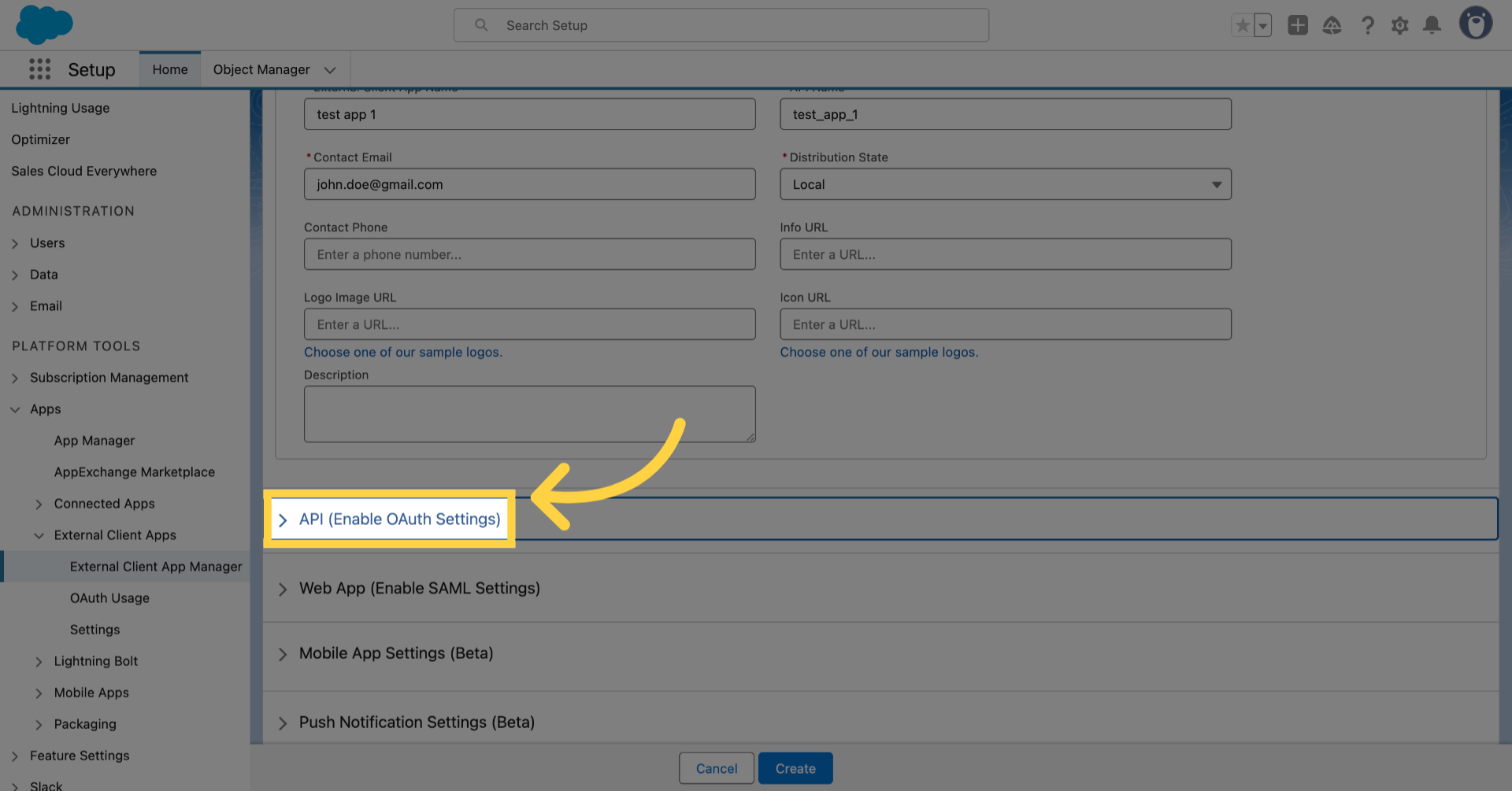
Click 'API (Enable OAuth Settings)

9. Enable OAuth
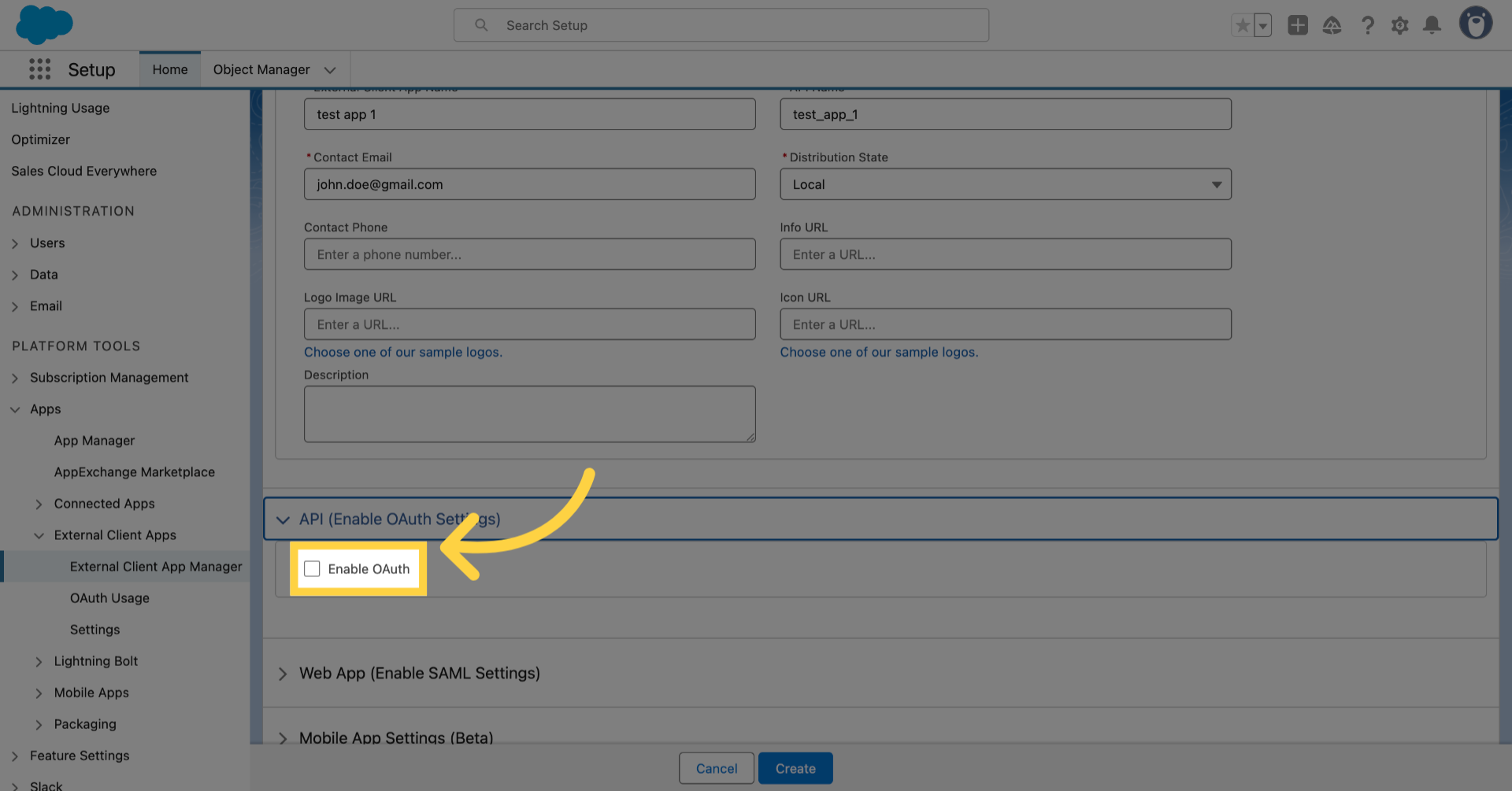
Enable OAuth

10. Enter "https://api.us-east-1.keragon.com/rest/auth/callback" in the Callback URL
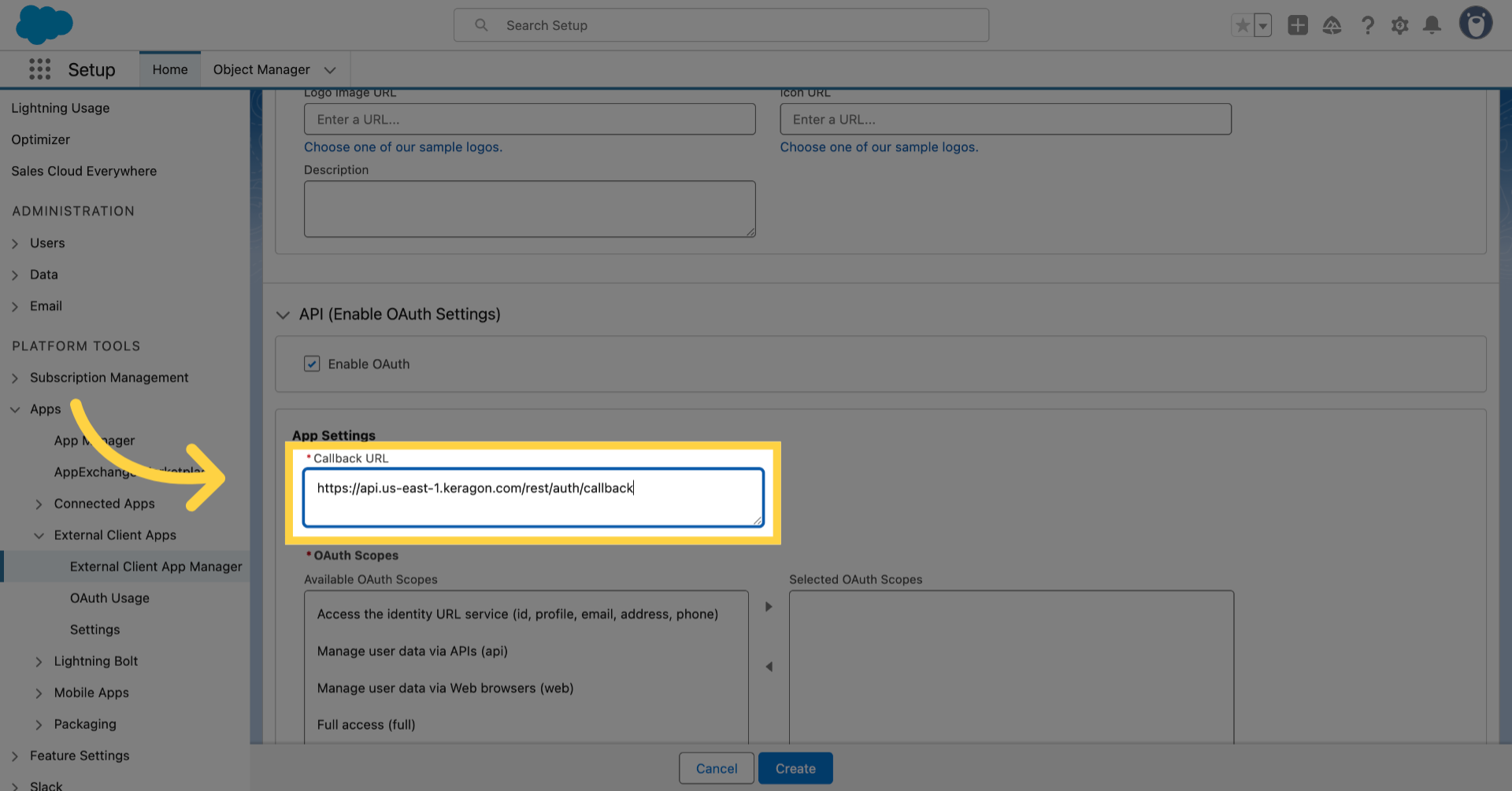
Enter 'https://api.us-east-1.keragon.com/rest/auth/callback' in the Callback URL

11. Move the necessary OAuth Scopes
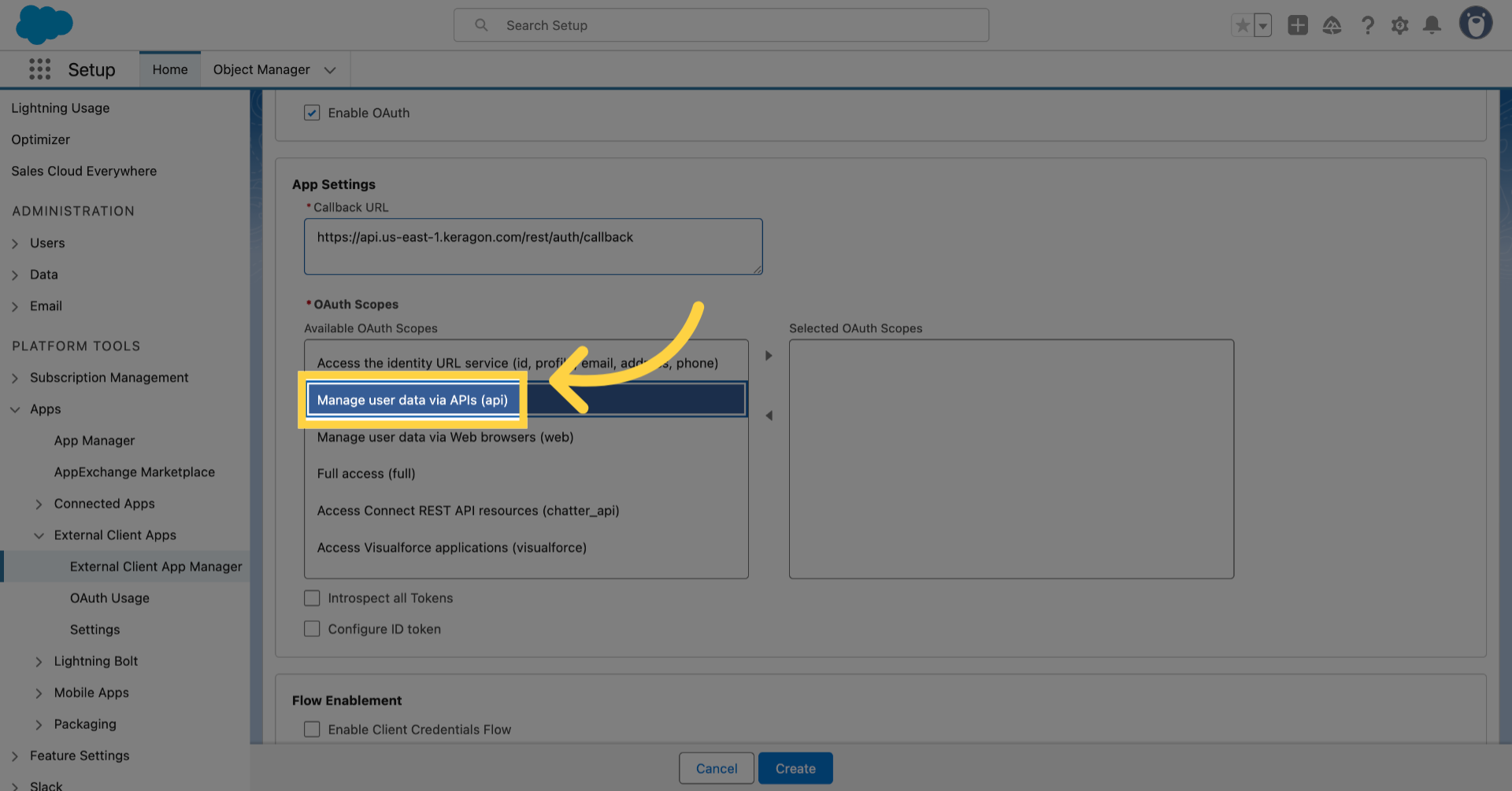
Move the necessary OAuth Scopes

12. Click here
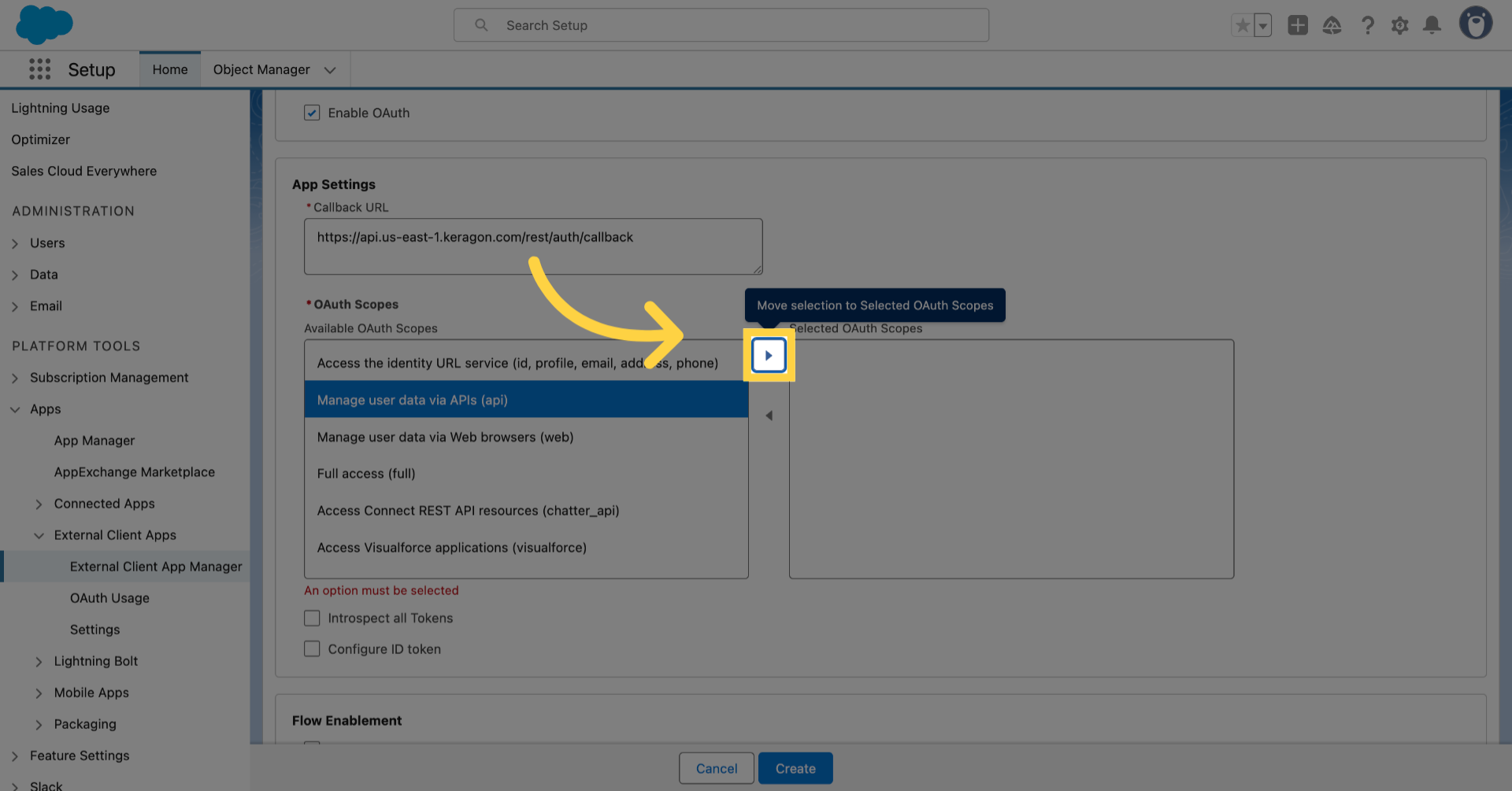
Click here

13. Move the necessary OAuth Scopes
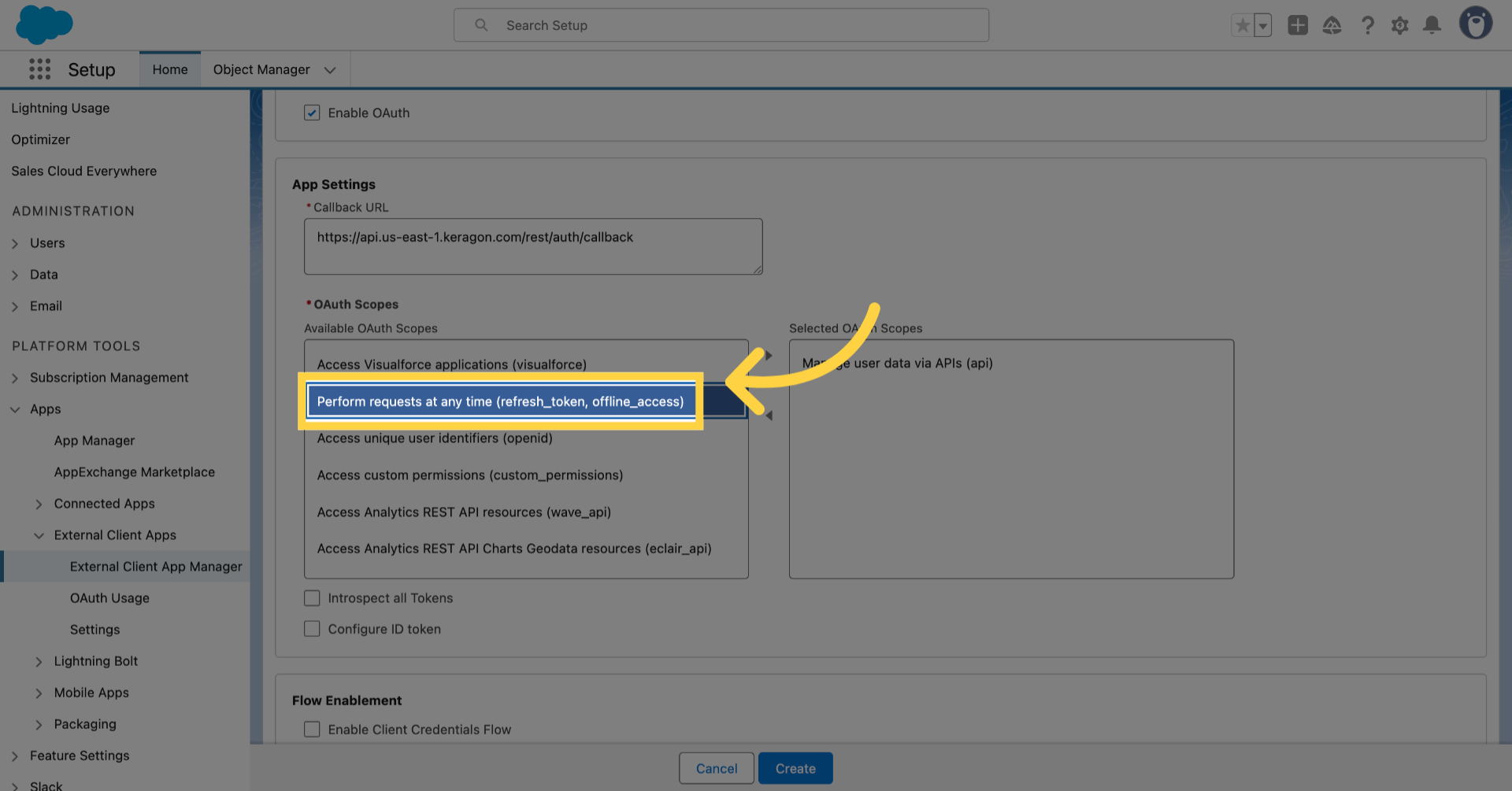
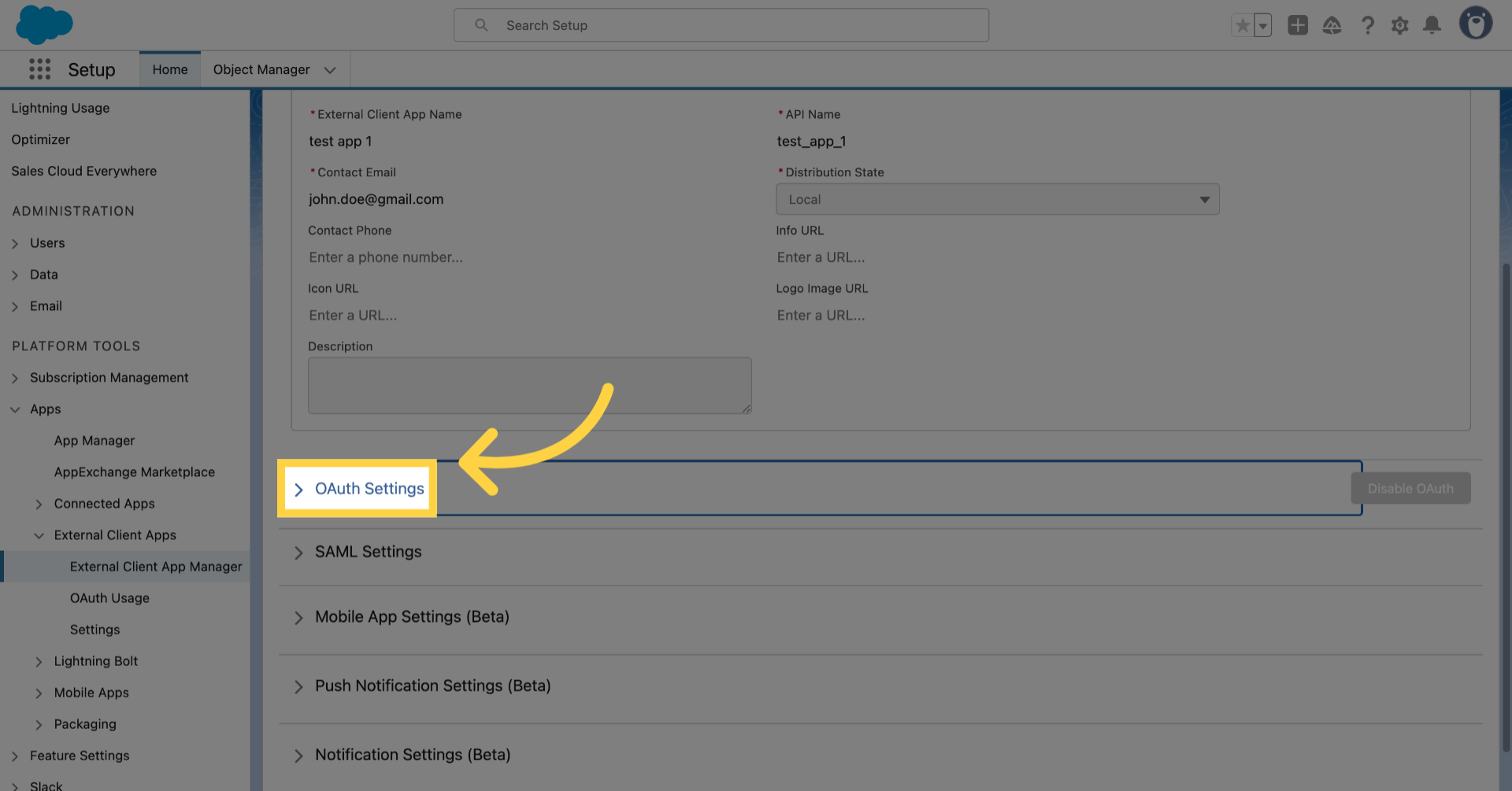
Move the necessary OAuth Scopes

14. Click here
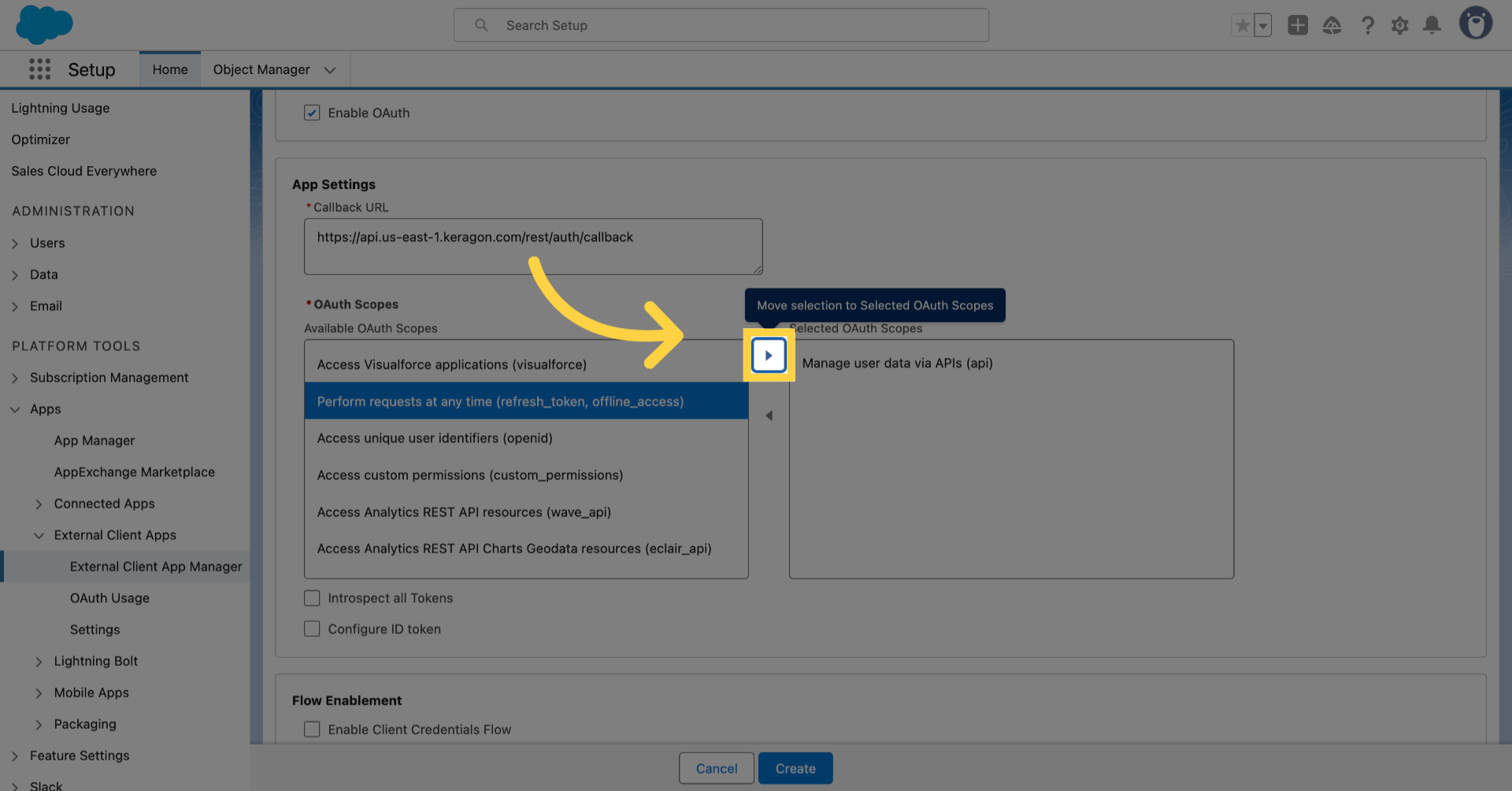
Click here

15. Enable Client Credentials Flow
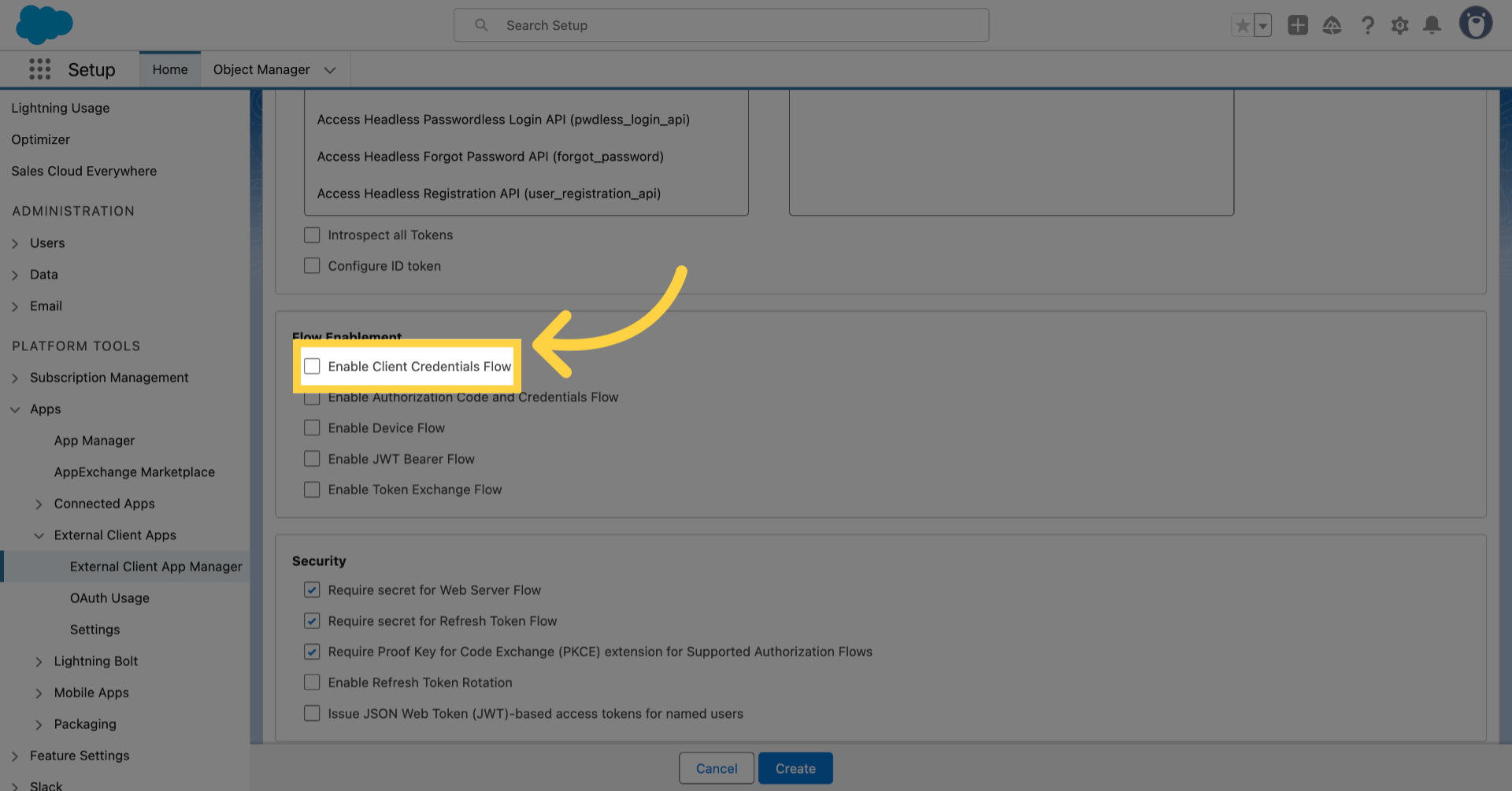
Enable Client Credentials Flow

16. Click "OK"
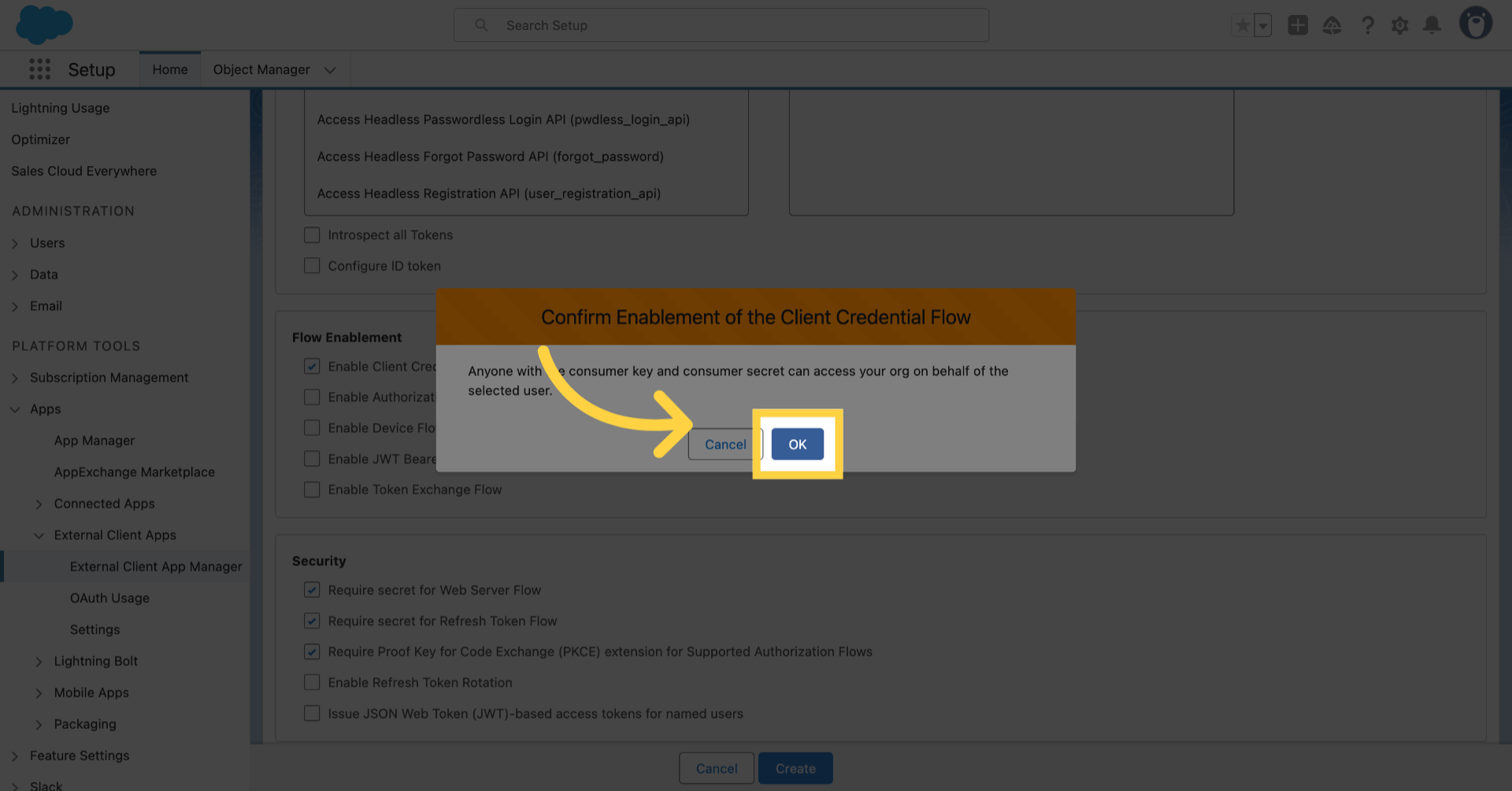
Click 'OK'

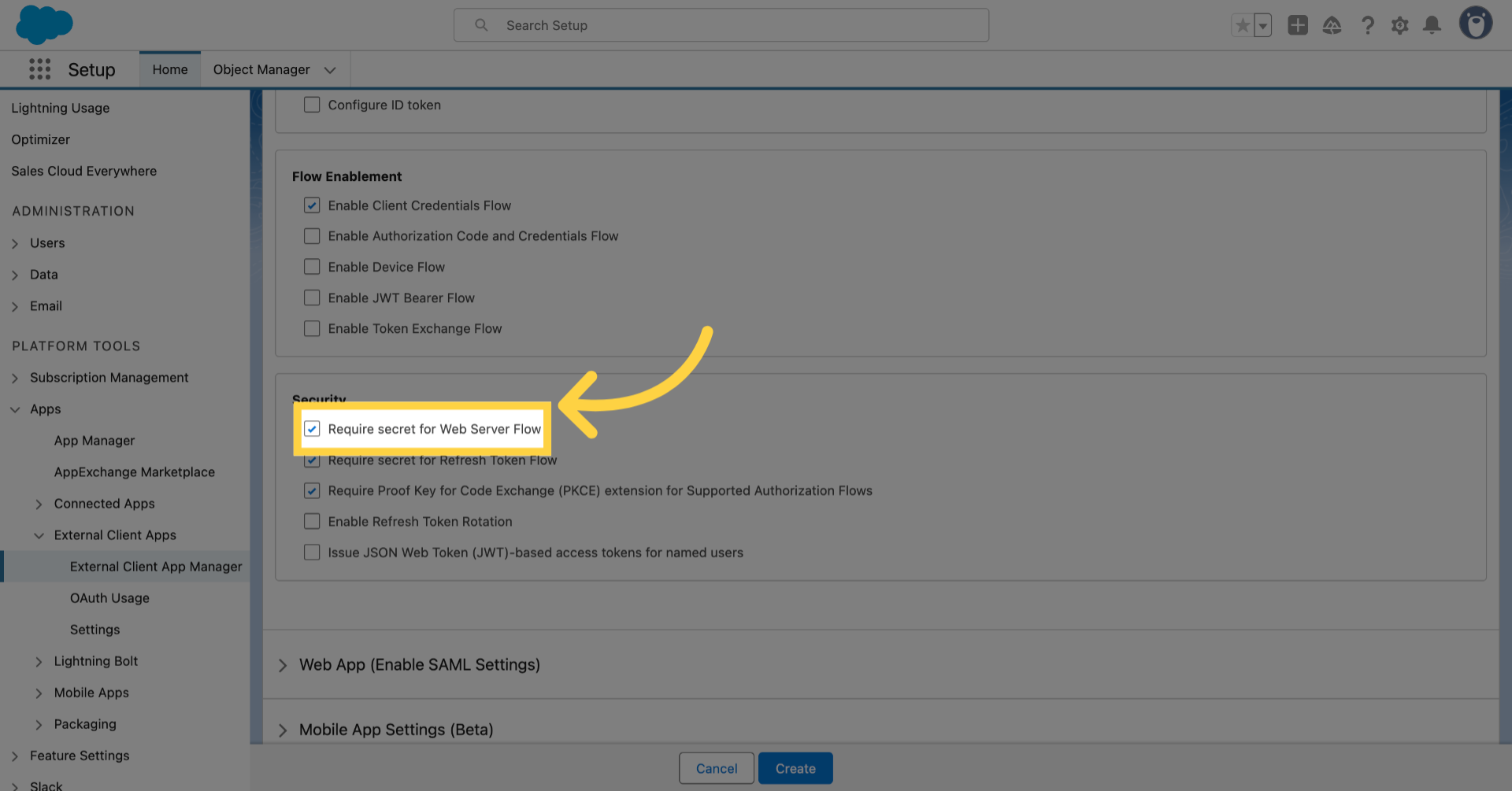
17. Uncheck the following

Uncheck the following

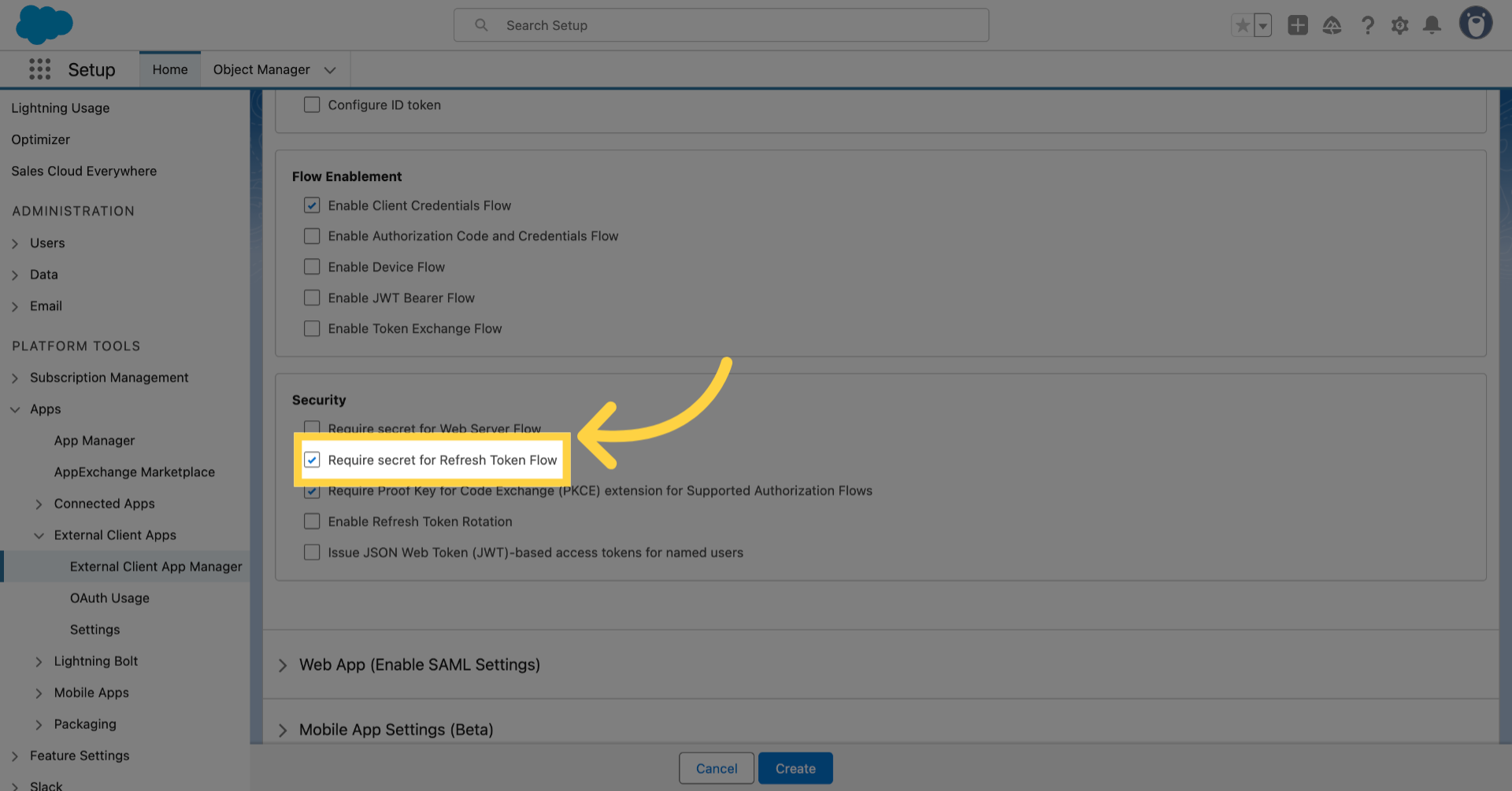
18. Uncheck

Uncheck

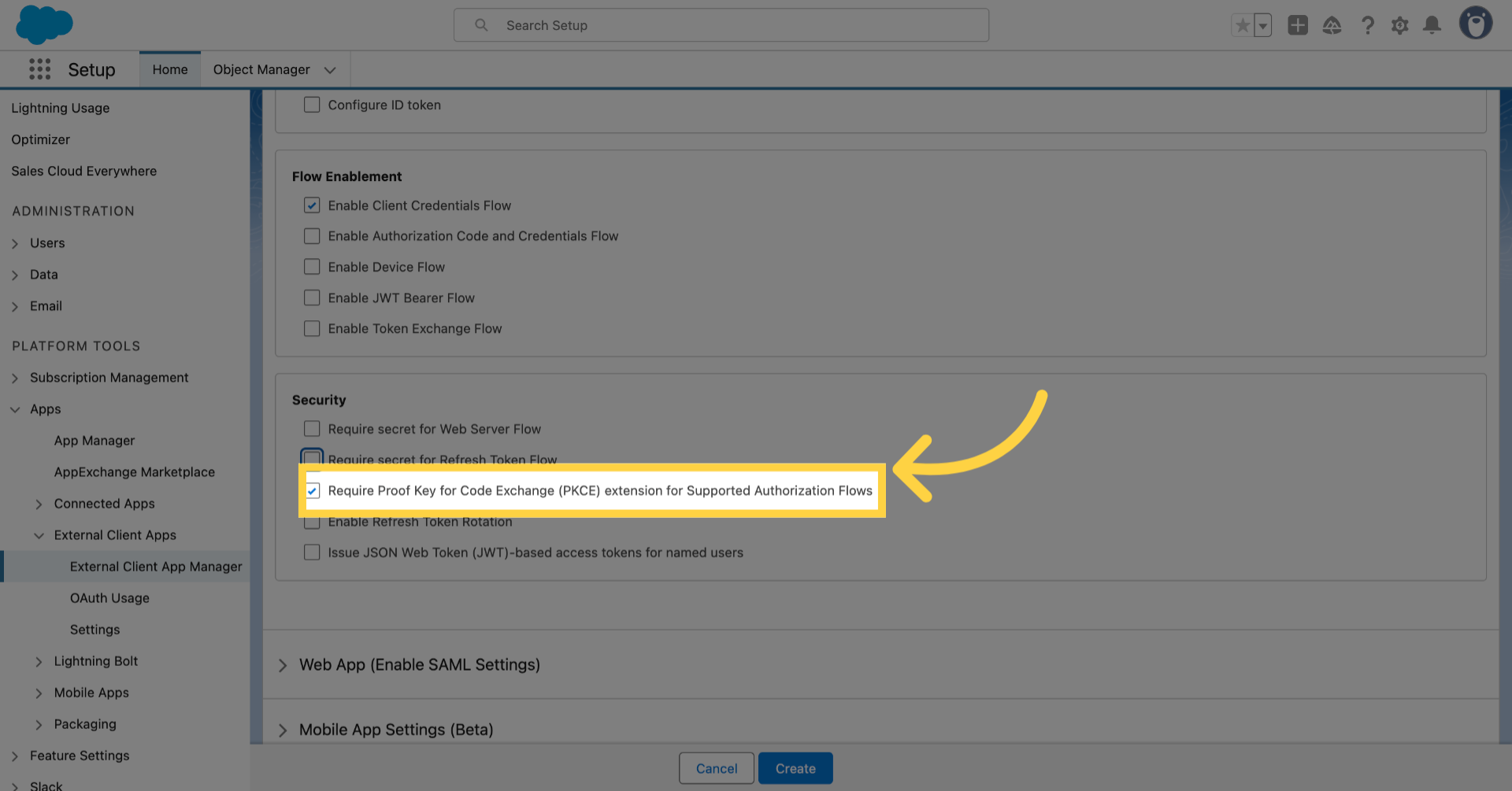
19. Uncheck

Uncheck

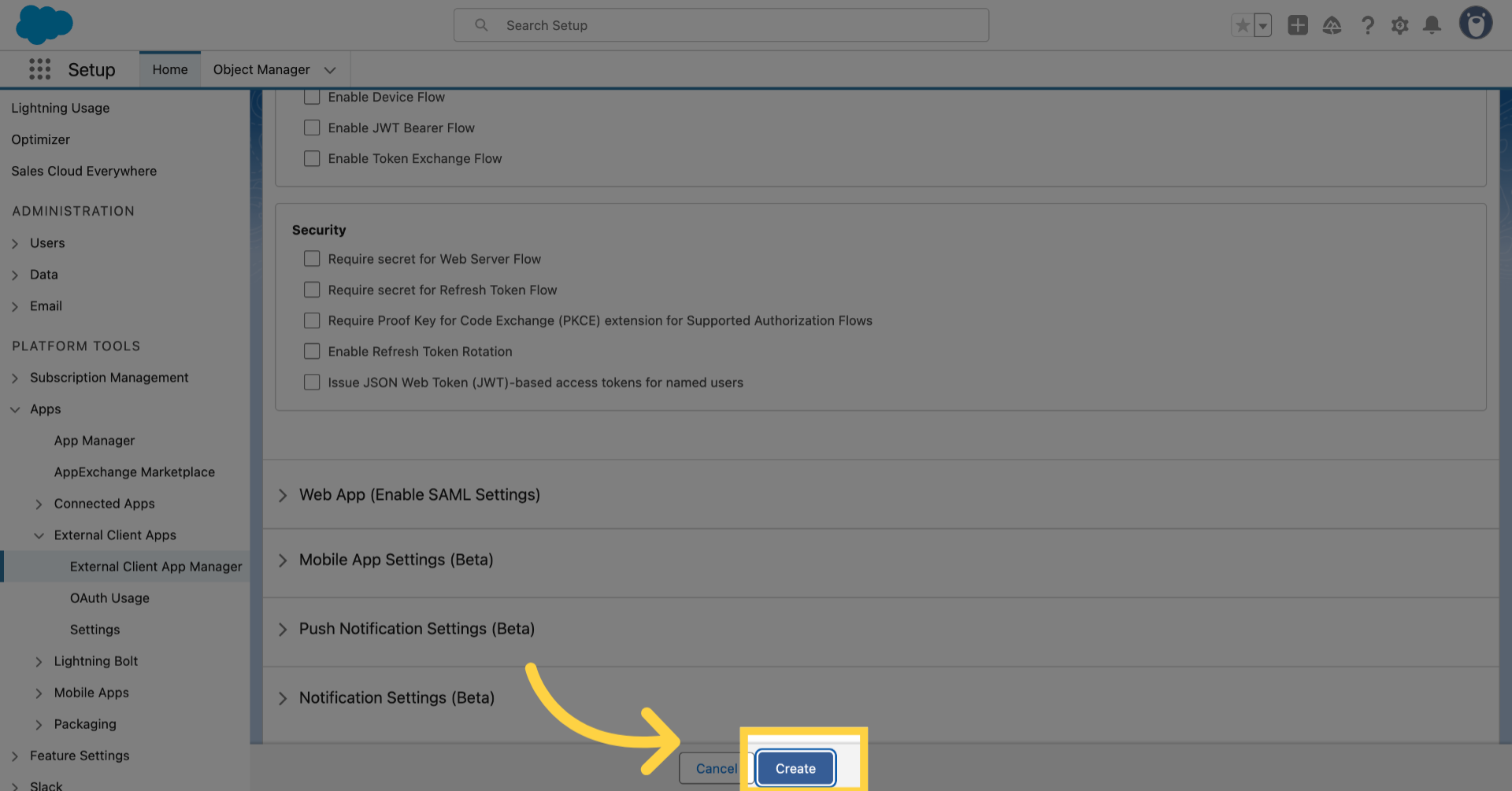
20. Click "Create"

Click 'Create'

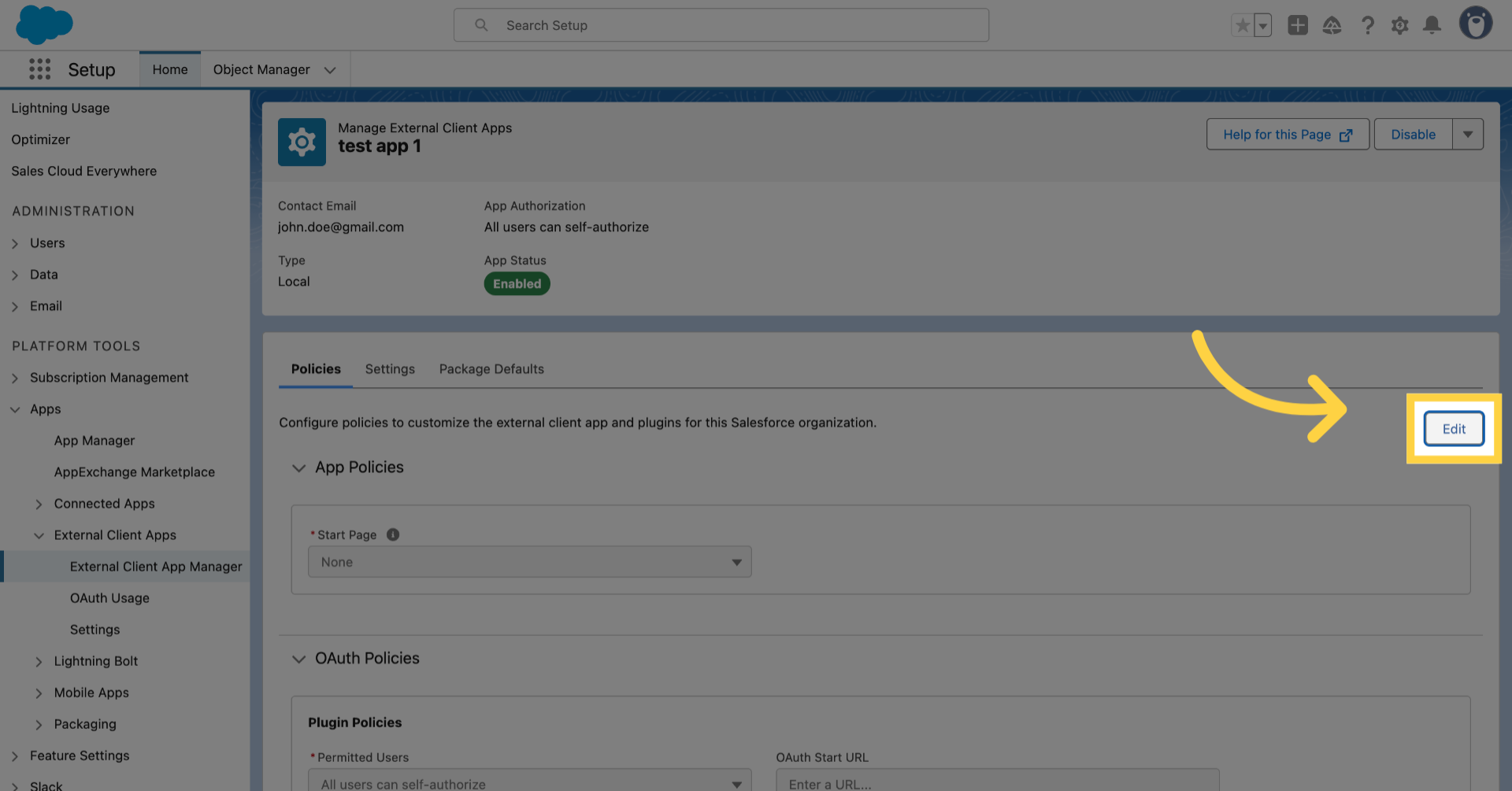
21. Click "Edit"

Click 'Edit'

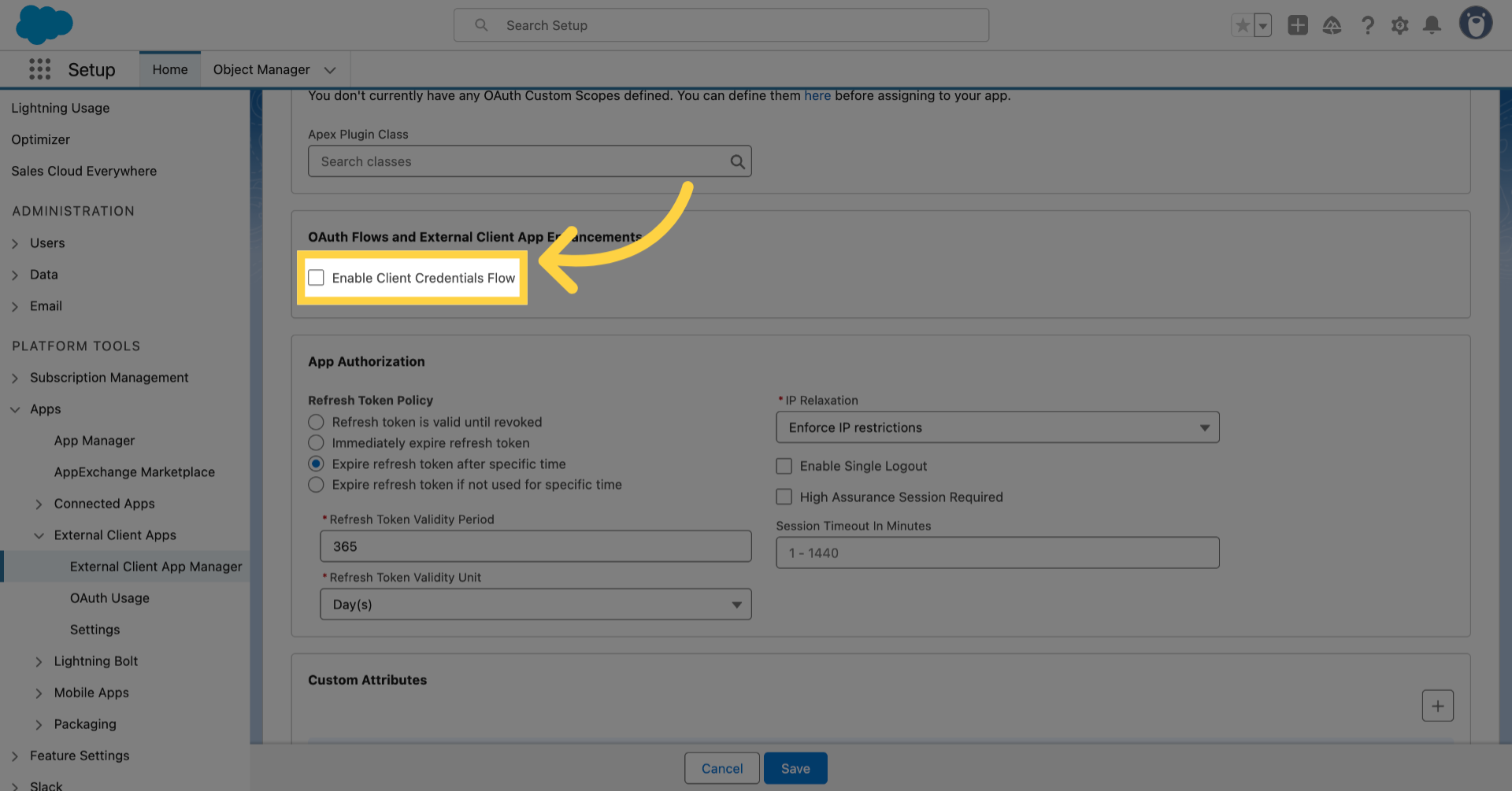
22. Enable Client Credentials Flow

Enable Client Credentials Flow

23. Put your username/email address
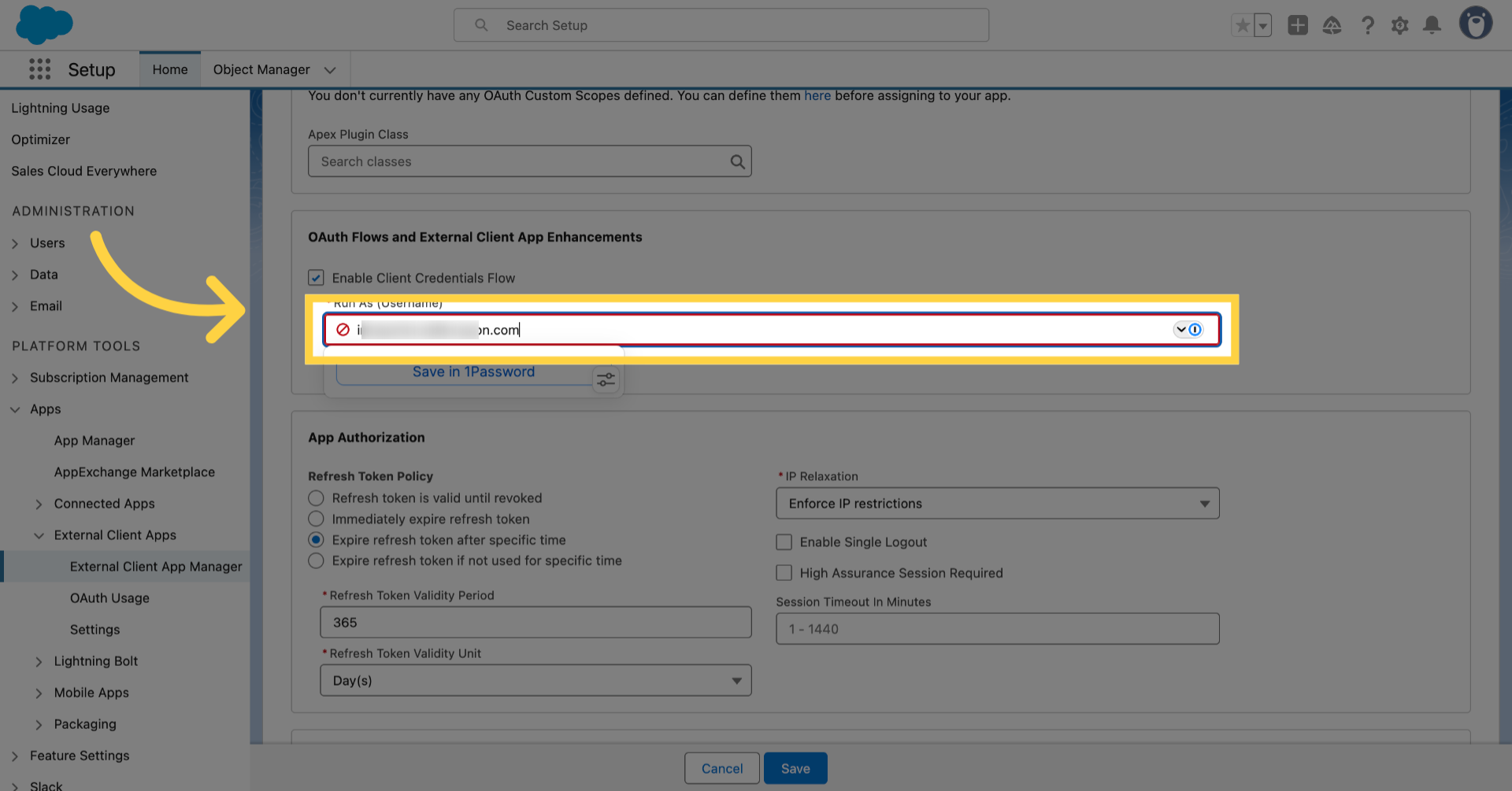
Put your username/email address

24. Click "Save"
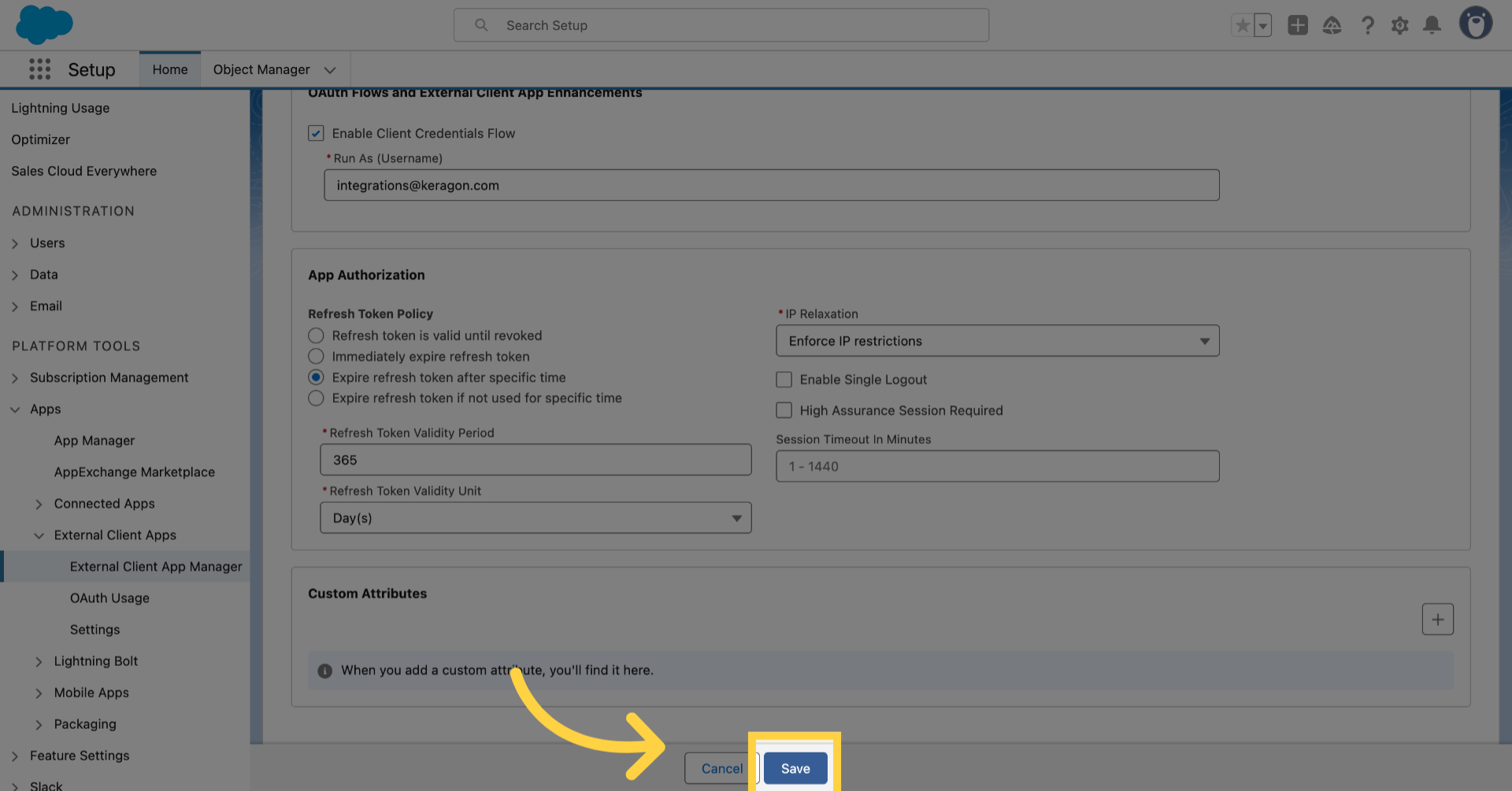
Click 'Save'

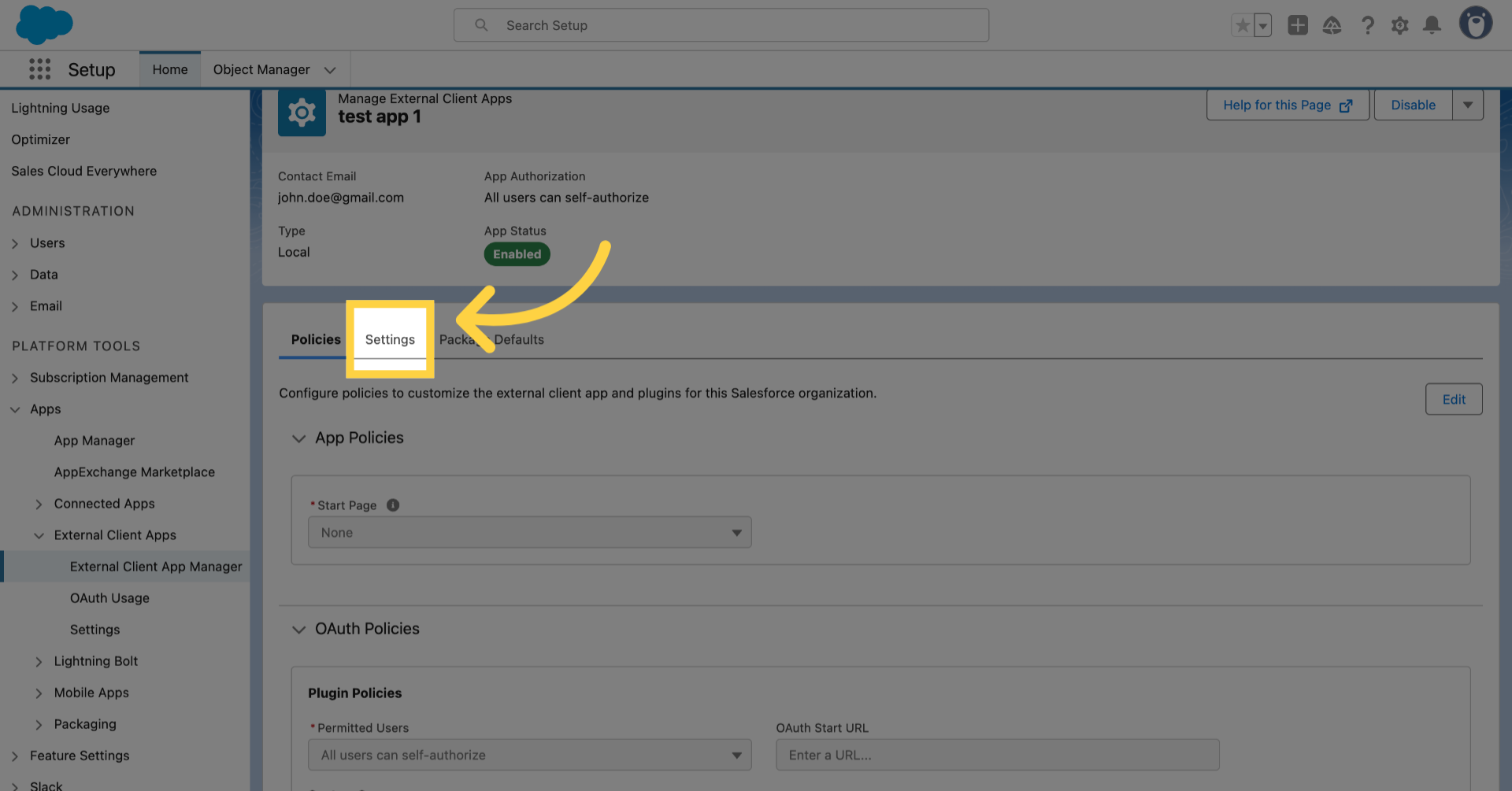
25. Click "Settings"

Click 'Settings'

26. Click "OAuth Settings"

Click 'OAuth Settings'

27. Click "Consumer Key and Secret" then Copy/Paste to Keragon for the Client ID and Secret
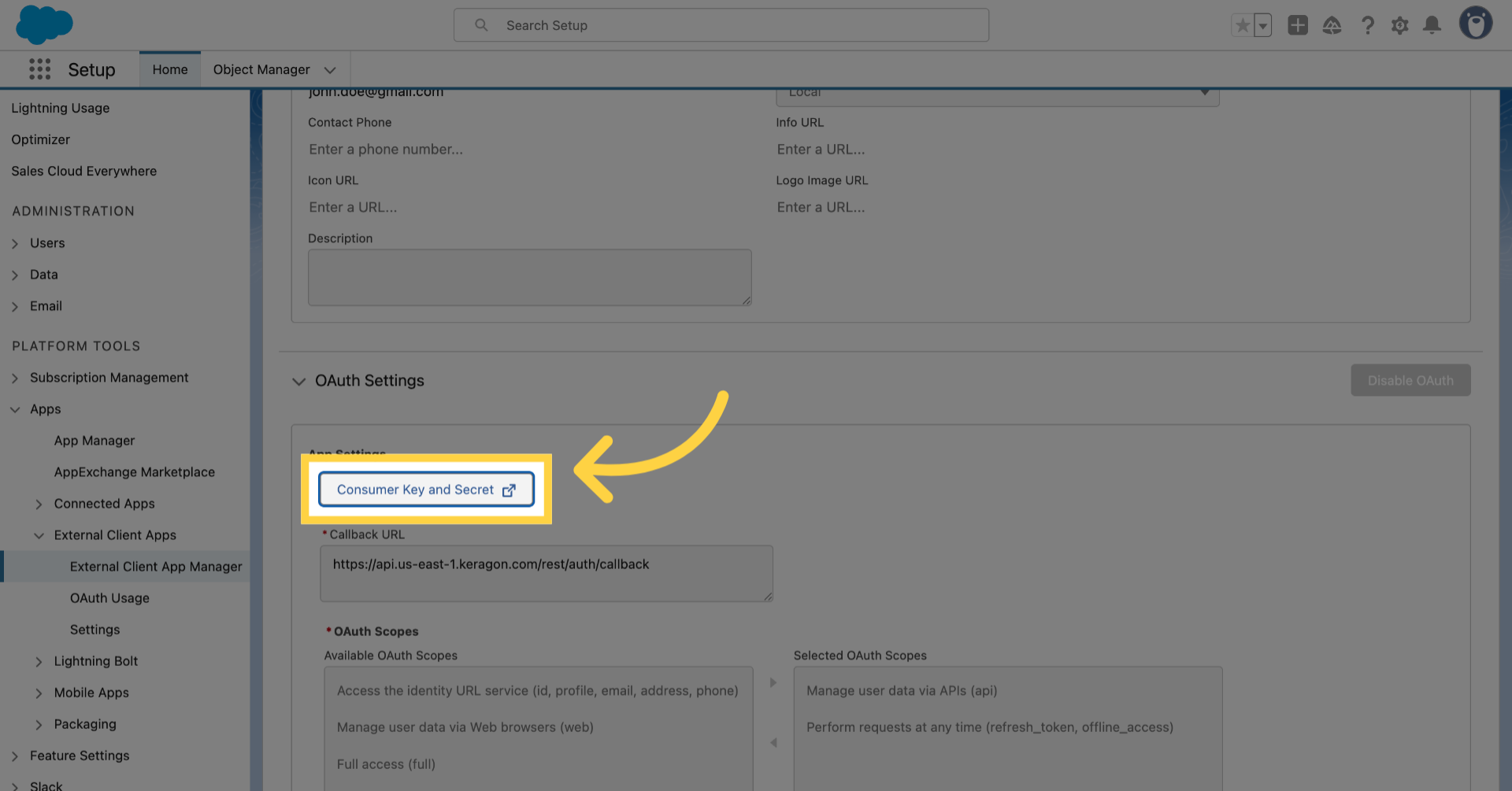
Click 'Consumer Key and Secret' then Copy/Paste to Keragon for the Client ID and Secret

Was this article helpful?
2 out of 2 found this helpful

Articles in this section